
If you've spent any time configuring user authentication on... Full Story
By Manny Fernandez
November 11, 2026
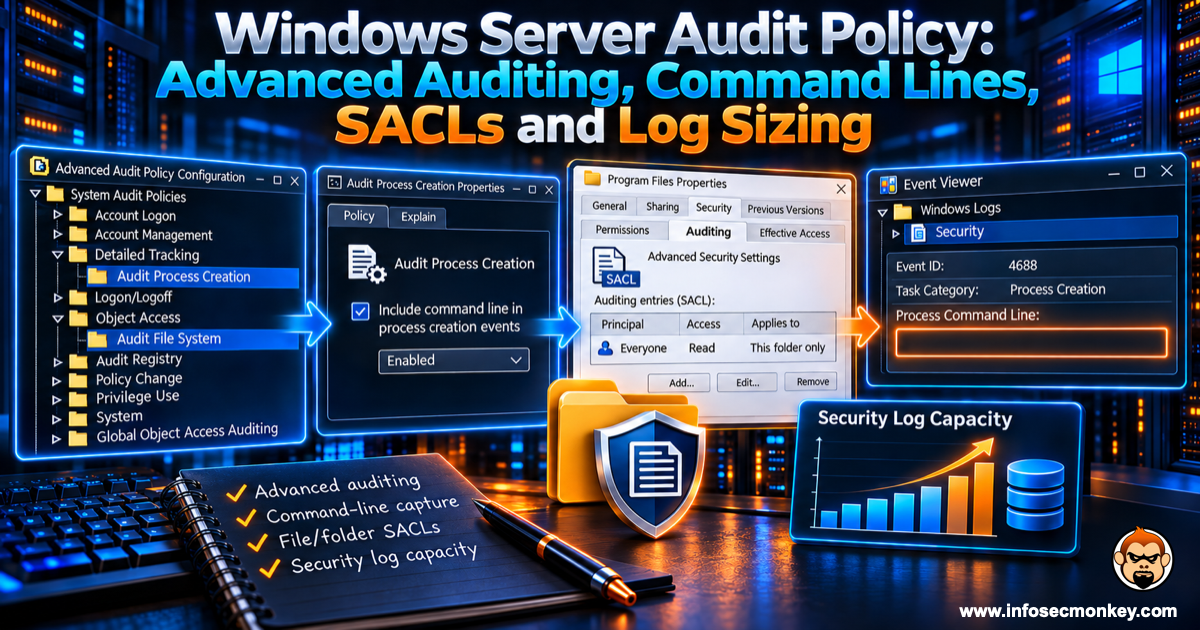
Windows Server Audit Policy: Advanced Auditing, Command Lines, SACLs and Log Sizing
InfoSecMonkey Practitioner Guide
Advanced Audit Policy, command line capture, SACLs, and log sizing, start to finish
Executive Summary
Objective: build a Windows Server audit policy that records the events an investigator will ask for (logons, account changes, process launches with full command lines, sensitive file access, policy tampering) without burying the Security log in noise.
Target audience: Windows administrators, security engineers, and SOC analysts who own the servers that feed a SIEM. Applies to Windows Server 2016, 2019, 2022, and 2025.
A default Windows Server install audits very little. Out of the box you get basic logon events and not much else: no process creation, no file access, no command lines. When an incident happens, the question is never whether the attacker left traces. It is whether the server was told to write them down. This guide configures that, in the order you would actually deploy it.
Prerequisites and Architecture
Assumed knowledge
- Comfortable with Group Policy Management Console (GPMC) and OU-linked GPOs
- Able to run an elevated PowerShell session on the target servers
- Basic familiarity with Event Viewer and the Security log
Lab environment
| Component | Hostname | Address | Role |
|---|---|---|---|
| Domain controller | DC01 |
10.0.10.10 | AD DS, GPMC, Windows Server 2025 |
| File server | FS01 |
10.0.20.10 | Member server, hosts D:\Shares\Finance |
| Log collector | SIEM01 |
10.0.30.50 | Optional: WEF collector or SIEM agent target |
| Domain | corp.example.com |
n/a | Servers live in OU=Servers |
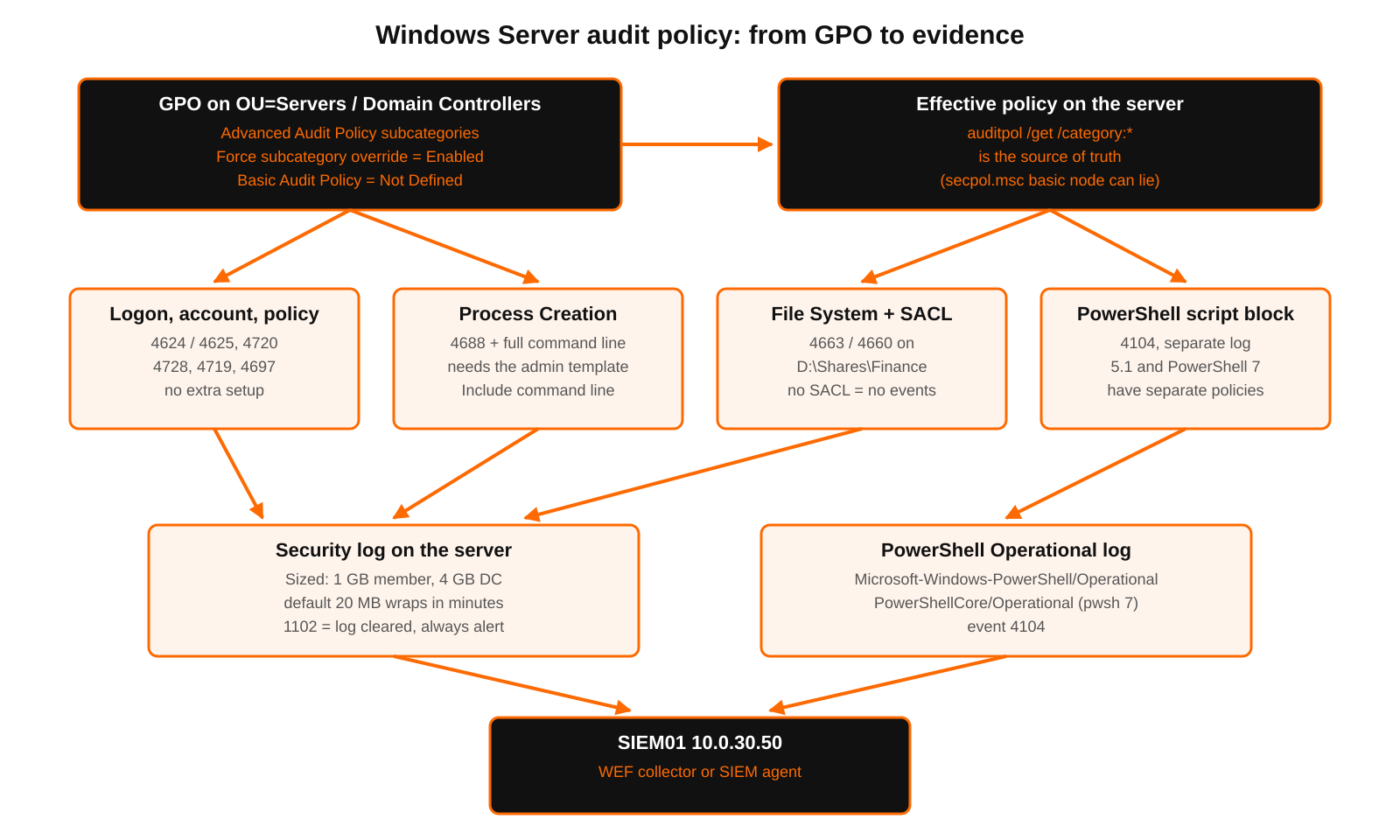
Figure 1: How the Windows Server audit policy turns into evidence
Basic vs. Advanced audit policy
Windows has two audit policy systems, and mixing them is the number one reason audit settings appear to do nothing.
| Basic audit policy | Advanced audit policy | |
|---|---|---|
| Location | Security Settings > Local Policies > Audit Policy | Security Settings > Advanced Audit Policy Configuration |
| Granularity | 9 broad categories | More than 50 subcategories in 10 categories |
| Noise control | All or nothing per category | Enable only the subcategories you need |
| Use it? | No. Legacy only. | Yes. This guide uses it exclusively. |
Example: the basic category Audit object access turns on file system, registry, kernel object, SAM, filtering platform, and a dozen other subcategories in one click. The advanced policy lets you enable File System and File Share and leave the rest off.
Step-by-Step Implementation
Step 1: Baseline and back up the current policy
Goal: know what is audited today and keep a restore point.
Action: on each server in scope, from an elevated prompt:
# Show the effective policy for every subcategory
auditpol /get /category:*

# Save a restore point
New-Item -ItemType Directory -Path C:\AuditBaseline -Force | Out-Null
auditpol /backup /file:C:\AuditBaseline\auditpol-before.csv
Verification: the CSV exists and lists one row per subcategory. auditpol is the source of truth for the effective policy. The Local Security Policy snap-in (secpol.msc) can show No auditing under the basic node even when advanced subcategories are active, so do not trust that view.
Step 2: Create the GPO and force subcategory settings
Goal: one GPO for member servers, one for domain controllers, with basic policy prevented from overriding advanced policy.
Action: create and link the GPOs from DC01:
Import-Module GroupPolicy

New-GPO -Name 'SEC-Audit-MemberServers' |
  New-GPLink -Target 'OU=Servers,DC=corp,DC=example,DC=com'

New-GPO -Name 'SEC-Audit-DomainControllers' |
  New-GPLink -Target 'OU=Domain Controllers,DC=corp,DC=example,DC=com'
Then edit each GPO and enable this setting:
- Path: Computer Configuration > Policies > Windows Settings > Security Settings > Local Policies > Security Options
- Setting: Audit: Force audit policy subcategory settings (Windows Vista or later) to override audit policy category settings = Enabled
Verification: after a policy refresh, the registry value is 1:
reg query HKLM\SYSTEM\CurrentControlSet\Control\Lsa /v SCENoApplyLegacyAuditPolicy
Note: Use a separate GPO for domain controllers. The Kerberos and Directory Service subcategories only produce events on DCs, and DC log volume is far higher, so the two roles need different settings and different log sizes.
Step 3: Configure the audit subcategories
Goal: enable the subcategories that carry investigative value and leave the high-volume, low-value ones off.
Action: in each GPO, go to Computer Configuration > Policies > Windows Settings > Security Settings > Advanced Audit Policy Configuration > Audit Policies and set the following. S is Success, F is Failure.
| Category | Subcategory | Setting | Key event IDs |
|---|---|---|---|
| Account Logon | Credential Validation | S + F | 4776 |
| Account Logon | Kerberos Authentication Service (DC) | S + F | 4768, 4771 |
| Account Logon | Kerberos Service Ticket Operations (DC) | S + F | 4769 |
| Account Management | User Account Management | S + F | 4720, 4724, 4726, 4738, 4740 |
| Account Management | Security Group Management | S | 4728, 4732, 4756 |
| Account Management | Computer Account Management | S | 4741, 4743 |
| Detailed Tracking | Process Creation | S | 4688 |
| DS Access | Directory Service Access (DC) | S + F | 4662 |
| DS Access | Directory Service Changes (DC) | S | 5136, 5137, 5141 |
| Logon/Logoff | Logon | S + F | 4624, 4625 |
| Logon/Logoff | Logoff | S | 4634, 4647 |
| Logon/Logoff | Account Lockout | F | 4625 |
| Logon/Logoff | Special Logon | S | 4672, 4964 |
| Logon/Logoff | Other Logon/Logoff Events | S + F | 4778, 4779, 4800, 4801 |
| Logon/Logoff | Group Membership | S | 4627 |
| Object Access | File System | S + F | 4656, 4660, 4663 |
| Object Access | File Share | S + F | 5140, 5142 |
| Object Access | Removable Storage | S + F | 4663 |
| Object Access | Other Object Access Events | S + F | 4698, 4702 |
| Policy Change | Audit Policy Change | S + F | 4719 |
| Policy Change | Authentication Policy Change | S | 4706, 4713 |
| Policy Change | MPSSVC Rule-Level Policy Change | S | 4946, 4947 |
| Privilege Use | Sensitive Privilege Use | S + F | 4673, 4674 |
| System | Security State Change | S | 4608, 4616 |
| System | Security System Extension | S | 4697 |
| System | System Integrity | S + F | 4612, 5038 |
Subcategories to leave off unless you have a specific use case and the log capacity for it:
- Filtering Platform Connection and Filtering Platform Packet Drop (5156, 5157, 5152): one event per connection, thousands per minute on a busy server
- Detailed File Share (5145): one event per file access over SMB
- Handle Manipulation and Kernel Object: enormous volume, little value without targeted SACLs
- Non Sensitive Privilege Use: constant background chatter
For standalone or workgroup servers with no GPO, apply the same baseline with auditpol. Do not run this on domain members that receive the GPO, because the next policy refresh overwrites local changes.
$policy = @(
  @{ N = 'Credential Validation';           S = 'enable';  F = 'enable'  }
  @{ N = 'User Account Management';         S = 'enable';  F = 'enable'  }
  @{ N = 'Security Group Management';       S = 'enable';  F = 'disable' }
  @{ N = 'Computer Account Management';     S = 'enable';  F = 'disable' }
  @{ N = 'Process Creation';                S = 'enable';  F = 'disable' }
  @{ N = 'Logon';                           S = 'enable';  F = 'enable'  }
  @{ N = 'Logoff';                          S = 'enable';  F = 'disable' }
  @{ N = 'Account Lockout';                 S = 'disable'; F = 'enable'  }
  @{ N = 'Special Logon';                   S = 'enable';  F = 'disable' }
  @{ N = 'Other Logon/Logoff Events';       S = 'enable';  F = 'enable'  }
  @{ N = 'Group Membership';                S = 'enable';  F = 'disable' }
  @{ N = 'File System';                     S = 'enable';  F = 'enable'  }
  @{ N = 'File Share';                      S = 'enable';  F = 'enable'  }
  @{ N = 'Removable Storage';               S = 'enable';  F = 'enable'  }
  @{ N = 'Other Object Access Events';      S = 'enable';  F = 'enable'  }
  @{ N = 'Audit Policy Change';             S = 'enable';  F = 'enable'  }
  @{ N = 'Authentication Policy Change';    S = 'enable';  F = 'disable' }
  @{ N = 'MPSSVC Rule-Level Policy Change'; S = 'enable';  F = 'disable' }
  @{ N = 'Sensitive Privilege Use';         S = 'enable';  F = 'enable'  }
  @{ N = 'Security State Change';           S = 'enable';  F = 'disable' }
  @{ N = 'Security System Extension';       S = 'enable';  F = 'disable' }
  @{ N = 'System Integrity';                S = 'enable';  F = 'enable'  }
)

foreach ($p in $policy) {
  auditpol /set /subcategory:"$($p.N)" /success:$($p.S) /failure:$($p.F) | Out-Null
}
auditpol /get /category:*
Verification: in GPMC, the Settings tab of the GPO lists every subcategory under Advanced Audit Configuration. On disk, the settings live in audit.csv under the GPO’s Machine\Microsoft\Windows NT\Audit folder in SYSVOL.
Step 4: Include the command line in process creation events
Goal: make event 4688 record what was run, not just which binary. powershell.exe on its own tells you nothing. powershell.exe -enc JABzAD0A... tells you everything.
Action: in both GPOs:
- Path: Computer Configuration > Policies > Administrative Templates > System > Audit Process Creation
- Setting: Include command line in process creation events = Enabled
Registry equivalent for standalone servers:
$key = 'HKLM:\SOFTWARE\Microsoft\Windows\CurrentVersion\Policies\System\Audit'
New-Item -Path $key -Force | Out-Null
Set-ItemProperty -Path $key -Name ProcessCreationIncludeCmdLine_Enabled `
  -Value 1 -Type DWord
Verification: the value reads back as 1, and new 4688 events carry a populated Process Command Line field. Only processes started after the setting applies are affected.
Note: Command lines can contain secrets, for example a password passed to
net use or a connection string passed to a script. Anyone who can read the Security log can read them. Keep membership of Event Log Readers tight and treat forwarded logs as sensitive data.Step 5: Turn on PowerShell script block logging
Goal: capture the actual script content PowerShell executes, including code that was decoded or downloaded at runtime. This lives outside the Security log but belongs in every server audit baseline.
Action: in both GPOs:
- Path: Computer Configuration > Policies > Administrative Templates > Windows Components > Windows PowerShell
- Setting: Turn on PowerShell Script Block Logging = Enabled
- Optional: Turn on Module Logging = Enabled, module names
*
# Registry equivalent
$key = 'HKLM:\SOFTWARE\Policies\Microsoft\Windows\PowerShell\ScriptBlockLogging'
New-Item -Path $key -Force | Out-Null
Set-ItemProperty -Path $key -Name EnableScriptBlockLogging -Value 1 -Type DWord
Verification: event ID 4104 appears in Applications and Services Logs > Microsoft > Windows > PowerShell > Operational.
Note: Those settings only cover Windows PowerShell 5.1. PowerShell 7 (
pwsh.exe) reads its own policy and writes to its own log, so an attacker who drops a portable pwsh.exe walks right past them. Install the PowerShell 7 templates with the InstallPSCorePolicyDefinitions.ps1 script in $PSHOME, then enable Administrative Templates > PowerShell Core > Turn on PowerShell Script Block Logging. Each PowerShell 7 setting has a Use Windows PowerShell Policy setting checkbox, so you can point it at the 5.1 policy above. Its 4104 events land in PowerShellCore/Operational, so forward that log too.Step 6: Add SACLs for file auditing
Goal: produce file access events for the folders that matter. Enabling the File System subcategory alone generates nothing. Windows only audits objects that carry a System Access Control List (SACL) entry matching the access attempt.
Action: on FS01, add an audit entry to the sensitive share. Audit changes and deletes for everyone. Do not audit Read or Full Control on a busy share unless you want millions of events.
$path = 'D:\Shares\Finance'
$acl  = Get-Acl -Path $path -Audit

$rights = 'Write,Delete,DeleteSubdirectoriesAndFiles,' +
          'ChangePermissions,TakeOwnership'

$rule = New-Object System.Security.AccessControl.FileSystemAuditRule(
  'Everyone',
  $rights,
  'ContainerInherit,ObjectInherit',
  'None',
  'Success,Failure')

$acl.AddAuditRule($rule)
Set-Acl -Path $path -AclObject $acl
GUI path for the same thing: folder Properties > Security > Advanced > Auditing > Add, principal Everyone, type All, applies to This folder, subfolders and files, then select the advanced permissions listed above.
Verification:
(Get-Acl -Path 'D:\Shares\Finance' -Audit).Audit |
  Format-List IdentityReference, FileSystemRights, AuditFlags, InheritanceFlags
Note: For Active Directory objects, the default domain SACL already audits most writes, so enabling Directory Service Changes on the DC GPO is enough to start seeing 5136 events with old and new attribute values.
Step 7: Size the Security log
Goal: keep enough history on the box to survive a collector outage. The default Security log is 20 MB, which a domain controller with this policy can overwrite in minutes.
Action: in both GPOs:
- Path: Computer Configuration > Policies > Administrative Templates > Windows Components > Event Log Service > Security
- Setting: Specify the maximum log file size (KB) =
1048576(1 GB) for member servers,4194304(4 GB) for domain controllers - Leave retention at overwrite as needed, and rely on forwarding for long-term storage
Standalone equivalent (value is in bytes):
wevtutil sl Security /ms:1073741824
Verification:
Get-WinEvent -ListLog Security |
  Format-List LogName, MaximumSizeInBytes, FileSize, RecordCount, LogMode
Note: Local logs are evidence an attacker with admin rights can clear. Forward the Security and PowerShell Operational logs to
SIEM01 (10.0.30.50) with Windows Event Forwarding or your SIEM agent. Event 1102 (audit log cleared) is always recorded and should be a standing alert.Step 8: Apply the policy
Goal: push the GPOs and confirm they won.
gpupdate /force
gpresult /h C:\AuditBaseline\gpresult.html /f
auditpol /get /category:*
Verification: gpresult.html shows both the security option from Step 2 and the Advanced Audit Configuration section coming from your GPO as the winning GPO.
Verification and Validation
Configuration is not the finish line. Generate each event type on purpose and confirm it lands.
Expected auditpol output
System audit policy
Category/Subcategory                      Setting
System
  Security System Extension               Success
  System Integrity                        Success and Failure
  Security State Change                   Success
Logon/Logoff
  Logon                                   Success and Failure
  Logoff                                  Success
  Account Lockout                         Failure
  Special Logon                           Success
Detailed Tracking
  Process Creation                        Success
Object Access
  File System                             Success and Failure
  File Share                              Success and Failure
Test 1: failed logon (4625)
# Generate a failure from any domain machine
net use \\FS01\IPC$ /user:corp\nosuchuser WrongPass1

# Confirm on FS01
Get-WinEvent -FilterHashtable @{ LogName = 'Security'; Id = 4625 } -MaxEvents 3 |
  Select-Object TimeCreated,
    @{ n = 'User'; e = { $_.Properties[5].Value } },
    @{ n = 'SourceIP'; e = { $_.Properties[19].Value } }
Test 2: process creation with command line (4688)
whoami /groups | Out-Null

Get-WinEvent -FilterHashtable @{ LogName = 'Security'; Id = 4688 } -MaxEvents 20 |
  Select-Object TimeCreated,
    @{ n = 'Process'; e = { $_.Properties[5].Value } },
    @{ n = 'CommandLine'; e = { $_.Properties[8].Value } } |
  Where-Object CommandLine -like '*whoami*'
Success looks like a row with C:\Windows\System32\whoami.exe and the full whoami /groups command line. An empty CommandLine column means Step 4 did not apply.
Test 3: file modification and deletion (4663, 4660)
Set-Content -Path 'D:\Shares\Finance\audit-test.txt' -Value 'test'
Remove-Item  -Path 'D:\Shares\Finance\audit-test.txt'

$filter = @{ LogName = 'Security'; Id = 4663, 4660 }
Get-WinEvent -FilterHashtable $filter -MaxEvents 10 |
  Format-Table TimeCreated, Id,
    @{ n = 'Summary'; e = { ($_.Message -split "`n")[0] } } -Wrap
Test 4: audit policy tampering (4719)
auditpol /set /subcategory:"Logoff" /success:disable
Get-WinEvent -FilterHashtable @{ LogName = 'Security'; Id = 4719 } -MaxEvents 1 |
  Format-List TimeCreated, Message
gpupdate /force   # GPO puts the setting back
Event ID quick reference
| Event ID | Meaning | Why you care |
|---|---|---|
| 4624 / 4625 | Logon success / failure | Lateral movement, password spraying |
| 4672 | Special privileges assigned at logon | Admin-equivalent sessions |
| 4688 | Process created | Execution, with command line |
| 4697 | Service installed | Persistence, remote execution tools |
| 4698 | Scheduled task created | Persistence |
| 4720 / 4726 | User created / deleted | Rogue accounts |
| 4728 / 4732 / 4756 | Member added to a security group | Privilege escalation |
| 4740 | Account locked out | Brute force, stale credentials |
| 4663 / 4660 | Object accessed / deleted | Data tampering, ransomware |
| 4719 | Audit policy changed | Defense evasion |
| 1102 | Security log cleared | Defense evasion |
| 4104 | PowerShell script block (PowerShell Operational logs) | Script content |
Troubleshooting and Gotchas
1. The GPO is configured but auditpol shows No Auditing
Cause: a basic audit policy from another GPO (often the Default Domain Controllers Policy or Default Domain Policy) is overriding the advanced settings, or the force setting from Step 2 never applied.
reg query HKLM\SYSTEM\CurrentControlSet\Control\Lsa /v SCENoApplyLegacyAuditPolicy
gpresult /r /scope:computer
Resolution: enable the force setting, set every basic audit entry under Local Policies > Audit Policy back to Not Defined in all linked GPOs, run gpupdate /force, and check auditpol again.
2. 4688 events appear but the command line is blank
Cause: Process Creation auditing is on, but the administrative template from Step 4 is not.
reg query HKLM\SOFTWARE\Microsoft\Windows\CurrentVersion\Policies\System\Audit `
  /v ProcessCreationIncludeCmdLine_Enabled
Resolution: enable the setting and refresh policy. Existing processes are not re-logged, so test with a new process.
3. File System auditing is on but there are no 4663 events
Cause: no SACL on the object, or the SACL audits rights that do not match the access. A SACL that audits Delete will not log a read.
auditpol /get /subcategory:"File System"
(Get-Acl -Path 'D:\Shares\Finance' -Audit).Audit
Resolution: add or correct the audit rule from Step 6 and confirm inheritance reaches the files. To audit a file type across an entire server without touching individual folders, use Global Object Access Auditing > File system in the same Advanced Audit Policy node.
4. The Security log wraps in hours
Cause: the log is undersized, or a noisy subcategory is enabled. Find the top talkers before raising the size:
Get-WinEvent -LogName Security -MaxEvents 20000 |
  Group-Object Id | Sort-Object Count -Descending |
  Select-Object -First 10 Count, Name
Resolution: if 5156, 5145, or 4658 dominate, turn off Filtering Platform Connection, Detailed File Share, or Handle Manipulation. If 4663 dominates, narrow the SACL. Then size the log per Step 7.
Rollback
auditpol /restore /file:C:\AuditBaseline\auditpol-before.csv
Unlink the GPO first, or the next refresh reapplies it. Avoid auditpol /clear on production servers: it wipes every subcategory and per-user setting in one shot.
Windows Server Audit Policy: Wrap-Up
The whole build comes down to five moves: force advanced policy over basic, enable the subcategories that matter, capture command lines, put SACLs where the data lives, and give the log enough room while you ship it somewhere an attacker cannot reach. Do those five and the Security log stops being a formality and starts being evidence.
Sources
- Microsoft Learn: Advanced security audit policy settings
- Microsoft Learn: Audit policy recommendations for Windows Server
- Microsoft Learn: Audit: Force audit policy subcategory settings to override audit policy category settings
- Microsoft Learn: Audit Account Lockout
- Microsoft Learn: Event 4625, an account failed to log on
- Microsoft Learn: Command line process auditing
- Microsoft Learn: about_Logging_Windows (PowerShell script block logging)
- Microsoft Learn: about_Group_Policy_Settings (PowerShell 7 policy templates)
- Microsoft Learn: auditpol command reference
- Microsoft Learn: auditpol backup
- Microsoft Learn: auditpol restore
InfoSecMonkey | No fluff. Just the config that works.
Recent posts
-

-

DNS is one of those technologies that quietly underpins... Full Story
-

BGP issues on FortiGate firewalls usually trace back to... Full Story
-

Every time your laptop talks to your router, a... Full Story
-

If you've spent any time configuring NAT on a... Full Story
-

If you have spent any time configuring firewall policies... Full Story
-

High availability on FortiGate is one of those features... Full Story
-

If you've configured SD-WAN on a FortiGate, you've almost... Full Story
-

FortiLink is the management protocol that turns a FortiSwitch... Full Story
-

FortiSwitches are pretty rock solid from Mean Time Between... Full Story
-

This is a quicky tip. Have you ever gone... Full Story
-

DNS is one of those quiet pieces of internet... Full Story
-

This article is an updated version of the previous... Full Story
-

You will add ns2 as a secondary (slave) BIND9... Full Story
-

In the process of deploying my lab, I needed... Full Story
-

RFC 8805, used to be known as Self-Correcting IP... Full Story
-

Years back, I wrote an article about certificate pinning. ... Full Story
-

FortiGates have the ability to send alerts to Microsoft... Full Story
-

In this post, I am going to walk through... Full Story
-

Troubleshooting VoIP on a FortiGate can feel like trying... Full Story
-

Prior to FortiOS 7.0, there were three commands to... Full Story
-

In this post, I am going to go over... Full Story
-

What we are going to do: We are going... Full Story
-

Choosing between FGCP (FortiGate Clustering Protocol) and FGSP (FortiGate... Full Story
-

Creating a VLAN on macOS (The "Pro" Move) A... Full Story
-

This blog post explores the logic behind how macOS... Full Story
-

Pretty Fly for a Wi-Fi Tell My Wi-Fi Love... Full Story
-

Part of my daily gig is creating BoMs (Bill-of-Materials)... Full Story
-

ICMP introduces several security risks, but careful filtering, rate... Full Story
-

The command diag debug application dhcps -1 enables full... Full Story
-

In the world of FortiOS, execute tac report is... Full Story
-

LLDP; What is it The Link Layer Discovery Protocol... Full Story
-

What it actually does When you run diagnose fdsm... Full Story
-

Monkey Bites are bite-sized, high-impact security insights designed for... Full Story
-

I have run macOS in macOS with Parallels but... Full Story
-

Don't be confused with my other FortiNAC posts where... Full Story
-

This is the third session in a multi-part article... Full Story
-

Today I was configuring key-based authentication on a FortiGate... Full Story
-

Netcat, often called the "Swiss Army knife" of networking,... Full Story
-

At its core, IEEE 802.1X is a network layer... Full Story
-

In case you did not see the previous FortiNAC... Full Story
-

This is our 5th session where we are going... Full Story
-

Now that we have Wireshark installed and somewhat configured,... Full Story
-

The Philosophy of Packet Analysis Troubleshooting isn't about looking... Full Story
-

InfoSecMonkey Practitioner Guide Advanced Audit Policy, command line capture,... Full Story
-

No fluff. Just the config that works. Fortinet's November... Full Story
-

FortiGuard PSIRT · FG-IR-26-188 · CVE-2026-98432 No fluff. Just... Full Story