
If you've spent any time configuring user authentication on... Full Story
By Manny Fernandez
June 23, 2026
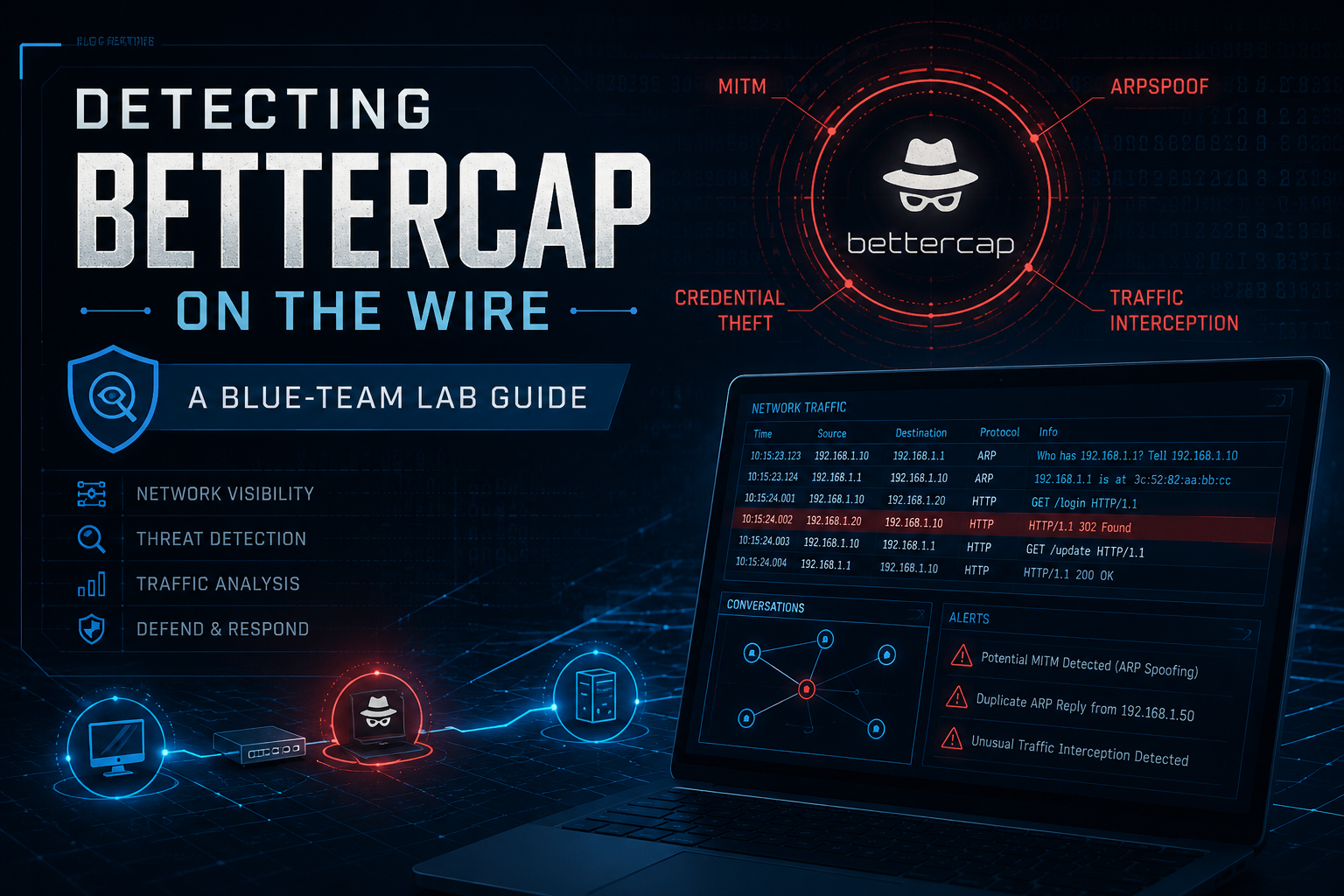
Detecting Bettercap on the Wire: Building a Blue-Team Lab to Identify and Alert on Layer-2 MitM Activity
1. Objective
This guide builds an isolated detection lab and walks through identifying the network artifacts that Bettercap and similar man-in-the-middle (MitM) frameworks leave behind. The goal is to teach defenders what ARP poisoning, rogue DNS, and credential-interception activity look like from the blue-team side, so they can write durable detections rather than chase one tool’s signature.
Target Audience: Network and security engineers, SOC analysts, detection engineers, and security students who want hands-on familiarity with how Layer-2 MitM attacks present in logs, packet captures, and IDS alerts. Mixed practitioner audience: no prior offensive-tooling experience is assumed, but comfort with a CLI and basic TCP/IP is.
Scope and ethics note: Everything here runs inside a self-contained lab you own. Running ARP or DNS interception against networks, devices, or users you do not have written authorization to test is illegal in most jurisdictions. This guide deliberately focuses on the defender’s view (capture, detect, alert) and treats the attacker host as a known, contained variable whose traffic we are studying, not a capability we are spreading.
2. Prerequisites and Architecture
Assumed Knowledge
The reader should understand the ARP request/reply cycle and why ARP has no authentication, the difference between a switch’s CAM table and a host’s ARP cache, basic DNS resolution flow, and how to read a packet capture in Wireshark or `tshark`. Familiarity with one Linux distribution and `systemd` service basics is helpful.
Environment and Lab Requirements
This lab is built to be fully isolated. Nothing here should touch a production VLAN or a network with real users.
* A type-1 or type-2 hypervisor: Proxmox VE, VMware ESXi/Workstation, or VirtualBox. Proxmox is used for examples.
* One isolated virtual network / internal-only vSwitch with no uplink to production. In Proxmox this is a Linux bridge with no physical port assigned; in VirtualBox it is an “Internal Network.”
* Three guest VMs (specs below). 2 vCPU / 2 GB RAM each is plenty.
* A current Kali or Parrot image for the contained attacker host (Bettercap ships in both repos).
* Ubuntu Server 24.04 LTS (or similar) for the monitoring host.
* Any lightweight Linux or Windows image for the victim host.
* Snapshots taken on all three VMs before you begin, so you can reset to a clean state between runs.
Component Table
| Component | Role | Example IP / FQDN |
| lab-attacker | Contained host running the MitM framework (the thing we are detecting) | 10.10.10.5 |
| lab-victim | Target host whose traffic gets intercepted in the lab | 10.10.10.20 |
| lab-gw | Lab gateway / router (pfSense VM or the hypervisor) | 10.10.10.1 |
| lab-monitor | Detection host: Suricata + Arpwatch + packet capture | 10.10.10.50 |
| Isolated bridge | Internal-only L2 segment, no production uplink | vmbr-lab (no NIC) |
A note on visibility: on a real switch, a monitoring host only sees broadcast traffic and its own unicast unless you configure a SPAN/mirror port. In this lab the simplest approach is to run the monitor on the same broadcast domain (ARP poisoning is broadcast-heavy, so a normal port already sees most of the signal) and, if your virtual switch supports it, enable promiscuous mode on lab-monitor‘s NIC to capture mirrored unicast as well.
3. Step-by-Step Implementation Workflow
Phase 1: Stand Up the Isolated Segment
The Goal: Create an L2 segment that cannot reach production, so all subsequent traffic study is contained.
The Action: Create an internal-only bridge and attach all three VMs to it. Verify there is no route off the segment.
Config (Proxmox /etc/network/interfaces snippet for the isolated bridge):
auto vmbr-lab
iface vmbr-lab inet manual
bridge-ports none
bridge-stp off
bridge-fd 0
# No bridge-ports => no physical uplink => isolated L2 segment
GUI Verification: In Proxmox, go to Datacenter > Node > System > Network. Confirm vmbr-lab shows no value under “Bridge Ports.” On each VM, Hardware > Network Device should be attached to vmbr-lab.
Validation of isolation: From lab-victim, confirm you cannot reach anything outside the lab:
ping -c 2 10.10.10.1# lab gateway, should succeed
ping -c 2 8.8.8.8# internet, should FAIL or be unreachable
If the second command succeeds, the segment is not isolated. Stop and fix the bridge before continuing.
Phase 2: Establish a Clean Baseline on the Monitor
The Goal: Record what “normal” looks like before any MitM activity, so deviations stand out.
The Action: On lab-monitor, install capture and ARP-watch tooling and record a baseline ARP table and a short clean capture.
CLI:
sudo apt update
sudo apt install -y tshark arpwatch suricata
# Record the current, trusted ARP mapping for the gateway and victim
ip neigh show > ~/baseline-arp.txt
cat ~/baseline-arp.txt
# Expect one stable MAC per IP, e.g.:
# 10.10.10.1 dev ens18 lladdr 52:54:00:aa:bb:01 REACHABLE
# 10.10.10.20 dev ens18 lladdr 52:54:00:aa:bb:20 REACHABLE
# Capture 60 seconds of clean baseline traffic
sudo timeout 60 tshark -i ens18 -w ~/baseline.pcap
What to note: Write down the real MAC of lab-gw (10.10.10.1). The single most reliable Bettercap detection is watching for that IP suddenly resolving to a different MAC. That is the heart of ARP poisoning: the attacker convinces the victim that the gateway’s IP lives at the attacker’s MAC.
Phase 3: Configure Arpwatch for Change Alerts
The Goal: Get an automatic alert the instant an IP-to-MAC binding changes.
The Action: Point Arpwatch at the lab interface and start it. Arpwatch logs a `changed ethernet address` event whenever a known IP starts answering from a new MAC, which is precisely the ARP-poisoning fingerprint.
Config (/etc/arpwatch.conf, one interface line):**
# interface options
ens18 -m root@localhost
CLI:
sudo systemctl enable --now arpwatch
sudo systemctl status arpwatch --no-pager
journalctl -u arpwatch -f# tail live; leave this running in a pane
GUI Verification: Arpwatch is CLI-only; its output lands in syslog. If you forward syslog to a SIEM, create a saved search for the strings changed ethernet address and flip flop (the latter fires when an IP rapidly alternates between two MACs, a classic poisoning tell).
Phase 4: Deploy Suricata with ARP-Spoof and DNS Detection
The Goal: Add signature- and anomaly-based detection so you are not relying on Arpwatch alone.
The Action: Enable Suricata’s built-in ARP-spoofing anomaly detection and add a focused custom rule set. Suricata’s arp keyword (modern versions) can flag mismatched or conflicting ARP replies.
Config (/etc/suricata/suricata.yaml, set the lab interface and home net):
af-packet:
- interface: ens18
cluster-id: 99
cluster-type: cluster_flow
defrag: yes
vars:
address-groups:
HOME_NET: "[10.10.10.0/24]"
Custom rules (/etc/suricata/rules/local-mitm.rules):
# Alert on any DNS reply that resolves an internal/known host to an
# unexpected answer. Tune <protected_fqdn> to a name you control in-lab.
alert dns any any -> any any (msg:"LAB MitM - suspicious DNS reply for protected name"; \
dns.query; content:"<protected_fqdn>"; nocase; sid:9000001; rev:1;)
# Alert on plaintext HTTP POST to a login path from the victim, the kind of
# credential traffic an attacker would harvest once in the middle.
alert http $HOME_NET any -> any any (msg:"LAB MitM - plaintext credential POST observed"; \
flow:established,to_server; http.method; content:"POST"; http.uri; content:"login"; \
nocase; sid:9000002; rev:1;)
Add the rule file to the rule-files: list in suricata.yaml, then start the engine:
sudo suricata -T -c /etc/suricata/suricata.yaml # config test, should say "Configuration provided was successfully loaded"
sudo systemctl enable --now suricata
sudo tail -f /var/log/suricata/fast.log# live alert tail
GUI Verification: If you front Suricata with EveBox or a SIEM consuming eve.json, filter on alert.signature_id values 9000001 and 9000002 plus Suricata’s stock anomaly events.
Phase 5: Generate the Activity You Want to Detect (Contained)
The Goal: Produce the MitM artifacts on lab-attacker so your detections have something to catch. We stay at the level of enabling the generic capability category and observing it, not optimizing an attack.
The Action: On the contained lab-attacker, enable Bettercap’s ARP-spoof and DNS-spoof modules pointed only at the lab victim, while you watch the monitor. The detection mechanics, not the attack tuning, are the point. Bettercap exposes these as modules toggled inside its interactive session:
# Inside the bettercap session on the contained lab host only:
set arp.spoof.targets 10.10.10.20 # the lab victim, nothing else
arp.spoof on
net.sniff on
That is intentionally the whole attacker-side recipe. It is enough to light up every detection below, and it is the same coarse capability any ARP-poisoning tool exposes. If you want a deeper offensive walkthrough, that belongs in a sanctioned, written-authorization engagement, not a public guide.
Immediately switch to lab-monitor. The rest of the value is on the defender’s screen.
4. Verification and Validation
Run these on lab-monitor while the contained activity is live. Each maps to a real-world detection you would deploy in production.
1. ARP cache divergence (the definitive tell). Re-read the neighbor table and compare to baseline:
ip neigh show | grep 10.10.10.1
diff <(ip neigh show) ~/baseline-arp.txt
Success looks like: the gateway IP 10.10.10.1 now resolves to the attacker’s MAC instead of the real one you recorded in Phase 2. A changed MAC for the gateway IP is the single highest-confidence indicator.
2. Arpwatch event. Check the journal you left tailing:
journalctl -u arpwatch --since "5 minutes ago" | grep -Ei "changed ethernet|flip flop"
Success looks like: a changed ethernet address line for 10.10.10.1, and often flip flop entries as the binding oscillates.
3. Duplicate / conflicting ARP in the capture. Wireshark ships a named filter for exactly this:
sudo tshark -i ens18 -Y "arp.duplicate-address-detected || arp.duplicate-address-frame" -c 20
Success looks like: Wireshark/tshark flagging “duplicate use of <IP> detected” because two MACs now claim the same IP. A high *rate* of gratuitous ARP replies is itself anomalous; legitimate hosts rarely broadcast unsolicited replies in bursts.
4. Suricata alerts. Confirm the engine fired:
grep -E "9000001|9000002|ARP" /var/log/suricata/fast.log | tail
Success looks like: your custom MitM signatures and/or Suricata’s anomaly events appearing with the victim and attacker addresses.
5. DNS answer mismatch. If DNS spoofing is part of the run, compare what the victim resolves against ground truth:
# From lab-victim:
dig +short <protected_fqdn>
# Compare to the real record; a mismatch (pointing at the attacker IP) confirms spoofed DNS.
Success looks like: the victim receiving an answer that points to the attacker’s IP rather than the legitimate record.
5. Troubleshooting and Gotchas
Gotcha 1: The monitor sees broadcasts but no victim unicast. On a switched/virtual segment, a normal port only receives its own unicast plus broadcast. ARP poisoning is broadcast-heavy so you still catch the core signal, but post-poisoning data flows are unicast and may be invisible.
Diagnose: sudo tshark -i ens18 -Y "ip.addr==10.10.10.20" -c 5 returns nothing during a known-active session.
Resolve: enable promiscuous mode on the monitor NIC (sudo ip link set ens18 promisc on) and, where the virtual switch supports it, set the vSwitch/port group to allow promiscuous mode (in VMware, set “Promiscuous Mode: Accept”; in Proxmox the Linux bridge already floods to promisc taps). For production, this is what a SPAN/mirror port solves.
Gotcha 2: Arpwatch is silent even though poisoning is happening. Arpwatch only alerts on changes to bindings it already knows. If it has never seen the legitimate gateway MAC, the attacker’s MAC looks like a first sighting (new station), not a change.
Diagnose: journalctl -u arpwatch | grep "new station" shows the gateway IP being learned fresh during the attack window.
Resolve: let Arpwatch run on the clean baseline first (Phase 2/3) so it learns true bindings before any test. Reset its database (/var/lib/arpwatch/) and re-baseline if it learned a poisoned mapping by accident.
Gotcha 3: Suricata loads but never alerts on ARP. ARP is a Layer-2 protocol; if Suricata is capturing on an interface that only receives L3-decapsulated traffic, or the arp keyword is unsupported in your build, ARP rules silently never match.
Diagnose: sudo suricata --build-info | grep -i af-packet confirms AF_PACKET capture, and grep arp /var/log/suricata/stats.log shows whether any ARP was parsed at all.
Resolve: capture with AF_PACKET directly on the L2 interface (not a tunnel or L3 sub-interface), confirm your Suricata version supports the arp keyword, and lean on Arpwatch plus the duplicate-address tshark filter as independent confirmation. Defense in depth across multiple detectors is the point: no single sensor should be your only ARP-poisoning tripwire.
Closing note for defenders
The durable lesson is not “how to spot one tool.” It is that ARP has no authentication, so the gateway IP binding to an unexpected MAC, a burst of unsolicited ARP replies, and DNS answers that disagree with ground truth are the protocol-level fingerprints of any L2 MitM, regardless of which framework produced them. Production controls that raise the cost of this attack include Dynamic ARP Inspection (DAI) with DHCP snooping on managed switches, static ARP entries for critical gateways, port security, and 802.1X. Build the detections in the lab, then push the preventions to the switch.
Recent posts
-

-

DNS is one of those technologies that quietly underpins... Full Story
-

BGP issues on FortiGate firewalls usually trace back to... Full Story
-

Every time your laptop talks to your router, a... Full Story
-

If you've spent any time configuring NAT on a... Full Story
-

If you have spent any time configuring firewall policies... Full Story
-

High availability on FortiGate is one of those features... Full Story
-

If you've configured SD-WAN on a FortiGate, you've almost... Full Story
-

FortiLink is the management protocol that turns a FortiSwitch... Full Story
-

FortiSwitches are pretty rock solid from Mean Time Between... Full Story
-

This is a quicky tip. Have you ever gone... Full Story
-

DNS is one of those quiet pieces of internet... Full Story
-

This article is an updated version of the previous... Full Story
-

You will add ns2 as a secondary (slave) BIND9... Full Story
-

In the process of deploying my lab, I needed... Full Story
-

RFC 8805, used to be known as Self-Correcting IP... Full Story
-

Years back, I wrote an article about certificate pinning. ... Full Story
-

FortiGates have the ability to send alerts to Microsoft... Full Story
-

In this post, I am going to walk through... Full Story
-

Troubleshooting VoIP on a FortiGate can feel like trying... Full Story
-

Prior to FortiOS 7.0, there were three commands to... Full Story
-

In this post, I am going to go over... Full Story
-

What we are going to do: We are going... Full Story
-

Choosing between FGCP (FortiGate Clustering Protocol) and FGSP (FortiGate... Full Story
-

Creating a VLAN on macOS (The "Pro" Move) A... Full Story
-

This blog post explores the logic behind how macOS... Full Story
-

Pretty Fly for a Wi-Fi Tell My Wi-Fi Love... Full Story
-

Part of my daily gig is creating BoMs (Bill-of-Materials)... Full Story
-

ICMP introduces several security risks, but careful filtering, rate... Full Story
-

The command diag debug application dhcps -1 enables full... Full Story
-

In the world of FortiOS, execute tac report is... Full Story
-

LLDP; What is it The Link Layer Discovery Protocol... Full Story
-

What it actually does When you run diagnose fdsm... Full Story
-

Monkey Bites are bite-sized, high-impact security insights designed for... Full Story
-

I have run macOS in macOS with Parallels but... Full Story
-

Don't be confused with my other FortiNAC posts where... Full Story
-

This is the third session in a multi-part article... Full Story
-

Today I was configuring key-based authentication on a FortiGate... Full Story
-

Netcat, often called the "Swiss Army knife" of networking,... Full Story
-

At its core, IEEE 802.1X is a network layer... Full Story
-

In case you did not see the previous FortiNAC... Full Story
-

This is our 5th session where we are going... Full Story
-

Now that we have Wireshark installed and somewhat configured,... Full Story
-

The Philosophy of Packet Analysis Troubleshooting isn't about looking... Full Story
-

InfoSecMonkey Threat Response October 24, 2026 | No fluff.... Full Story
-

InfoSecMonkey Threat Response October 24, 2026 | No fluff.... Full Story
-

Plus what you actually get with FortiCare Essential, Premium... Full Story