
If you've spent any time configuring user authentication on... Full Story
By Manny Fernandez
September 22, 2026
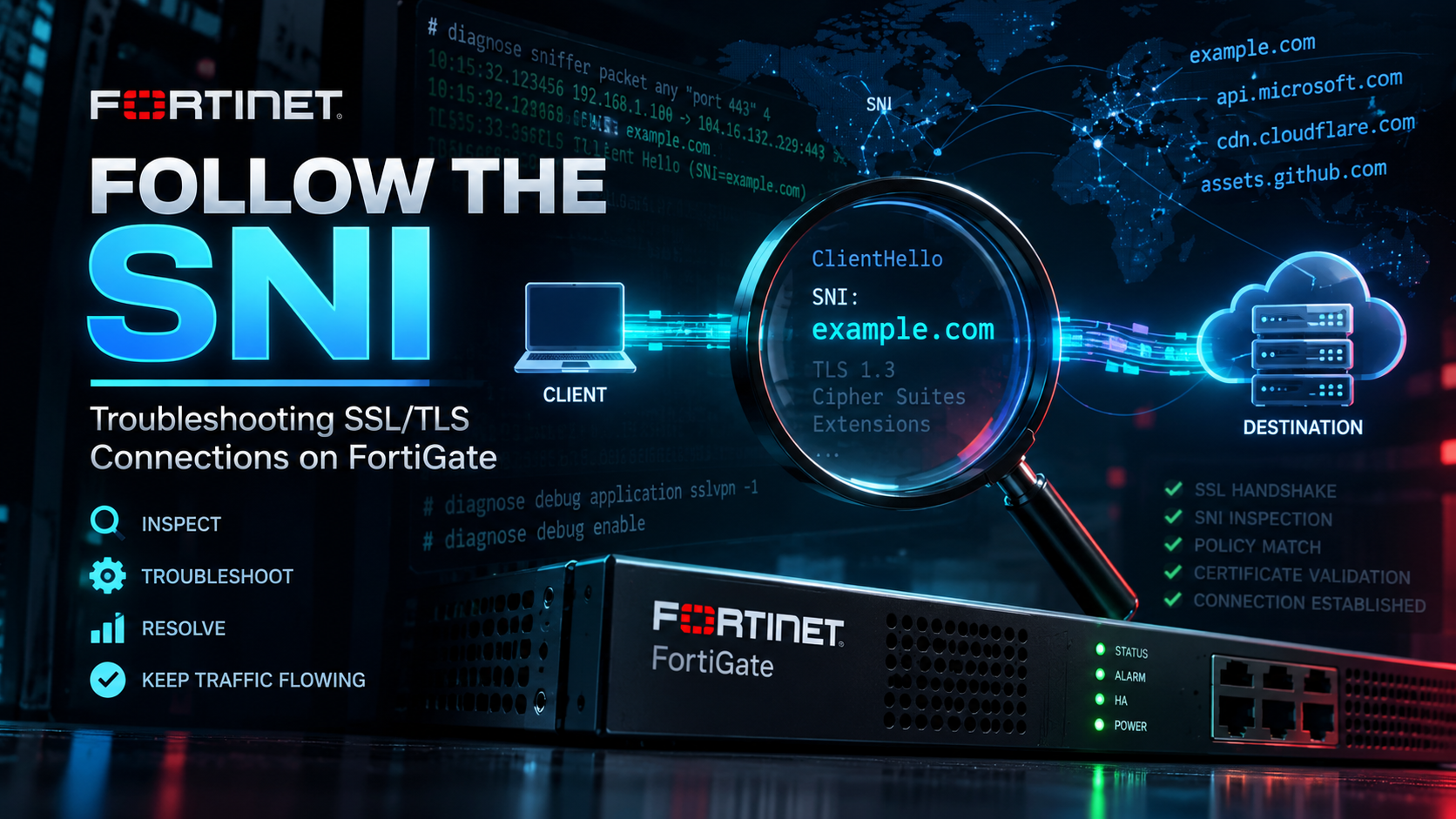
Follow the SNI: Troubleshooting SSL/TLS Connections on FortiGate
Using Server Name Indication to diagnose broken sites, missed exemptions, and mis-categorized HTTPS traffic
Executive Summary
When an HTTPS site breaks behind a FortiGate, the ticket usually says “SSL is broken.” That is a symptom, not a diagnosis. The fastest way to a real diagnosis is to anchor on the Server Name Indication (SNI) value: the hostname the client sends in cleartext inside its TLS ClientHello. Almost every SSL decision the FortiGate makes, from web filter categorization to inspection exemptions to certificate checks, keys off that value or its relationship to the server certificate.
Objective: Build a repeatable workflow that answers three questions for any failing HTTPS session: what SNI did the client send, what certificate did the server return, and what did the FortiGate decide based on those two.
Target audience: FortiGate administrators, systems engineers, and NOC/SOC analysts who already run SSL/SSH inspection profiles and need a faster path from “the site is broken” to root cause.
How the FortiGate Uses SNI
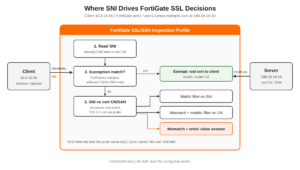
SNI is a TLS extension (RFC 6066) that lets a single IP address host many HTTPS sites. The client names the site it wants in the ClientHello, before any encryption is negotiated, so the FortiGate can read it even in certificate inspection mode where nothing is decrypted.
| FortiGate feature | How SNI is used |
|---|---|
| Certificate inspection web filtering | The SNI hostname is rated by FortiGuard and matched against URL filters. The server certificate CN/SAN is the fallback. |
| Application control | Many cloud application signatures match on the SNI in the ClientHello. |
| SSL exemptions | FortiGuard category and wildcard FQDN exemptions are evaluated against the SNI before deep inspection starts. |
| Deep inspection | Decides whether to exempt. The re-signed certificate mirrors the server’s CN/SAN. |
| Logging | The hostname field in web filter and SSL logs normally reflects the SNI (or the CN if the FortiGate fell back). |
Two protocol changes complicate the picture. TLS 1.3 encrypts the server’s Certificate message, so in certificate inspection mode the FortiGate can no longer read the certificate passively. It opens its own probe connection to the server to fetch it, and that probe is a frequent and overlooked source of breakage. Encrypted Client Hello (ECH) goes further and hides the real SNI inside an encrypted inner ClientHello. The outer ClientHello carries a generic front-end name (often a CDN domain), which is all the FortiGate sees unless ECH is blocked.
Key idea: Every step below compares three things: the SNI the client sent, the certificate the server returned, and the verdict the FortiGate logged. When those disagree, you have found your problem.
Prerequisites and Architecture
Assumed Knowledge
- FortiGate firewall policy and SSL/SSH inspection profile configuration
- The basic TLS handshake (ClientHello, ServerHello, Certificate) and how TLS 1.2 differs from TLS 1.3
- Reading a packet capture in Wireshark
Lab Requirements
- A FortiGate running FortiOS 7.2, 7.4, or 7.6 with CLI access and diagnose rights (super_admin or equivalent)
- A Linux or macOS test client with
openssl,curl, and Wireshark - An HTTPS destination you can hit repeatedly. The examples use
www.example.comresolving to 198.18.10.10
Version check: SSL/SSH inspection profile option names shift between FortiOS builds. Before changing anything, run
set ? inside config https to confirm what your build supports.Lab Components
| Component | Interface / Address | Role |
|---|---|---|
| Test client | 10.0.10.50/24 | Linux host with openssl, curl, and Wireshark |
| FortiGate LAN | port2, 10.0.10.1/24 | Client default gateway |
| FortiGate WAN | wan1, 198.18.0.2/30 | Egress toward the internet |
| Upstream router | 198.18.0.1/30 | FortiGate default route |
| Test server | 198.18.10.10 | HTTPS host for www.example.com |
| Firewall policy | ID 10, port2 to wan1 | NAT, web filter, SSL/SSH inspection profile |
Step-by-Step Troubleshooting Workflow
Step 1: Capture the ClientHello and Read the SNI
Goal: See exactly what hostname the client sent and what certificate came back, without trusting what the user or the logs claim.
Action: Run a filtered sniffer on the FortiGate while you reproduce the failure. Verbosity 6 prints full packets with interface names, and the SNI appears in the ASCII column of the ClientHello.
diagnose sniffer packet any 'host 198.18.10.10 and tcp port 443' 6 20 aFor analysis in Wireshark, take the capture from the GUI instead so you get a pcap file, then apply these display filters:
| Wireshark display filter | Shows |
|---|---|
tls.handshake.type == 1 |
ClientHello packets only |
tls.handshake.extensions_server_name |
Any packet carrying an SNI value |
tls.handshake.extensions_server_name == "www.example.com" |
Sessions to one specific hostname |
tls.handshake.type == 11 |
Certificate messages (visible in TLS 1.2 only) |
x509ce.dNSName |
SAN entries in the server certificate |
GUI verification: Network > Diagnostics > Packet Capture (7.4 and later). Filter on host 198.18.10.10 and port 443, start the capture, reproduce the issue, and download the pcap.
Classify what you see before touching any configuration:
| Capture pattern | What it means |
|---|---|
| ClientHello has no SNI extension | Legacy client, IoT device, or an app connecting by IP. The FortiGate must rate the session on the certificate CN, and wildcard FQDN exemptions cannot match. |
| SNI does not match the certificate CN/SAN | CDN edge, shared hosting, a misconfigured server, or domain fronting. Behavior depends on sni-server-cert-check. |
| Outer SNI is a generic CDN name | Likely ECH. The real hostname is encrypted inside the ClientHello. |
| ClientHello followed by a RST or TLS alert | The FortiGate or its proxy rejected the session. Continue to Steps 2 and 3. |
| No TCP/443 traffic while the browser loads | The browser is almost certainly using QUIC on UDP/443. See Step 6. |
Step 2: Confirm the Policy and Inspection Path
Goal: Prove which firewall policy matched and whether the session went through the proxy (WAD) or flow-based inspection. The two paths log and fail differently.
Action: Run a filtered flow trace and reproduce the failure once.
diagnose debug reset
diagnose debug flow filter clear
diagnose debug flow filter addr 198.18.10.10
diagnose debug flow filter port 443
diagnose debug flow show function-name enable
diagnose debug flow trace start 50
diagnose debug enable
Stop the trace when you have one reproduction:
diagnose debug disable
diagnose debug flow trace stop
In the output, the Allowed by Policy-10 line confirms the policy. A line showing the session being sent to the application layer means proxy-based inspection is in play. Then check the policy itself:
show firewall policy 10Look for set ssl-ssh-profile, set webfilter-profile, and set inspection-mode proxy. Because show hides default values, a missing inspection-mode line means the policy is using the default, flow.
GUI verification: Policy & Objects > Firewall Policy. Open policy 10 and confirm the Inspection Mode and the SSL Inspection profile assigned.
Step 3: Read the Proxy Verdict (Proxy Mode Only)
Goal: See the SNI, the certificate check, and the final decision from the WAD process’s point of view.
Action: Filter WAD debug to the test client, enable it, and reproduce.
diagnose wad filter src 10.0.10.50
diagnose wad filter dst 198.18.10.10
diagnose wad debug enable category all
diagnose wad debug enable level verbose
diagnose debug enable
Clean up immediately after the reproduction:
diagnose debug disable
diagnose debug reset
diagnose wad filter clear
Search the output for the hostname and for certificate verification messages. You want to see where the proxy read the SNI, whether it matched an exemption, and whether the certificate check passed or triggered an action.
Gotcha: WAD debug is extremely verbose. Set the source filter first on a production unit and turn debug off as soon as you have one clean reproduction.
Flow-mode sessions are inspected by the IPS engine and never appear in WAD debug. For flow mode, rely on the capture from Step 1 and the SSL logs from Step 7.
GUI verification: None. WAD debug is CLI only. The equivalent GUI evidence is the SSL log entry covered in Step 7.
Step 4: Tune the SNI Certificate Check
Goal: Decide how the FortiGate reacts when the SNI does not match the server certificate.
Action: Review sni-server-cert-check in the SSL/SSH inspection profile. Toggling this one setting is often the fastest way to prove or rule out an SNI mismatch as the cause.
| Value | Behavior | When to use |
|---|---|---|
| enable (default) | On mismatch, the FortiGate filters on the certificate CN instead of the SNI | Most environments |
| strict | On mismatch, the connection is closed | High-security zones that accept breakage on CDNs and shared hosting |
| disable | The SNI is trusted as sent, with no comparison | Isolating whether the check itself is causing the failure |
config firewall ssl-ssh-profile
    edit "custom-cert-inspection"
        config https
            set ports 443
            set status certificate-inspection
            set sni-server-cert-check enable
            set cert-probe-failure allow
        end
    next
end
While you are in the profile, review the server-side actions that most often explain breakage:
| Option (under config https) | What to check |
|---|---|
cert-probe-failure |
TLS 1.3 certificate inspection probe failed. If set to block, the session drops. |
untrusted-server-cert |
Action for certificates the FortiGate cannot chain to a trusted CA. |
expired-server-cert |
Action for expired server certificates. |
revoked-server-cert |
Action for revoked server certificates. |
unsupported-ssl-version |
Action for protocol versions below the allowed minimum. |
min-allowed-ssl-version |
Lowest TLS version accepted. Legacy servers fail here. |
GUI verification: Security Profiles > SSL/SSH Inspection. Open the profile and check the server certificate SNI check and the Common Options actions.
Step 5: Verify That Exemptions Actually Match
Goal: Confirm that a site you exempted from deep inspection is really being exempted.
Action: Build the exemption on something the FortiGate can actually see. Wildcard FQDN exemptions match on the SNI, so they only work when the client sends a readable one.
config firewall wildcard-fqdn custom
    edit "wc-example"
        set wildcard-fqdn "*.example.com"
    next
end
config firewall ssl-ssh-profile
    edit "custom-deep-inspection"
        config ssl-exempt
            edit 1
                set type wildcard-fqdn
                set wildcard-fqdn "wc-example"
            next
        end
    next
end| Exemption type | Matches on | Fails when |
|---|---|---|
| fortiguard-category | FortiGuard rating of the SNI (or certificate CN) | Rating is unavailable or the site is miscategorized |
| wildcard-fqdn | The SNI value | No SNI is sent, or ECH hides the real name |
| address | Resolved destination IP | CDN IPs rotate or are shared with non-exempt sites |
Fastest test: Check the certificate issuer the client receives. If it is still your FortiGate inspection CA, the exemption did not match. The Verification section shows how.
GUI verification: Security Profiles > SSL/SSH Inspection > Exempt from SSL Inspection.
Step 6: Account for ECH, DoH, and QUIC
Goal: Eliminate the protocol features that hide the SNI or route around TLS over TCP entirely.
Action: Block ECH so browsers fall back to a readable SNI, block DNS over HTTPS so browsers cannot fetch ECH configurations, and decide how QUIC is handled.
config firewall ssl-ssh-profile
    edit "custom-cert-inspection"
        config https
            set encrypted-client-hello block
            set quic inspect
        end
    next
end
Version check: ECH and QUIC handling arrived in later FortiOS releases and their placement in the profile can differ by build. Confirm with
set ? before committing.If your build cannot inspect QUIC, block UDP/443 in the policy or with application control so browsers fall back to TLS over TCP. Troubleshooting is far more predictable when every session takes the same path. For DoH, use the DNS over HTTPS signatures in application control, or restrict outbound DNS to your own resolvers.
GUI verification: Security Profiles > SSL/SSH Inspection for the ECH and QUIC options (where supported), and Security Profiles > Application Control for the DoH signatures.
Step 7: Turn On the SSL Logs
Goal: Get a persistent, GUI-visible record of SSL anomalies and exemption decisions.
Action: Enable SSL logging in the profile for the duration of the investigation.
config firewall ssl-ssh-profile
    edit "custom-cert-inspection"
        set ssl-anomaly-log enable
        set ssl-exemption-log enable
        set ssl-negotiation-log enable
    next
end
Negotiation logging is heavy, so disable it when you are done. Compare the hostname field in the web filter log with the SNI from Step 1. If the log shows the certificate CN instead of the SNI, the SNI check fell back because of a mismatch.
GUI verification: Log & Report > Security Events > SSL, filtered on destination 198.18.10.10.
Verification and Validation
Reproduce from the test client with a controlled SNI. Comparing the with-SNI and no-SNI results, and checking which CA issued the certificate you get back, tells you immediately whether deep inspection or an exemption is in effect.
# With SNI (normal browser behavior)
echo | openssl s_client -connect 198.18.10.10:443 \
    -servername www.example.com 2>/dev/null \
    | openssl x509 -noout -issuer -subject -ext subjectAltName

# Without SNI (legacy client behavior)
echo | openssl s_client -connect 198.18.10.10:443 \
    -noservername 2>/dev/null \
    | openssl x509 -noout -issuer -subject

# Same test through curl, pinning DNS to the test server
curl -sv --resolve www.example.com:443:198.18.10.10 \
    https://www.example.com -o /dev/null 2>&1 \
    | grep -iE 'issuer|subject|SSL connection'
Expected success output for an exempted or certificate-inspected site looks like this, with a public CA as the issuer:
issuer=C=US, O=Example Public CA, CN=Example TLS CA 2026
subject=CN=www.example.com
X509v3 Subject Alternative Name:
DNS:www.example.com, DNS:example.com| Scenario | Expected issuer | Meaning |
|---|---|---|
| Deep inspection, not exempt | FortiGate inspection CA (Fortinet_CA_SSL or your custom CA) | Traffic is being decrypted |
| Deep inspection, exempt | Real public CA | Exemption matched |
| Certificate inspection | Real public CA | Expected, nothing is re-signed |
| Strict SNI check with a mismatch | No certificate, handshake failure | The session was closed by the strict check |
You are done when all of the following are true:
- The SNI in the capture matches the hostname the user is actually trying to reach
- The flow trace shows the intended policy and inspection mode
- The certificate issuer seen by the client matches the intended treatment (decrypted or exempt)
- The web filter and SSL logs show the expected hostname and action
- Temporary debug and negotiation logging are turned back off
Troubleshooting and Gotchas
Gotcha 1: CDN Sites Break After Enabling Strict SNI Check
Symptom: Random sites fail, often large SaaS or media properties, right after a profile change.
Diagnose: Capture per Step 1 and compare the SNI with the certificate SAN list. CDN edges frequently present a certificate that covers a different name set than the one requested.
Resolution: Set sni-server-cert-check enable (filter on CN on mismatch) or exempt the affected category. Reserve strict for zones where breakage is an accepted trade-off.
Gotcha 2: The Exempted Site Is Still Being Decrypted
Symptom: The client still sees the FortiGate inspection CA as the issuer, even though the site is on the exemption list.
Diagnose: Check the capture for a missing SNI or an ECH outer name. Run the -noservername openssl test to reproduce legacy client behavior.
Resolution: Block ECH and DoH (Step 6), or for clients that never send SNI, switch to an address-based exemption scoped as tightly as possible.
Gotcha 3: TLS 1.3 Sites Fail in Certificate Inspection Mode
Symptom: TLS 1.2 sites work, but some TLS 1.3 sites hang or reset, and SSL anomaly logs reference the certificate probe.
Diagnose: The probe is sourced by the FortiGate itself, so confirm the FortiGate can reach the server on 443 from its own routing table:
execute telnet 198.18.10.10 443
diagnose sniffer packet wan1 'host 198.18.10.10 and tcp port 443' 4 20 a
Resolution: Fix local-out routing or upstream filtering that blocks the probe. If the probe cannot succeed for a specific destination, set cert-probe-failure allow and accept filtering on SNI alone.
Gotcha 4: The Browser Behaves Differently Than curl
Symptom: curl and openssl tests pass, but Chrome or Edge still show the problem, or show no problem at all.
Diagnose: Capture on UDP/443 while loading the page in the browser. Traffic there means HTTP/3 over QUIC is bypassing your TCP-based testing.
diagnose sniffer packet any 'host 198.18.10.10 and udp port 443' 4 20 aResolution: Set quic inspect where supported, or block UDP/443 so the browser falls back to TLS over TCP, then retest.
Quick Reference
| Task | Command |
|---|---|
| Capture the ClientHello | diagnose sniffer packet any 'host <ip> and tcp port 443' 6 20 a |
| Trace policy and path | diagnose debug flow filter addr <ip> / diagnose debug flow trace start 50 |
| Proxy verdict | diagnose wad filter src <client> / diagnose wad debug enable category all |
| Check SNI enforcement | config firewall ssl-ssh-profile > config https > set sni-server-cert-check |
| Test the TLS 1.3 probe path | execute telnet <server-ip> 443 |
| Test with SNI | openssl s_client -connect <ip>:443 -servername <host> |
| Test without SNI | openssl s_client -connect <ip>:443 -noservername |
| Spot QUIC | diagnose sniffer packet any 'host <ip> and udp port 443' 4 20 a |
SSL troubleshooting on a FortiGate stops being guesswork once you anchor on the SNI. Capture it, trace the path, compare it with the certificate, and let the issuer tell you what the FortiGate actually did.
Recent posts
-

-

DNS is one of those technologies that quietly underpins... Full Story
-

BGP issues on FortiGate firewalls usually trace back to... Full Story
-

Every time your laptop talks to your router, a... Full Story
-

If you've spent any time configuring NAT on a... Full Story
-

If you have spent any time configuring firewall policies... Full Story
-

High availability on FortiGate is one of those features... Full Story
-

If you've configured SD-WAN on a FortiGate, you've almost... Full Story
-

FortiLink is the management protocol that turns a FortiSwitch... Full Story
-

FortiSwitches are pretty rock solid from Mean Time Between... Full Story
-

This is a quicky tip. Have you ever gone... Full Story
-

DNS is one of those quiet pieces of internet... Full Story
-

This article is an updated version of the previous... Full Story
-

You will add ns2 as a secondary (slave) BIND9... Full Story
-

In the process of deploying my lab, I needed... Full Story
-

RFC 8805, used to be known as Self-Correcting IP... Full Story
-

Years back, I wrote an article about certificate pinning. ... Full Story
-

FortiGates have the ability to send alerts to Microsoft... Full Story
-

In this post, I am going to walk through... Full Story
-

Troubleshooting VoIP on a FortiGate can feel like trying... Full Story
-

Prior to FortiOS 7.0, there were three commands to... Full Story
-

In this post, I am going to go over... Full Story
-

What we are going to do: We are going... Full Story
-

Choosing between FGCP (FortiGate Clustering Protocol) and FGSP (FortiGate... Full Story
-

Creating a VLAN on macOS (The "Pro" Move) A... Full Story
-

This blog post explores the logic behind how macOS... Full Story
-

Pretty Fly for a Wi-Fi Tell My Wi-Fi Love... Full Story
-

Part of my daily gig is creating BoMs (Bill-of-Materials)... Full Story
-

ICMP introduces several security risks, but careful filtering, rate... Full Story
-

The command diag debug application dhcps -1 enables full... Full Story
-

In the world of FortiOS, execute tac report is... Full Story
-

LLDP; What is it The Link Layer Discovery Protocol... Full Story
-

What it actually does When you run diagnose fdsm... Full Story
-

Monkey Bites are bite-sized, high-impact security insights designed for... Full Story
-

I have run macOS in macOS with Parallels but... Full Story
-

Don't be confused with my other FortiNAC posts where... Full Story
-

This is the third session in a multi-part article... Full Story
-

Today I was configuring key-based authentication on a FortiGate... Full Story
-

Netcat, often called the "Swiss Army knife" of networking,... Full Story
-

At its core, IEEE 802.1X is a network layer... Full Story
-

In case you did not see the previous FortiNAC... Full Story
-

This is our 5th session where we are going... Full Story
-

Now that we have Wireshark installed and somewhat configured,... Full Story
-

The Philosophy of Packet Analysis Troubleshooting isn't about looking... Full Story
-

Nmap Scripting Engine (NSE): From One-Liners to Your First... Full Story
-

Stand up TRex on Ubuntu, wire it through a... Full Story
-

1. Executive Summary Objective: Get a working, persistent nftables... Full Story