
If you've spent any time configuring user authentication on... Full Story
By Manny Fernandez
June 3, 2026
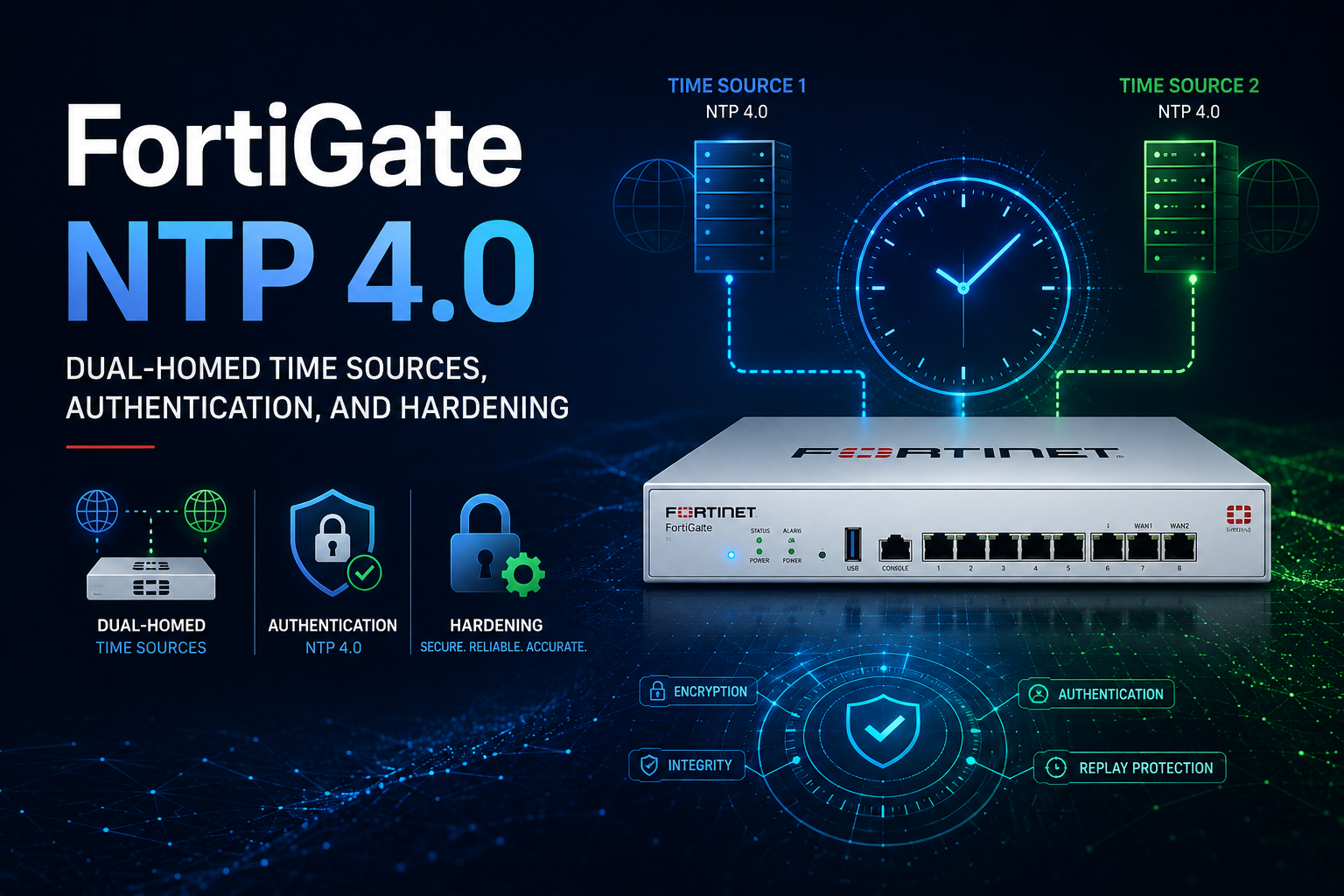
FortiGate and NTP 4.0: Dual-Homed Time Sources, Authentication, and Hardening
Accurate time is one of those infrastructure fundamentals that nobody thinks about until it breaks. On a FortiGate, the system clock underpins certificate validation, IPsec rekeying, log correlation, scheduled policies, FSSO timeouts, and HA synchronization. If your firewall drifts, expired certificates start looking valid, log timestamps stop lining up with your SIEM, and audit trails become useless.
This guide covers how FortiGate implements NTP version 4, how to build a resilient dual-homed (redundant) time configuration, how to lock the protocol down with cryptographic authentication, and how to verify everything is actually working. The examples target FortiOS 7.x and 8.x.
Why NTP 4.0 Matters on FortiGate
NTP version 4 (RFC 5905) is the modern incarnation of the Network Time Protocol. Compared to NTPv3 it brings better handling of high-latency and asymmetric paths, improved clock discipline algorithms, IPv6 support, and the ability to use stronger message digest algorithms for symmetric-key authentication.
FortiGate runs as an NTP client by default and can optionally act as an NTP server for downstream devices. When you enable authentication on a FortiGate NTP server entry, FortiOS negotiates NTPv4. You can confirm this after the fact: a correctly authenticated association reports a server version of 4.
The practical reasons to care about NTPv4 specifically on a FortiGate are:
1. Stronger authentication digests. NTPv3 on FortiOS only supports MD5. NTPv4 unlocks SHA1 and, on newer builds, SHA256.
2. Spoofing resistance – Authentication lets the client verify that a time source is a known, trusted server rather than an attacker injecting forged time. Skewing a firewall’s clock is a genuine attack vector against certificate trust and token validity.
3. IPv6 and dual-stack environments – NTPv4 cleanly supports IPv6 NTP servers, which matters for dual-stack and IPv6-only management networks.
NTP Modes on FortiGate
FortiOS gives you two top-level choices for where the firewall gets its time, set with config system ntp and the type field.
FortiGuard mode (set type fortiguard) points the FortiGate at Fortinet’s own NTP pool. It is the zero-configuration default and is fine for many deployments, but it does not give you control over the source, does not support custom authentication keys, and depends on outbound reachability to Fortinet infrastructure.
Custom mode (set type custom) lets you define your own NTP servers. This is the mode you want for any environment with internal time sources, regulatory requirements, air-gapped segments, or a need for authentication. Everything in this guide assumes custom mode.
A separate decision is whether the FortiGate should also serve time to other devices. Setting server-mode enable turns the FortiGate into an NTP server reachable on the interfaces you list. Be deliberate here: only expose NTP server mode on internal interfaces, never on a WAN-facing interface, to avoid becoming a reflection or amplification participant (See below for description of attacks).
Dual-homed in the NTP context means the FortiGate synchronizes against more than one independent upstream time source so that the failure or compromise of any single server does not leave the firewall flying blind. NTP is designed for this: a client with multiple servers runs a selection and clustering algorithm to pick the best candidates and discard outliers, often called falsetickers.
Building a Dual-Homed (Redundant) NTP Configuration
The general best practice is to configure at least three or four upstream sources. Three is the classic minimum because it lets the algorithm outvote a single bad clock. Two servers is better than one but creates an ambiguity problem if they disagree, since the client cannot tell which one is wrong. If you are constrained to two, treat it as a resilience floor rather than an ideal.
Here is a custom configuration with multiple servers, mixing internal stratum sources for redundancy:
config system ntp
set type custom
set ntpsync enable
set syncinterval 60
config ntpserver
edit 1
set server "10.10.10.11"
set interface-select-method specify
set interface "port1"
next
edit 2
set server "10.20.20.11"
set interface-select-method specify
set interface "port2"
next
edit 3
set server "time-3.internal.example.com"
next
end
end
Key fields:
– ntpsync enable turns on client synchronization.
– syncinterval is the polling interval in minutes (the value is minutes in the FortiOS config, not seconds). Sixty minutes is a reasonable steady-state interval; shorten it during initial bring-up or troubleshooting.
– interface-select-method controls how the FortiGate chooses the egress interface to reach each server. The options are auto, sdwan, and specify. Pairing each server with a different physical uplink via specify is what makes the configuration genuinely dual-homed at the path level, not just the server level. If server 1 is reachable only via port1's transit and server 2 only via port2‘s, losing one WAN circuit still leaves a working time source.
True Dual-Homing Means Diverse Paths, Not Just Diverse IPs
A configuration with three servers that are all reached over the same single internet uplink is redundant against server failure but not against path failure. For a firewall, which often sits at the network edge with multiple uplinks, real resilience comes from binding different NTP servers to different egress interfaces or SD-WAN members. Consider:
– One internal stratum-2 (see below for a description of stratum) appliance reached over the LAN/management interface.
– One upstream source reached via WAN1.
– One upstream source reached via WAN2.
That spread survives the loss of any single interface or any single server. If you run SD-WAN, you can instead set interface-select-method sdwan and let the SD-WAN rules steer NTP traffic, which gives you automatic failover across members.
Source IP Considerations
In multi-VDOM or multi-interface designs, pin the source address so return traffic and any upstream ACLs behave predictably:
config system ntp
set source-ip 10.10.10.1
set source-ip6 2001:db8:10::1
end
This is especially important when your upstream NTP servers filter clients by source address, or when the FortiGate has multiple routes back to the time source.
Adding Authentication
Authentication is what turns NTP from “trust whatever answers” into “trust only servers that prove they hold the shared key.” FortiOS implements symmetric-key authentication: the FortiGate and the upstream server share a secret key identified by a key ID, and each NTP message carries a message authentication code computed over the packet using that key.
Supported Key Types by Version
The available digest algorithms depend on both the NTP version and your FortiOS build:
| Key type | NTP version | Availability |
| MD5 | NTPv3 | Legacy, broadly available |
| SHA1 | NTPv4 | Available on long-standing FortiOS releases |
| SHA256 | NTPv4 | Available on FortiOS 7.4.4 and later |
MD5 is considered cryptographically weak and should be avoided for new deployments. SHA1 is the practical baseline for NTPv4 on older firmware, and SHA256 is the preferred choice wherever your firmware supports it. Note that the per-server ntpv3 toggle exists for backward compatibility: leaving it disabled keeps the association on NTPv4, which is required for the SHA-family digests.
Per-Server Authentication Configuration
Authentication is configured per NTP server entry. Each entry takes an authentication toggle, a key type, the key itself, and a key ID that must match what the upstream server expects.
config system ntp
set type custom
set ntpsync enable
config ntpserver
edit 1
set server "10.10.10.11"
set authentication enable
set key-type SHA256
set key <shared-secret-key>
set key-id 10
set interface-select-method specify
set interface "port1"
next
edit 2
set server "10.20.20.11"
set authentication enable
set key-type SHA256
set key <shared-secret-key>
set key-id 20
set interface-select-method specify
set interface "port2"
next
end
end
Notes that trip people up:
– The key ID must match on both ends – The upstream NTP server associates a specific key value with a specific key ID. If the FortiGate sends key ID 10 but the server has that secret under key ID 1, authentication silently fails and the association never reaches a synchronized state.
– Keys are stored encrypted – When you view the running config, the key is displayed as an encrypted blob (an `ENC` string), not in clear text. This is expected behavior and matches how FortiOS protects other secrets.
– Each server can use its own key and key ID – There is no requirement that all servers share one key. Distinct keys per source limit blast radius if one key is exposed.
– key-type and the version interact. Selecting SHA1 or SHA256 implies NTPv4. If you force ntpv3 enable on a server entry, you are limited to MD5 for that association.
Configuring the Upstream Server
For the FortiGate side to work, the upstream server has to be configured with the matching key. On a Linux box running the reference ntpd or chrony, that means defining the key in the keys file with the same ID, algorithm, and secret, and marking it as trusted. The exact syntax differs between ntpd and chrony, but the three things that must line up are always the same: key ID, digest algorithm, and the secret value. Mismatches in any of the three produce a server that the FortiGate simply refuses to trust.
FortiGate as an Authenticated NTP Server
If you want the FortiGate to serve time to downstream devices with authentication, enable server mode and bind it to internal interfaces. The same key material configured under `config system ntp` is used to authenticate server responses.
config system ntp
set type custom
set ntpsync enable
set server-mode enable
set interface "internal" "port5"
set authentication enable
set key-type SHA256
set key <shared-secret-key>
set key-id 100
end
Two cautions:
– Interface exposure. The interface list under config system ntp controls which interfaces answer NTP queries in server mode. List only trusted internal interfaces. Never include a WAN interface, both to avoid abuse and to keep the firewall out of NTP amplification reports.
– Firewall policy still applies. Local-in traffic to the FortiGate’s own NTP service is governed by local-in policies on hardened configurations. If downstream clients cannot reach the server, verify both the interface list and any local-in policy restrictions.
Verification and Troubleshooting
After applying the configuration, confirm synchronization rather than assuming it. The primary diagnostic is:
diagnose sys ntp status
A healthy authenticated client association looks something like this:
synchronized: yes, ntpsync: enabled, server-mode: disabled
ipv4 server(10.10.10.11) 10.10.10.11 -- reachable(0xff) S:4 T:6 selected
server-version=4, stratum=3
What to read here:
– synchronized: yes is the headline. If it says no, the FortiGate has not locked onto any source.
– reachable(0xff) is the reachability register. 0xff (all eight recent polls answered) is ideal. A value climbing up from 0x01 means the association is still establishing.
– selected marks the source the algorithm has chosen. With multiple servers you should see one selected and the others as candidates or backups.
– server-version=4 confirms NTPv4 negotiation, which is the proof that authentication took effect. If you configured SHA1 or SHA256 but see version 3, authentication is not actually engaged.
– stratum is the upstream server’s distance from the reference clock plus one. Lower is closer to the true reference.
Other useful commands:
get system ntp
diagnose sys ntp dump
execute date
get system ntp echoes the effective configuration. diagnose sys ntp dump gives more detail on each association. execute date shows the current system clock so you can sanity-check against a known-good reference.
Common Failure Modes
– Stuck on synchronized: no with authentication enabled. Almost always a key mismatch: wrong key ID, wrong digest algorithm, or a secret that does not match the server. Temporarily disable authentication on one server entry to confirm basic reachability, then re-enable and fix the key.
– server-version=3 when you expected 4. A ntpv3 enable left on the server entry, or a key type that forced the association down to MD5/NTPv3.
– Reachability stuck at 0x00. A routing, interface-selection, or firewall problem, not a time problem. Check interface-select-method, the source IP, and any upstream ACLs filtering your source address.
– Time correct but logs still misaligned with SIEM. Check the configured time zone (config system global, set timezone) separately from NTP. NTP disciplines UTC; the displayed and logged local time depends on the time zone setting.
Hardening Checklist
A defensible FortiGate NTP posture comes down to a handful of deliberate choices:
1. Use type custom with at least three upstream sources for outlier rejection.
2. Spread those sources across diverse egress paths (different uplinks or SD-WAN members), not just diverse IPs.
3. Enable authentication on every server entry, using SHA256 where the firmware supports it and SHA1 as the minimum acceptable fallback. Avoid MD5 for new builds.
4. Use distinct keys and key IDs per source to limit exposure if one key leaks.
5. If serving time, restrict NTP server mode to internal interfaces only and confirm local-in policy allows legitimate clients.
6. Pin the source IP in multi-interface or multi-VDOM designs.
7. Verify with diagnose sys ntp status and confirm server-version=4 plus a healthy reachability register before considering the task done.
8. Keep the time zone configuration separate in your mental model; correct UTC sync with a wrong time zone still produces wrong-looking timestamps.
Reflection and Amplification Attacks Defined
NTP Reflection Attack
An NTP (Network Time Protocol) reflection attack is a form of distributed denial-of-service (DDoS) that exploits the connectionless nature of the User Datagram Protocol (UDP). In this attack, the perpetrator sends a flood of time-synchronization requests to publicly accessible NTP servers. Crucially, the attacker spoofs the source IP address in these requests, replacing their own IP with the victim’s IP address. Because UDP does not require a handshake to verify the sender’s identity, the NTP servers accept the requests at face value and direct their responses straight to the unsuspecting victim. By bouncing the malicious traffic off legitimate third-party servers, the attacker successfully masks their own location while overwhelming the victim’s network infrastructure.
NTP Amplification Attack
NTP amplification takes the reflection mechanism a step further by drastically multiplying the volume of traffic directed at the victim. To achieve this, attackers specifically target a built-in command in older NTP software versions known as monlist, which instructs the server to return a list of the last 600 IP addresses that have connected to it. Because this tiny request generates a massive, data-heavy response, the size of the traffic sent to the victim can be magnified by a factor of up to 200 times or more. This massive asymmetry allows attackers with relatively low bandwidth to weaponize public NTP servers, generating a devastating torrent of data that can easily saturate the victim’s network bandwidth and take their services offline.
NTP Stratums
In NTP, stratum is a measure of how far a clock is from a reference time source. The stratum number indicates the number of hops away from the authoritative source, with lower numbers meaning higher accuracy and closer proximity to the reference.
Here are the stratum levels:
Stratum 0 is the reference clock itself, the high-precision timekeeping devices such as atomic clocks, GPS receivers, and radio clocks (like CDMA or WWVB). These devices are not directly connected to the network. They feed time to a Stratum 1 server, usually via a serial connection or PPS (pulse per second) signal.
Stratum 1 servers are directly connected to a Stratum 0 reference clock. They are considered primary time servers and provide the most accurate network-accessible time. Their accuracy is typically within a few microseconds of the reference. These are the authoritative servers that other devices sync to.
Stratum 2 servers synchronize over the network to one or more Stratum 1 servers. They may also peer with other Stratum 2 servers to cross-check and improve reliability. Most organizational NTP servers fall into this category, balancing accuracy with reduced load on Stratum 1 servers.
Stratum 3 servers sync to Stratum 2 servers and follow the same peering logic. This level is common for downstream servers in larger networks that distribute time to many client devices.
Stratum 4 through 15 continue the same pattern, each level syncing to the stratum above it. Each hop introduces a small amount of additional error and latency, so accuracy degrades gradually as the number increases.
Stratum 16 indicates an unsynchronized clock. A device showing stratum 16 has not successfully synchronized to any upper-stratum source and its time should not be trusted.
A few practical points: the maximum usable stratum is 15, since 16 signals an invalid or unsynchronized state. The stratum count exists primarily to prevent timing loops and to give clients a way to select the most authoritative source available. In real-world design, most clients and internal devices end up at stratum 3 or 4, which is more than accurate enough for typical logging, authentication (such as Kerberos), and general network operations.
Closing Thought
Time synchronization is unglamorous until the moment it costs you a certificate outage, a forensic investigation, or a failed audit. NTPv4 on FortiGate gives you the two things that matter for a security device: redundancy through multiple diverse sources, and integrity through cryptographic authentication. Configure both deliberately, verify that the association actually negotiated version 4, and your firewall’s clock stops being a quiet liability and becomes a dependable foundation.
Recent posts
-

-

DNS is one of those technologies that quietly underpins... Full Story
-

BGP issues on FortiGate firewalls usually trace back to... Full Story
-

Every time your laptop talks to your router, a... Full Story
-

If you've spent any time configuring NAT on a... Full Story
-

If you have spent any time configuring firewall policies... Full Story
-

High availability on FortiGate is one of those features... Full Story
-

If you've configured SD-WAN on a FortiGate, you've almost... Full Story
-

FortiLink is the management protocol that turns a FortiSwitch... Full Story
-

FortiSwitches are pretty rock solid from Mean Time Between... Full Story
-

This is a quicky tip. Have you ever gone... Full Story
-

DNS is one of those quiet pieces of internet... Full Story
-

This article is an updated version of the previous... Full Story
-

You will add ns2 as a secondary (slave) BIND9... Full Story
-

In the process of deploying my lab, I needed... Full Story
-

RFC 8805, used to be known as Self-Correcting IP... Full Story
-

Years back, I wrote an article about certificate pinning. ... Full Story
-

FortiGates have the ability to send alerts to Microsoft... Full Story
-

In this post, I am going to walk through... Full Story
-

Troubleshooting VoIP on a FortiGate can feel like trying... Full Story
-

Prior to FortiOS 7.0, there were three commands to... Full Story
-

In this post, I am going to go over... Full Story
-

What we are going to do: We are going... Full Story
-

Choosing between FGCP (FortiGate Clustering Protocol) and FGSP (FortiGate... Full Story
-

Creating a VLAN on macOS (The "Pro" Move) A... Full Story
-

This blog post explores the logic behind how macOS... Full Story
-

Pretty Fly for a Wi-Fi Tell My Wi-Fi Love... Full Story
-

Part of my daily gig is creating BoMs (Bill-of-Materials)... Full Story
-

ICMP introduces several security risks, but careful filtering, rate... Full Story
-

The command diag debug application dhcps -1 enables full... Full Story
-

In the world of FortiOS, execute tac report is... Full Story
-

LLDP; What is it The Link Layer Discovery Protocol... Full Story
-

What it actually does When you run diagnose fdsm... Full Story
-

Monkey Bites are bite-sized, high-impact security insights designed for... Full Story
-

I have run macOS in macOS with Parallels but... Full Story
-

Don't be confused with my other FortiNAC posts where... Full Story
-

This is the third session in a multi-part article... Full Story
-

Today I was configuring key-based authentication on a FortiGate... Full Story
-

Netcat, often called the "Swiss Army knife" of networking,... Full Story
-

At its core, IEEE 802.1X is a network layer... Full Story
-

In case you did not see the previous FortiNAC... Full Story
-

This is our 5th session where we are going... Full Story
-

Now that we have Wireshark installed and somewhat configured,... Full Story
-

The Philosophy of Packet Analysis Troubleshooting isn't about looking... Full Story
-

InfoSecMonkey Threat Response October 24, 2026 | No fluff.... Full Story
-

InfoSecMonkey Threat Response October 24, 2026 | No fluff.... Full Story
-

Plus what you actually get with FortiCare Essential, Premium... Full Story