
If you've spent any time configuring user authentication on... Full Story
By Manny Fernandez
June 9, 2026
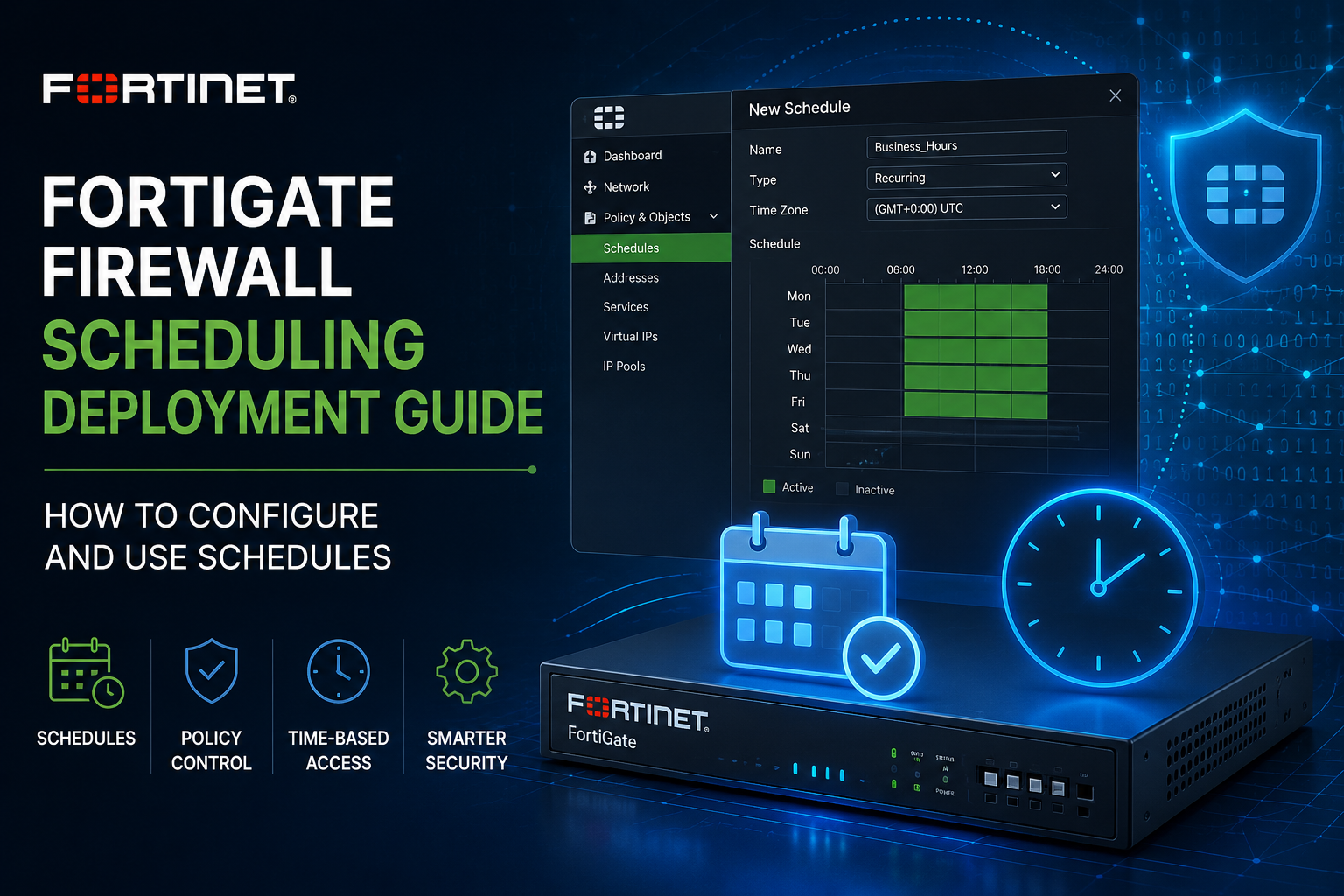
FortiGate Firewall Scheduling Deployment Guide: How to configure and use Schedules
Overview
FortiGate firewall schedules control *when* a firewall policy is active. Every firewall policy references a schedule object, and by default that object is `always`, meaning the policy enforces traffic 24/7. By replacing `always` with a custom schedule, you bind a policy to a specific window of time: business hours, a maintenance weekend, a one-off event, or any combination.
There are three schedule object types:
1. Recurring schedules repeat on specified days of the week at specified start and stop times.
2. One-time schedules take effect once for a single date-and-time range, then expire.
3. Schedule groups bundle multiple recurring and one-time schedules into a single referenceable object.
A key concept to internalize before deploying: a schedule defines *when the policy is in effect*, not *when traffic is forcibly cut*. By default, sessions established inside the active window continue to flow after the window closes. Only new sessions are blocked once the schedule expires. Forcing existing sessions to drop at the stop time requires extra configuration, covered below.
How to Configure
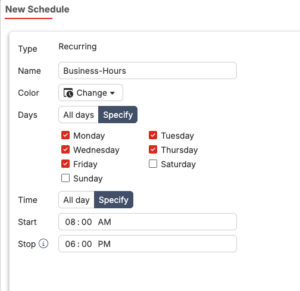
Recurring schedule (GUI)
1. Navigate to Policy & Objects > Schedules.
2. Select Create New > Schedule.
3. Set Type to Recurring.
4. Enter a Name (for example, Business-Hours).
5. Select the Days of the week the schedule applies to.
6. Set the Start Time and Stop Time using 24-hour notation.
7. Select OK.
Recurring schedule (CLI)
config firewall schedule recurring
edit "Business-Hours"
set day monday tuesday wednesday thursday friday
set start 09:00
set end 18:00
next
end
To verify:
show firewall schedule recurring
One-time schedule (CLI)
The start and end fields use the format hh:mm yyyy/mm/dd.
config firewall schedule onetime
edit "Maintenance-Window"
set start 22:00 2026/06/14
set end 04:00 2026/06/15
next
end
Optionally, write an event log message a number of days before expiry:
set expiration-days 3
Schedule group (CLI)
A group lets a single policy reference several windows. For example, blocking a service from 09:00 to 12:00 and again from 13:00 to 17:00 requires two recurring schedules combined into one group.
config firewall schedule group
edit "Split-Workday"
set member "Morning-Block" "Afternoon-Block"
next
end
Apply the schedule to a policy
config firewall policy
edit 4
set name "Allow-Outlook-BusinessHours"
set srcintf "port1"
set dstintf "port2"
set srcaddr "all"
set dstaddr "all"
set action accept
set schedule "Business-Hours"
set service "ALL"
next
end
Overnight (Cross-Midnight) Schedules
A recurring schedule whose stop time is earlier than its start time is treated as spanning midnight into the next day. For example, a window of 22:00 to 06:00 runs overnight. FortiOS exposes a label-day option (none, over-night, and similar) that controls how the schedule is labeled and interpreted for these cross-midnight cases. When building maintenance or after-hours windows, confirm the day assignment matches your intent: an overnight schedule that starts Friday night and ends Saturday morning behaves differently from one set on Saturday alone.
Forcing Sessions to End at the Stop Time
By default, the schedule only governs new session establishment. Long-lived sessions opened inside the window keep flowing after expiry until they time out or are closed. To force termination at the stop time, configure the policy and global session-handling behavior:
config firewall policy
edit 4
set schedule-timeout enable
set firewall-session-dirty check-new
next
end
config system settings
set firewall-session-dirty check-policy-option
end
With schedule-timeout enable, the FortiGate terminates matching sessions when the schedule end time is reached, rather than letting them persist. This is essential when the policy is being used to enforce a hard cutoff (for example, denying a category of traffic outside approved hours rather than merely declining to permit new flows).
Limitations
– Schedules govern policy effectiveness, not active sessions. Without schedule-timeout, established sessions survive past the stop time.
– Schedule groups cannot be nested. A group can contain recurring and one-time schedules but cannot contain another group.
– No sub-minute granularity. Times are specified to the minute in 24-hour notation. You cannot schedule to the second.
– Time accuracy depends on the system clock. Schedules are evaluated against the FortiGate local time. If NTP is not configured or the timezone is wrong, schedules fire at the wrong moment.
– One-time schedules are single-use. Once the end date-and-time passes, the schedule is expired and the policy referencing it will no longer match unless the schedule is edited.
– The always schedule is the implicit default for new policies and cannot be deleted.
Gotchas
– The stop time is exclusive of session teardown. This is the single most common surprise. Admins expect traffic to stop at the end time; instead, only new connections are blocked. Always test with a long-lived session (a large download, a streaming session) if a hard cutoff is required.
– Timezone and DST drift. A schedule built for 09:00 shifts relative to wall-clock expectations if the device timezone is misconfigured or daylight saving transitions are not accounted for. Verify with get system status and execute date.
– Overnight schedules and day selection. Selecting Monday with a 23:00 to 02:00 window means the active period bleeds into Tuesday morning. Confirm whether your intent is keyed to the start day or the calendar day of traffic.
– Deny policies plus schedules. When a schedule is attached to a deny policy, the policy only denies during the active window. Outside the window, the deny rule does not match and traffic may fall through to a lower, more permissive policy. Order your policy table accordingly.
– One-time schedules silently stop matching after expiry. A policy that suddenly stops working may be referencing an expired one-time schedule. Check the schedule object before troubleshooting the policy logic.
– Editing a schedule affects every policy that references it. Schedules are reusable objects. Changing the hours on a shared schedule changes behavior across all bound policies at once.
Best Practices
– Use descriptive names. Business-Hours-MonFri is self-documenting; sched1 is not. Names should communicate days and intent at a glance.
– Reuse schedule objects. Build a small library of standard windows (business hours, after hours, weekend maintenance) and reference them across policies rather than creating duplicates.
– Confirm time sync first. Configure NTP and the correct timezone before deploying any schedule. A schedule is only as accurate as the device clock.
– Decide explicitly about session cutoff. For every scheduled policy, consciously choose whether established sessions should survive expiry. Enable `schedule-timeout` when a hard cutoff matters.
– Use one-time schedules for change control. When making a temporary policy change for a maintenance window or event, attach a one-time schedule so the policy self-expires even if cleanup is forgotten.
– Document deny-with-schedule policies. Because a scheduled deny only denies inside its window, annotate these policies and verify the surrounding policy order behaves correctly outside the window.
– Test before relying on it. Validate the schedule with real traffic across the boundary times, including a session that starts inside the window and continues past the stop time.
– Leverage the security fabric where applicable. The fabric-object enable setting allows a schedule to be synchronized as a fabric object across Security Fabric members, reducing per-device duplication.
Verification Commands
show firewall schedule recurring
show firewall schedule onetime
show firewall schedule group
diagnose firewall iprope list
get system status
execute date
Recent posts
-

-

DNS is one of those technologies that quietly underpins... Full Story
-

BGP issues on FortiGate firewalls usually trace back to... Full Story
-

Every time your laptop talks to your router, a... Full Story
-

If you've spent any time configuring NAT on a... Full Story
-

If you have spent any time configuring firewall policies... Full Story
-

High availability on FortiGate is one of those features... Full Story
-

If you've configured SD-WAN on a FortiGate, you've almost... Full Story
-

FortiLink is the management protocol that turns a FortiSwitch... Full Story
-

FortiSwitches are pretty rock solid from Mean Time Between... Full Story
-

This is a quicky tip. Have you ever gone... Full Story
-

DNS is one of those quiet pieces of internet... Full Story
-

This article is an updated version of the previous... Full Story
-

You will add ns2 as a secondary (slave) BIND9... Full Story
-

In the process of deploying my lab, I needed... Full Story
-

RFC 8805, used to be known as Self-Correcting IP... Full Story
-

Years back, I wrote an article about certificate pinning. ... Full Story
-

FortiGates have the ability to send alerts to Microsoft... Full Story
-

In this post, I am going to walk through... Full Story
-

Troubleshooting VoIP on a FortiGate can feel like trying... Full Story
-

Prior to FortiOS 7.0, there were three commands to... Full Story
-

In this post, I am going to go over... Full Story
-

What we are going to do: We are going... Full Story
-

Choosing between FGCP (FortiGate Clustering Protocol) and FGSP (FortiGate... Full Story
-

Creating a VLAN on macOS (The "Pro" Move) A... Full Story
-

This blog post explores the logic behind how macOS... Full Story
-

Pretty Fly for a Wi-Fi Tell My Wi-Fi Love... Full Story
-

Part of my daily gig is creating BoMs (Bill-of-Materials)... Full Story
-

ICMP introduces several security risks, but careful filtering, rate... Full Story
-

The command diag debug application dhcps -1 enables full... Full Story
-

In the world of FortiOS, execute tac report is... Full Story
-

LLDP; What is it The Link Layer Discovery Protocol... Full Story
-

What it actually does When you run diagnose fdsm... Full Story
-

Monkey Bites are bite-sized, high-impact security insights designed for... Full Story
-

I have run macOS in macOS with Parallels but... Full Story
-

Don't be confused with my other FortiNAC posts where... Full Story
-

This is the third session in a multi-part article... Full Story
-

Today I was configuring key-based authentication on a FortiGate... Full Story
-

Netcat, often called the "Swiss Army knife" of networking,... Full Story
-

At its core, IEEE 802.1X is a network layer... Full Story
-

In case you did not see the previous FortiNAC... Full Story
-

This is our 5th session where we are going... Full Story
-

Now that we have Wireshark installed and somewhat configured,... Full Story
-

The Philosophy of Packet Analysis Troubleshooting isn't about looking... Full Story
-

Executive Summary Objective: Get you from zero to writing... Full Story
-

NAND cells, the flash translation layer, SLC caching, TRIM,... Full Story
-

Nmap Scripting Engine (NSE): From One-Liners to Your First... Full Story