
If you've spent any time configuring user authentication on... Full Story
By Manny Fernandez
August 31, 2026
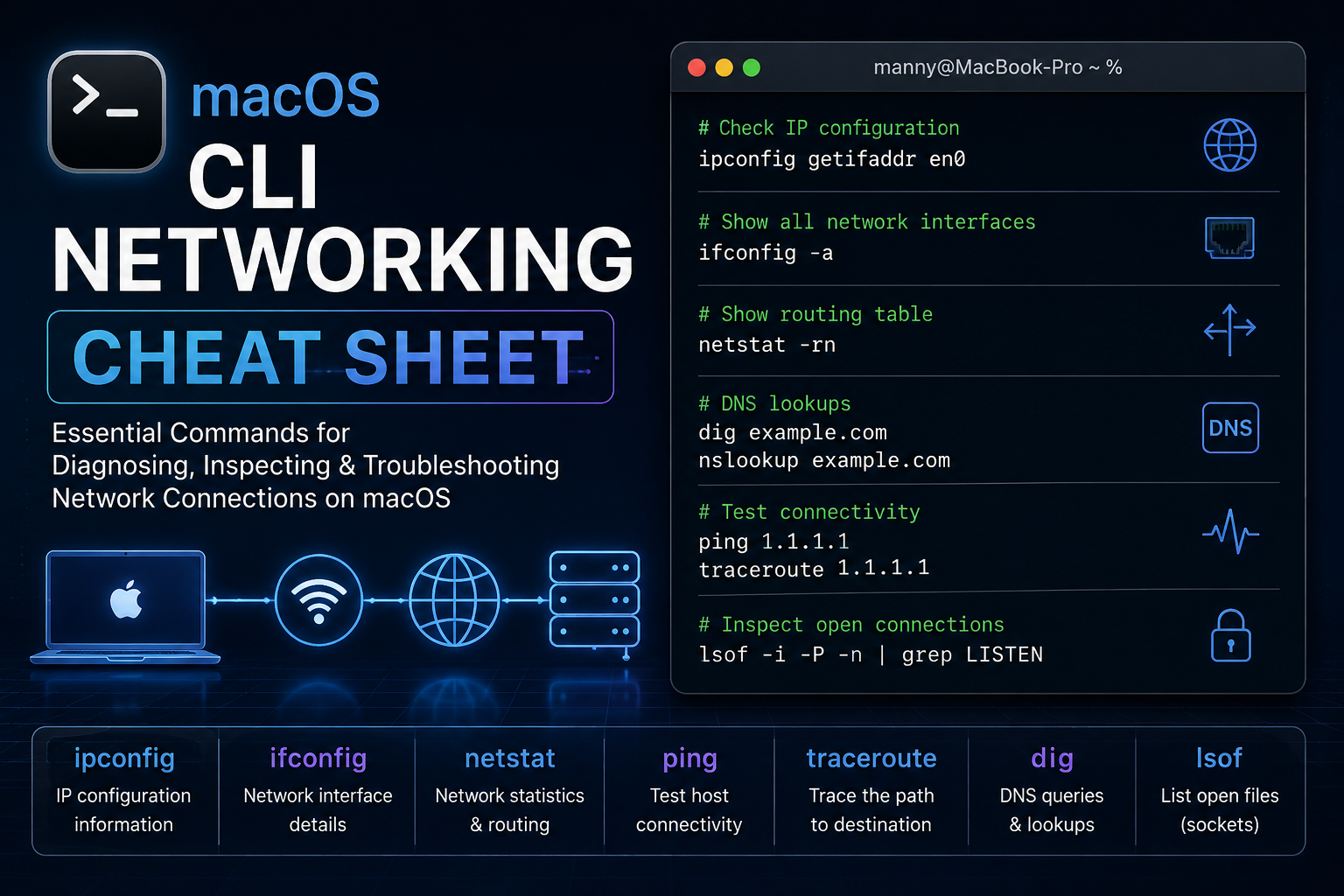
macOS CLI Networking Cheat Sheet
If you troubleshoot Macs on a network for a living, you already know the GUI only gets you so far. ipconfig, ifconfig, networksetup, tcpdump, and a handful of other built-in tools will get you an answer faster than System Settings ever will. This is the reference sheet we keep open in a terminal tab: every command grouped by what it’s actually for, so you can find it fast during a live troubleshooting call instead of scrolling a man page.
IP and Interface Basics
Get the IP address assigned to en0:
ipconfig getifaddr en0Store it in a variable and echo it back:
ip=$(ipconfig getifaddr en0); echo $ipCheck the subnet mask en0 is using:
ipconfig getoption en0 subnet_maskCheck the DNS server en0 picked up:
ipconfig getoption en0 domain_name_serverPull the full DHCP lease details for an interface:
ipconfig getpacket en1Dump everything ifconfig knows about en0:
ifconfig en0Manually set an IP address and subnet mask on en0:
ifconfig en0 inet 10.10.10.10 netmask 255.255.255.0Network Locations
List every network location configured on the Mac:
networksetup -listlocationsShow which location is currently active:
networksetup -getcurrentlocationCreate a new location called Work, seeded from the currently active connection:
networksetup -createlocation Work populateDelete the Work location:
networksetup -deletelocation WorkSwitch the active location to Work:
networksetup -switchlocation WorkSwitch locations through scutil instead, useful when you need the identifier for a script:
scselect WorkNetwork Services
List every network service on the system:
networksetup -listallnetworkservicesRename a service, in this case Ethernet to Wired:
networksetup -renamenetworkservice Ethernet WiredDisable a network service:
networksetup -setnetworkserviceenabled "Wi-Fi" offChange the priority order of your network services:
networksetup -ordernetworkservices "Wi-Fi" "USB Ethernet"Force a service back to DHCP:
networksetup -setdhcp Wi-FiRenew a DHCP lease from the shell:
ipconfig set en1 BOOTP && ipconfig set en1 DHCP
ifconfig en1 down && ifconfig en1 up
Renew a DHCP lease through scutil instead, handy inside a script:
echo "add State:/Network/Interface/en0/RefreshConfiguration temporary" | sudo scutilConfigure a manual static IP:
networksetup -setmanual Wi-Fi 10.0.0.2 255.255.255.0 10.0.0.1Set the DNS servers for an interface:
networksetup -setdnsservers Wi-Fi 10.0.0.2 10.0.0.3Check which DNS servers an interface is currently using:
networksetup -getdnsservers Wi-FiApplication Firewall
Stop the application layer firewall:
launchctl unload /System/Library/LaunchAgents/com.apple.alf.useragent.plist
launchctl unload /System/Library/LaunchDaemons/com.apple.alf.agent.plist
Start it back up:
launchctl load /System/Library/LaunchDaemons/com.apple.alf.agent.plist
launchctl load /System/Library/LaunchAgents/com.apple.alf.useragent.plist
Allow a specific app to reach out through the firewall:
fw=/usr/libexec/ApplicationFirewall/socketfilterfw
app="/Applications/FileMaker Pro/FileMaker Pro.app/Contents/MacOS/FileMaker Pro"
"$fw" -t "$app"
Routing
View the routing table:
netstat -nrAdd a static route out a specific interface:
route -n add 10.0.0.0/32 10.0.9.2Bonjour and mDNS
Log Bonjour traffic at the packet level:
sudo killall -USR2 mDNSResponderStop Bonjour:
launchctl unload -w /System/Library/LaunchDaemons/com.apple.mDNSResponder.plistStart Bonjour:
launchctl load -w /System/Library/LaunchDaemons/com.apple.mDNSResponder.plistPing Toolkit
Add a delay between pings, five seconds here:
ping -i 5 192.168.210.1Ping exactly five times and stop:
ping -c 5 google.comFlood ping, only against hosts you own:
ping -f localhostSet the ICMP packet size:
ping -s 100 google.comSet the source IP the ping goes out with:
ping -S 10.10.10.11 google.comSweep a subnet with a quick for loop:
for ip in {1..254}; do ping -c 1 10.1.105.$ip; doneTraceroute
Trace the path to a host:
traceroute google.comSkip the reverse DNS lookups for a faster trace:
traceroute -n google.comTrace in debug mode:
traceroute -d google.comNetstat Deep Dive
View all active sockets:
netstat -atView IPv6 listeners:
netstat -ltPer-protocol statistics:
netstat -sStats for one specific protocol, IGMP here:
netstat -p igmpInterface statistics:
netstat -iPort Scanning and Connectivity Tests
Quick TCP port check using the built-in Network Utility stroke tool:
stroke="/System/Library/CoreServices/Applications/Network Utility.app/Contents/\
Resources/stroke"
"$stroke" www.google.com 80 80
Stealth SYN scan with OS fingerprinting, only against hosts you’re authorized to scan:
nmap -sS -O krypted.com/24Open a TCP connection to test reachability:
nc -v www.apple.com 80Test connectivity to a specific host and port with a timeout:
/usr/bin/nc -v -w 15 gateway.push.apple.com 2195Same test, but force IPv4 only:
/usr/bin/nc -v -4 feedback.push.apple.com 2196Spin up a listener on a port for testing:
/usr/bin/nc -l 2196Live network monitor, requires ntop to be installed:
ntopPacket Capture With tcpdump
Basic capture, numeric addresses only:
tcpdump -nSFull verbose capture with a hex and ASCII dump:
tcpdump -nnvvXSCapture traffic on a specific port:
tcpdump -nnvvXs 548Capture traffic on a port headed to one destination:
tcpdump -nnvvXs 548 dst 10.0.0.48Same capture, written to a pcap file for later analysis:
tcpdump -nnvvXs 548 dst 10.0.0.48 -w /tmp/myfile.pcapRead a saved capture back in human-readable form:
tcpdump -qns 0 -A -r /var/tmp/capture.pcapListening Ports and Processes
Which processes have which TCP ports open, and in what state:
lsof -n -i4TCPA quick alias for “show me what’s listening”:
alias ports='lsof -n -i4TCP | grep LISTEN'DNS, Hostname, and ARP
Print the system hostname:
hostnameFlush the local DNS resolver cache:
dscacheutil -flushcacheClear the ARP cache:
arp -adDisk and Wi-Fi Diagnostics
Check disk I/O performance:
iostat -d disk0Pull current Wi-Fi connection info:
airport=/System/Library/PrivateFrameworks/Apple80211.framework/Versions/A/\
Resources/airport
$airport -I
Scan for nearby wireless networks:
airport=/System/Library/PrivateFrameworks/Apple80211.framework/Versions/A/\
Resources/airport
$airport -s
macOS Server (Legacy)
View how Server.app is interpreting your network settings:
serveradmin settings networkWhitelist an IP address in the Server app’s firewall:
/Applications/Server.app/Contents/ServerRoot/usr/libexec/afctl -w 10.10.10.2Bonus One-Liner
Check the CPU model while you’re in there:
sysctl -n machdep.cpu.brand_stringBookmark this one. Between DHCP hand-offs, DNS cache issues, firewall states, and a flaky Wi-Fi adapter, this covers the commands that come up over and over on a Mac fleet. If a command needs sudo on your build and it’s not shown that way above, that’s normal, permissions vary by what you’re touching.
Recent posts
-

-

DNS is one of those technologies that quietly underpins... Full Story
-

BGP issues on FortiGate firewalls usually trace back to... Full Story
-

Every time your laptop talks to your router, a... Full Story
-

If you've spent any time configuring NAT on a... Full Story
-

If you have spent any time configuring firewall policies... Full Story
-

High availability on FortiGate is one of those features... Full Story
-

If you've configured SD-WAN on a FortiGate, you've almost... Full Story
-

FortiLink is the management protocol that turns a FortiSwitch... Full Story
-

FortiSwitches are pretty rock solid from Mean Time Between... Full Story
-

This is a quicky tip. Have you ever gone... Full Story
-

DNS is one of those quiet pieces of internet... Full Story
-

This article is an updated version of the previous... Full Story
-

You will add ns2 as a secondary (slave) BIND9... Full Story
-

In the process of deploying my lab, I needed... Full Story
-

RFC 8805, used to be known as Self-Correcting IP... Full Story
-

Years back, I wrote an article about certificate pinning. ... Full Story
-

FortiGates have the ability to send alerts to Microsoft... Full Story
-

In this post, I am going to walk through... Full Story
-

Troubleshooting VoIP on a FortiGate can feel like trying... Full Story
-

Prior to FortiOS 7.0, there were three commands to... Full Story
-

In this post, I am going to go over... Full Story
-

What we are going to do: We are going... Full Story
-

Choosing between FGCP (FortiGate Clustering Protocol) and FGSP (FortiGate... Full Story
-

Creating a VLAN on macOS (The "Pro" Move) A... Full Story
-

This blog post explores the logic behind how macOS... Full Story
-

Pretty Fly for a Wi-Fi Tell My Wi-Fi Love... Full Story
-

Part of my daily gig is creating BoMs (Bill-of-Materials)... Full Story
-

ICMP introduces several security risks, but careful filtering, rate... Full Story
-

The command diag debug application dhcps -1 enables full... Full Story
-

In the world of FortiOS, execute tac report is... Full Story
-

LLDP; What is it The Link Layer Discovery Protocol... Full Story
-

What it actually does When you run diagnose fdsm... Full Story
-

Monkey Bites are bite-sized, high-impact security insights designed for... Full Story
-

I have run macOS in macOS with Parallels but... Full Story
-

Don't be confused with my other FortiNAC posts where... Full Story
-

This is the third session in a multi-part article... Full Story
-

Today I was configuring key-based authentication on a FortiGate... Full Story
-

Netcat, often called the "Swiss Army knife" of networking,... Full Story
-

At its core, IEEE 802.1X is a network layer... Full Story
-

In case you did not see the previous FortiNAC... Full Story
-

This is our 5th session where we are going... Full Story
-

Now that we have Wireshark installed and somewhat configured,... Full Story
-

The Philosophy of Packet Analysis Troubleshooting isn't about looking... Full Story
-

Nmap Scripting Engine (NSE): From One-Liners to Your First... Full Story
-

Stand up TRex on Ubuntu, wire it through a... Full Story
-

1. Executive Summary Objective: Get a working, persistent nftables... Full Story