
If you've spent any time configuring user authentication on... Full Story
By Manny Fernandez
July 25, 2026
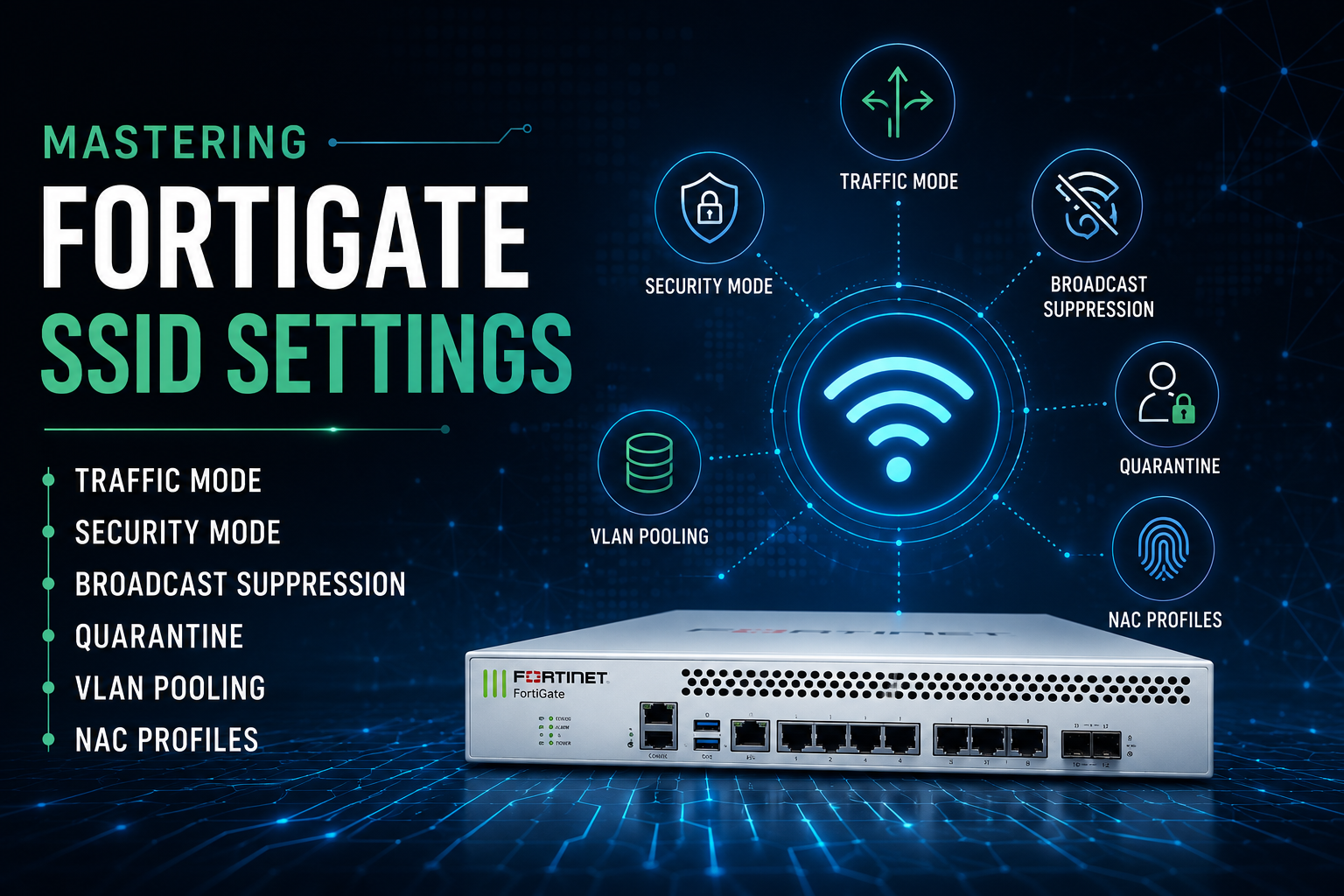
Mastering FortiGate SSID Settings: Traffic Mode, Security Mode, Broadcast Suppression, Quarantine, VLAN Pooling, and NAC Profiles
1. Executive Summary
Objective
This guide walks through the six SSID settings that determine how a FortiGate-managed wireless network actually behaves on the wire: Traffic Mode, Security Mode, Broadcast Suppression, Quarantine Host, VLAN Pooling, and NAC Profile. Each one is presented with its exact CLI syntax, the GUI path that maps to it, the dependencies it silently requires, and the verification command that proves it took effect. By the end you will have a single tunnel-mode SSID that authenticates with WPA3, load-balances clients across a VLAN pool, onboards unknown devices into a profiling VLAN before moving them to their production segment, suppresses the broadcast noise that eats airtime, and can isolate a compromised host on demand.
Target Audience
Network and wireless engineers, security architects, and systems engineers who deploy or operate FortiAP under the FortiGate integrated wireless controller. Also useful to SOC analysts who need to understand what “Quarantine Host” actually does to a Wi-Fi client, and to pre-sales engineers who need to defend a design in front of a customer.
Version note: All CLI in this guide is validated against the FortiOS 7.6.x config wireless-controller vap schema and works unchanged on 7.4.x with one exception, called out in Gotcha 6: the captive portal toggle moved out of the security keyword in 7.6.
2. Prerequisites & Architecture
Assumed Knowledge
- 802.11 association, authentication, and the four-way handshake at a conceptual level.
- 802.1Q trunking, VLAN subinterfaces, and DHCP relay behavior.
- RADIUS and EAP fundamentals if you intend to use an Enterprise security mode.
- FortiOS CLI navigation:
config/edit/set/next/end, plus VDOM context if VDOMs are enabled. - CAPWAP basics: control on UDP 5246, data on UDP 5247.
Environment / Lab Requirements
- One FortiGate running FortiOS 7.4.x or 7.6.x with the integrated wireless controller enabled. Desktop models such as the 60F/70G work fine for a lab, but check the managed-AP limit on your model. Bridge-mode SSIDs generally allow roughly twice the managed AP count of tunnel-mode SSIDs.
- Two or more FortiAP units so that FortiAP Groups (WTP groups) are meaningful. A single AP will still let you test everything except
vlan-pooling wtp-group. - A PoE switch or PoE injectors, with the AP access ports in the AP management VLAN.
- DHCP scopes for every VLAN in the pool plus the onboarding VLAN. FortiGate-hosted DHCP servers are the fastest path in a lab.
- Optional: a RADIUS server (FortiAuthenticator, NPS, or freeRADIUS) for WPA2/WPA3-Enterprise and MAC authentication.
- A mixed client set. Include at least one legacy IoT device, because that is where broadcast suppression and NAC re-association break first.
Component Table
| Component | Role | Example Identifier |
|---|---|---|
| FortiGate | Wireless controller, L3 gateway, policy and UTM enforcement | FGT-CORE-01 / 10.10.0.1 |
| FortiAP (x2) | Tunnel-mode access points, split across two FortiAP Groups | WTPG-FLOOR1, WTPG-FLOOR2 |
| VAP / SSID | The virtual AP object, which is also a FortiGate software interface in tunnel mode | corp-wifi (SSID CORP-SECURE) |
| VLAN pool members | VLAN subinterfaces parented to the VAP interface, used for client load balancing | corp-v101 10.10.101.1/24, corp-v102, corp-v103 |
| Onboarding VLAN | Where every unprofiled client lands first, per the NAC profile | corp-v900 10.10.90.1/24 |
| NAC target VLAN | Destination segment applied by a matched NAC policy via an SSID policy | corp-v910 10.10.91.1/24 (IoT) |
| RADIUS server | 802.1X EAP termination and optional MAC authentication | FAC-01 10.10.0.20 |
| Quarantine address group | Firewall address group auto-populated with quarantined MACs, for redirect or deny policies | GRP-QUARANTINE |
Design constraint that drives everything below: Quarantine on an SSID and VLAN pooling load balancing are both tunnel-mode features. If you build this SSID in bridge mode, FortiOS will accept the commands and then quietly never apply them. Decide Traffic Mode first.
3. Step-by-Step Implementation Workflow
Phase 1: Traffic Mode
The Goal: Decide where client data leaves the network and therefore which FortiGate features are even available to this SSID.
The Action: FortiOS exposes Traffic Mode as a single GUI radio button, but under the hood it is a combination of two independent booleans plus a mesh flag. Understanding the mapping is what lets you script it reliably.
| GUI Traffic Mode | CLI | Data path | What you gain / lose |
|---|---|---|---|
| Tunnel to Wireless Controller (default) | set local-bridging disable |
Client frames encapsulated in CAPWAP (UDP 5247) back to the FortiGate | The VAP becomes a real FortiGate interface. Enables quarantine, VLAN pooling load balancing, NAC, device detection, and full UTM at the controller. Costs WAN/LAN bandwidth to the FortiGate and CPU on the controller. |
| Local bridge with FortiAP’s Interface | set local-bridging enable |
Client frames egress the AP Ethernet port directly, tagged with vlanid if set |
Lowest latency and no controller data-plane load. The FortiGate never sees the traffic, so quarantine, VLAN pool balancing, and controller-side UTM do not apply. |
| Mesh Downlink | set mesh-backhaul enable |
This VAP carries the wireless backhaul for leaf APs | Only valid when security is a WPA type or open. Do not put clients on it. |
Two adjacent settings frequently get confused with Traffic Mode. local-standalone keeps the SSID alive on the AP when the CAPWAP control channel drops, and local-standalone-nat turns the AP into a small NAT gateway with its own subnet and DNS. Both are branch/remote-AP features and both imply local bridging semantics.
The Config:
config wireless-controller vap
    edit "corp-wifi"
        set ssid "CORP-SECURE"
        set local-bridging disable          # Tunnel mode. This is the default.
        set mesh-backhaul disable
        set local-standalone disable
        set vlanid 0                        # 0 = untagged on the VAP interface; pool will override
        set schedule "always"
        set intra-vap-privacy enable        # Block client-to-client on the same SSID
        set max-clients 0                   # 0 = unlimited per VAP
        set max-clients-ap 0                # 0 = unlimited per radio
    next
end
For a remote branch AP that must survive a WAN outage, the local-standalone variant looks like this instead:
config wireless-controller vap
    edit "branch-wifi"
        set ssid "BRANCH-LOCAL"
        set local-bridging enable
        set local-standalone enable
        set local-standalone-nat enable
        set ip 192.168.50.1 255.255.255.0
        set local-standalone-dns enable
        set local-standalone-dns-ip <dns_server_ip>
        set local-lan allow                 # allow / deny RFC1918 destinations from clients
    next
end
GUI Verification: Navigate to WiFi and Switch Controller > SSIDs, edit the SSID, and confirm the Traffic Mode radio button reads Tunnel to Wireless Controller. Then check Network > Interfaces: in tunnel mode a software interface named corp-wifi of type WiFi SSID now exists. If it does not appear, you are not in tunnel mode.
Phase 2: Security Mode
The Goal: Select the AKM suite and cipher that the BSS advertises, and satisfy the dependencies each mode drags along.
The Action: set security takes exactly one value. The default on a new VAP is wpa2-only-personal. Here is the complete option set with the practitioner reading of each.
| Value | What it advertises | Required companions / notes |
|---|---|---|
open |
No encryption | Only defensible when paired with a captive portal plus per-session isolation. Prefer owe. |
wep64, wep128 |
WEP | Broken. Present only for legacy industrial gear. Needs key and keyindex. |
wpa-personal / wpa-enterprise |
WPA and WPA2 mixed | Mixed mode drags TKIP into the BSS unless you force set encrypt AES. Avoid on new builds. |
wpa-only-personal / wpa-only-enterprise |
WPA1 only | Legacy only. Do not deploy. |
wpa2-only-personal |
WPA2-PSK, CCMP | Needs passphrase, or an mpsk-profile for per-device keys. |
wpa2-only-enterprise |
WPA2-802.1X | Needs auth radius plus radius-server, or auth usergroup plus usergroup. |
wpa3-sae |
WPA3-Personal, SAE only, PMF mandatory | Needs sae-password. Tune with sae-groups, sae-h2e-only, sae-pk. |
wpa3-sae-transition |
SAE and WPA2-PSK in the same BSS | Needs both passphrase and sae-password, and PMF must stay optional. |
wpa3-only-enterprise |
WPA3-Enterprise, PMF mandatory | Standard WPA3-Enterprise. RADIUS required. |
wpa3-enterprise-transition |
WPA3-Enterprise with PMF optional | Migration mode so WPA2-Enterprise clients still associate. |
wpa3-enterprise |
WPA3-Enterprise 192-bit (Suite B), PMF mandatory | Client, supplicant, and RADIUS must all support the Suite-B cipher set. Test before committing. |
owe |
Opportunistic Wireless Encryption (Enhanced Open) | Encryption without a credential. Pair with owe-transition and owe-transition-ssid to keep legacy guests working. |
osen |
OSU Server-only authenticated L2 Encryption Network | Hotspot 2.0 online sign-up. Pairs with a hotspot20-profile. |
The Config (WPA3-Enterprise with a WPA2 fallback window):
config wireless-controller vap
    edit "corp-wifi"
        set security wpa3-enterprise-transition
        set pmf optional                    # forced by the transition mode
        set encrypt AES
        set auth radius
        set radius-server "FAC-01"
        set eap-reauth enable
        set eap-reauth-intv 28800
        set gtk-rekey enable
        set gtk-rekey-intv 3600
        set ptk-rekey enable
        set ptk-rekey-intv 3600
        set okc enable                      # Opportunistic Key Caching
        set fast-bss-transition enable      # 802.11r
        set ft-mobility-domain 1000
        set ft-over-ds disable              # over-the-air FT is safer with mixed clients
        set 80211k enable
        set 80211v enable
    next
end
A WPA3-Personal transition SSID, which is what most enterprises actually roll out first:
config wireless-controller vap
    edit "corp-wifi"
        set security wpa3-sae-transition
        set pmf optional
        set passphrase <wpa2_psk>
        set sae-password <wpa3_sae_password>
        set sae-groups 19 20 21
        set additional-akms akm6            # PSK-SHA256, improves WPA2/WPA3 coexistence
    next
end
6 GHz reminder: If this VAP will ride a 6 GHz radio, the Wi-Fi Alliance rules eliminate most of the table above. Only WPA3-SAE with hash-to-element, WPA3-Enterprise, and OWE are permitted, transition modes are not, and PMF is mandatory. Plan on set sae-h2e-only enable and a separate 6 GHz SSID rather than trying to stretch one VAP across all three bands.
GUI Verification: WiFi and Switch Controller > SSIDs > corp-wifi > WiFi Settings. The Security Mode dropdown should show the selected mode, and the Protected Management Frames control should be greyed out or forced wherever the mode mandates it. If the dropdown is missing WPA3 entries entirely, the FortiAP platform profile or FortiAP firmware is too old.
Phase 3: Broadcast Suppression
The Goal: Stop wasting airtime on broadcast and multicast frames that no wireless client needs, without breaking the discovery protocols that some clients depend on.
The Action: Broadcast frames are transmitted at the lowest basic rate, so a single ARP flood costs disproportionate airtime on a dense AP. broadcast-suppression is a multi-value option list. The FortiOS default is dhcp-up dhcp-ucast arp-known.
| Option | Effect | Risk if enabled |
|---|---|---|
dhcp-up (default) |
Suppresses broadcast uplink DHCP from clients so DISCOVER/REQUEST are not flooded back onto the WLAN | Very low |
dhcp-down |
Suppresses broadcast downlink DHCP toward clients | Can break clients that require broadcast OFFER/ACK. Use with dhcp-ucast, not instead of it. |
dhcp-ucast (default) |
Converts downlink broadcast DHCP into unicast to the specific client | Very low, and the biggest airtime win in the list |
dhcp-starvation |
Drops DHCP starvation request patterns | Low. Worth enabling on guest and BYOD SSIDs. |
arp-known (default) |
Suppresses broadcast ARP for wireless clients the controller already has in its table | Low |
arp-unknown |
Suppresses broadcast ARP for clients the controller does not know | High. Silent devices such as printers, cameras, and sleeping IoT become unreachable until they transmit. |
arp-reply |
Suppresses ARP replies sourced from wireless clients | Medium. Breaks peer-to-peer flows between wireless clients. |
arp-poison |
Drops ARP poisoning attempts originating from clients | Low. Enable it. This is a free security control. |
arp-proxy |
The AP answers ARP requests on behalf of wireless clients | Low, and it complements arp-known nicely |
netbios-ns, netbios-ds |
Suppresses UDP 137 and UDP 138 chatter | Low on any modern network. High on networks still running legacy Windows name resolution. |
ipv6 |
Suppresses IPv6 packets outright | High. This kills IPv6 on the SSID. Use the granular ipv6-rules option instead if you only want to block rogue RA/DHCPv6. |
all-other-mc |
Suppresses all remaining multicast | High. Breaks mDNS/Bonjour, AirPlay, AirPrint, Chromecast, and SSDP discovery. |
all-other-bc |
Suppresses all remaining broadcast | Medium to high. Test WoL, legacy discovery, and any L2 appliance protocols first. |
The Config: A conservative corporate baseline that adds meaningful suppression without breaking discovery:
config wireless-controller vap
    edit "corp-wifi"
        # This is a REPLACE list. Always restate the defaults you want to keep.
        set broadcast-suppression dhcp-up dhcp-ucast dhcp-starvation arp-known arp-proxy arp-poison netbios-ns netbios-ds

        # Multicast hygiene, complementary to the above
        set multicast-enhance enable        # convert multicast to unicast per client
        set me-disable-thresh 32            # back off when >32 clients want the same stream
        set igmp-snooping enable
        set multicast-rate 12000            # force multicast off the 1 Mbps basic rate

        # Rogue IPv6 control without killing IPv6
        set ipv6-rules drop-icmp6ra drop-dhcp6s drop-llmnr6 ndp-proxy
    next
end
A guest or high-density SSID where discovery protocols are explicitly unwanted can go much further:
config wireless-controller vap
    edit "guest-wifi"
        set broadcast-suppression dhcp-up dhcp-down dhcp-ucast dhcp-starvation arp-known arp-unknown arp-reply arp-poison arp-proxy netbios-ns netbios-ds all-other-mc all-other-bc
        set intra-vap-privacy enable
    next
end
GUI Verification: WiFi and Switch Controller > SSIDs > corp-wifi, then find Broadcast Suppression. It renders as a multi-select field. Anything you set in the CLI appears here as a chip, and removing a chip in the GUI removes it from the CLI list. If you need Bonjour to survive across VLANs after suppressing multicast, build a config wireless-controller bonjour-profile and attach it to the FortiAP profile.
Phase 4: VLAN Pooling
The Goal: Spread a single SSID across several VLANs, either to keep broadcast domains small at scale, or to give each building or floor its own subnet without publishing three SSIDs.
The Action: First create the VLAN subinterfaces, and note that they must be parented to the VAP interface, not to the physical port. Then choose one of three assignment methods.
| Method | Selection logic | Use case |
|---|---|---|
wtp-group |
VLAN chosen by which FortiAP Group the serving AP belongs to | Per-floor or per-building subnets on one SSID. Works in tunnel or bridge mode. |
round-robin |
Assigns the least busy VLAN, meaning the one with the fewest clients | Large flat SSID that would otherwise exhaust a /22. Tunnel mode only. |
hash |
Picks a VLAN from a hash of the current SSID client count against the number of pool entries | Same as round-robin but with less table churn. Tunnel mode only. |
disable (default) |
Static vlanid only |
Everything else |
The Config, step 1: build the VLAN subinterfaces on the VAP.
config system interface
    edit "corp-v101"
        set vdom "<your_vdom>"
        set ip 10.10.101.1 255.255.255.0
        set allowaccess ping
        set device-identification enable
        set role lan
        set interface "corp-wifi"           # parent MUST be the VAP interface
        set vlanid 101
    next
    edit "corp-v102"
        set vdom "<your_vdom>"
        set ip 10.10.102.1 255.255.255.0
        set allowaccess ping
        set device-identification enable
        set role lan
        set interface "corp-wifi"
        set vlanid 102
    next
    edit "corp-v103"
        set vdom "<your_vdom>"
        set ip 10.10.103.1 255.255.255.0
        set allowaccess ping
        set device-identification enable
        set role lan
        set interface "corp-wifi"
        set vlanid 103
    next
end
Step 2a: pool by FortiAP Group. The edit value inside config vlan-pool is the VLAN ID itself, not an arbitrary index.
config wireless-controller wtp-group
    edit "WTPG-FLOOR1"
        set platform-type "431F"
        config wtps
            edit 1
                set wtp-id "<fortiap_serial_1>"
            next
        end
    next
    edit "WTPG-FLOOR2"
        set platform-type "431F"
        config wtps
            edit 1
                set wtp-id "<fortiap_serial_2>"
            next
        end
    next
end

config wireless-controller vap
    edit "corp-wifi"
        set vlan-pooling wtp-group
        config vlan-pool
            edit 101
                set wtp-group "WTPG-FLOOR1"
            next
            edit 102
                set wtp-group "WTPG-FLOOR2"
            next
        end
    next
end
Step 2b: pool for load balancing. Drop the wtp-group assignment and just list the VLAN IDs.
config wireless-controller vap
    edit "corp-wifi"
        set local-bridging disable          # mandatory for round-robin and hash
        set vlan-pooling round-robin        # or: hash
        set dynamic-vlan disable            # mutually exclusive with VLAN pooling
        config vlan-pool
            edit 101
            next
            edit 102
            next
            edit 103
            next
        end
    next
end
Three rules that catch people out:
- If the pool contains no valid VLAN ID, FortiOS silently falls back to the SSID’s static
vlanid. Everyone lands in one VLAN and nothing logs an error. - VLAN pooling and RADIUS dynamic VLAN assignment cannot both be active on the same SSID. Pick one.
- Keep pool VLAN IDs well away from the ranges FortiOS reserves internally, notably 4093 for quarantine and 4094 for FortiLink.
GUI Verification: WiFi and Switch Controller > SSIDs > corp-wifi, then the VLAN Pooling section. Selecting Managed AP Group reveals a table where you map each FortiAP Group to a VLAN ID. Selecting Round Robin or Hash reveals a plain VLAN ID list. Confirm the child interfaces are nested under corp-wifi at Network > Interfaces.
Phase 5: NAC Profile
The Goal: Land every new client in a restricted onboarding VLAN, profile it, then move it into the correct production VLAN based on device properties, user group, or FortiClient EMS tag, with no client-side configuration.
The Action: Wireless NAC is four objects working together. Build them in this order.
- NAC profile (
config wireless-controller nac-profile): defines the onboarding VLAN. - SSID policy (
config wireless-controller ssid-policy): names a destination VLAN. - NAC policy (
config user nac-policy): the match criteria, pointing at an SSID policy. - VAP binding:
set nac enableplusset nac-profileon the SSID.
The runtime flow matters, because it explains a user-visible symptom. A client associates and is placed in the onboarding VLAN. Device detection then captures its properties, which can take up to roughly two minutes. If the captured profile matches a NAC policy, the wireless controller deauthenticates the client. On reconnect, the client is placed in the VLAN named by the matched SSID policy. That single mid-session drop is expected behavior, not a bug.
The Config:
# --- Onboarding and target VLANs, both parented to the VAP ---
config system interface
    edit "corp-v900"
        set vdom "<your_vdom>"
        set ip 10.10.90.1 255.255.255.0
        set allowaccess ping
        set device-identification enable    # REQUIRED for profiling to work
        set role lan
        set interface "corp-wifi"
        set vlanid 900
    next
    edit "corp-v910"
        set vdom "<your_vdom>"
        set ip 10.10.91.1 255.255.255.0
        set allowaccess ping
        set device-identification enable
        set role lan
        set interface "corp-wifi"
        set vlanid 910
    next
end

# --- 1. NAC profile: where unprofiled clients land ---
config wireless-controller nac-profile
    edit "NACP-CORP-ONBOARD"
        set comment "Onboard all CORP-SECURE clients into VLAN 900 for profiling"
        set onboarding-vlan "corp-v900"
    next
end

# --- 2. SSID policy: the destination VLAN a match moves the client to ---
config wireless-controller ssid-policy
    edit "SSIDP-IOT"
        set description "Profiled IoT devices land in VLAN 910"
        set vlan "corp-v910"
    next
end

# --- 3. NAC policy: the match criteria ---
config user nac-policy
    edit "NACPOL-IOT-VENDOR"
        set description "Move known IoT vendors to the IoT VLAN"
        set category device
        set status enable
        set hw-vendor "<vendor_string>"    # e.g. an OUI vendor name from device detection
        set type "<device_type>"           # e.g. Ip-Phone, Printer, Router-NAT-device
        set ssid-policy "SSIDP-IOT"
    next
    edit "NACPOL-EMS-COMPLIANT"
        set description "FortiClient EMS tagged endpoints go to the corp VLAN"
        set category ems-tag
        set status enable
        set ems-tag "<ems_tag_name>"
        set ssid-policy "SSIDP-CORP"
    next
end

# --- 4. Bind NAC to the SSID ---
config wireless-controller vap
    edit "corp-wifi"
        set nac enable
        set nac-profile "NACP-CORP-ONBOARD"
    next
end
Matchable properties: NAC policies in the device category can key off MAC address, hardware vendor, device type, family, operating system, hardware version, software version, host, user, and source. The firewall-user and ems-tag categories key off authenticated identity and EMS posture respectively. Order matters: build narrow policies before broad ones.
GUI Verification: WiFi and Switch Controller > SSIDs > corp-wifi > WiFi Settings, enable NAC and select or create the profile with its onboarding VLAN. NAC policies live at WiFi and Switch Controller > NAC Policies on most 7.x builds. Confirm each policy’s Status is enabled and that its VLAN action resolves to a real interface, not a dangling name.
Phase 6: Quarantine Host
The Goal: Give the SOC a one-click way to isolate a compromised wireless client by MAC, without touching AP config, firewall policy, or the switch.
The Action: There are three switches that all have to be on, and they live in three different places. set quarantine enable on the VAP is the SSID-level opt-in and its default is already enable. Device detection on the SSID interface is what populates the device inventory you right-click on. And config user quarantine is the global feature switch plus the MAC target list.
The Config:
# --- 1. SSID-level opt-in. Tunnel mode is a hard requirement. ---
config wireless-controller vap
    edit "corp-wifi"
        set local-bridging disable
        set quarantine enable
    next
end

# --- 2. Device detection on the SSID interface and its VLAN children ---
config system interface
    edit "corp-wifi"
        set device-identification enable
    next
end

# --- 3. Optional: firewall address group that quarantined MACs populate ---
config firewall addrgrp
    edit "GRP-QUARANTINE"
        set member "none"
        set allow-routing disable
    next
end

# --- 4. Global quarantine feature and the target list ---
config user quarantine
    set quarantine enable
    set firewall-groups "GRP-QUARANTINE"    # quarantine-by-redirect
    config targets
        edit "soc-manual-qtn"
            set description "Manually quarantined by SOC"
            config macs
                edit <client_mac_address>
                    set description "Ticket INC-00042 - beaconing to C2"
                    set drop disable        # enable = drop outright instead of redirect
                next
            end
        next
    end
end
Now make the quarantine actually mean something. An address group with no policy referencing it does nothing:
config firewall policy
    edit 0
        set name "DENY-QUARANTINED-WIFI"
        set srcintf "corp-wifi"
        set dstintf "any"
        set srcaddr "GRP-QUARANTINE"
        set dstaddr "all"
        set schedule "always"
        set service "ALL"
        set action deny
        set logtraffic all
    next
end
Policy ordering: This deny policy must sit above the permit policies for the SSID. FortiOS evaluates top down, so a quarantine deny placed at the bottom of the sequence never fires.
To automate this rather than doing it by hand, wire a Security Fabric automation stitch with a compromised-host trigger to the quarantine action, so an IOC hit from FortiAnalyzer or FortiClient EMS quarantines the MAC without human latency.
GUI Verification: Turn on Device Detection and Quarantine Host at WiFi and Switch Controller > SSIDs. To quarantine, go to Security Fabric > Physical Topology or Logical Topology, or to FortiView > Sources or WiFi Clients, right-click the client, and select Quarantine Host. Review and release entries from the Quarantine Monitor. Note that FortiView populates only if the SSID’s firewall policy logs traffic, so set Log Allowed Traffic to All Sessions while you are validating.
4. Verification & Validation
4.1 Confirm the VAP was built the way you think it was
# Full running config for the SSID, including defaults
show full-configuration wireless-controller vap corp-wifi

# What the controller has actually compiled and is pushing to APs
diagnose wireless-controller wlac -c vap

# The tunnel-mode interface must exist
get system interface physical | grep -A 4 corp-wifi
Success looks like: the VAP appears in the wlac -c vap output with the expected security mode, VLAN, and NAC profile, and corp-wifi is listed as an interface. If the interface is absent, the SSID is bridged, not tunneled.
4.2 Confirm APs are joined and serving the VAP
diagnose wireless-controller wlac -c wtp        # summary of known APs
diagnose wireless-controller wlac -d wtp        # detailed per-AP state
diagnose wireless-controller wlac -c ws         # connected wireless stations/APs summary

# Pull the live config straight off a specific FortiAP through the controller
diagnose wireless-controller wlac wtpcmd <fortiap_ip> <capwap_port> r&s "cfg -s"
Success looks like: every expected AP in a connected state with the correct FortiAP profile bound. An AP stuck in a discovery or join loop will never show your VAP.
4.3 Confirm VLAN pooling and NAC placed the client correctly
# Station table: which AP, which radio, which SSID, which IP
diagnose wireless-controller wlac -d sta

# What the FortiGate has profiled about the device
diagnose user device list | grep -i <client_mac_address>

# ARP and DHCP proof on the specific VLAN the client should have landed in
diagnose sniffer packet corp-v101 "arp or udp port 67 or udp port 68" 4 0 l
Success looks like: the client’s IP in the wlac -d sta output falls inside the subnet of the expected pool or NAC target VLAN, and the sniffer on that VLAN shows the DHCP exchange. Associate three or four clients in a row and confirm round-robin actually spreads them across 101, 102, and 103 rather than parking everyone on the static VLAN.
4.4 Trace a single client association end to end
diagnose wireless-controller wlac sta_filter <client_mac_address> 2
diagnose debug console timestamp enable
diagnose debug application cw_acd 0x7ff
diagnose debug enable

#  ... reproduce the association ...

diagnose debug reset
diagnose debug disable
Success looks like: a clean sequence of association request, association response, the four-way handshake, and then STA_CFG_REQ / STA_CFG_RESP messages carrying rc 0 (Success). Failures show up as a repeating handshake, a deauth with a reason code, or a station delete immediately after association.
Never leave cw_acd 0x7ff running on a production controller. It is extremely verbose and will pin the CPU on a busy wireless deployment. Always finish with diagnose debug reset and diagnose debug disable.
4.5 Confirm quarantine
show user quarantine
diagnose user quarantine list
diagnose firewall iprope list <policy_id>       # confirm the deny policy is loaded
execute log filter category traffic
execute log display                             # look for the deny hits
Success looks like: the MAC present in the quarantine target list, the client still associated to the SSID but unable to pass traffic, and deny hits accumulating against DENY-QUARANTINED-WIFI in the traffic log.
5. Troubleshooting & Gotchas
Gotcha 1: Bridge mode accepts tunnel-only settings and then ignores them
Symptom: Quarantine Host does nothing. Round-robin VLAN pooling puts every client in the same VLAN. NAC never moves anyone. No error appears anywhere.
Cause: The SSID is in local bridge mode. Quarantine on an SSID and VLAN pooling load balancing are both documented as tunnel-mode features. FortiOS does not reject the commands.
Diagnose and resolve:
show wireless-controller vap corp-wifi | grep -i local-bridging
# If it returns "set local-bridging enable", that is your answer.

config wireless-controller vap
    edit "corp-wifi"
        set local-bridging disable
    next
end

# APs must re-read the VAP. Bounce them if the change does not take within a minute.
execute wireless-controller reset-wtp <fortiap_serial>
Gotcha 2: Broadcast suppression is a replace list, and two options are load-bearing
Symptom A: You add netbios-ns and DHCP performance immediately gets worse. Symptom B: After enabling suppression, AirPrint and Chromecast disappear, or a wired printer becomes unreachable from Wi-Fi.
Cause: Symptom A is the option list overwriting the defaults dhcp-up dhcp-ucast arp-known, so you lost the unicast DHCP conversion. Symptom B is all-other-mc killing mDNS or arp-unknown blackholing a device that is not in the controller’s client table.
Diagnose and resolve:
show wireless-controller vap corp-wifi | grep -i broadcast-suppression

# Prove the loss on the air side: watch DHCP on the SSID interface
diagnose sniffer packet corp-wifi "udp port 67 or udp port 68" 4 0 l
# Broadcast OFFER/ACK to ff:ff:ff:ff:ff:ff = dhcp-ucast is missing from your list

# Resolution: always restate the defaults alongside your additions
config wireless-controller vap
    edit "corp-wifi"
        set broadcast-suppression dhcp-up dhcp-ucast arp-known netbios-ns netbios-ds
    next
end
For Symptom B, remove all-other-mc and deploy a Bonjour profile if you need cross-VLAN service discovery, and remove arp-unknown on any SSID that carries silent devices.
Gotcha 3: VLAN pooling silently falls back to the static VLAN
Symptom: Round-robin is configured, the pool lists three VLANs, and every single client ends up in the same subnet.
Cause: Usually one of three things. The VLAN subinterfaces were parented to a physical port instead of the VAP interface, so the pool contains no valid VLAN and FortiOS reverts to set vlanid. Or dynamic-vlan is enabled and conflicting with the pool. Or the SSID is bridged, per Gotcha 1.
Diagnose and resolve:
# Confirm the parent of each pool VLAN. It must be the VAP, not port1/internal.
show system interface corp-v101 | grep -E "interface|vlanid"

# Confirm the pool and the conflicting knob
show wireless-controller vap corp-wifi | grep -E "vlan-pooling|dynamic-vlan|vlanid"

# Watch actual placement across several associations
diagnose wireless-controller wlac -d sta

# Resolution
config wireless-controller vap
    edit "corp-wifi"
        set dynamic-vlan disable
        set vlan-pooling round-robin
    next
end
Gotcha 4: NAC profiling never completes, so clients live in the onboarding VLAN forever
Symptom: Every client sits in VLAN 900. NAC policies show zero matches. Or clients bounce repeatedly between onboarding and target VLANs.
Cause: Device detection is off on the onboarding VLAN interface, so FortiOS never gathers enough attributes to match. Or the onboarding VLAN has no DHCP server and no permit policy, so the client never generates the traffic that fingerprinting relies on. Or overlapping NAC policies keep re-matching the client after each reconnect.
Diagnose and resolve:
# Does FortiOS know anything about this device at all?
diagnose user device list | grep -i <client_mac_address>
# Empty or "unknown" for vendor/type means fingerprinting is not running.

# Is device detection actually on for the onboarding VLAN?
show system interface corp-v900 | grep -i device-identification

# Is DHCP working in the onboarding VLAN?
diagnose sniffer packet corp-v900 "udp port 67 or udp port 68" 4 0 l

# Resolution
config system interface
    edit "corp-v900"
        set device-identification enable
    next
end
Give profiling room to work: the onboarding VLAN needs a DHCP scope, DNS reachability, and a permit policy scoped tightly enough to be safe but open enough for the device to talk. Also budget for the expected one-time deauthentication. Some legacy IoT supplicants do not re-associate cleanly after being dropped, and for those devices a static MAC-based NAC policy that skips profiling is the pragmatic answer.
Gotcha 5: WPA3 transition mode plus PMF enable locks out your WPA2 fleet
Symptom: After moving to wpa3-sae-transition, modern phones connect fine but older laptops, scanners, and IoT gear fail at association with no useful client-side error.
Cause: PMF was set to enable, which denies clients without PMF support. The whole point of a transition mode is that PMF must be optional. A second variant of this failure is choosing wpa3-enterprise (the 192-bit Suite-B mode) when the RADIUS server or client supplicants do not support the required cipher suite.
Diagnose and resolve:
show wireless-controller vap corp-wifi | grep -E "security|pmf|encrypt|additional-akms"

# Watch the association attempt fail in real time
diagnose wireless-controller wlac sta_filter <client_mac_address> 2
diagnose debug application cw_acd 0x7ff
diagnose debug enable
#  ... reproduce, then ...
diagnose debug reset
diagnose debug disable

# Resolution for the transition-mode case
config wireless-controller vap
    edit "corp-wifi"
        set security wpa3-sae-transition
        set pmf optional
        set additional-akms akm6
    next
end
For the Suite-B case, step down to wpa3-only-enterprise or wpa3-enterprise-transition unless you have an explicit compliance driver and have validated the full chain from supplicant to RADIUS.
Gotcha 6: Captive portal config from 7.4 fails to load on 7.6
Symptom: A config script or restored backup that contains set security wpa2-only-personal+captive-portal throws a parse error on FortiOS 7.6, or the guest SSID comes up without its portal after an upgrade.
Cause: In 7.6 the captive portal was factored out of the security keyword into its own boolean. The combined +captive-portal values no longer exist. On the same release the auth option list narrowed to radius and usergroup, so scripts carrying set auth psk will also fail.
Diagnose and resolve:
# See exactly which values this build accepts before you script anything
config wireless-controller vap
    edit "guest-wifi"
        set security ?
        set auth ?
    next
end

# 7.6-correct form
config wireless-controller vap
    edit "guest-wifi"
        set security open
        set captive-portal enable
        set portal-type auth+disclaimer
        set auth usergroup
        set usergroup "GRP-GUEST"
        set security-redirect-url "https://<your_domain>/welcome"
        set captive-portal-auth-timeout 14400
        set captive-network-assistant-bypass disable
    next
end
Standing habit: before writing any FortiOS automation, run set <attribute> ? inside the object on the exact build you are targeting. The VAP schema changes between minor releases more than almost any other table in FortiOS, and the CLI is the only source of truth for your specific firmware.
Every command in this guide was written against the FortiOS 7.6.x config wireless-controller vap schema. Confirm option availability on your own build before pushing to production, and stage broadcast suppression and NAC changes on a pilot SSID before applying them fleet-wide.
Recent posts
-

-

DNS is one of those technologies that quietly underpins... Full Story
-

BGP issues on FortiGate firewalls usually trace back to... Full Story
-

Every time your laptop talks to your router, a... Full Story
-

If you've spent any time configuring NAT on a... Full Story
-

If you have spent any time configuring firewall policies... Full Story
-

High availability on FortiGate is one of those features... Full Story
-

If you've configured SD-WAN on a FortiGate, you've almost... Full Story
-

FortiLink is the management protocol that turns a FortiSwitch... Full Story
-

FortiSwitches are pretty rock solid from Mean Time Between... Full Story
-

This is a quicky tip. Have you ever gone... Full Story
-

DNS is one of those quiet pieces of internet... Full Story
-

This article is an updated version of the previous... Full Story
-

You will add ns2 as a secondary (slave) BIND9... Full Story
-

In the process of deploying my lab, I needed... Full Story
-

RFC 8805, used to be known as Self-Correcting IP... Full Story
-

Years back, I wrote an article about certificate pinning. ... Full Story
-

FortiGates have the ability to send alerts to Microsoft... Full Story
-

In this post, I am going to walk through... Full Story
-

Troubleshooting VoIP on a FortiGate can feel like trying... Full Story
-

Prior to FortiOS 7.0, there were three commands to... Full Story
-

In this post, I am going to go over... Full Story
-

What we are going to do: We are going... Full Story
-

Choosing between FGCP (FortiGate Clustering Protocol) and FGSP (FortiGate... Full Story
-

Creating a VLAN on macOS (The "Pro" Move) A... Full Story
-

This blog post explores the logic behind how macOS... Full Story
-

Pretty Fly for a Wi-Fi Tell My Wi-Fi Love... Full Story
-

Part of my daily gig is creating BoMs (Bill-of-Materials)... Full Story
-

ICMP introduces several security risks, but careful filtering, rate... Full Story
-

The command diag debug application dhcps -1 enables full... Full Story
-

In the world of FortiOS, execute tac report is... Full Story
-

LLDP; What is it The Link Layer Discovery Protocol... Full Story
-

What it actually does When you run diagnose fdsm... Full Story
-

Monkey Bites are bite-sized, high-impact security insights designed for... Full Story
-

I have run macOS in macOS with Parallels but... Full Story
-

Don't be confused with my other FortiNAC posts where... Full Story
-

This is the third session in a multi-part article... Full Story
-

Today I was configuring key-based authentication on a FortiGate... Full Story
-

Netcat, often called the "Swiss Army knife" of networking,... Full Story
-

At its core, IEEE 802.1X is a network layer... Full Story
-

In case you did not see the previous FortiNAC... Full Story
-

This is our 5th session where we are going... Full Story
-

Now that we have Wireshark installed and somewhat configured,... Full Story
-

The Philosophy of Packet Analysis Troubleshooting isn't about looking... Full Story
-

Executive Summary Objective: Get you from zero to writing... Full Story
-

NAND cells, the flash translation layer, SLC caching, TRIM,... Full Story
-

Nmap Scripting Engine (NSE): From One-Liners to Your First... Full Story