
If you've spent any time configuring user authentication on... Full Story
By Manny Fernandez
June 19, 2026
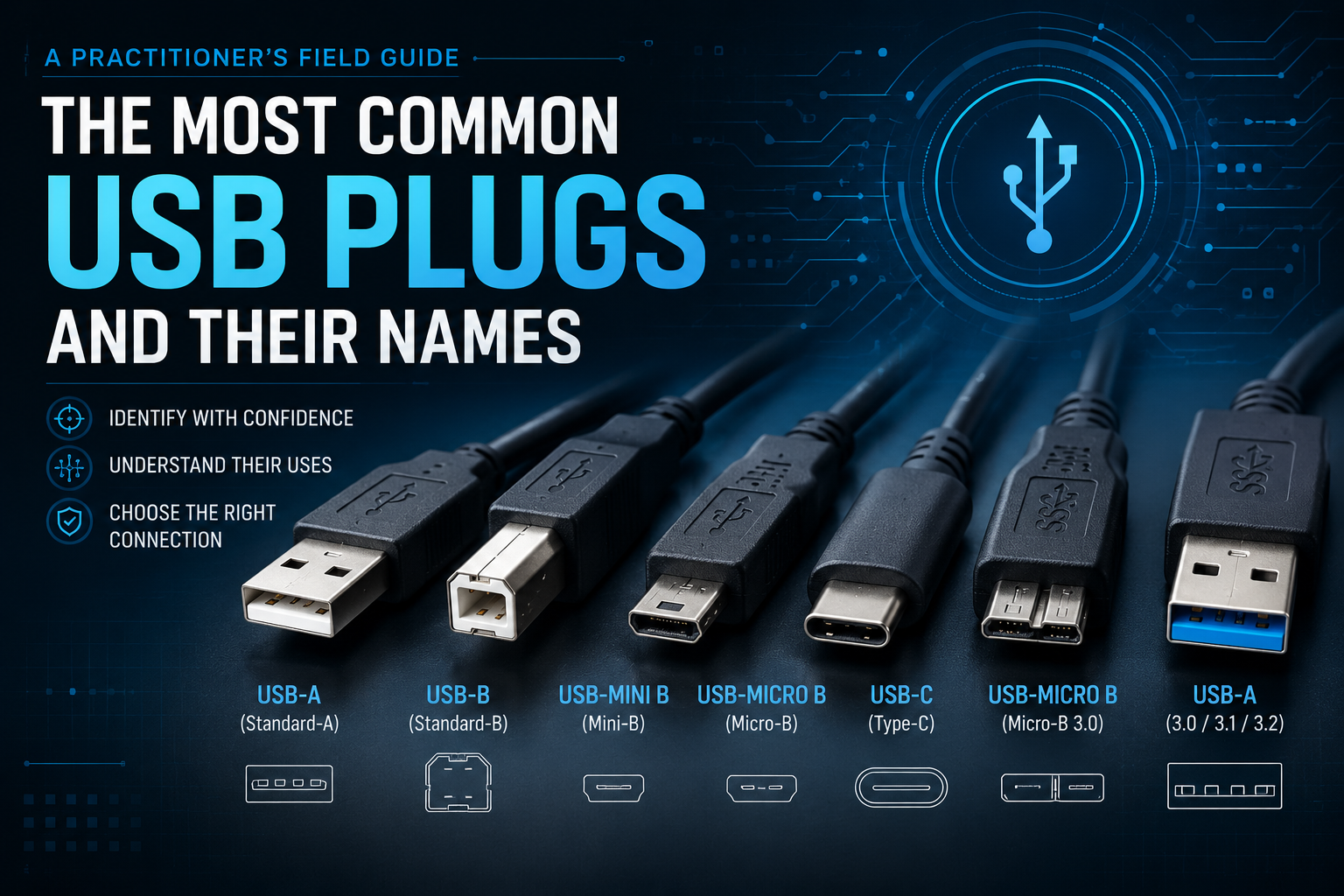
The Most Common USB Plugs and Their Names: A Practitioner’s Field Guide
If you have ever dug through a drawer full of cables trying to find the one that actually fits the device in your hand, you already understand the problem. USB was supposed to be universal. In practice, decades of revisions left us with a pile of connectors that look similar, behave differently, and carry names that range from sensible to baffling. This guide walks through the ten most common USB plugs you will actually encounter, what each one looks like, how fast it moves data, and where it belongs in the real world.
One thing to keep in mind throughout: the connector shape and the USB version are two separate things. A Type-C plug tells you nothing about speed on its own. The same physical port can run anywhere from 480 Mbps to 120 Gbps depending on the silicon behind it. Always verify the device and cable spec, not just the shape.
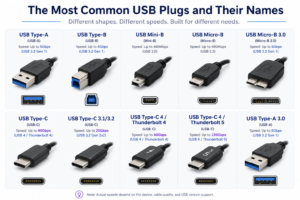
USB Type-A (USB-A)
The rectangular plug everyone recognizes. If you have ever plugged in a flash drive, a wired mouse, or a phone charger into a laptop, this is the one. It is the original host-side connector and it has survived nearly thirty years largely on muscle memory.
Speed: Up to 5 Gbps (USB 3.2 Gen 1)
Use case: Host-side connections on desktops, laptops, docks, and chargers. The blue plastic insert inside the connector signals a 3.0 or later port capable of 5 Gbps. Black inserts usually mean USB 2.0 and 480 Mbps. It is not reversible, so you will still flip it three times before it goes in.
USB Type-B (USB-B)
The squarish, almost house-shaped connector. You will find this one on the back of printers, scanners, and some audio interfaces. It was designed for the device end of a connection so manufacturers could keep the bulkier port on equipment that does not move around much.
Speed: Up to 5 Gbps (USB 3.2 Gen 1)
Use case: Peripherals that sit on a desk and rarely get unplugged. Printers and external optical drives are the classic examples. The connector is large by modern standards, which is exactly why it migrated to equipment where size does not matter.
USB Mini-B (Mini-B)
The first real attempt at shrinking the device-side connector for portable gear. Older digital cameras, MP3 players, and early GPS units used this trapezoidal plug heavily. It is now largely obsolete, but it lingers in older hardware and legacy lab equipment.
Speed: Up to 480 Mbps (USB 2.0)
Use case: Legacy portable electronics. If you maintain older test equipment, dashcams, or first-generation portable devices, you will still run into Mini-B. Keep one cable in the drawer for the day it shows up.
USB Micro-B (Micro-B)
For roughly a decade this was the connector for nearly every Android phone, e-reader, Bluetooth speaker, and budget gadget on the market. Smaller and thinner than Mini-B, it became the de facto charging standard before Type-C took over.
Speed: Up to 480 Mbps (USB 2.0)
Use case: Older smartphones and a massive installed base of inexpensive accessories. Power banks, wireless earbuds, and cheap peripherals still ship with Micro-B today because it is cheap to implement. The connector is fragile compared to Type-C and wears out faster, which is part of why the industry moved on.
USB Micro-B 3.0 (Micro-B 3.0)
The connector that looks like someone glued a second plug onto a standard Micro-B, because that is essentially what happened. To hit USB 3.0 speeds while keeping backward compatibility, the design added an extra row of pins beside the original connector.
Speed: Up to 5 Gbps (USB 3.2 Gen 1)
Use case: External hard drives and SSDs, especially portable 2.5-inch USB 3.0 drives from the early-to-mid 2010s. The wider connector exists almost exclusively in external storage. If you support field teams with portable drives, this is a cable worth keeping labeled.
USB Type-C (USB-C)
The connector that was supposed to end the confusion, and mostly did on the physical side. It is small, reversible, and increasingly mandated by regulation. The catch is that the shape says nothing about capability. A Type-C port might be a basic 480 Mbps charging port or a full 40 Gbps Thunderbolt link.
Speed: Up to 40 Gbps (USB 4 / Thunderbolt 4)
Use case: Modern phones, laptops, tablets, docks, monitors, and just about every new device shipping today. It carries data, video, and up to 240 watts of power over a single reversible plug. This is the connector to standardize on going forward, with the caveat that you must verify what each specific port and cable actually supports.
USB Type-C 3.1 / 3.2 (USB-C)
Physically identical to any other Type-C plug, but running the USB 3.2 Gen 2×2 protocol. This is the version that doubled lanes to reach 20 Gbps without stepping up to full USB 4 or Thunderbolt.
Speed: Up to 20 Gbps (USB 3.2 Gen 2×2)
Use case: High-speed external SSDs and data-heavy peripherals that need more than 10 Gbps but do not require Thunderbolt. This tier is a good reminder that the Type-C connector is a family of speeds, not a single one. Match the cable rating to the port or you will silently fall back to a slower mode.
USB Type-C 4 / Thunderbolt 4 (USB-C)
Type-C running USB 4 with Thunderbolt 4 certification. The lightning-bolt icon on the connector is the tell. This is where the connector stops being just a USB port and becomes a high-bandwidth, low-latency link capable of daisy-chaining displays and external GPUs.
Speed: Up to 40 Gbps (USB 4 / Thunderbolt 4)
Use case: Docking stations, dual 4K monitors, external GPUs, and fast NVMe enclosures. Thunderbolt 4 guarantees a minimum performance floor that plain USB 4 does not, so it is the safer spec for demanding workstation setups. If you are building out a power-user dock, this is your baseline.
USB Type-C 4 / Thunderbolt 5 (USB-C)
The current top of the stack. Same reversible Type-C shape, but Thunderbolt 5 pushes bandwidth dramatically higher and adds a bandwidth boost mode for displays. The connector marking sets it apart from its Thunderbolt 4 sibling.
Speed: Up to 120 Gbps (USB 4 / Thunderbolt 5)
Use case: Cutting-edge workstations, multiple high-refresh or 8K displays, and the most demanding external storage and GPU setups. This is overkill for everyday work and absolutely the right call for video production, large dataset transfer, and professional content pipelines. Expect the cables and certified hardware to carry a premium.
USB Type-A 3.0 (USB-A)
The familiar rectangular Type-A plug, upgraded to USB 3.0 internals. Visually identical to the original except for the blue insert that marks it as a SuperSpeed connector. It exists so the enormous installed base of Type-A ports could gain 5 Gbps speeds without changing shape.
Speed: Up to 5 Gbps (USB 3.2 Gen 1)
Use case: Connecting modern peripherals to the Type-A ports that still dominate desktops, docks, and older laptops. External drives, high-speed flash drives, and capture devices all benefit. When you see blue plastic inside a rectangular USB port, you are looking at this.
A Note on Real-World Speeds
Every speed figure here is a ceiling, not a promise. Actual throughput depends on three things lining up: the device, the cable, and the version support on both ends. A 40 Gbps Thunderbolt cable plugged into a 5 Gbps port runs at 5 Gbps. A cheap unmarked Type-C cable might quietly cap you at 480 Mbps no matter what it is connected to.
The practical takeaway is simple. The connector shape tells you what fits. The printed spec and the device documentation tell you what it actually does. Label your cables, keep a few legacy adapters in the drawer, and verify before you assume.
Recent posts
-

-

DNS is one of those technologies that quietly underpins... Full Story
-

BGP issues on FortiGate firewalls usually trace back to... Full Story
-

Every time your laptop talks to your router, a... Full Story
-

If you've spent any time configuring NAT on a... Full Story
-

If you have spent any time configuring firewall policies... Full Story
-

High availability on FortiGate is one of those features... Full Story
-

If you've configured SD-WAN on a FortiGate, you've almost... Full Story
-

FortiLink is the management protocol that turns a FortiSwitch... Full Story
-

FortiSwitches are pretty rock solid from Mean Time Between... Full Story
-

This is a quicky tip. Have you ever gone... Full Story
-

DNS is one of those quiet pieces of internet... Full Story
-

This article is an updated version of the previous... Full Story
-

You will add ns2 as a secondary (slave) BIND9... Full Story
-

In the process of deploying my lab, I needed... Full Story
-

RFC 8805, used to be known as Self-Correcting IP... Full Story
-

Years back, I wrote an article about certificate pinning. ... Full Story
-

FortiGates have the ability to send alerts to Microsoft... Full Story
-

In this post, I am going to walk through... Full Story
-

Troubleshooting VoIP on a FortiGate can feel like trying... Full Story
-

Prior to FortiOS 7.0, there were three commands to... Full Story
-

In this post, I am going to go over... Full Story
-

What we are going to do: We are going... Full Story
-

Choosing between FGCP (FortiGate Clustering Protocol) and FGSP (FortiGate... Full Story
-

Creating a VLAN on macOS (The "Pro" Move) A... Full Story
-

This blog post explores the logic behind how macOS... Full Story
-

Pretty Fly for a Wi-Fi Tell My Wi-Fi Love... Full Story
-

Part of my daily gig is creating BoMs (Bill-of-Materials)... Full Story
-

ICMP introduces several security risks, but careful filtering, rate... Full Story
-

The command diag debug application dhcps -1 enables full... Full Story
-

In the world of FortiOS, execute tac report is... Full Story
-

LLDP; What is it The Link Layer Discovery Protocol... Full Story
-

What it actually does When you run diagnose fdsm... Full Story
-

Monkey Bites are bite-sized, high-impact security insights designed for... Full Story
-

I have run macOS in macOS with Parallels but... Full Story
-

Don't be confused with my other FortiNAC posts where... Full Story
-

This is the third session in a multi-part article... Full Story
-

Today I was configuring key-based authentication on a FortiGate... Full Story
-

Netcat, often called the "Swiss Army knife" of networking,... Full Story
-

At its core, IEEE 802.1X is a network layer... Full Story
-

In case you did not see the previous FortiNAC... Full Story
-

This is our 5th session where we are going... Full Story
-

Now that we have Wireshark installed and somewhat configured,... Full Story
-

The Philosophy of Packet Analysis Troubleshooting isn't about looking... Full Story
-

InfoSecMonkey Threat Response October 24, 2026 | No fluff.... Full Story
-

InfoSecMonkey Threat Response October 24, 2026 | No fluff.... Full Story
-

Plus what you actually get with FortiCare Essential, Premium... Full Story