
If you've spent any time configuring user authentication on... Full Story
By Manny Fernandez
March 12, 2021
Collecting DNS Logs for Post-Mortem
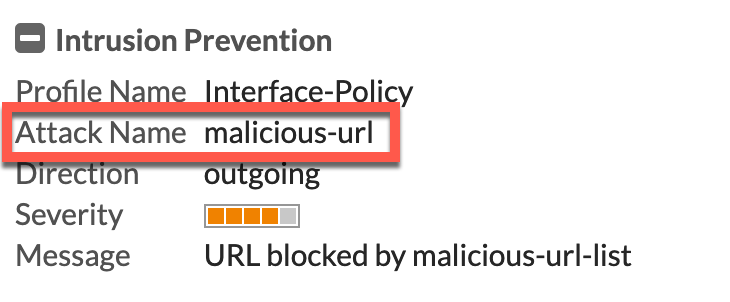
Here is an article that has been a long time coming. One of the things I do when a customer wants to set up a firewall, is block DNS traffic except for traffic from the internal DNS server. The FortiGate can act as a DNS server for any interface so you have some flexibility in regards to guest WiFi and/or Guest VLANs. Some customer follow my posts on creating Quarantine IPS Security Profiles and they can get themselves into trouble because the firewall CAN quarantine if the DNS is triggering those Quarantine IPS Profiles. The biggest drawback is that since the internal devices are querying the DNS servers (usually the Domain Controllers although not always), the firewall assumes that the domain controller is compromised and CAN quarantine it. Even if you are not quarantining, you may see that the firewall blocked a DNS query because of a malicious url as an example, you would want to see what user asked the DNS server for that domain as chances are, that the machine asking the DNS for the malicious URL is compromised.
Although I prefer BIND over Windows Server for DNS, simply for the security and flexibility, I will mostly cover Windows DNS in this article. However, I will include some commands to enable query logs but there is a performance trade-off (same as Windows). Be careful and monitor your resources on your servers to ensure that you are not DoS’ng yourself. FortiMonitor is a good solution for you to look at 🙂
SCOPE
In this article, I am going to cover the Windows DNS Server configuration, the PowerShell Script to normalize the data, and the cron job to rotate the logs. If you have a SIEM, there should be a parser included that will parse out the DNS logs and ingest them into the SIEM. Another piece of the puzzle you should also collect is DHCP which I will cover in a later article.
BIND Query Logging
In Linux, I find that things may seem harder for the user that is not comfortable in the command line. But the trade off of flexibility is worth the time spent in the ugly black screen . At least IMHO.
To enable logging, on a BIND server running running BIND 9, type the following command:
rndc querylog
By default, this will get written to the following location to /var/log/messages file. The name server will log a single line message for every query it receives.
Sample Output
Mar 11 09:11:10 ns1 named[80090]: client 192.168.1.2#3271: query: www.infosecmonkey.com IN A
To disable the querylog you need to issue the same command we issued before.
rndc querylog
Windows DNS Server
We are going to configure DNS logging. With Windows it is a bit more complicated which is why I like Linux so much.
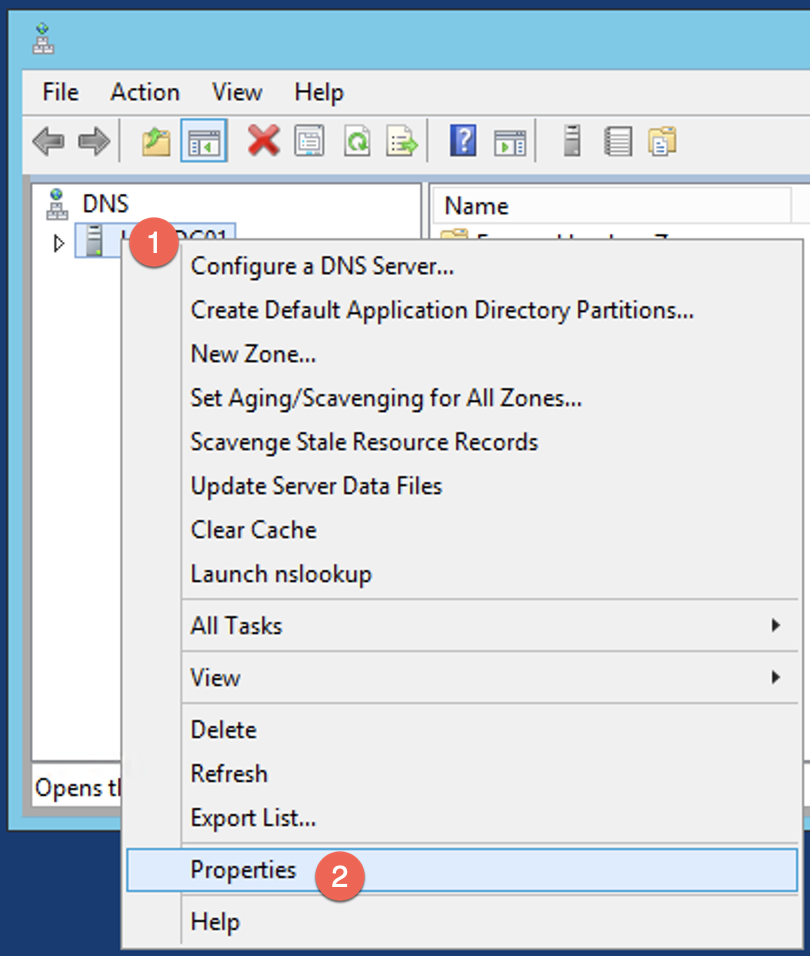
First thing we will need to do is launch the DNS Manager app. Right click on the (1) DNS server name, and choose (2) Properties
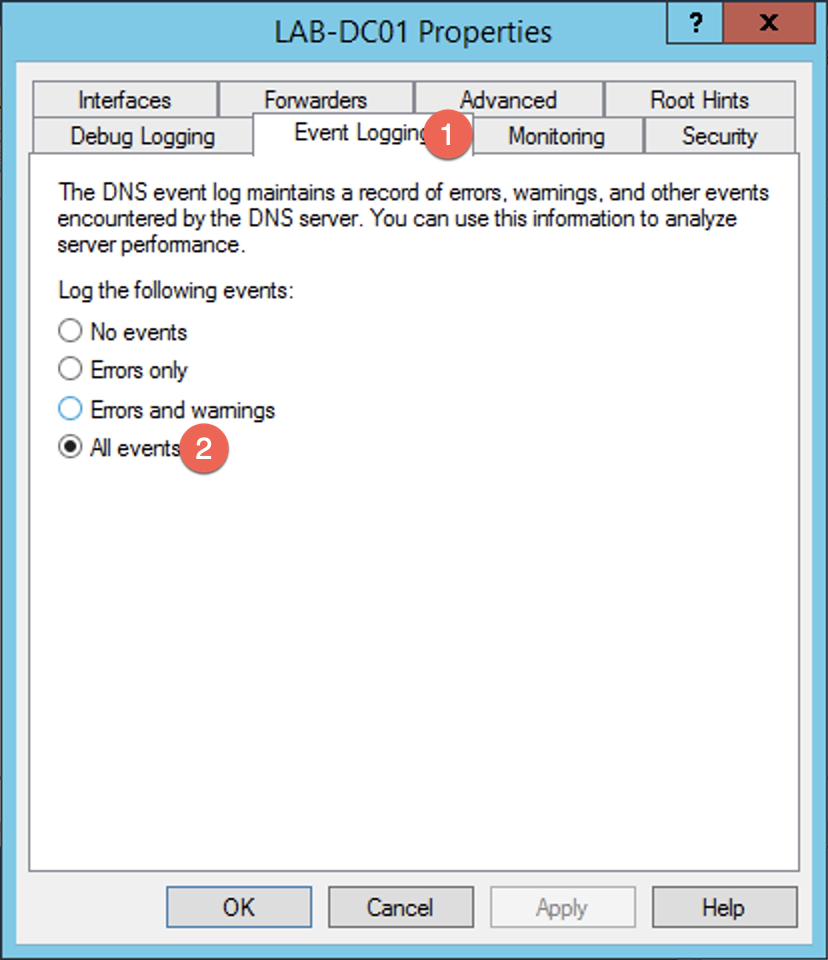
Under the tab labeled (1) Event Logging ensure that (2) All events is selected.
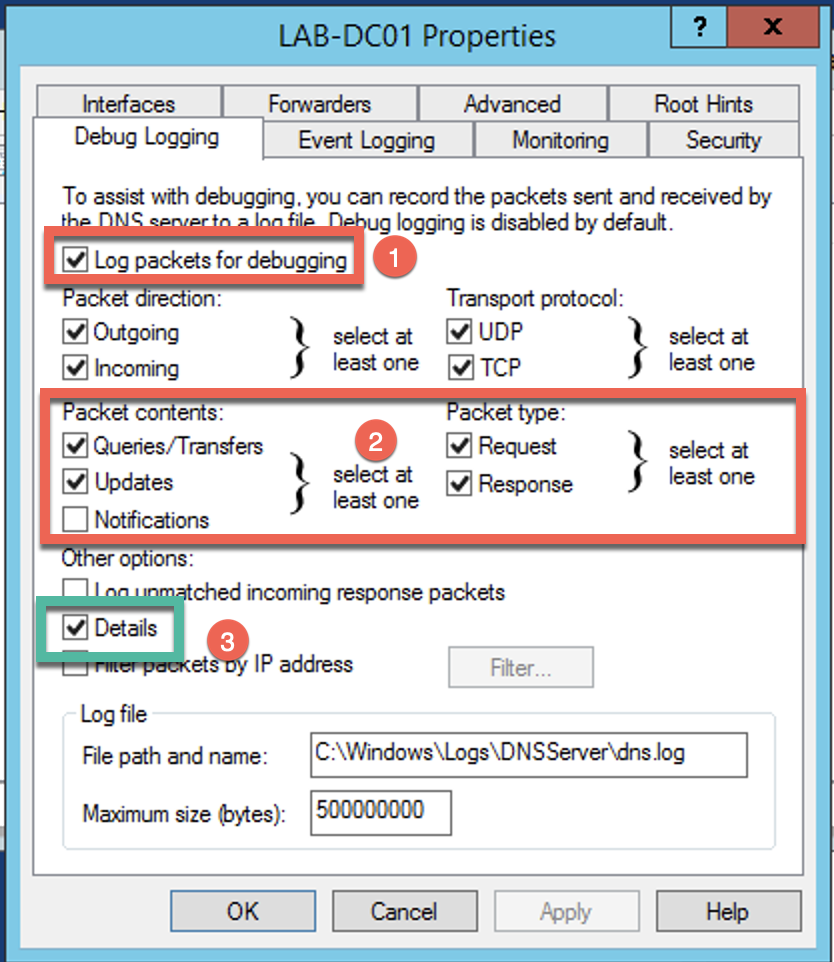
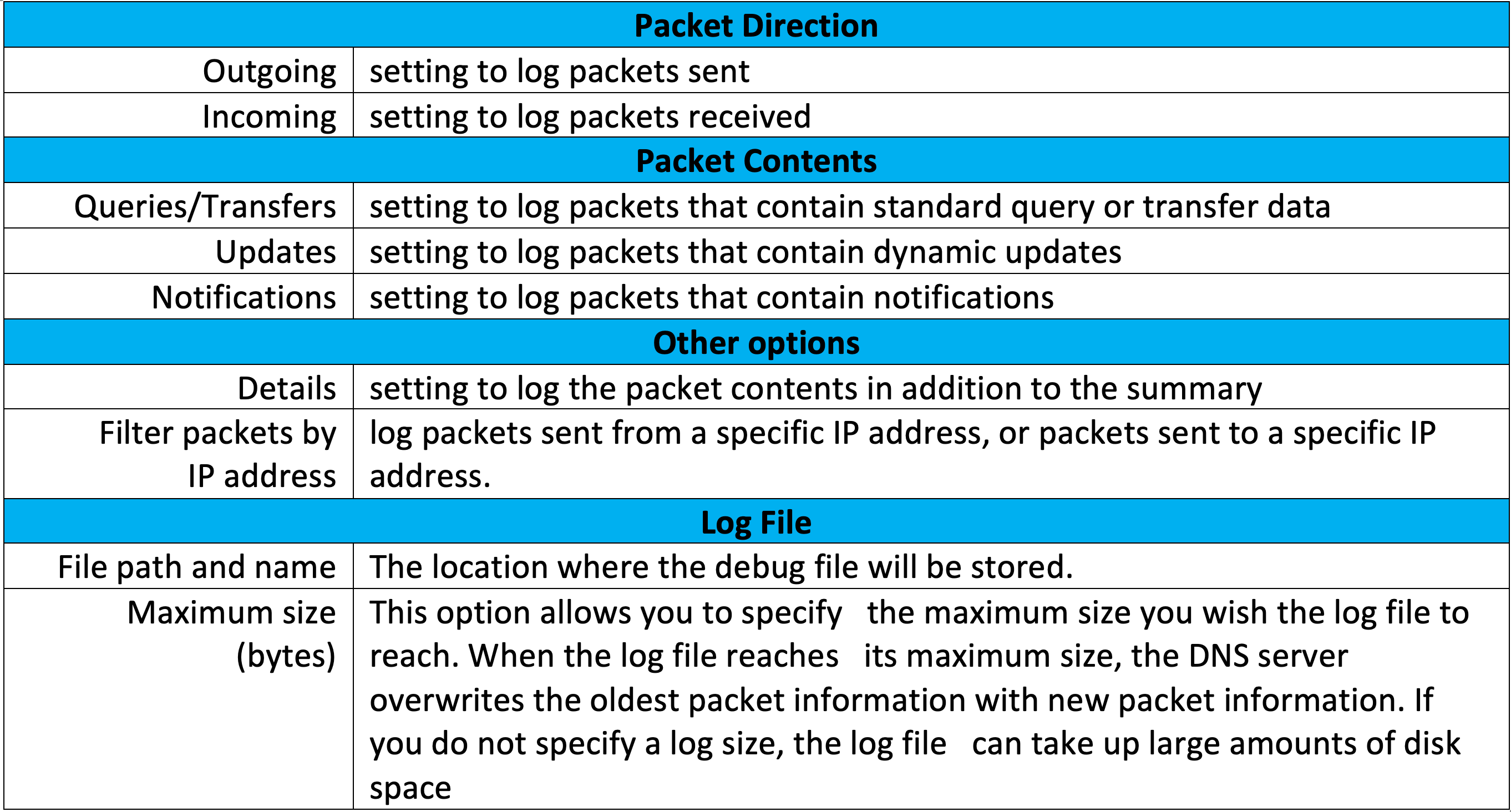
Under the Debug Logging tab, enable the (1) Log packets for debugging . You will also want to make sure that you select (2) Queries/Transfers and ensure you have Request and Response selected. Optionally, you can include Details
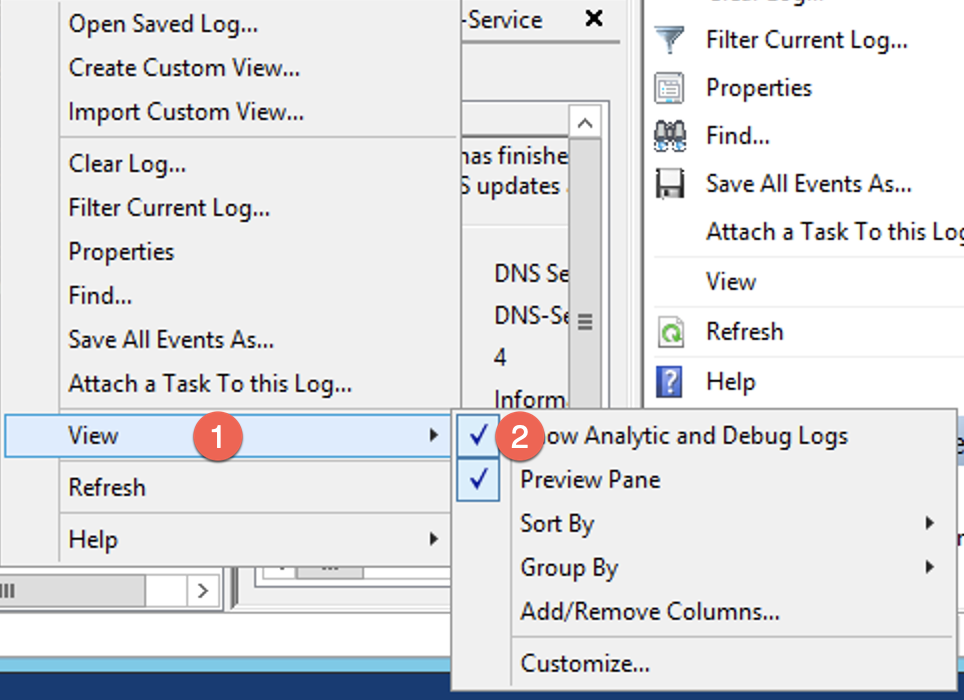
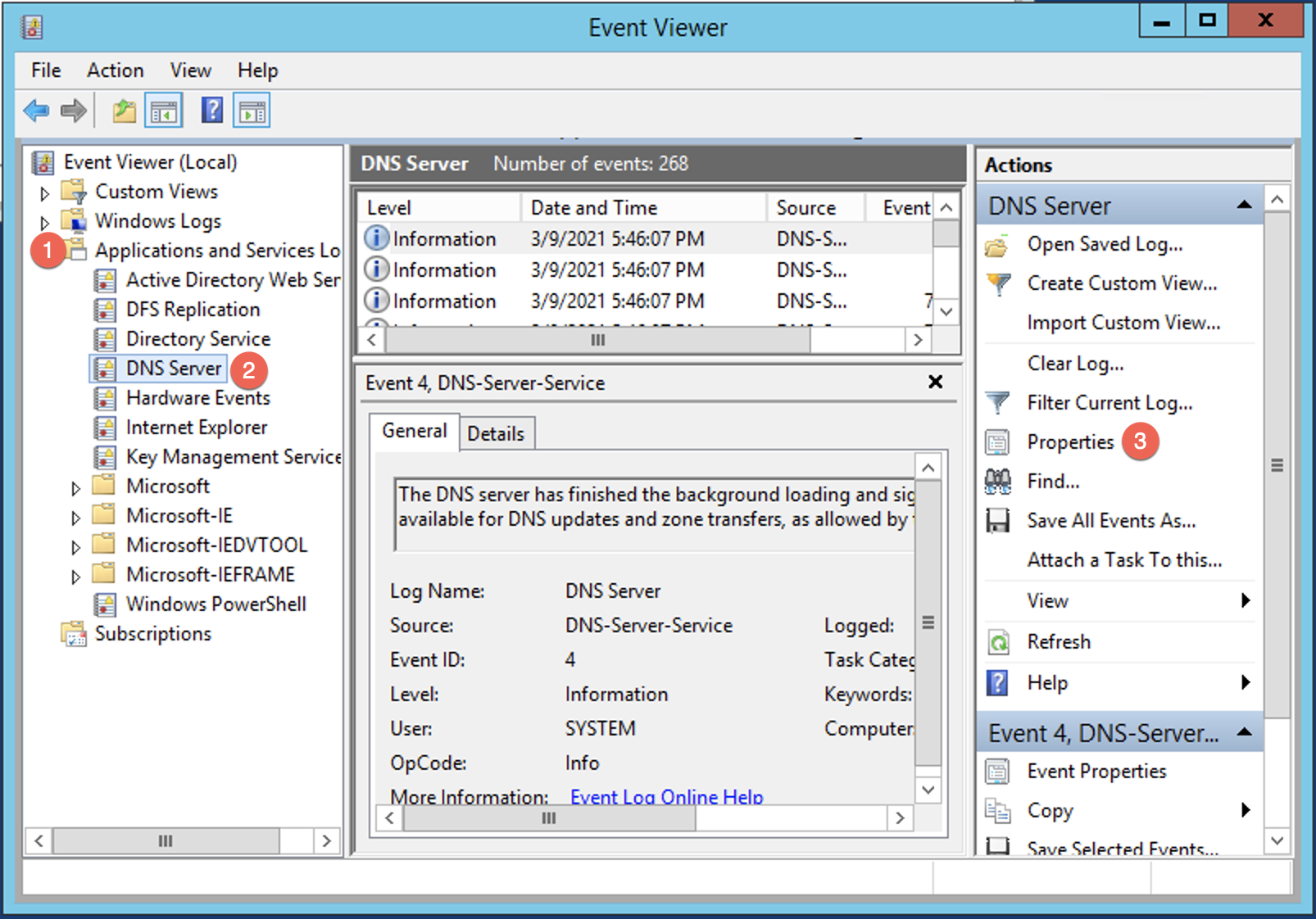
Next, we will launch the Windows Event Viewer, and under the Application and Services Logs you will need to right click on DNS and select View . Once you highlight View you will choose Show Analytics and Debug Logs
Now you will need to go to the Properties section of DNS in Event Viewer
Ensure that Enable Logging is ticked and Do not overwrite events (Clear logs manually as an optional setting.
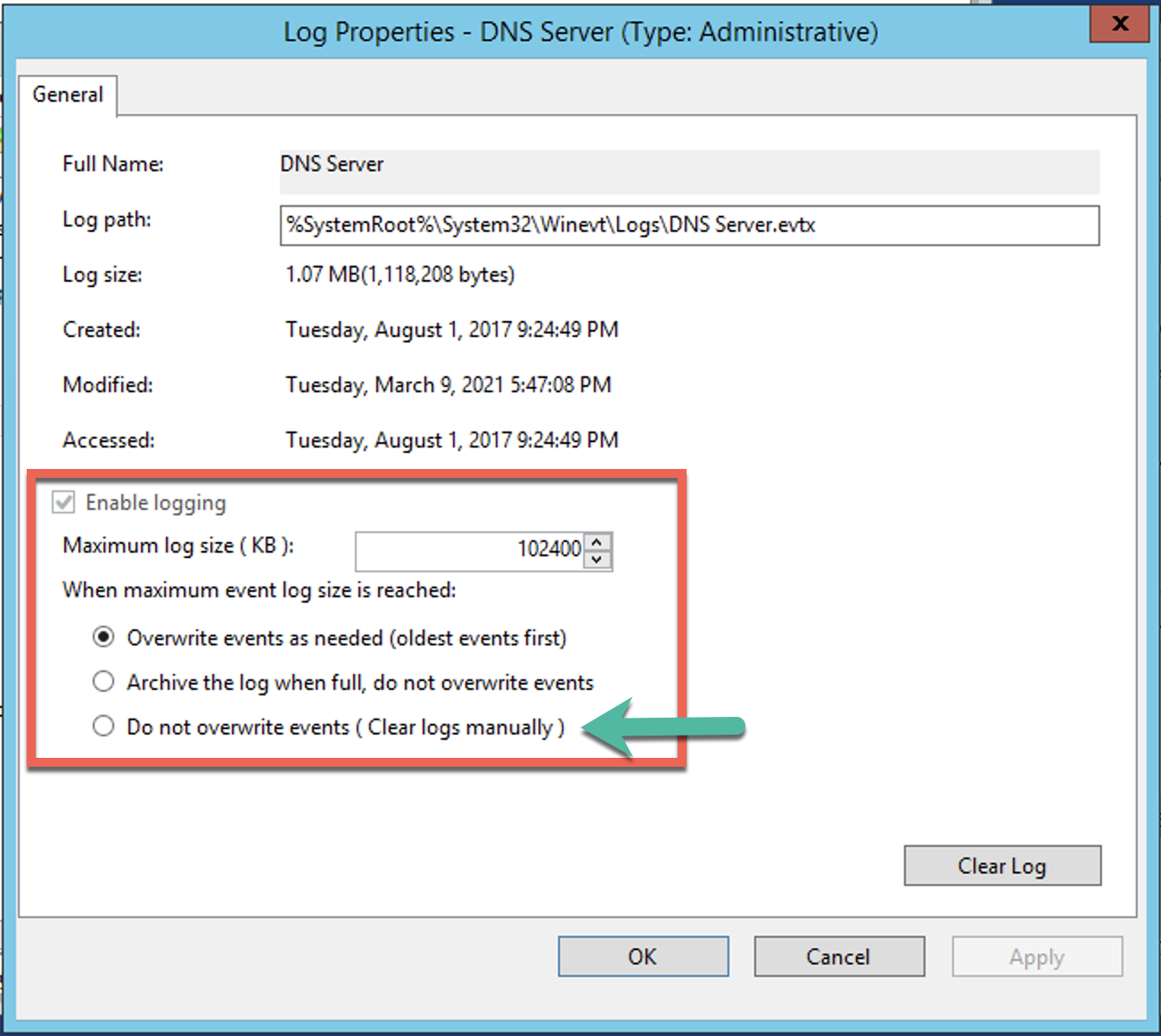
Hit OK and lets move on. Now that we have the DNS logs going to the location we specified above, we can look at the file.
3/11/2021 7:06:15 PM 1BB8 PACKET 000002A6A21E7560 UDP Rcv ::1 7f31 Q [0001 D NOERROR] A (13)infosecmonkey(3)com(0)
3/11/2021 7:06:15 PM 1BB8 PACKET 000002A6ACEF04B0 UDP Snd 96.46.240.228 2981 Q [0001 D NOERROR] A (13)infosecmonkey(3)com(0)
3/11/2021 7:06:15 PM 1BB8 PACKET 000002A6AA0CD0B0 UDP Rcv 96.46.240.228 2981 R Q [0581 D REFUSED] A (13)infosecmonkey(3)com(0)
3/11/2021 7:06:15 PM 1BB8 PACKET 000002A6ACEF04B0 UDP Snd 66.129.80.228 2981 Q [0001 D NOERROR] A (13)infosecmonkey(3)com(0)
3/11/2021 7:06:15 PM 1BB8 PACKET 000002A6A740F560 UDP Rcv 10.2.10.10 7f31 Q [0001 D NOERROR] A (13)infosecmonkey(3)com(0)
3/11/2021 7:06:15 PM 1BB8 PACKET 000002A6A6CED4E0 UDP Rcv 66.129.80.228 2981 R Q [0581 D REFUSED] A (13)infosecmonkey(3)com(0)
3/11/2021 7:06:15 PM 1BB8 PACKET 000002A6ACEF04B0 UDP Snd 4.2.2.2 2981 Q [0001 D NOERROR] A (13)infosecmonkey(3)com(0)
3/11/2021 7:06:15 PM 1BB8 PACKET 000002A6A6479140 UDP Rcv 4.2.2.2 2981 R Q [8081 DR NOERROR] A (13)infosecmonkey(3)com(0)
3/11/2021 7:06:15 PM 1BB8 PACKET 000002A6A21E7560 UDP Snd 10.2.10.10 7f31 R Q [8081 DR NOERROR] A (13)infosecmonkey(3)com(0)
3/11/2021 7:06:15 PM 1BB8 PACKET 000002A6A21E7560 UDP Snd ::1 7f31 R Q [8081 DR NOERROR] A (13)infosecmonkey(3)com(0)
The R and the Q represent a Response to a Query, while the single Q obviously represents the Query.
Rotating The Logs
So as you know, you probably want to rotate these log files. If not, they will eventually grow to the point where they CAN bring your box down. I would recommend that you create another volume just for logs. If that volume gets full, it will not affect your system volume where the OS is running. I found an article where this person wrote a batch file that you can use in a cron job. It seems to work well.
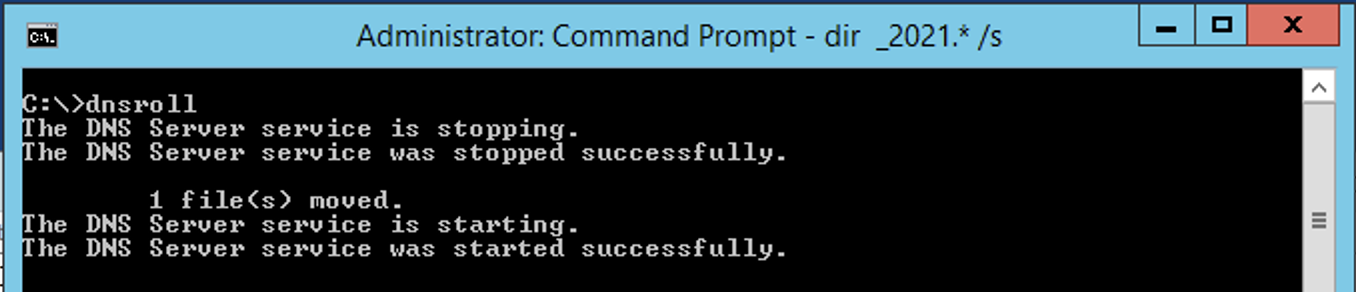
It worked well. The default output location is: c:\Windows\Log\DNSServer Ensure that you move the files to a location that is safe and can handle the space. You can also archive these files via the same script. You can zip it, then delete the original, then cycle the services.
Parsing the Logs
From the collected data of the log file, you COULD grep through them and find your artifacts, but I found a Powershell script that will normalize the data. Here is the link for the script on my GitHub.
I am researching some other methods to process and normalize the output. Obviously, the best solution is to deploy a SIEM. Pronounced SIM although some people call it SEAM. With a SIEM, it will ingest all the logs (although you may still need to enable the debugging as we did above) and not only allow for complex search queries, but the benefit of the SIEM is the correlation. The SIEM will correlate the events on the DNS with the event on the FortiGate as an example.
Recent posts
-

-

DNS is one of those technologies that quietly underpins... Full Story
-

BGP issues on FortiGate firewalls usually trace back to... Full Story
-

Every time your laptop talks to your router, a... Full Story
-

If you've spent any time configuring NAT on a... Full Story
-

If you have spent any time configuring firewall policies... Full Story
-

High availability on FortiGate is one of those features... Full Story
-

If you've configured SD-WAN on a FortiGate, you've almost... Full Story
-

FortiLink is the management protocol that turns a FortiSwitch... Full Story
-

FortiSwitches are pretty rock solid from Mean Time Between... Full Story
-

This is a quicky tip. Have you ever gone... Full Story
-

DNS is one of those quiet pieces of internet... Full Story
-

This article is an updated version of the previous... Full Story
-

You will add ns2 as a secondary (slave) BIND9... Full Story
-

In the process of deploying my lab, I needed... Full Story
-

RFC 8805, used to be known as Self-Correcting IP... Full Story
-

Years back, I wrote an article about certificate pinning. ... Full Story
-

FortiGates have the ability to send alerts to Microsoft... Full Story
-

In this post, I am going to walk through... Full Story
-

Troubleshooting VoIP on a FortiGate can feel like trying... Full Story
-

Prior to FortiOS 7.0, there were three commands to... Full Story
-

In this post, I am going to go over... Full Story
-

What we are going to do: We are going... Full Story
-

Choosing between FGCP (FortiGate Clustering Protocol) and FGSP (FortiGate... Full Story
-

Creating a VLAN on macOS (The "Pro" Move) A... Full Story
-

This blog post explores the logic behind how macOS... Full Story
-

Pretty Fly for a Wi-Fi Tell My Wi-Fi Love... Full Story
-

Part of my daily gig is creating BoMs (Bill-of-Materials)... Full Story
-

ICMP introduces several security risks, but careful filtering, rate... Full Story
-

The command diag debug application dhcps -1 enables full... Full Story
-

In the world of FortiOS, execute tac report is... Full Story
-

LLDP; What is it The Link Layer Discovery Protocol... Full Story
-

What it actually does When you run diagnose fdsm... Full Story
-

Monkey Bites are bite-sized, high-impact security insights designed for... Full Story
-

I have run macOS in macOS with Parallels but... Full Story
-

Don't be confused with my other FortiNAC posts where... Full Story
-

This is the third session in a multi-part article... Full Story
-

Today I was configuring key-based authentication on a FortiGate... Full Story
-

Netcat, often called the "Swiss Army knife" of networking,... Full Story
-

At its core, IEEE 802.1X is a network layer... Full Story
-

In case you did not see the previous FortiNAC... Full Story
-

This is our 5th session where we are going... Full Story
-

Now that we have Wireshark installed and somewhat configured,... Full Story
-

The Philosophy of Packet Analysis Troubleshooting isn't about looking... Full Story
-

Executive Summary Objective: Get you from zero to writing... Full Story
-

NAND cells, the flash translation layer, SLC caching, TRIM,... Full Story
-

Nmap Scripting Engine (NSE): From One-Liners to Your First... Full Story