
If you've spent any time configuring user authentication on... Full Story
By Manny Fernandez
February 24, 2026
Basic of Wireshark – Session 3 – Capture vs Display Filters
The Philosophy of Packet Analysis
Troubleshooting isn’t about looking at every packet; it’s about noise reduction. In a high-traffic environment, you are looking for needles in a haystack. Wireshark is the magnet that pulls them out. My motto has always been “When in doubt, sniff it out”.
This is the third in a series of Wireshark Articles. Check out Session 1 and Session 2
In Wireshark, Capture Filters are the first line of defense against packet overload. Unlike Display Filters, which hide data that has already been recorded, Capture Filters tell Wireshark exactly which packets to write to the disk and which to ignore entirely. Although you should be careful with capture filters that you are not missing anything. I would rather err on the side of caution and use display filters
Capture Filters – These limit what Wireshark actually records to your disk. Use these for high-volume links to prevent the application from crashing.
Display Filters – These are applied after the data is captured. They are your primary diagnostic tool.
Because Capture Filters operate at the kernel level before the data reaches Wireshark’s analysis engine, they are incredibly efficient for long-term monitoring or high-traffic environments.
Capture Filters
The Underlying Engine: BPF
Capture filters use the Berkeley Packet Filter, (BPF) syntax. The BPF capture standard is a widely used, highly efficient mechanism for filtering network packets at the operating system kernel level. It allows packet capture tools (like tcpdump and nmap & Wireshark) to analyze, record, and filter traffic based on specific protocols, addresses, or ports before the data is moved from kernel space to user space, significantly improving performance.
The logic follows a simple structure:
-
Type Qualifier: What kind of
thingthe ID name or number refers to (e.g.,host,net,port). -
Direction Qualifier: The direction to/from the ID (e.g.,
src,dst). -
Protocol: The specific protocol to limit the filter to (e.g.,
ether,ip,tcp,udp).
Common Filter Primitives
To build a filter, you combine these primitives into expressions. Here are the most frequently used categories:
Host and Network Filters
-
host 192.168.1.1: Captures all traffic to and from this IP. -
net 192.168.1.0/24: Captures an entire subnet. -
src host 10.0.0.5: Only captures traffic originating from this specific host.
Port and Protocol Filters
-
port 80: Captures HTTP traffic (or any traffic on port 80). -
tcp port 443: Specifically captures HTTPS/TLS traffic. -
portrange 1-1024: Captures all “well-known” ports. -
icmp: Captures only ping requests and error messages.
Logical Operators
You can chain multiple primitives together to create highly specific filters using standard Boolean logic:
| Operator | Syntax | Example |
| AND | && or and |
host 192.168.1.10 and port 80 |
| OR | || or or |
host 10.0.0.5 or host 10.0.0.6 |
| NOT | ! or not |
not port 22 (Excludes SSH traffic) |
Advanced Byte-Offset Filtering
For power users, BPF allows you to look at specific bytes within a packet header. The syntax is proto [ offset : size ].
-
Example:
ip[0] & 0xf != 5-
This looks at the first byte of the IP header (offset
0). -
It checks if the header length is different from 5 (
20 bytes), which is a common way to filter for IP options, often used in network testing or attacks. - Fortinet has a good document on this
-
Capture vs. Display Filters: The Key Differences
It is easy to confuse these two, but their roles are fundamentally different:
| Feature | Capture Filters | Display Filters |
| When to use | Before starting the capture. | After the capture is finished/running. |
| Performance | Very high; saves disk space. | Resource intensive; uses CPU/RAM. |
| Syntax | BPF (host 1.1.1.1) |
Wireshark specific (ip.addr == 1.1.1.1) |
| Data Loss | If it’s filtered out, it’s gone. | None. Just hides the data from view. |
Note: FortiOS uses note BPF for its dia sniffer commands. See my article on that.
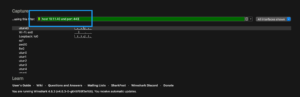
Pro-Tip: The “Green” Checkmark
In the Wireshark startup screen, the capture filter box will turn green if your BPF syntax is valid and red if it contains an error. Always check the color before hitting “Start,” or you might find yourself staring at an empty capture window wondering where your data went.
Display Filters
Wireshark’s Display Filters are the surgical tools of network analysis. Unlike Capture Filters (which dictate what the NIC records to the disk), Display Filters allow you to hide the noise and focus on specific packets within an already captured file. This is always usefule when someone has provided you a .pcap file capture on a different platfom (tcpdump, FortiGate,etc. They use a Boolean-based syntax that can range from a simple protocol name to complex logical expressions.
Basic Syntax and Logic
Display Filters follow a functional pattern: protocol.field.subfield operator value.
Comparison Operators
You can use either English-style abbreviations or C-style symbols:
| English | C-style | Meaning | Example |
eq |
== |
Equal | ip.addr == 192.168.1.1 |
ne |
!= |
Not Equal | tcp.port != 80 |
gt |
> |
Greater Than | frame.len > 1000 |
lt |
< |
Less Than | tcp.window_size < 1460 |
contains |
Search for bytes/strings | http contains "login" |
|
matches |
~ |
Regex match | `http.host matches “google |
Logical Connectors
-
AND (
&&): Both conditions must be true (e.g.,ip.addr == 10.0.0.1 && icmp). -
OR (
||): Either condition can be true (e.g.,tcp.port == 443 || udp.port == 443). -
NOT (
!): Excludes the condition (e.g.,!dns).
Common Filter Categories
Network Layer (IP)
-
ip.addr: Filters for a specific IP as either source or destination. -
ip.src/ip.dst: Filters specifically by source or destination. -
ip.subnets: Filters for an entire range using CIDR notation (e.g.,ip.addr == 192.168.1.0/24).
Transport Layer (TCP/UDP)
-
tcp.flags.syn == 1: Finds connection requests. -
tcp.analysis.retransmission: Excellent for troubleshooting packet loss and latency. -
udp.port == 53: Specifically targets DNS traffic.
Application Layer (HTTP/DNS/TLS)
-
http.request.method == "GET": Shows only HTTP GET requests. -
tls.handshake.type == 1: Filters for Client Hello packets to see which devices are initiating encrypted sessions. -
dns.qry.name contains "facebook": Finds specific domain lookups.
Advanced Filtering Techniques
Membership Operator (in)
Instead of writing multiple OR statements, you can use the in operator to check a set of values:
tcp.port in {80, 443, 8080}
Slicing (Bitmasking)
You can filter based on specific bytes within a protocol using the [n:m] syntax, where n is the offset and m is the length.
eth.src[0:3] == 00:00:5e(Filters for the first three bytes of a MAC address, often identifying the manufacturer).
The “Membership” Trap
A common mistake is using ip.addr != 1.1.1.1 to exclude a host. Because most packets have two IP addresses (source and destination), this filter will still show a packet if either the source or destination is not 1.1.1.1.
Correct way: !(ip.addr == 1.1.1.1).
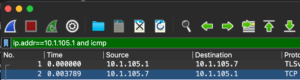
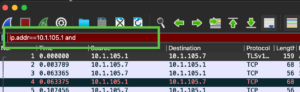
The Visual Feedback System
The Wireshark filter bar provides real-time feedback as you type:
-
Green: Valid syntax.
-
Red: Invalid syntax (Wireshark won’t run it).
-
Yellow: Valid syntax but might result in unexpected behavior (often seen with “not equal” logic).
Correct Display Filter
Incorrect Display Filter
When it comes to efficient writing of filter rules, you can use the same info I described in Episode 1
tcp.flags == 0x10
Is the same as writing tcp.flags.ack == 1 && tcp.flags.syn == 0 && tcp.flags.fin == 0 && tcp.flags.push == 0
Why this works
The TCP flags field is an 8-bit (one byte) field. Each flag corresponds to a specific bit position:
Which one should you use?
Depending on exactly what you’re trying to catch, there are two ways to go about this:
-
tcp.flags == 0x10: This is the “Strict” approach. It matches packets where theACKbit is1and all other flags (SYN,FIN,RST,PSH,URG, etc.) are0. -
tcp.flags.ack == 1: This is the “Inclusive” approach. It shows you every packet that has anACK, even if it also has aPSHor aFIN.
A Pro-Tip on “Pure” ACKs
If you are looking for “Pure ACKs” (packets that acknowledge data but carry no payload themselves), the filter above might still show you packets that contain data. To find only those empty “Keep-alive” or handshake ACKs, use: tcp.flags == 0x10 && tcp.len == 0
Performing Packet Capture on FortiGate
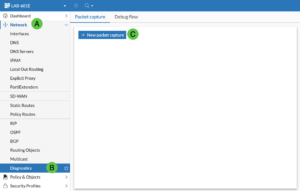
To capture a PCAP on the on the FortiGate, you can go to Network (A), then Diagnostic (B) the New Packet Capture (C).
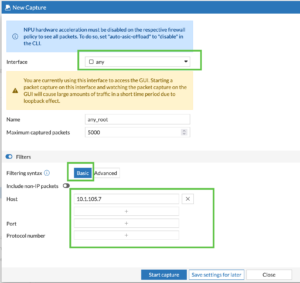
You can choose Basic filters and put in hosts, ports or protocols.
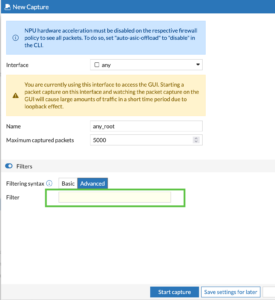
Or you can use the BPF filtering we discussed above.
Once you start the capture, you can either view the data in the GUI, or save as PCAP. This will allow you to open the .pcap file in Wireshark.
Recent posts
-

-

DNS is one of those technologies that quietly underpins... Full Story
-

BGP issues on FortiGate firewalls usually trace back to... Full Story
-

Every time your laptop talks to your router, a... Full Story
-

If you've spent any time configuring NAT on a... Full Story
-

If you have spent any time configuring firewall policies... Full Story
-

High availability on FortiGate is one of those features... Full Story
-

If you've configured SD-WAN on a FortiGate, you've almost... Full Story
-

FortiLink is the management protocol that turns a FortiSwitch... Full Story
-

FortiSwitches are pretty rock solid from Mean Time Between... Full Story
-

This is a quicky tip. Have you ever gone... Full Story
-

DNS is one of those quiet pieces of internet... Full Story
-

This article is an updated version of the previous... Full Story
-

You will add ns2 as a secondary (slave) BIND9... Full Story
-

In the process of deploying my lab, I needed... Full Story
-

RFC 8805, used to be known as Self-Correcting IP... Full Story
-

Years back, I wrote an article about certificate pinning. ... Full Story
-

FortiGates have the ability to send alerts to Microsoft... Full Story
-

In this post, I am going to walk through... Full Story
-

Troubleshooting VoIP on a FortiGate can feel like trying... Full Story
-

Prior to FortiOS 7.0, there were three commands to... Full Story
-

In this post, I am going to go over... Full Story
-

What we are going to do: We are going... Full Story
-

Choosing between FGCP (FortiGate Clustering Protocol) and FGSP (FortiGate... Full Story
-

Creating a VLAN on macOS (The "Pro" Move) A... Full Story
-

This blog post explores the logic behind how macOS... Full Story
-

Pretty Fly for a Wi-Fi Tell My Wi-Fi Love... Full Story
-

Part of my daily gig is creating BoMs (Bill-of-Materials)... Full Story
-

ICMP introduces several security risks, but careful filtering, rate... Full Story
-

The command diag debug application dhcps -1 enables full... Full Story
-

In the world of FortiOS, execute tac report is... Full Story
-

LLDP; What is it The Link Layer Discovery Protocol... Full Story
-

What it actually does When you run diagnose fdsm... Full Story
-

Monkey Bites are bite-sized, high-impact security insights designed for... Full Story
-

I have run macOS in macOS with Parallels but... Full Story
-

Don't be confused with my other FortiNAC posts where... Full Story
-

This is the third session in a multi-part article... Full Story
-

Today I was configuring key-based authentication on a FortiGate... Full Story
-

Netcat, often called the "Swiss Army knife" of networking,... Full Story
-

At its core, IEEE 802.1X is a network layer... Full Story
-

In case you did not see the previous FortiNAC... Full Story
-

This is our 5th session where we are going... Full Story
-

Now that we have Wireshark installed and somewhat configured,... Full Story
-

The Philosophy of Packet Analysis Troubleshooting isn't about looking... Full Story
-

Quick-Tip The default macOS zsh prompt prints your username,... Full Story
-

Executive summary. After Apple significantly upgraded Reminders, I finally... Full Story
-

The 20-byte tunnel nobody talks about: config system ipip-tunnel... Full Story