
If you've spent any time configuring user authentication on... Full Story
By Manny Fernandez
May 17, 2026
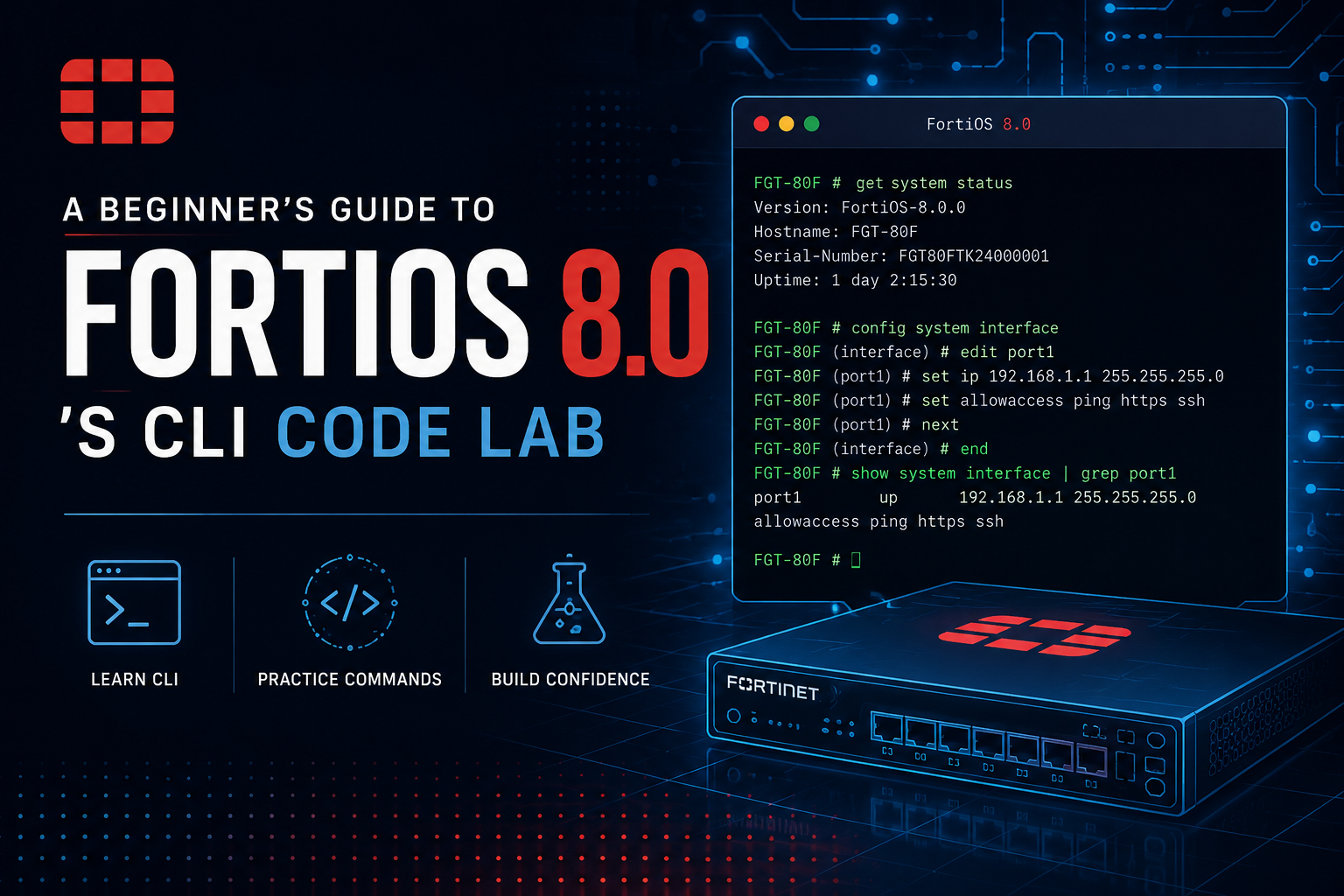
A Beginner’s Guide to FortiOS 8.0’s CLI Code Lab
If you have ever made a change to a firewall and then watched in horror as your connection went dead, you already understand the problem that CLI Code Lab is built to solve. FortiOS 8.0 introduced this tool, and it quietly fixes one of the most stressful parts of network administration. This post explains what it is, why it matters, and how it works, all in plain language.
First, a quick refresher on the FortiGate CLI
A FortiGate is Fortinet’s firewall. You can manage it in two ways. The first is the GUI, which is the point-and-click web interface most people start with. The second is the CLI, short for command line interface, where you type out configuration commands as text.
The CLI is powerful and precise, but it has historically been unforgiving. When you type a command and press Enter, the change happens immediately. There is no “are you sure?” and no safety net. For small tweaks this is fine. For bigger changes it can be nerve-wracking, because a single mistake can lock you out of the device you are trying to configure.
The problem CLI Code Lab solves
Imagine you need to change several settings at once, and those settings depend on each other. A classic example is reworking how the firewall handles management access. If you apply the changes one at a time, there is a moment in between where the configuration is half-finished. During that gap, the firewall might decide your computer is no longer allowed to talk to it. Your session drops, and now you are stuck, possibly needing physical access to the device to recover.
Experienced administrators have workarounds for this, such as writing scripts, but those approaches have their own learning curve and their own ways of going wrong. What was missing was a simple, built-in way to prepare a batch of changes, check that they make sense, and only then apply them.
That is exactly what CLI Code Lab provides.
So what is CLI Code Lab?
CLI Code Lab is a tool added in FortiOS 8.0 that lets you write out your configuration changes, test them, and then commit them as a single, deliberate action. Think of it like the difference between sending an email versus saving a draft. With the normal CLI, every command is sent the instant you type it. With CLI Code Lab, your commands go into a draft first. Nothing affects the live firewall until you choose to commit.
If you change your mind, or if the tool warns you that something will not work, you can fix the draft before anything real happens. Only when you are satisfied do you commit, and at that point all the changes are applied together.
One useful point of clarification: CLI Code Lab arrived in FortiOS 8.0 at the same time as a set of new AI features, so the two are easy to confuse. CLI Code Lab itself is not an AI feature. It is a straightforward workflow tool. It just happened to be introduced in the same release.
How it works behind the scenes
Under the hood, CLI Code Lab is not inventing anything brand new. FortiOS has long had a feature called transaction mode, sometimes referred to as workspace mode, which is the mechanism that groups changes together and holds them until commit. CLI Code Lab is essentially a friendly, approachable front door to that existing mechanism. Previous versions of FortiOS could do this too, but the process was clunky enough that many administrators never bothered. CLI Code Lab makes it easy enough to actually use.
Here is the basic flow:
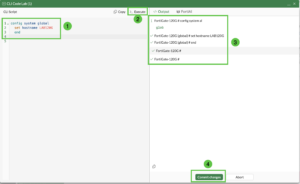
- You open CLI Code Lab and write out the configuration you want.
- You execute it. This creates a transaction, which is just the technical name for your batch of pending changes. At this stage the changes are staged but not live.
- The tool gives you immediate feedback. If a command is invalid or would fail, you find out now, before any harm is done.
- When everything looks good, you commit. The staged changes are written to the running configuration all at once.
A small but important detail: a staged transaction does not wait around forever. It has an expiry timer. If you stage changes and then walk away, the transaction will eventually time out, so you should commit reasonably promptly once you are happy with your draft.
Seeing it from the regular CLI
If you are curious about what is happening while changes are staged, the regular command line can show you. A couple of diagnostic commands let you peek at the pending transaction:
diagnose sys config-transaction show txn-infodisplays the active transaction, including its ID, how much time is left before it expires, which user created it, and where they connected from.diagnose sys config-transaction show txn-cli-commands <transaction-id>displays the actual commands that are staged but not yet committed.
A good way to see the safety net in action is the hostname example. If you use CLI Code Lab to change a firewall’s hostname, the new name does not show up when you check the running configuration. The old name is still there. It only updates after you commit. That gap between staging and committing is the whole point. It is your chance to catch mistakes.
Why this matters for newcomers
If you are new to FortiGate administration, CLI Code Lab is genuinely good news. It removes a lot of the fear that surrounds the command line. You can experiment, see warnings, and correct course without the pressure of every keystroke being permanent. It encourages you to make changes carefully and deliberately rather than hoping for the best.
It is also a gentle on-ramp to a professional habit. Treating configuration changes as something you stage, review, and then commit is good practice in any serious environment. CLI Code Lab builds that habit in without requiring you to learn scripting first.
The takeaway
CLI Code Lab does not add flashy new capabilities to your firewall. What it adds is confidence. It turns the FortiGate CLI from a high-wire act into something closer to working with a draft you can review before sending. For beginners especially, that change in workflow is worth getting comfortable with early. The next time you need to make a set of interlocking changes, you will be glad the safety net is there.
Recent posts
-

-

DNS is one of those technologies that quietly underpins... Full Story
-

BGP issues on FortiGate firewalls usually trace back to... Full Story
-

Every time your laptop talks to your router, a... Full Story
-

If you've spent any time configuring NAT on a... Full Story
-

If you have spent any time configuring firewall policies... Full Story
-

High availability on FortiGate is one of those features... Full Story
-

If you've configured SD-WAN on a FortiGate, you've almost... Full Story
-

FortiLink is the management protocol that turns a FortiSwitch... Full Story
-

FortiSwitches are pretty rock solid from Mean Time Between... Full Story
-

This is a quicky tip. Have you ever gone... Full Story
-

DNS is one of those quiet pieces of internet... Full Story
-

This article is an updated version of the previous... Full Story
-

You will add ns2 as a secondary (slave) BIND9... Full Story
-

In the process of deploying my lab, I needed... Full Story
-

RFC 8805, used to be known as Self-Correcting IP... Full Story
-

Years back, I wrote an article about certificate pinning. ... Full Story
-

FortiGates have the ability to send alerts to Microsoft... Full Story
-

In this post, I am going to walk through... Full Story
-

Troubleshooting VoIP on a FortiGate can feel like trying... Full Story
-

Prior to FortiOS 7.0, there were three commands to... Full Story
-

In this post, I am going to go over... Full Story
-

What we are going to do: We are going... Full Story
-

Choosing between FGCP (FortiGate Clustering Protocol) and FGSP (FortiGate... Full Story
-

Creating a VLAN on macOS (The "Pro" Move) A... Full Story
-

This blog post explores the logic behind how macOS... Full Story
-

Pretty Fly for a Wi-Fi Tell My Wi-Fi Love... Full Story
-

Part of my daily gig is creating BoMs (Bill-of-Materials)... Full Story
-

ICMP introduces several security risks, but careful filtering, rate... Full Story
-

The command diag debug application dhcps -1 enables full... Full Story
-

In the world of FortiOS, execute tac report is... Full Story
-

LLDP; What is it The Link Layer Discovery Protocol... Full Story
-

What it actually does When you run diagnose fdsm... Full Story
-

Monkey Bites are bite-sized, high-impact security insights designed for... Full Story
-

I have run macOS in macOS with Parallels but... Full Story
-

Don't be confused with my other FortiNAC posts where... Full Story
-

This is the third session in a multi-part article... Full Story
-

Today I was configuring key-based authentication on a FortiGate... Full Story
-

Netcat, often called the "Swiss Army knife" of networking,... Full Story
-

At its core, IEEE 802.1X is a network layer... Full Story
-

In case you did not see the previous FortiNAC... Full Story
-

This is our 5th session where we are going... Full Story
-

Now that we have Wireshark installed and somewhat configured,... Full Story
-

The Philosophy of Packet Analysis Troubleshooting isn't about looking... Full Story
-

InfoSecMonkey Threat Response October 24, 2026 | No fluff.... Full Story
-

InfoSecMonkey Threat Response October 24, 2026 | No fluff.... Full Story
-

Objective: Build an authoritative BIND9 server on Ubuntu that... Full Story