
If you've spent any time configuring user authentication on... Full Story
By Manny Fernandez
September 8, 2026
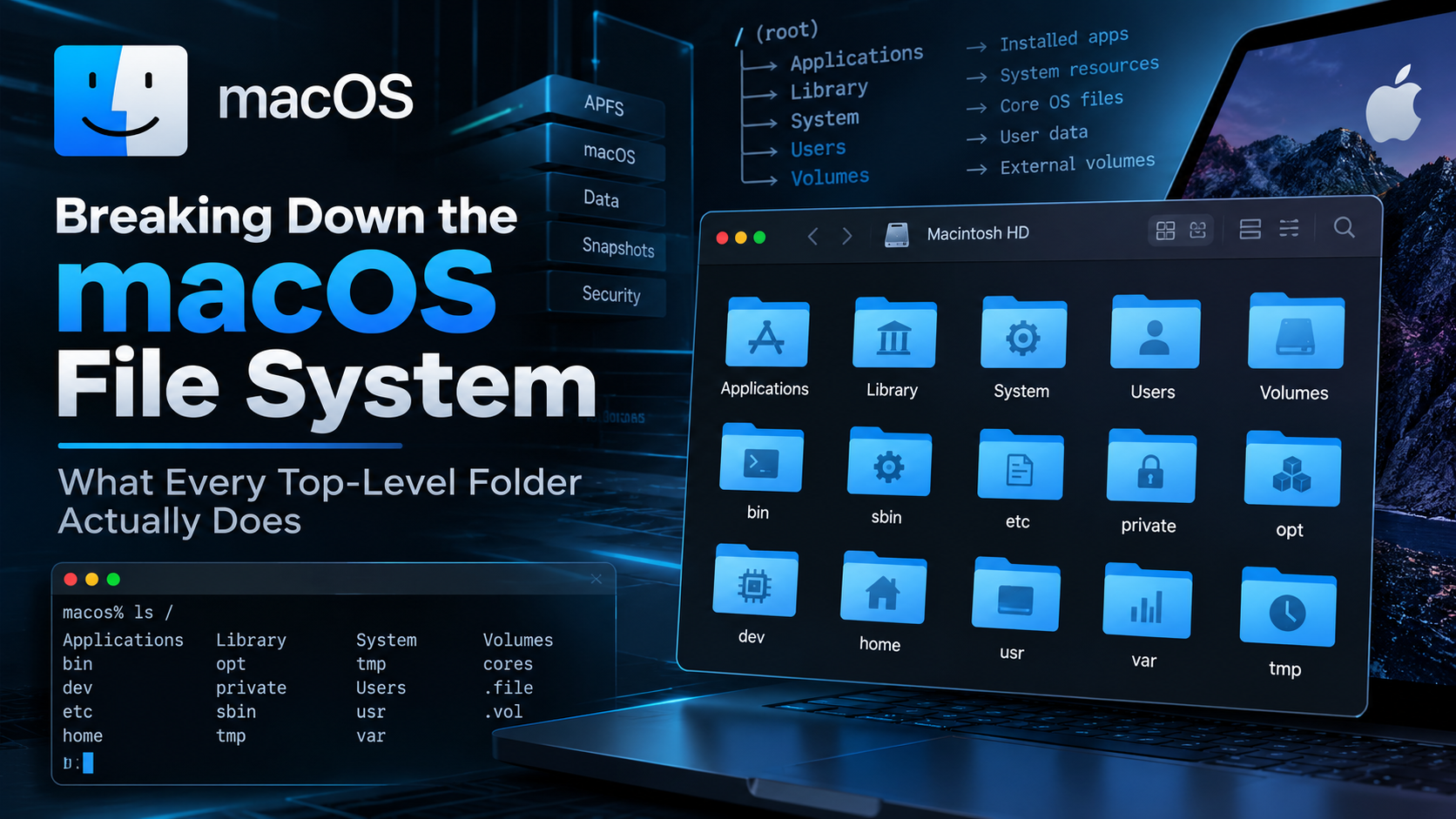
Breaking Down the macOS File System: What Every Top-Level Folder Actually Does
If you have ever stared at a Terminal window wondering why /etc is actually a symlink, or why your backup software insists your Mac has two hard drives, this post is for you. macOS looks like one tidy file system in Finder, but underneath it is really two separate volumes wearing a convincing disguise. Knowing what each top-level folder is actually responsible for will save you real troubleshooting time the next time something looks wrong.
The Big Picture: Two Volumes Wearing One Costume
Since macOS Catalina, Apple splits the boot disk into two APFS volumes that share one physical container. The first is the System volume, sometimes called the Signed System Volume, or SSV. It holds the operating system itself: the kernel, frameworks, and the apps Apple bundles with macOS. It is cryptographically sealed and mounted read-only, so nothing, not even an administrator running as root, can modify it directly.
The second is the Data volume. It holds everything that actually changes day to day: your apps, your documents, your preferences, your logs. It is mounted internally at /System/Volumes/Data, though in practice you will rarely type that path yourself.
So how does your Mac present these two volumes as one tidy file system? Through a mechanism Apple calls firmlinks. A firmlink is a bidirectional, folder-level link built into APFS itself, similar in spirit to a symbolic link but enforced at a lower layer. Each firmlink pairs a folder on the System volume with its writable counterpart on the Data volume, and the two are merged into a single view. The /Applications folder is the clearest example of this in action, and we will come back to it below.
Recent versions of macOS add a third ingredient called cryptexes, which mount additional signed content, Safari being the best known example, from the Preboot volume. For day to day troubleshooting, it is enough to think of the file system as System plus Data, stitched together by firmlinks.
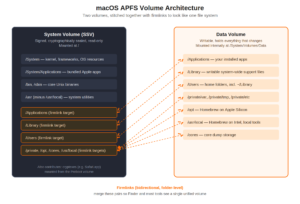
The System volume (left) is read-only and sealed. The Data volume (right) is writable. Firmlinks merge the pairs shown so the two appear as a single disk.
Top-Level Directory Breakdown
Here is every folder you will see at the root of the disk, what actually lives there, and whether it sits on the read-only System volume, the writable Data volume, or some mix of both.
| Path | What Lives There | Writable? |
|---|---|---|
| /Applications | Bundled Apple apps plus everything you install, merged into one view | Mixed |
| /Library | System-wide fonts, preference panes, extensions, printer drivers | Mixed |
| /System | The OS itself: kernel, frameworks, System Applications | No (sealed) |
| /Users | Every account’s home folder, plus a Shared folder | Yes |
| /Volumes | Mount points for every other disk, share, or disk image | Yes |
| /private | The real home of /etc, /tmp, and /var | Yes |
| /etc | Configuration files (symlink to /private/etc) | Yes |
| /tmp | Scratch space, cleared periodically (symlink to /private/tmp) | Yes |
| /var | Logs, spool directories, runtime state (symlink to /private/var) | Yes |
| /usr | Unix user-land binaries, libraries, man pages | No, except /usr/local |
| /bin, /sbin | Essential binaries needed before the rest of the system loads | No |
| /opt | Optional and third-party software (Homebrew on Apple Silicon) | Yes |
| /cores | Where core dumps land if you have enabled them, usually empty | Yes |
| /dev | Device nodes for direct hardware access | Virtual |
| /Network | Legacy network browsing point, rarely relevant today | Yes, mostly empty |
A closer look at the ones that matter most
/Applications
Third-party apps you install land here on the Data volume. Apple’s own bundled apps, Mail, Safari, Photos, and the rest, actually live in /System/Applications on the read-only System volume. Finder quietly merges the two through the /Applications firmlink so you never have to think about which volume an app came from.
/Library vs ~/Library
There are two Library folders worth knowing, and mixing them up is a classic troubleshooting mistake. The top-level /Library holds resources shared by every account on the machine: system-wide fonts, printer drivers, and support files for apps that need to be available machine-wide. Your personal ~/Library holds everything scoped to just your account: app data, caches, and your keychain. We will break that one down further in a moment, since it is where most day to day troubleshooting actually happens.
/System
This is the operating system itself, and since Catalina it lives entirely on the read-only System volume. Kernel extensions, system frameworks, and Apple’s bundled applications all live here. System Integrity Protection, or SIP, adds a second layer of enforcement on top of the read-only mount, restricting which processes can modify protected paths regardless of privilege level. If you see “Operation not permitted” while working as root, SIP is almost always the reason.
/private, and why /etc, /tmp, /var exist at the root
The familiar /etc, /tmp, and /var directories you see at the root are actually symbolic links pointing into /private/etc, /private/tmp, and /private/var. This layout comes from BSD Unix and is kept for compatibility with tools and scripts that expect those paths at the top level. /var in particular is worth knowing well: it holds system logs, spool directories, per-user temporary folders under /private/var/folders, and sleep image or swap files under /private/var/vm, all common culprits when disk space disappears without an obvious cause.
/usr, /usr/local, and /opt: where Homebrew actually lives
/usr holds the Unix user-land: binaries, libraries, and man pages that ship with macOS. Everything under /usr sits on the read-only System volume with one notable exception, /usr/local, which is firmlinked back to a writable location on the Data volume specifically so third-party tools have somewhere to install without violating the sealed system volume.
This matters in practice because of Homebrew. On Intel Macs, Homebrew installs into /usr/local by default. On Apple Silicon Macs, Homebrew instead defaults to /opt/homebrew, since /usr/local carries legacy assumptions Apple wanted to avoid on the new architecture. If a command you installed through Homebrew stops resolving after migrating to Apple Silicon, or after a fresh OS install, check which of these two paths your shell’s PATH actually points to first.
Inside ~/Library: Your Personal Data Vault
Most real troubleshooting happens inside your personal Library folder, not at the top level of the disk. Finder hides it by default, but you can jump straight there by holding Option while opening the Finder Go menu, or by running open ~/Library from Terminal.
| Folder | What It Holds |
|---|---|
| Application Support | Persistent app data for non-sandboxed apps |
| Caches | Regenerable cache data, usually safe to clear |
| Containers | Sandboxed app data, one folder per bundle identifier |
| Group Containers | Data shared between an app and its extensions or widgets |
| Preferences | The .plist files backing every app’s settings |
| LaunchAgents | Per-user launchd jobs that run at login |
| Saved Application State | Window and tab restore data for each app |
| Keychains | Your local keychain database files |
| Logs | Per-user application log files |
Check It Yourself: Practitioner Commands
A handful of commands turn everything above from theory into something you can see on your own machine.
See the volume group and which side is System vs Data
$ diskutil apfs list

+-- Container disk3
    |   APFS Container Reference:     disk3
    |   Physical Store disk0s2
    |
    +-> Volume disk3s1 (Role: System)
    |       Mount Point:               /
    |       Name:                      Macintosh HD
    |       Sealed:                    Yes (Signed System Volume)
    |
    +-> Volume disk3s5 (Role: Data)
            Mount Point:               /System/Volumes/Data
            Name:                      Macintosh HD - Data
Real output includes several more special-purpose volumes (Preboot, Recovery, VM, Update), but the System and Data roles are what confirm the split described above.
Confirm the Data volume is actually mounted
$ mount

/dev/disk3s1 on / (apfs, sealed, local, read-only, journaled)
/dev/disk3s5 on /System/Volumes/Data (apfs, local, journaled, nobrowse)
/dev/disk3s2 on /System/Volumes/Preboot (apfs, local, journaled, nobrowse)
Check free space before you go hunting for it
$ df -h /System/Volumes/Data

Filesystem      Size    Used   Avail  Capacity  Mounted on
/dev/disk3s5   494Gi   210Gi   250Gi       46%   /System/Volumes/Data
Confirm System Integrity Protection status
$ csrutil status

System Integrity Protection status: enabled.
This only runs meaningfully from a booted OS. Changing SIP status requires Recovery Mode, and doing so removes a meaningful security boundary, so treat it as a last resort rather than a routine troubleshooting step.
Read the canonical directory layout reference
$ man hier
This opens the classic BSD hier(7) manual page describing the standard Unix directory layout that much of this structure is still built on.
Common Gotchas
“Operation not permitted” even as root
SIP blocks modification of protected paths regardless of privilege level. If you genuinely need to change a protected file, look for a supported mechanism first, a configuration profile or a LaunchDaemon in a writable location, before considering a Recovery Mode change to SIP itself.
Backup or cloning tools reporting two “Macintosh HD” volumes
This is expected on Catalina and later. Your cloning or backup tool is seeing the System and Data volumes separately instead of the merged view Finder shows you. Modern backup tools understand the volume group and back up both correctly.
Disk space missing with no obvious explanation
Sleep image and swap files under /private/var/vm, or bloated per-app caches under /private/var/folders and ~/Library/Caches, are common hidden space users. Running du -sh against the suspect folders will usually surface the culprit quickly.
Homebrew command not found after switching Macs
Apple Silicon Homebrew defaults to /opt/homebrew, Intel Homebrew defaults to /usr/local, and your shell profile may still be pointed at the wrong one. Run which brew and confirm your profile is sourcing the correct shellenv output.
A config file edit reverts after reboot
The file most likely lives inside the read-only System volume or is otherwise covered by SIP. Confirm the real location with readlink or ls -lO, and look for a writable equivalent on the Data volume that the service actually reads.
Once you see macOS as two volumes stitched together instead of one, a lot of formerly confusing behavior starts making sense: why root cannot touch certain files, why your backup tool counts two disks, and why Homebrew ends up in a different place depending on which chip you are running. Keep this breakdown handy the next time a Mac does something that looks wrong but is actually working exactly as designed.
Recent posts
-

-

DNS is one of those technologies that quietly underpins... Full Story
-

BGP issues on FortiGate firewalls usually trace back to... Full Story
-

Every time your laptop talks to your router, a... Full Story
-

If you've spent any time configuring NAT on a... Full Story
-

If you have spent any time configuring firewall policies... Full Story
-

High availability on FortiGate is one of those features... Full Story
-

If you've configured SD-WAN on a FortiGate, you've almost... Full Story
-

FortiLink is the management protocol that turns a FortiSwitch... Full Story
-

FortiSwitches are pretty rock solid from Mean Time Between... Full Story
-

This is a quicky tip. Have you ever gone... Full Story
-

DNS is one of those quiet pieces of internet... Full Story
-

This article is an updated version of the previous... Full Story
-

You will add ns2 as a secondary (slave) BIND9... Full Story
-

In the process of deploying my lab, I needed... Full Story
-

RFC 8805, used to be known as Self-Correcting IP... Full Story
-

Years back, I wrote an article about certificate pinning. ... Full Story
-

FortiGates have the ability to send alerts to Microsoft... Full Story
-

In this post, I am going to walk through... Full Story
-

Troubleshooting VoIP on a FortiGate can feel like trying... Full Story
-

Prior to FortiOS 7.0, there were three commands to... Full Story
-

In this post, I am going to go over... Full Story
-

What we are going to do: We are going... Full Story
-

Choosing between FGCP (FortiGate Clustering Protocol) and FGSP (FortiGate... Full Story
-

Creating a VLAN on macOS (The "Pro" Move) A... Full Story
-

This blog post explores the logic behind how macOS... Full Story
-

Pretty Fly for a Wi-Fi Tell My Wi-Fi Love... Full Story
-

Part of my daily gig is creating BoMs (Bill-of-Materials)... Full Story
-

ICMP introduces several security risks, but careful filtering, rate... Full Story
-

The command diag debug application dhcps -1 enables full... Full Story
-

In the world of FortiOS, execute tac report is... Full Story
-

LLDP; What is it The Link Layer Discovery Protocol... Full Story
-

What it actually does When you run diagnose fdsm... Full Story
-

Monkey Bites are bite-sized, high-impact security insights designed for... Full Story
-

I have run macOS in macOS with Parallels but... Full Story
-

Don't be confused with my other FortiNAC posts where... Full Story
-

This is the third session in a multi-part article... Full Story
-

Today I was configuring key-based authentication on a FortiGate... Full Story
-

Netcat, often called the "Swiss Army knife" of networking,... Full Story
-

At its core, IEEE 802.1X is a network layer... Full Story
-

In case you did not see the previous FortiNAC... Full Story
-

This is our 5th session where we are going... Full Story
-

Now that we have Wireshark installed and somewhat configured,... Full Story
-

The Philosophy of Packet Analysis Troubleshooting isn't about looking... Full Story
-

Executive Summary Objective: Get you from zero to writing... Full Story
-

NAND cells, the flash translation layer, SLC caching, TRIM,... Full Story
-

Nmap Scripting Engine (NSE): From One-Liners to Your First... Full Story