
If you've spent any time configuring user authentication on... Full Story
By Manny Fernandez
August 24, 2026
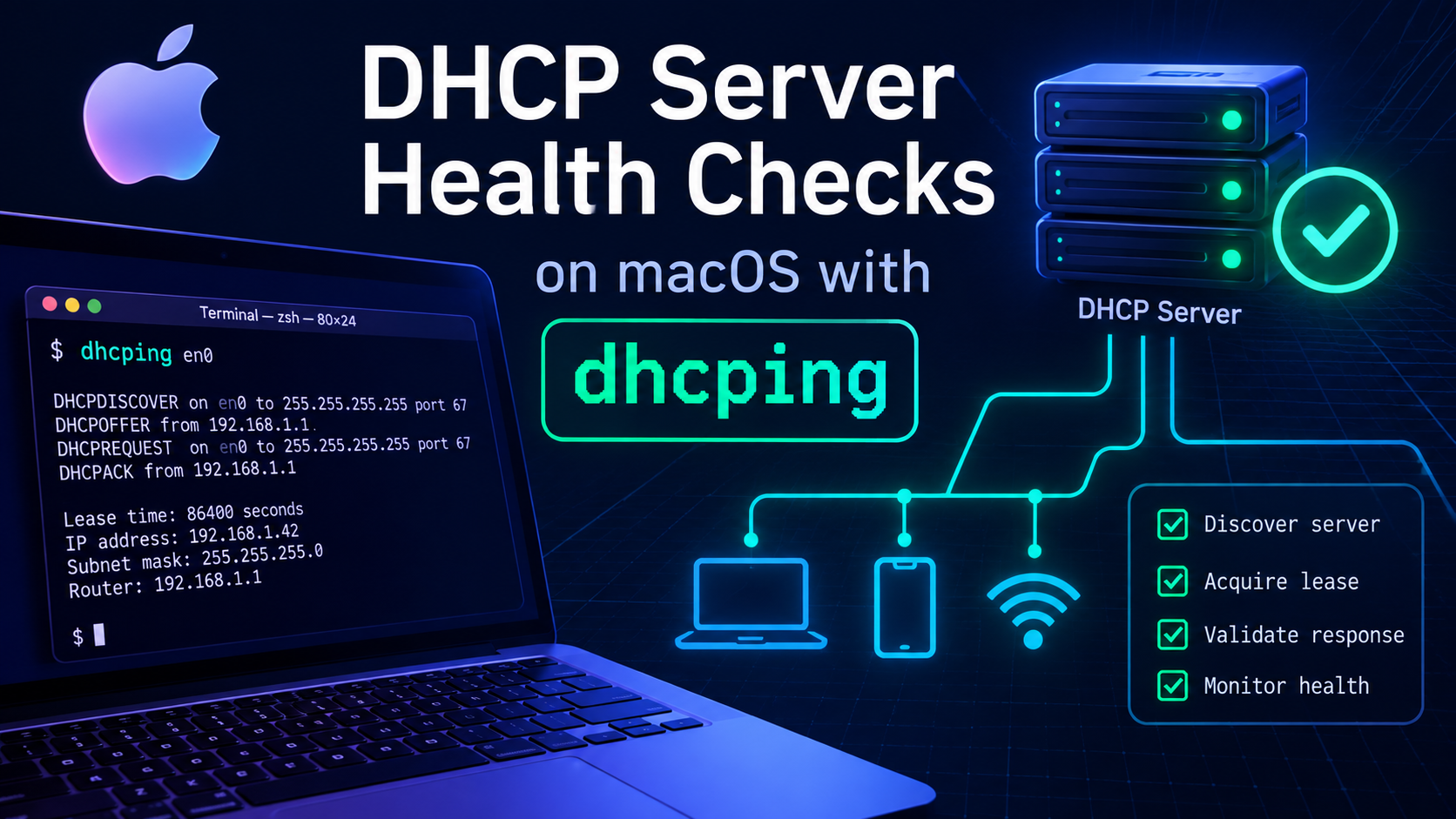
DHCP Server Health Checks on macOS with dhcping
1. Title & Executive Summary
Objective
dhcping sends a single targeted DHCPREQUEST or DHCPINFORM packet at a specific DHCP server and reports back whether it answered, giving you a fast, scriptable pass/fail probe without waiting on a full client lease cycle. This guide covers installing dhcping on macOS with Homebrew, preparing a DHCP server to actually answer it, and running verified checks from the terminal. It matters because DHCP outages are often silent until a device tries to renew, and a one line CLI probe closes that visibility gap.
Target Audience
Network Engineers, Systems Engineers, and macOS based sysadmins doing DHCP troubleshooting or building lightweight synthetic monitoring.
2. Prerequisites & Architecture
Assumed Knowledge
- DHCP fundamentals (the DISCOVER, OFFER, REQUEST, ACK exchange, commonly called DORA)
- Comfort with macOS Terminal and
sudo - Basic familiarity with your DHCP server’s configuration syntax (ISC dhcpd, FortiGate, pfSense, or similar)
Environment / Lab Requirements
- macOS with Homebrew installed. dhcping 1.2 ships as a prebuilt Homebrew bottle for Apple Silicon back to Big Sur and for Intel back to Catalina, so no compiler toolchain is required for a standard install.
- Administrator (
sudo) access on the Mac. dhcping must bind to UDP port 68, a privileged port below 1024. - Network reachability to the DHCP server under test, either on the same broadcast domain or reachable directly (the
-grelay option is documented upstream as currently broken, so plan to test from the same segment as the server). - Write access to the DHCP server’s configuration, since dhcping targets a specific client IP and MAC pair rather than broadcasting a discovery.
Component Table
| Component | Role | Example Address |
|---|---|---|
| macOS Test Host | Runs dhcping to send on demand DHCPREQUEST or DHCPINFORM probes |
10.0.20.50 |
| Target DHCP Server | The server under test that must answer the probe | 10.0.20.1 |
| Probe Client IP | The specific IP dhcping requests with -c; the answer is also sent here |
10.0.20.100 |
| Probe Client MAC | Hardware address embedded in the request with -h; should match a server side reservation |
02:1A:2B:3C:4D:5E |
| Reservation / Host Entry | Server side binding of the probe MAC to the probe IP so the server is willing to ACK | dhcpd.conf host block / FortiGate reserved-address |
3. Step-by-Step Implementation Workflow
Phase 1: Install Homebrew
The Goal: Get the Homebrew package manager, and its Xcode Command Line Tools dependency, onto the Mac. Skip this phase if Homebrew is already installed.
The Action: Run the official installer script, then confirm every prompt it shows you before it makes changes.
The Code / CLI / Config
/bin/bash -c "$(curl -fsSL https://raw.githubusercontent.com/Homebrew/install/HEAD/install.sh)"

# Apple Silicon only, once the installer finishes:
echo 'eval "$(/opt/homebrew/bin/brew shellenv)"' >> ~/.zprofile
eval "$(/opt/homebrew/bin/brew shellenv)"
GUI Verification: Not applicable. dhcping and Homebrew are terminal only tools with no macOS GUI surface.
Phase 2: Install dhcping
The Goal: Pull the prebuilt dhcping 1.2 bottle from homebrew-core.
The Action: Install with brew, then confirm the binary landed and check its version.
The Code / CLI / Config
brew install dhcping
brew list --versions dhcping

# Expected output from the second command:
dhcping 1.2
GUI Verification: Not applicable.
Phase 3: Understand the Privilege Requirement
The Goal: Confirm why sudo is mandatory for every invocation on macOS, before you spend time chasing a false “no answer.”
The Action: Run dhcping once without sudo against any placeholder values and read the guard message it prints.
The Code / CLI / Config
dhcping -c 10.0.20.100 -s 10.0.20.1 -h 02:1a:2b:3c:4d:5e

# Output:
This program should only be ran by root or be installed as setuid root.
Homebrew’s packaging policy does not set the setuid bit on installed binaries, a deliberate, project wide security stance, unlike some legacy Linux distro packages of dhcping that shipped setuid root. On macOS you satisfy the same privilege requirement by prefixing every invocation with sudo, since the tool needs to bind to UDP port 68 to both send the probe and receive the reply.
GUI Verification: Not applicable.
Phase 4: Reserve the Probe MAC and IP on the DHCP Server Under Test
The Goal: dhcping’s default mode sends a targeted DHCPREQUEST, not a broadcast DHCPDISCOVER. Per RFC 2131, a server that does not already recognize the client IP and MAC pairing is required to stay silent rather than reply, so the server needs a matching reservation before it will ever say yes.
The Action: Add a fixed host binding for the probe MAC and IP on whichever DHCP server you are testing, then reload or commit the change.
The Code / CLI / Config
# ISC dhcpd (dhcpd.conf)
host dhcping-probe {
    hardware ethernet 02:1a:2b:3c:4d:5e;
    fixed-address 10.0.20.100;
}

# FortiGate CLI
config system dhcp server
    edit 1
        config reserved-address
            edit 1
                set type mac
                set ip 10.0.20.100
                set mac 02:1a:2b:3c:4d:5e
                set action reserved
            next
        end
    next
end
GUI Verification: On a FortiGate, go to Network > DHCP Server, edit the relevant server, and confirm the entry under Reserved Addresses. On an ISC dhcpd host, tail the server log after a reload and confirm no syntax errors were raised for the new host block.
Phase 5: Run the Baseline Probe
The Goal: Confirm the server answers a targeted request for the reserved IP, which is the core health check this whole guide exists to deliver.
The Action: Run dhcping with sudo, supplying the probe client IP, the server IP, and the probe MAC.
The Code / CLI / Config
sudo dhcping -c 10.0.20.100 -s 10.0.20.1 -h 02:1a:2b:3c:4d:5e

# Expected success output:
Got answer from: 10.0.20.1

# Expected failure output:
no answer
GUI Verification: On a FortiGate, watch Dashboard > Network > DHCP or Monitor > DHCP Monitor for a transient lease entry matching the probe MAC that appears and clears within a second or two.
Phase 6: Add Timeout and Verbose Flags for Deeper Diagnosis
The Goal: Widen the wait window for slower or lightly loaded servers, and get packet level detail when a plain pass/fail result is not enough.
The Action: Add -t to extend the timeout and -v for verbose output.
The Code / CLI / Config
sudo dhcping -v -t 5 -c 10.0.20.100 -s 10.0.20.1 -h 02:1a:2b:3c:4d:5e-t 5 sets a 5 second wait instead of the 3 second default. -v prints details about the exchange as it happens. The legacy -V (very verbose) flag still works and dumps a full hex trace of the sent and received packets, but the upstream documentation itself recommends reaching for dhcpdump instead when you need that level of packet inspection.
GUI Verification: Not applicable.
Phase 7: Switch to DHCPINFORM Mode for Authoritative Subnet Checks
The Goal: Validate that a server will hand back configuration options (DNS servers, default gateway, and so on) for an IP a client already effectively holds, without consuming a lease slot the way a DHCPREQUEST probe does.
The Action: Add -i to switch from the default DHCPREQUEST behavior to DHCPINFORM.
The Code / CLI / Config
sudo dhcping -i -c 10.0.20.100 -s 10.0.20.1 -h 02:1a:2b:3c:4d:5eThe target server must be marked authoritative for the subnet the probe IP belongs to, or it will refuse to answer a DHCPINFORM with a message similar to “not authoritative for subnet.” On ISC dhcpd, that means an authoritative; statement in the relevant subnet block; on a FortiGate DHCP server this is implicit for any scope you have actually configured on that interface.
GUI Verification: Not applicable.
Phase 8: Script the Probe for Repeatable, Scheduled Checks
The Goal: Turn the manual probe into a quiet, exit code driven check you can drop into cron, a monitoring agent, or a pre flight gate in a runbook.
The Action: Wrap the command in a small shell script that relies on the exit code rather than parsing text output.
The Code / CLI / Config
#!/bin/zsh
if sudo dhcping -q -t 3 -c 10.0.20.100 -s 10.0.20.1 -h 02:1a:2b:3c:4d:5e; then
    echo "DHCP OK: 10.0.20.1"
else
    echo "DHCP FAIL: 10.0.20.1" >&2
    exit 1
fi
-q suppresses the normal “Got answer from” or “no answer” text; the script checks the exit code instead, which is 0 on success and 1 on failure.
GUI Verification: Not applicable.
4. Verification & Validation
- Success: the command prints
Got answer from: <server-ip>and exits with status 0. Confirm withecho $?immediately after running dhcping. - Failure: the command prints
no answerand exits with status 1.
Correlate with ISC dhcpd logs. A successful probe produces this three line sequence in the server’s log, since dhcping automatically releases the lease after a successful REQUEST and ACK:
DHCPREQUEST for 10.0.20.100 from 02:1a:2b:3c:4d:5e via <interface>
DHCPACK on 10.0.20.100 to 02:1a:2b:3c:4d:5e via <interface>
DHCPRELEASE of 10.0.20.100 from 02:1a:2b:3c:4d:5e via <interface> (found)
Correlate with a FortiGate DHCP server. From the CLI:
diagnose debug reset
diagnose debug application dhcps -1
diagnose debug enable
Run the probe from your Mac, watch for the DHCPREQUEST and DHCPACK pair against the probe MAC, then stop the debug with:
diagnose debug disable
diagnose debug reset
You can also confirm recent activity with execute dhcp lease-list.
Confirm at the packet level with tcpdump on macOS. Open a second terminal before firing the probe:
sudo tcpdump -ni en0 udp port 67 or udp port 68A successful check shows the DHCPREQUEST, DHCPACK, and DHCPRELEASE exchange landing within the timeout window you configured with -t.
5. Troubleshooting & Gotchas
1. “This program should only be ran by root or be installed as setuid root.”
Cause: you ran dhcping without sudo. Homebrew formulas are never installed setuid, a project wide security policy, so the historical “just works” behavior of some Linux distro packages does not carry over to macOS.
Fix: prefix every invocation with sudo. There is no brew flag or configuration option that changes this behavior; it is enforced by the binary itself.
2. “no answer” even though the server and network path are both healthy
Diagnostic: run sudo tcpdump -ni en0 udp port 67 or udp port 68 while retrying the probe. If a DHCPREQUEST leaves the Mac but nothing comes back, the server received the packet and chose not to answer it.
Cause: dhcping’s default mode sends a targeted, unicast style DHCPREQUEST rather than a broadcast DHCPDISCOVER. Per RFC 2131 section 4.3.2, a server with no existing binding for that client IP and MAC pair must remain silent rather than reply with a DHCPNAK, which is exactly what produces “no answer” even on a perfectly healthy server.
Fix: confirm the host reservation from Phase 4 is actually present and has been reloaded or committed on the server. If you only need to confirm the server answers on an IP a client already holds, switch to -i for DHCPINFORM instead, provided the server is authoritative for that subnet.
3. bind: Address already in use when the probe starts
Cause: macOS’s own DHCP client, run by configd’s IPConfiguration component, already owns UDP port 68 on any interface that currently holds a live DHCP lease, the exact port dhcping needs for its own reply socket.
Fix: run the probe from an interface that is not itself DHCP managed, such as a statically addressed test NIC or a USB Ethernet adapter set to manual, or temporarily release the interface’s lease, run the probe, then restore it:
sudo ipconfig set en0 NONE
sudo dhcping -c 10.0.20.100 -s 10.0.20.1 -h 02:1a:2b:3c:4d:5e
sudo ipconfig set en0 DHCP
Quick Reference: dhcping Options
| Flag | Meaning |
|---|---|
-c <ip> |
Client IP to request; also where the server’s answer is sent |
-s <ip> |
DHCP server IP to target |
-h <mac> |
Client hardware address, up to sixteen octets separated by colons |
-r |
Send a DHCPREQUEST (default behavior, does not need to be specified) |
-i |
Send a DHCPINFORM instead of a DHCPREQUEST |
-t <seconds> |
Maximum time to wait for an answer; default is 3 seconds |
-v |
Verbose, prints details of the exchange |
-V |
Very verbose, dumps a full hex trace; upstream docs recommend dhcpdump instead |
-q |
Quiet, suppresses all output; rely on the exit code |
-g <ip> |
Gateway/relay IP; documented upstream as currently broken |
Recent posts
-

-

DNS is one of those technologies that quietly underpins... Full Story
-

BGP issues on FortiGate firewalls usually trace back to... Full Story
-

Every time your laptop talks to your router, a... Full Story
-

If you've spent any time configuring NAT on a... Full Story
-

If you have spent any time configuring firewall policies... Full Story
-

High availability on FortiGate is one of those features... Full Story
-

If you've configured SD-WAN on a FortiGate, you've almost... Full Story
-

FortiLink is the management protocol that turns a FortiSwitch... Full Story
-

FortiSwitches are pretty rock solid from Mean Time Between... Full Story
-

This is a quicky tip. Have you ever gone... Full Story
-

DNS is one of those quiet pieces of internet... Full Story
-

This article is an updated version of the previous... Full Story
-

You will add ns2 as a secondary (slave) BIND9... Full Story
-

In the process of deploying my lab, I needed... Full Story
-

RFC 8805, used to be known as Self-Correcting IP... Full Story
-

Years back, I wrote an article about certificate pinning. ... Full Story
-

FortiGates have the ability to send alerts to Microsoft... Full Story
-

In this post, I am going to walk through... Full Story
-

Troubleshooting VoIP on a FortiGate can feel like trying... Full Story
-

Prior to FortiOS 7.0, there were three commands to... Full Story
-

In this post, I am going to go over... Full Story
-

What we are going to do: We are going... Full Story
-

Choosing between FGCP (FortiGate Clustering Protocol) and FGSP (FortiGate... Full Story
-

Creating a VLAN on macOS (The "Pro" Move) A... Full Story
-

This blog post explores the logic behind how macOS... Full Story
-

Pretty Fly for a Wi-Fi Tell My Wi-Fi Love... Full Story
-

Part of my daily gig is creating BoMs (Bill-of-Materials)... Full Story
-

ICMP introduces several security risks, but careful filtering, rate... Full Story
-

The command diag debug application dhcps -1 enables full... Full Story
-

In the world of FortiOS, execute tac report is... Full Story
-

LLDP; What is it The Link Layer Discovery Protocol... Full Story
-

What it actually does When you run diagnose fdsm... Full Story
-

Monkey Bites are bite-sized, high-impact security insights designed for... Full Story
-

I have run macOS in macOS with Parallels but... Full Story
-

Don't be confused with my other FortiNAC posts where... Full Story
-

This is the third session in a multi-part article... Full Story
-

Today I was configuring key-based authentication on a FortiGate... Full Story
-

Netcat, often called the "Swiss Army knife" of networking,... Full Story
-

At its core, IEEE 802.1X is a network layer... Full Story
-

In case you did not see the previous FortiNAC... Full Story
-

This is our 5th session where we are going... Full Story
-

Now that we have Wireshark installed and somewhat configured,... Full Story
-

The Philosophy of Packet Analysis Troubleshooting isn't about looking... Full Story
-

InfoSecMonkey Threat Response October 24, 2026 | No fluff.... Full Story
-

InfoSecMonkey Threat Response October 24, 2026 | No fluff.... Full Story
-

Plus what you actually get with FortiCare Essential, Premium... Full Story