
If you've spent any time configuring user authentication on... Full Story
By Manny Fernandez
July 17, 2026
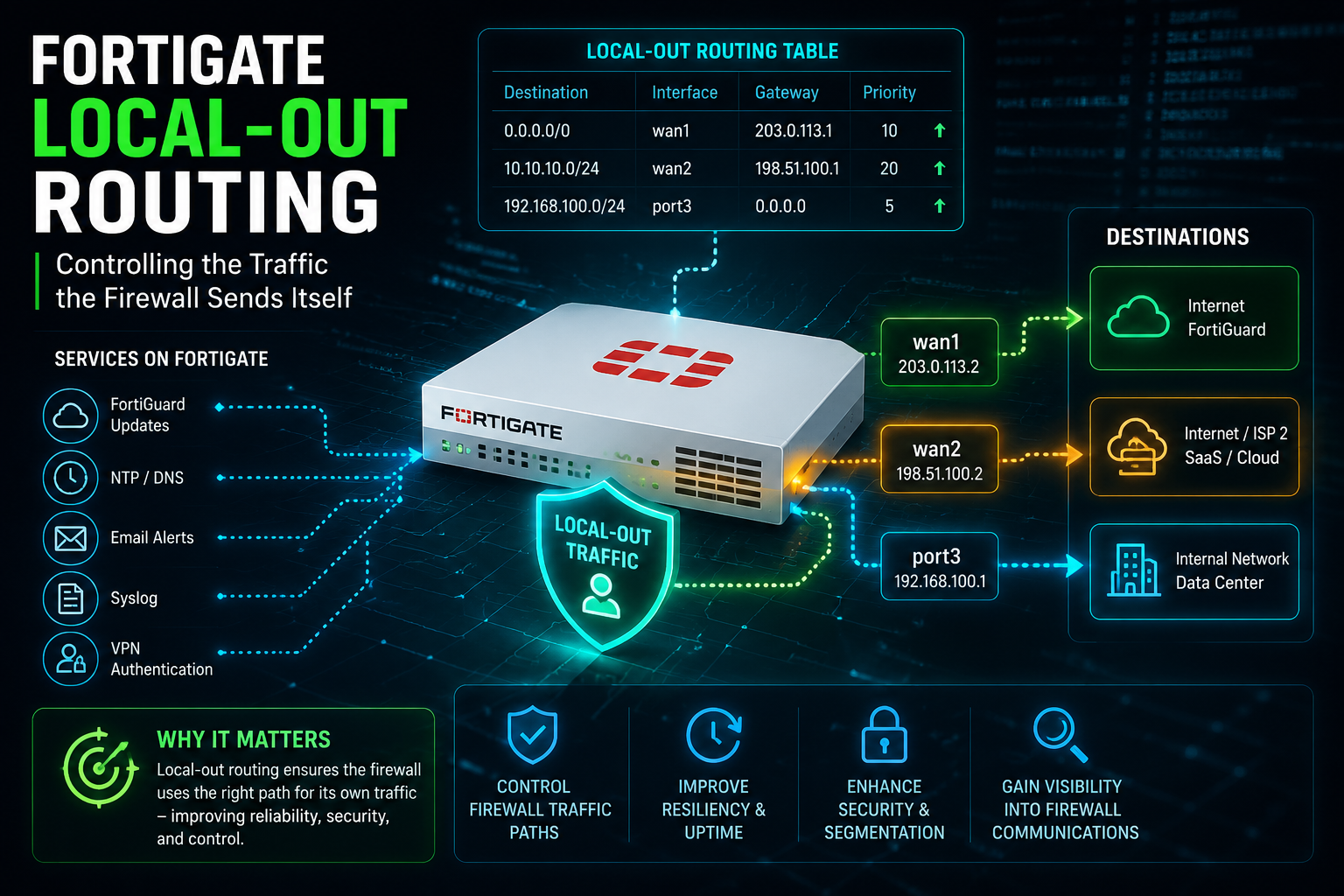
FortiGate Local-Out Routing: Controlling the Traffic the Firewall Sends Itself
Every FortiGate is two devices wearing one chassis. One of them is a firewall: it inspects traffic that arrives on one interface and leaves on another, and every decision it makes is governed by a policy you wrote. The other is a Linux host with opinions. It resolves DNS. It ships syslog. It phones FortiGuard. It authenticates admins against RADIUS. It answers NTP. None of that traffic touches a firewall policy, and almost none of it asks your permission about which interface it leaves from or what source IP it wears.
That second device is what breaks your syslog ingestion at 2 a.m. after a WAN failover. It is why your RADIUS server logs an auth request from an IP that is not in the NAS list. It is why FortiGuard updates work on one HA member and silently fail on the other.
This is the full tour of local-out routing: what it is, how FortiOS actually chooses the egress interface and source address, the three separate control planes that can override that choice, the service-by-service CLI reference, the loopback design pattern that makes the whole problem go away, and the diagnostics that tell you what the box is really doing instead of what you think it is doing.
Target is FortiOS 7.4 and 7.6, with notes where 8.0 or earlier releases differ.
What Local-Out Traffic Actually Is
Local-out traffic, also called self-originating traffic, is any session where the FortiGate itself is the source. The FortiGate builds the packet, picks the source address, and sends it. There is no client behind it.
The three traffic classes on a FortiGate are worth separating cleanly, because the controls for each are completely different:
| Class | Description | Governed by |
|---|---|---|
| Transit | Arrives on one interface, leaves on another. A user browsing the web. | Firewall policy, routing table, NAT, UTM profiles |
| Local-in | Destined to an IP owned by the FortiGate. Admin GUI, IPsec IKE, BGP peering, SNMP polls. | allowaccess on the interface, then local-in policy |
| Local-out | Originated by the FortiGate. Syslog, DNS, FortiGuard, RADIUS, NTP, SNMP traps. | Routing table by default, then the overrides in this post |
The critical property: local-out traffic does not match a firewall policy. You cannot write set srcintf "port1" and expect it to control where syslog goes. There is no policy lookup. There is no NAT. The FortiGate consults the routing table, picks an egress interface, takes that interface’s primary IP as the source, and sends. That is the whole default algorithm.
This is also why local-out traffic does not show up in your forward traffic logs. It lands in Log & Report > Local Traffic, if it lands anywhere at all.
The Default: The Routing Table Decides Everything
The Goal: Understand the baseline before you override it.
By default, local-out traffic relies on routing table lookups to determine the egress interface used to initiate the connection. There is no separate local-out routing table. The FortiGate performs an ordinary destination lookup against the same FIB that transit traffic uses.
The default source selection follows from that: once the kernel knows the egress interface, it uses that interface’s primary IP address as the source. Not the secondary IP. Not a loopback. The primary address of the interface the route resolved to.
This produces the single most common local-out surprise. Consider a syslog server at 10.50.10.20, reachable through a route out port3 (your DMZ). Your syslog server’s allow-list contains the firewall’s management IP on port10, because that is the IP a human would call “the firewall.” The FortiGate sources syslog from the port3 address. The syslog server drops it. Nothing in the FortiGate config looks wrong, because nothing in the FortiGate config is wrong. The routing table did exactly what it was designed to do.
The Action: Confirm what the routing table would choose before you assume.
The Code:
# What route wins for this destination
get router info routing-table details 10.50.10.20

# What source IP is bound to that egress interface
diagnose ip address list

# What the box will actually put on the wire
diagnose sniffer packet any 'host 10.50.10.20 and port 514' 4 0 a
The sniffer is the arbiter. Everything else is inference.
How FortiOS Chooses: The Real Decision Order
Local-out has three independent control planes stacked on top of the routing table. Understanding the order matters, because they interact in ways that are not obvious from any single documentation page.
| Layer | Mechanism | Scope | Where configured |
|---|---|---|---|
| 1. Per-service override | interface-select-method and source-ip |
One service (syslog, DNS, RADIUS) | Inside each service’s config block |
| 2. Per-route preferred source | preferred-source on static routes, set-ip-prefsrc in route-maps, preferred-source on SD-WAN members |
Every local-out session matching that route | config router static, config router route-map, config system sdwan |
| 3. Routing table default | Destination lookup, primary IP of egress interface | Everything else | Nothing. This is the fallback. |
The practical resolution order:
- If the service has an explicit
source-ipconfigured, that address is used. This is the strongest, most specific control and it wins. - If the service has
interface-select-method specifywith aninterface, the egress interface is forced regardless of what the FIB says. If nosource-ipis set alongside it, the source falls back to that interface’s primary IP. - If the service has
interface-select-method sdwan, the FortiGate evaluates SD-WAN service rules for that destination and uses the winning member. This is the only way to make SD-WAN rules apply to self-originating traffic. - If no service override exists, the routing table lookup runs. If the winning route carries a
preferred-source(orprefsrcfrom a route-map or SD-WAN member), that address becomes the source. - Otherwise, the primary IP of the egress interface is the source.
The distinction between layer 1 and layer 2 is the one people get wrong. source-ip inside config log syslogd setting changes exactly one service. preferred-source on a static route changes the source address for every local-out session that route carries, across every service, without you touching those services individually. They are different tools for different problems.
The set source versus set preferred-source Trap
On SD-WAN members these two settings look interchangeable. They are not.
config system sdwan
    config members
        edit 1
            set interface "port5"
            set gateway 10.100.1.1
            set source 1.1.1.1
            set preferred-source 1.1.1.1
        next
    end
end
set source is the source IP used by that member’s health-check probes. set preferred-source is the source IP used by local-out traffic that egresses via that member. Setting one and not the other is a live configuration in a lot of production SD-WAN deployments, and it produces the delightful outcome of health checks passing from the loopback while syslog leaves from the WAN address. Set both.
Turning On the GUI Page
The Goal: Get a single pane that shows every local-out setting on the box, because auditing this in the CLI service by service is miserable.
The Action: Local Out Routing is hidden by default. Enable it in feature visibility.
GUI Verification: Go to System > Feature Visibility, enable Local Out Routing, and apply. Then go to Network > Local Out Routing.
The page consolidates every feature where a source IP and outgoing interface can be set for local-out traffic. Each entry gives you the same three-way Outgoing interface choice you get in the CLI:
| Setting | Behavior |
|---|---|
| Auto | Routing table lookup. The default. |
| SD-WAN | Evaluate SD-WAN service rules for this destination. |
| Specify | Force an interface, and optionally a source IP. |
When a service is disabled, its row is grayed out. Select it and click Enable Service to configure it. When a service is enabled, its own edit page carries a Local Out Setting button in the gutter, so you can configure local-out from where the service lives rather than hunting for the consolidated page.
7.4 and later add a Multi-Select Mode button on this page. It lets you select many entries at once and apply the same outgoing interface and source IP to all of them. This is the fastest way to point twenty services at one loopback. Note that IPv4+IPv6 does not support multi-select; pick one address family first.
Two things the GUI page will not do for you:
- Some local-out settings are CLI only. IPS, ping, traceroute, and several others never appear here.
- The page shows configuration, not behavior. It cannot tell you that the interface you specified is not the one the FIB would have chosen.
Per-Service Control: The CLI Reference
This is the pattern. Nearly every service that speaks outbound implements some subset of it:
set interface-select-method {auto | sdwan | specify}
set interface <interface>
set source-ip <IPv4 address>
set source-ip6 <IPv6 address>
set vrf-select <vrf-id>
Below is the service-by-service map. Not every service supports every option; the notes call out what is missing.
Logging and Management
config log syslogd setting
    set status enable
    set server "10.50.10.20"
    set interface-select-method specify
    set interface "port10"
    set source-ip 10.99.99.1
end

config log fortianalyzer setting
    set status enable
    set server "10.50.10.30"
    set interface-select-method specify
    set interface "port10"
    set source-ip 10.99.99.1
end

config system central-management
    set type fortimanager
    set fmg "10.50.10.40"
    set interface-select-method specify
    set interface "port10"
    set vrf-select 0
end
Note that log syslogd setting has siblings: syslogd2, syslogd3, and syslogd4, each with independent local-out settings. Same for fortianalyzer2 and fortianalyzer3. If you configured a second collector years ago and forgot, it is still sourcing from wherever the FIB says.
Name Resolution and FortiGuard
config system dns
    set primary 10.50.10.53
    set secondary 10.50.11.53
    set interface-select-method specify
    set interface "port10"
    set source-ip 10.99.99.1
    set vrf-select 0
end

config system fortiguard
    set interface-select-method specify
    set interface "port1"
    set source-ip 203.0.113.10
    set vrf-select 0
end
system fortiguard is the one that governs FortiGuard rating queries, AV and IPS updates, and the FortiGate Cloud management tunnel. If FortiGate Cloud is not connecting and the routing looks correct, this is the block to check. Under VDOMs, system fortiguard is global scope.
Remote Authentication
config user radius
    edit "FAC-RADIUS"
        set server "10.50.10.129"
        set secret <secret>
        set interface-select-method specify
        set interface "port10"
        set source-ip 10.99.99.1
        set vrf-select 22
    next
end

config user ldap
    edit "AD-LDAPS"
        set server "10.50.10.10"
        set interface-select-method specify
        set interface "port10"
        set source-ip 10.99.99.1
    next
end

config user tacacs+
    edit "TACACS-1"
        set server "10.50.10.50"
        set interface-select-method specify
        set interface "port10"
        set source-ip 10.99.99.1
    next
end
This is the highest-value one for most shops. RADIUS and TACACS+ servers are almost always configured with a NAS IP allow-list. If the firewall’s source IP shifts, authentication stops, and the error you get back is an opaque timeout, not “your source address changed.”
Time, Mail, and SNMP
config system ntp
    set ntpsync enable
    set type custom
    config ntpserver
        edit 1
            set server "10.50.10.123"
            set interface-select-method specify
            set interface "port10"
            set vrf-select 0
        next
    end
    set source-ip 10.99.99.1
end

config system email-server
    set server "10.50.10.25"
    set interface-select-method specify
    set interface "port10"
    set source-ip 10.99.99.1
    set vrf-select 0
end

config system snmp community
    edit 1
        config hosts
            edit 1
                set ip 10.50.10.60 255.255.255.255
                set interface-select-method specify
                set interface "port10"
                set vrf-select 0
            next
        end
    next
end

config system snmp user
    edit "snmpv3user"
        set interface-select-method specify
        set interface "port10"
        set vrf-select 0
    next
end
NTP is structured oddly: interface-select-method lives per server inside config ntpserver, but source-ip lives at the config system ntp level and applies to all of them. SNMP is worth noting because interface-select-method on an SNMP host governs traps, not the response to a poll. Poll responses are local-in traffic and follow the session, not this setting.
Fabric and Security Services
config system fortisandbox
    set status enable
    set server "10.50.10.70"
    set interface-select-method specify
    set interface "port10"
    set source-ip 10.99.99.1
    set vrf-select 0
end

config endpoint-control fctems
    edit 1
        set server "10.50.10.80"
        set interface-select-method specify
        set interface "port10"
        set source-ip 10.99.99.1
    next
end

config system external-resource
    edit "threat-feed-1"
        set resource "https://feeds.example.net/ip.txt"
        set interface-select-method specify
        set interface "port1"
        set source-ip 203.0.113.10
        set vrf-select 0
    next
end

config system sdn-connector
    edit "aws-1"
        set type aws
        set interface-select-method specify
        set interface "port1"
        set source-ip 203.0.113.10
    next
end
Telemetry, Probes, and Proxies
config system netflow
    set interface-select-method specify
    set interface "port10"
    config collectors
        edit 1
            set collector-ip 10.50.10.90
            set vrf-select 0
        next
    end
end

config system sflow
    set interface-select-method specify
    set interface "port10"
end

config ips global
    config tls-active-probe
        set interface-selection-method specify
        set interface "port1"
        set vdom "root"
        set source-ip 203.0.113.10
        set source-ip6 ::
    end
end

config web-proxy forward-server
    edit "FWD_SVR"
        set ip 10.50.10.100
        set port 8080
        set interface-select-method specify
        set interface "port3"
        set vrf-select 10
    next
end
Read that IPS block twice. It is interface-selection-method, with the full word “selection,” not interface-select-method like every other service on the box. This is not a typo in this post. It is a genuine inconsistency in FortiOS, it has been there for years, and it will fail your config-push script exactly once before you remember it forever.
Diagnostics
Ping and traceroute are local-out too, and they are CLI only:
execute ping-options source 10.99.99.1
execute ping-options use-sdwan yes
execute ping-options vrf 22
execute ping-options df-bit yes
execute ping-options data-size 1472
execute ping 10.50.10.20

execute ping-options reset

execute ping6-options source 2001:db8::1
execute ping6-options use-sd-wan yes

execute traceroute-options use-sdwan yes
execute ping-options use-sdwan yes is the one people miss. Without it, your ping test takes the FIB path while the production traffic you are trying to validate takes an SD-WAN rule path. You are testing a route that nothing else uses. Also note the asymmetry: IPv4 uses use-sdwan, IPv6 uses use-sd-wan with the extra hyphen.
And execute ping-options reset is session hygiene. Those options are sticky for the CLI session. The engineer who “fixed” your ping test three hours ago and never reset it is why your next test is lying to you.
Per-Route Control: Preferred Source
The Goal: Change the source address for every local-out session that follows a given path, without editing twenty service blocks.
The Action: Introduced in FortiOS 7.4.0, preferred-source binds a source address to a route. Any local-out traffic that resolves to that route wears that source. This is the kernel’s prefsrc attribute, exposed in FortiOS.
The Code:
config router static
    edit 22
        set dst 172.17.254.0 255.255.255.0
        set gateway 172.16.200.254
        set preferred-source 1.1.1.1
        set distance 2
        set device "port1"
    next
    edit 23
        set dst 172.17.254.0 255.255.255.0
        set gateway 172.16.203.2
        set preferred-source 1.1.1.2
        set distance 2
        set device "agg1"
    next
end
The same attribute is available for dynamic routes through a route-map, which is how you attach a preferred source to BGP-learned prefixes:
config router route-map
    edit "SET-PREFSRC"
        config rule
            edit 1
                set set-ip-prefsrc 1.1.1.1
            next
        end
    next
end
And on SD-WAN members, which is the multi-transport case:
config system sdwan
    set status enable
    config zone
        edit "virtual-wan-link"
        next
    end
    config members
        edit 1
            set interface "port5"
            set gateway 10.100.1.1
            set preferred-source 1.1.1.1
            set source 1.1.1.1
        next
        edit 2
            set interface "port7"
            set gateway 10.100.1.5
            set preferred-source 1.1.1.2
            set source 1.1.1.2
        next
    end
end

config router static
    edit 2000
        set dst 200.0.0.0 255.255.255.0
        set distance 1
        set sdwan-zone "virtual-wan-link"
    next
end
GUI Verification: Confirm the attribute landed in the FIB, then prove it on the wire.
# get router info routing-table details 200.0.0.0/24
Routing table for VRF=0
Routing entry for 200.0.0.0/24
  Known via "static", distance 1, metric 0, best
  * vrf 0 10.100.1.1, via port5, prefsrc 1.1.1.1
  * vrf 0 10.100.1.5, via port7, prefsrc 1.1.1.2
# diagnose sniffer packet any "host 200.0.0.1" 4
interfaces=[any]
filters=[host 200.0.0.1]
6.592488 port5 out 1.1.1.1 -> 200.0.0.1: icmp: echo request
7.592516 port5 out 1.1.1.1 -> 200.0.0.1: icmp: echo request
The prefsrc field in the routing table is the tell. If it is absent, the route is not carrying a preferred source and the egress interface IP will be used. The kernel view is also worth knowing:
get router info kernel
This is the killer feature for the multi-CPE replacement scenario, which is the design Fortinet built it for. When one FortiGate replaces several ISP-provided CPE routers, each ISP has assigned you a public IP that must be the source for traffic on that transport. Put each public IP on a loopback, attach it to the matching route or SD-WAN member as preferred-source, and every locally sourced session on that transport wears the right address without any per-service configuration at all.
The Loopback Pattern
The Goal: Stop playing whack-a-mole with per-service source IPs.
Here is the design that makes local-out routing a solved problem instead of a recurring incident:
- Create a loopback interface with a /32 address. This is your firewall’s identity.
- Advertise that /32 into your IGP or iBGP so every management system can reach it from anywhere.
- Point every local-out service at it with
set source-ip <loopback>, or attach it to the relevant routes withpreferred-source. - Allow-list exactly one IP per firewall on your syslog collector, RADIUS server, SNMP manager, and NTP source.
The Code:
config system interface
    edit "lo-mgmt"
        set vdom "root"
        set ip 10.99.99.1 255.255.255.255
        set allowaccess ping
        set type loopback
        set description "Local-out identity. Do not repurpose."
    next
end

config router ospf
    config network
        edit 10
            set prefix 10.99.99.1 255.255.255.255
            set area 0.0.0.0
        next
    end
end
Why this is worth the effort: the loopback never goes down. A physical interface’s address disappears when the link drops, and every service bound to it fails over to whatever the FIB picks next, which is a different source IP and a fresh round of allow-list rejections. The loopback survives WAN failover, HA failover, and interface maintenance. Your syslog server sees one address for the life of the firewall.
Set allowaccess deliberately. ping is usually enough. If you put https ssh on a loopback advertised into your IGP, you have just published your admin GUI to every corner of the routing domain, and local-in policy is now the only thing standing between you and a bad afternoon.
VRF and Local-Out
FortiOS 7.6.1 added vrf-select to local-out settings. Before that, local-out traffic followed the VRF of whatever interface the FIB chose, and there was no way to say “send this to the management VRF.”
The option now appears across the service set:
config system dns
    set vrf-select 22
end

config system fortiguard
    set vrf-select 22
end

config system central-management
    set vrf-select 22
end

config system email-server
    set vrf-select 22
end

config system external-resource
    edit "feed"
        set vrf-select 22
    next
end

config user radius
    edit "FAC"
        set server "192.168.100.129"
        set secret <secret>
        set vrf-select 22
    next
end

config system snmp community
    edit 1
        config hosts
            edit 1
                set vrf-select 22
            next
        end
    next
end

config system ntp
    config ntpserver
        edit 1
            set vrf-select 22
        next
    end
end
The loopback lives in the VRF you want to source from:
config system interface
    edit "loop2"
        set vdom "root"
        set vrf 22
        set ip 1.1.1.2 255.255.255.255
        set allowaccess ping
        set type loopback
    next
end
Verification: The routing table is per-VRF, so ask for the right one.
# get router info routing-table details 3.3.3.3
Routing table for VRF=0
Routing entry for 3.3.3.3/32
  Known via "ospf", distance 110, metric 10200, best
  Last update 05:53:57 ago
  * vrf 0 172.16.203.2, via agg1
Routing table for VRF=22
Routing entry for 3.3.3.3/32
execute ping-options vrf 22
execute ping-options source 1.1.1.2
execute ping 3.3.3.3
Note that dhcp-relay-vrf-select on an interface and dhcp-proxy-vrf-select under config system settings are part of the same 7.6.1 feature set. DHCP relay is local-out traffic too, a fact that surprises people the first time a relay stops working after a VRF redesign.
HA and Local-Out: The One That Bites
The Goal: Know what HA does to your carefully configured source IPs before it does it in production.
Two settings in config system ha change local-out behavior, and one of them silently deletes your configuration.
config system ha
    set group-name "FGT-CLUSTER"
    set mode a-p
    set ha-mgmt-status enable
    config ha-mgmt-interfaces
        edit 1
            set interface "mgmt"
            set gateway 10.99.1.254
        next
    end
    set ha-direct enable
end
`ha-mgmt-status` and `ha-mgmt-interfaces` reserve a management interface that is excluded from HA synchronization, so each cluster member keeps its own address and can be reached independently. This is normal and good.
`ha-direct enable` is the sharp edge. When it is enabled, management traffic is routed through the reserved HA management interface. Logs to FortiAnalyzer and syslog, SNMP traps, FortiSandbox and FortiCloud connections, and remote authentication all leave via the HA management interface using its IP.
Here is the part that catches people: when `ha-direct` is enabled, `source-ip` under `config log syslogd setting` is removed from the configuration automatically. It does not throw an error. It does not warn you. The option is simply gone, because it no longer means anything. This behavior is by design and cannot be overridden while ha-direct is enabled.
So if your loopback-sourced logging design goes into an HA pair and someone enables ha-direct for a good reason, your source IP configuration evaporates and your collector starts seeing per-member management IPs. Which, to be fair, is exactly what ha-direct is for. The problem is not the feature; the problem is that these two designs are mutually exclusive and nothing tells you so.
Two more consequences worth knowing:
- With
ha-directenabled, each cluster member sends logs from its own management IP. Your collector needs allow-list entries for both members, and your dashboards need to know that “the firewall” is now two sources. ha-directalters traffic flow in a way that can cause timeouts. A request that arrives on one interface may be answered out the management interface, and if the reply path is not routed back to the requester, the request times out. Enable it deliberately, with the return path verified, not because it sounded like a good idea.
Decide up front. Either you are a loopback shop (one identity per firewall, source-ip everywhere, ha-direct disabled) or you are an out-of-band management shop (ha-direct enabled, per-member management IPs, allow-list both). Both are defensible. Half of each is an outage.
VDOM Scope
When VDOMs are enabled, the Local Out Routing page splits into global and VDOM views, and the split follows the scope of the underlying service.
| Scope | Examples |
|---|---|
| Global | system fortiguard, system dns, system central-management, system ntp, system fortisandbox, system snmp, system email-server |
| VDOM | log syslogd setting, log fortianalyzer setting, user radius, user ldap, user tacacs+, system vdom-dns, system vdom-netflow |
The gotcha: a global service sourcing from an interface in the management VDOM cannot reach a server that only lives in a customer VDOM, and no amount of source-ip fixes that. It is a VDOM routing problem wearing a local-out costume. Check config system vdom-dns if per-VDOM name resolution is what you actually need.
Verification and Troubleshooting
Step 1: Inventory What Is Already Set
Before you change anything, find out what someone else already changed:
get system source-ip status
Output looks like this:
The following services force their communication to use a specific source IP address:
=======finished getting system source-ip status=======
An empty list means no service is overriding the source. A populated list is your audit. Run this on both HA members. Run it before and after any FortiOS upgrade.
Step 2: Ask the Routing Table What It Would Do
get router info routing-table details <destination>
get router info kernel
diagnose ip address list
Look for prefsrc in the routing table output. If you configured preferred-source and prefsrc is not there, the route did not take it, and you are chasing the wrong layer.
Step 3: Watch the Actual Packets
The sniffer is the only source of truth. Everything above it is a model.
diagnose sniffer packet any 'host 10.50.10.20 and port 514' 4 0 a
Verbosity 4 shows interface names, which is what you need here. The trailing a gives absolute timestamps, which matters when you are correlating against a collector’s receive log.
2.434035 port1 out 1.1.1.2 -> 172.28.5.2: icmp: echo request
Interface name, direction, source IP, destination. If the source is not what you configured, the config did not take. If the interface is not what you expected, the FIB disagrees with you.
Step 4: Check the Session Table
diagnose sys session filter dst 10.50.10.20
diagnose sys session list
Local-out sessions have no policy_id you can point at. What you are looking for is the out interface and the source in the tuple.
Step 5: The Service’s Own Debug
When the transport is right but the service still fails, drop to the service’s debug:
diagnose debug reset
diagnose debug console timestamp enable
diagnose debug application fgtlogd -1
diagnose debug enable

# or, for authentication
diagnose debug application fnbamd -1
diagnose debug enable

# always
diagnose debug disable
diagnose debug reset
Step 6: Prove the Path with a Sourced Ping
execute ping-options reset
execute ping-options source 10.99.99.1
execute ping-options use-sdwan yes
execute ping 10.50.10.20
execute ping-options reset
If a ping sourced from the loopback fails but a default ping succeeds, your problem is not the FortiGate. It is a return route or an ACL on the far side that does not know about your loopback yet.
The Gotcha List
The failures that actually happen, in rough order of how often they cost someone an evening:
| Symptom | Cause | Fix |
|---|---|---|
| Syslog stops after WAN failover | Source IP followed the FIB to the new egress interface | Bind source-ip to a loopback, or set preferred-source on both routes |
| RADIUS times out with no error | Firewall’s source IP is not in the NAS list | set source-ip on config user radius, allow-list the loopback |
source-ip disappeared from syslog config |
ha-direct is enabled and removed it by design |
Choose: ha-direct or loopback sourcing. Not both. |
| Config push script fails on IPS only | IPS uses interface-selection-method, not interface-select-method |
Special-case it. This inconsistency is not going away. |
| SD-WAN rules do not apply to syslog | Local-out ignores SD-WAN rules unless told otherwise | set interface-select-method sdwan on the service |
| Health checks pass, local-out uses wrong IP | set source was configured, set preferred-source was not |
Set both on every SD-WAN member |
| Ping test passes, production traffic fails | Ping used the FIB, production used an SD-WAN rule | execute ping-options use-sdwan yes |
| A test that worked yesterday is lying today | ping-options are sticky per CLI session |
execute ping-options reset before and after every test |
| FortiGate Cloud will not connect | system fortiguard source-ip or interface is wrong |
Check config system fortiguard, sniff port 443 to the resolved server |
| Only one HA member gets FortiGuard updates | Per-member management IP is not allow-listed upstream | Allow-list both, or use ha-direct deliberately |
| DHCP relay broke after a VRF redesign | Relay is local-out and needs dhcp-relay-vrf-select |
Set the VRF on the interface’s relay config |
| Second syslog collector uses the wrong source | syslogd2 through syslogd4 have independent settings |
Audit all four. And fortianalyzer2 and fortianalyzer3. |
One more that deserves its own paragraph, because the documentation changed on it: when you manually specify an egress interface, make sure it is the actual physical interface through which traffic exits the FortiGate. The source IP, on the other hand, may be an address that is not assigned to that interface, which is precisely what makes the loopback pattern work. Interface and source address are separate decisions. Forcing an interface that the FIB would never choose is how you build a blackhole with a very tidy-looking config.
Bottom Line
Local-out traffic is the part of the FortiGate that operates outside your firewall policy, and by default it is governed entirely by a routing table that was designed for someone else’s traffic. That default is fine right up until the moment the topology changes underneath it, and then it fails in a way that looks like a server problem, a network problem, or a licensing problem, but never like what it is.
Three moves fix it permanently:
- Give the firewall one identity. A /32 loopback, advertised into the IGP, named so nobody repurposes it.
- Bind everything to it.
source-ipon the services that matter, orpreferred-sourceon the routes that carry them. Use Multi-Select Mode on the Local Out Routing page and do it in one pass. - Decide about `ha-direct` before you deploy, not after. It and loopback sourcing are mutually exclusive, and only one of them survives contact with your HA pair.
Then run get system source-ip status and a sniffer, because the config is a claim and the wire is the evidence.
Recent posts
-

-

DNS is one of those technologies that quietly underpins... Full Story
-

BGP issues on FortiGate firewalls usually trace back to... Full Story
-

Every time your laptop talks to your router, a... Full Story
-

If you've spent any time configuring NAT on a... Full Story
-

If you have spent any time configuring firewall policies... Full Story
-

High availability on FortiGate is one of those features... Full Story
-

If you've configured SD-WAN on a FortiGate, you've almost... Full Story
-

FortiLink is the management protocol that turns a FortiSwitch... Full Story
-

FortiSwitches are pretty rock solid from Mean Time Between... Full Story
-

This is a quicky tip. Have you ever gone... Full Story
-

DNS is one of those quiet pieces of internet... Full Story
-

This article is an updated version of the previous... Full Story
-

You will add ns2 as a secondary (slave) BIND9... Full Story
-

In the process of deploying my lab, I needed... Full Story
-

RFC 8805, used to be known as Self-Correcting IP... Full Story
-

Years back, I wrote an article about certificate pinning. ... Full Story
-

FortiGates have the ability to send alerts to Microsoft... Full Story
-

In this post, I am going to walk through... Full Story
-

Troubleshooting VoIP on a FortiGate can feel like trying... Full Story
-

Prior to FortiOS 7.0, there were three commands to... Full Story
-

In this post, I am going to go over... Full Story
-

What we are going to do: We are going... Full Story
-

Choosing between FGCP (FortiGate Clustering Protocol) and FGSP (FortiGate... Full Story
-

Creating a VLAN on macOS (The "Pro" Move) A... Full Story
-

This blog post explores the logic behind how macOS... Full Story
-

Pretty Fly for a Wi-Fi Tell My Wi-Fi Love... Full Story
-

Part of my daily gig is creating BoMs (Bill-of-Materials)... Full Story
-

ICMP introduces several security risks, but careful filtering, rate... Full Story
-

The command diag debug application dhcps -1 enables full... Full Story
-

In the world of FortiOS, execute tac report is... Full Story
-

LLDP; What is it The Link Layer Discovery Protocol... Full Story
-

What it actually does When you run diagnose fdsm... Full Story
-

Monkey Bites are bite-sized, high-impact security insights designed for... Full Story
-

I have run macOS in macOS with Parallels but... Full Story
-

Don't be confused with my other FortiNAC posts where... Full Story
-

This is the third session in a multi-part article... Full Story
-

Today I was configuring key-based authentication on a FortiGate... Full Story
-

Netcat, often called the "Swiss Army knife" of networking,... Full Story
-

At its core, IEEE 802.1X is a network layer... Full Story
-

In case you did not see the previous FortiNAC... Full Story
-

This is our 5th session where we are going... Full Story
-

Now that we have Wireshark installed and somewhat configured,... Full Story
-

The Philosophy of Packet Analysis Troubleshooting isn't about looking... Full Story
-

Executive Summary Objective: Get you from zero to writing... Full Story
-

NAND cells, the flash translation layer, SLC caching, TRIM,... Full Story
-

Nmap Scripting Engine (NSE): From One-Liners to Your First... Full Story