
If you've spent any time configuring user authentication on... Full Story
By Manny Fernandez
July 18, 2026
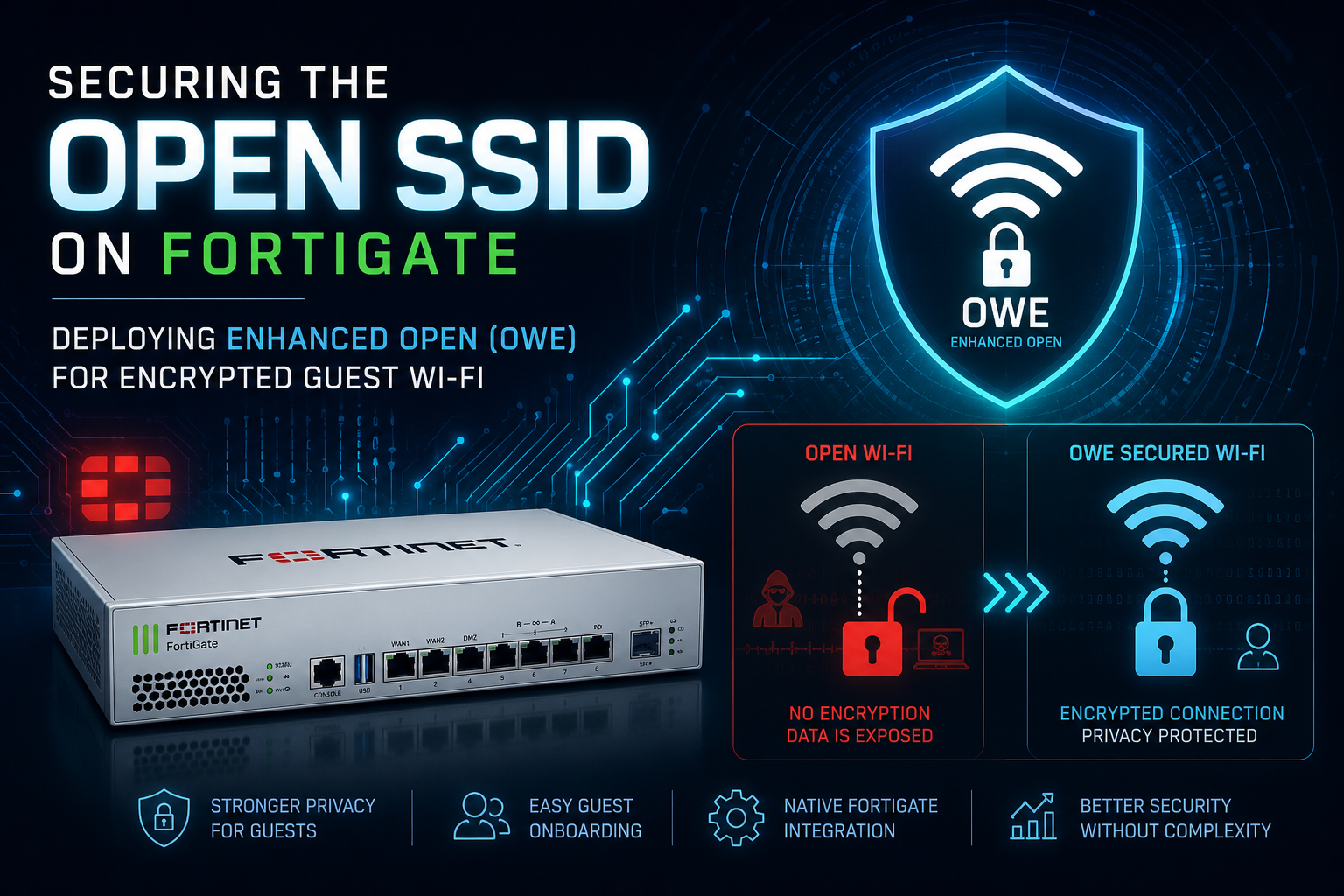
Securing the Open SSID on FortiGate: Deploying Enhanced Open (OWE) for Encrypted Guest Wi-Fi
1. Executive Summary
Objective: This guide replaces the legacy "open" (no-encryption, no-authentication) guest SSID with Enhanced Open, the Wi-Fi Alliance branding for Opportunistic Wireless Encryption (OWE, RFC 8110). The result is a guest network that still requires no password and no portal login, but encrypts every client-to-AP frame with unique per-session keys and protects management frames. We will build the OWE SSID, address and isolate the guest segment, broadcast it on the FortiAP radios, and add an optional OWE Transition SSID so older clients are not locked out.
Why it matters: Plain open Wi-Fi sends all over-the-air traffic in cleartext, which means anyone within RF range can passively sniff guest sessions. OWE closes that gap without changing the "just connect" user experience, and it is a prerequisite for any open SSID you intend to run on the 6 GHz band. For an SE or admin, this is the single highest-value change you can make to a guest network with zero impact on onboarding friction.
Target Audience: Network Engineers, Wireless Engineers, and System Administrators who manage FortiGate-controlled FortiAP deployments and are comfortable in both the FortiOS GUI and CLI.
2. Prerequisites & Architecture
Assumed Knowledge
You should already understand:
- FortiGate as a wireless LAN controller (WLC), and the relationship between a VAP (Virtual Access Point), an SSID, and a FortiAP profile (
wtp-profile). - Basic FortiOS firewall policy, interface, and DHCP server configuration.
- The difference between Tunnel mode (client traffic tunneled back to the FortiGate over CAPWAP) and Bridge mode (client traffic bridged onto the AP's local VLAN). This guide uses Tunnel mode.
- Wi-Fi security fundamentals: PMF (Protected Management Frames, 802.11w), the 4-way handshake, and what "open authentication" means at the 802.11 layer.
Environment / Lab Requirements
| Requirement | Minimum | Notes |
|---|---|---|
| FortiOS | 7.4 or later | OWE has shipped since 6.2; 7.4+ assumed for GUI labels and 6 GHz support |
| FortiAP firmware | Matched to FortiOS train | OWE requires a Wave 2 / Wi-Fi 6 capable AP. 6 GHz OWE requires a Wi-Fi 6E AP |
| FortiAP state | Authorized and online | The AP must already be discovered, authorized, and managed by the FortiGate |
| Client devices | OWE-capable | Windows 10/11, Android 10+, iOS 13+/macOS 11+. Older clients need OWE Transition |
| Access level | super_admin or equivalent | Required to edit wireless-controller, interfaces, DHCP, and policy |
Component Table
| Component | Role | Example Value |
|---|---|---|
| FortiGate (WLC) | Wireless controller and edge firewall | FGT-WLC-01, mgmt 10.10.10.1 |
| FortiAP | Access point broadcasting the SSID | FP231F, S/N FP231Fxxxxxxxxxx |
| FortiAP profile | Radio and SSID assignment for the AP model | FAP231F-default |
| Guest VAP / SSID | The OWE (Enhanced Open) SSID | interface guest-owe, SSID InfoSecMonkey-Guest |
| Guest subnet | Isolated guest L3 segment | 172.16.50.0/24, gateway 172.16.50.1 |
| DHCP scope | Address assignment for guests | 172.16.50.10 to 172.16.50.200 |
| Upstream interface | Internet egress | wan1 |
| Client | OWE-capable wireless station | Win11 / Android 12 / iPhone |
Logical Flow
[ OWE Client ] --(encrypted 802.11)--> [ FortiAP ] ==(CAPWAP tunnel)==> [ FortiGate WLC ]
                                                                              |
                                                                   guest-owe VAP (172.16.50.1)
                                                                              |
                                                                     firewall policy + NAT
                                                                              |
                                                                           [ wan1 ] --> Internet
3. Step-by-Step Implementation Workflow
Phase 1: Pre-Flight Verification
The Goal: Confirm the FortiAP is managed and healthy before touching SSID config, so that later failures can be attributed to the new SSID and not to a pre-existing AP problem.
The Action: List managed APs and confirm the target AP shows a connected/online status and a clean firmware state. Note the FortiAP profile name, because you will attach the SSID to it in Phase 4.
The CLI:
# List all managed FortiAPs and their status
diagnose wireless-controller wlac -c wtp

# Confirm the AP profile bound to your AP model
config wireless-controller wtp
    show
end
GUI Verification: Navigate to WiFi and Switch Controller > Managed FortiAPs. The target AP should display a green/connected status. Right-click the AP to confirm it is Authorized.
Phase 2: Create the OWE (Enhanced Open) SSID
The Goal: Create the VAP with security owe. This is the core of the deployment. OWE provides encryption without authentication, so there is no passphrase to set. PMF is mandatory for OWE and must be enabled.
The Action: Create a new VAP in Tunnel mode, set the broadcast SSID name, set security to owe, and enable PMF. Leave owe-groups at its default unless you have a specific Diffie-Hellman group requirement (groups 19, 20, and 21 are the ECC groups OWE uses).
The CLI:
config wireless-controller vap
    edit "guest-owe"
        set ssid "InfoSecMonkey-Guest"
        set security owe
        set pmf enable
        set schedule "always"
        set intra-vap-privacy enable
    next
end
intra-vap-privacy enable blocks client-to-client traffic on the same SSID. This is strongly recommended on any guest network so one guest device cannot reach another.Optional crypto hardening. If your security policy mandates specific elliptic-curve groups, pin them explicitly. Group 19 (P-256) is the broadly compatible baseline:
config wireless-controller vap
    edit "guest-owe"
        set owe-groups 19 20 21
    next
end
GUI Verification: Go to WiFi and Switch Controller > SSIDs > Create New > SSID. Set Traffic Mode to Tunnel, enter the SSID name, then in the Security Mode dropdown select the OWE / Enhanced Open option (older builds label this "WPA3 OWE only"). Confirm that Protected Management Frames (PMF) shows as Required. The CLI security token is authoritative if the GUI label differs by build.
Phase 3: Address and Serve the Guest Segment
The Goal: Give the VAP interface an IP, then hand out addresses with a DHCP scope so connecting clients get L3 connectivity.
The Action: Assign the gateway IP to the guest-owe interface and create a DHCP server bound to it.
The CLI:
# Assign the gateway IP to the VAP interface
config system interface
    edit "guest-owe"
        set ip 172.16.50.1 255.255.255.0
        set allowaccess ping
        set role lan
    next
end

# Create the DHCP scope for guests
config system dhcp server
    edit 0
        set interface "guest-owe"
        set default-gateway 172.16.50.1
        set netmask 255.255.255.0
        config ip-range
            edit 1
                set start-ip 172.16.50.10
                set end-ip 172.16.50.200
            next
        end
        set dns-service default
    next
end
GUI Verification: Under Network > Interfaces, edit guest-owe, confirm the IP/netmask, and enable DHCP Server with the range above. The interface should appear nested under the FortiAP physical or aggregate interface.
Phase 4: Broadcast the SSID on the FortiAP Radios
The Goal: A VAP that is not mapped to a radio is invisible. Attach the SSID to the FortiAP profile so the AP actually beacons it.
The Action: Add guest-owe to the VAP list on the relevant radios in the FortiAP profile. For a tri-band AP you typically map it to all radios; for OWE-only on 6 GHz this is fully supported (see the gotcha in Section 5).
The CLI:
config wireless-controller wtp-profile
    edit "FAP231F-default"
        config radio-1
            set vap-all manual
            set vaps "guest-owe"
        end
        config radio-2
            set vap-all manual
            set vaps "guest-owe"
        end
    next
end
If other SSIDs already live on these radios, list them all in the
set vaps line. Setting vap-all manual and then naming a single VAP will drop any SSID you forget to include.GUI Verification: Go to WiFi and Switch Controller > FortiAP Profiles, edit the profile, and confirm InfoSecMonkey-Guest appears under SSIDs for each radio. Within a minute or two the AP should begin beaconing.
Phase 5: Firewall Policy and Guest Isolation
The Goal: Permit guest traffic to the internet only, with NAT, while keeping it off your internal segments.
The Action: Create a policy from guest-owe to wan1 with NAT enabled. Do not create any policy from the guest interface to internal zones.
The CLI:
config firewall policy
    edit 0
        set name "Guest-OWE-to-Internet"
        set srcintf "guest-owe"
        set dstintf "wan1"
        set srcaddr "all"
        set dstaddr "all"
        set action accept
        set schedule "always"
        set service "DNS" "HTTP" "HTTPS" "PING"
        set nat enable
        set utm-status enable
        set ssl-ssh-profile "certificate-inspection"
        set av-profile "default"
        set webfilter-profile "default"
        set application-list "default"
    next
end
GUI Verification: Under Policy & Objects > Firewall Policy, confirm the policy exists, that NAT is on, and that there is no permit rule from guest-owe toward any internal interface.
Phase 6 (Optional): OWE Transition for Mixed Client Fleets
The Goal: Support clients that do not understand OWE (many IoT devices and pre-2019 hardware) without exposing modern clients to plain open. OWE Transition advertises a visible open SSID and a paired hidden OWE SSID with the same display name. OWE-capable clients silently steer to the encrypted variant; legacy clients use the open one.
The Action: Build two VAPs that cross-reference each other. The OWE companion must have broadcast-ssid disable. Both VAPs use the same display SSID string and must be mapped to the same radios.
The CLI:
config wireless-controller vap
    edit "guest-open-tr"
        set ssid "InfoSecMonkey-Guest"
        set security open
        set owe-transition enable
        set owe-transition-ssid "InfoSecMonkey-Guest-OWE"
        set schedule "always"
    next
    edit "guest-owe-tr"
        set ssid "InfoSecMonkey-Guest-OWE"
        set broadcast-ssid disable
        set security owe
        set pmf enable
        set owe-transition enable
        set owe-transition-ssid "InfoSecMonkey-Guest"
        set schedule "always"
    next
end
Note the cross-reference: each VAP's
owe-transition-ssid points at the other VAP's broadcast SSID string. Both must be added to the radio's vaps list in the FortiAP profile, exactly as in Phase 4. Use Transition mode only when you must support legacy clients, because the hidden-SSID mechanism is more complex and a small number of older clients mishandle it.GUI Verification: In the SSID list you will see the open SSID; the OWE companion is hidden by design and will not appear as a separate broadcast network to clients.
4. Verification & Validation
Step 1: Confirm the VAP is live and beaconing
diagnose wireless-controller wlac -c vapYou should see a line listing the bssid, the SSID InfoSecMonkey-Guest, the interface name, and the AP IP. In a Transition deployment, the hidden OWE companion BSSID is also present even though it is not broadcast.
Step 2: Connect an OWE-capable client and inspect the station table
Connect a Windows 11, Android 12, or recent iOS device. The client should join with no password prompt, and the OS will indicate the network is secured (Windows shows a lock and "Open (secured)" for Enhanced Open). Then run:
diagnose wireless-controller wlac -d sta | grep wlan=guest-oweWhat success looks like: the station entry shows a valid ip= address from your DHCP scope, online=yes, and critically:
... wlan=guest-owe ... security=owe ... encrypt=aes ... online=yesThe single most important field is encrypt=aes. On a legacy open SSID this reads encrypt=none. Seeing aes proves the air interface is encrypted. The security= field reflects the OWE mode rather than plain open.
Step 3: Watch the association in real time
To confirm the full association completes cleanly for a specific client, filter on its MAC and reproduce the connect:
# Replace with the client MAC, verbosity level 2
diagnose wireless-controller wlac sta_filter <client_mac> 2
A healthy connection walks through the management association, the OWE key derivation, the 4-way handshake, and ends with a successful pairwise key install and a (Success) STA config response. When you are done:
diagnose wireless-controller wlac sta_filter 00:00:00:00:00:00 0Step 4: GUI confirmation
Go to Dashboard > WiFi (or Monitor > WiFi Client Monitor). The client should appear on InfoSecMonkey-Guest with a security column reflecting OWE / Enhanced Open and a healthy signal value. Confirm the device can browse the internet but cannot reach an internal host (try a ping to an internal IP, which should fail).
5. Troubleshooting & Gotchas
Gotcha 1: OWE clients fail to associate because PMF is off
OWE has a hard dependency on Protected Management Frames. If pmf is disabled on the VAP, OWE-capable clients negotiate the OWE element and then fail when PMF is not offered, so the association never completes.
Diagnose:
diagnose wireless-controller wlac sta_filter <client_mac> 2
# Look for an association that starts but never reaches the key handshake / Success
Resolution: Set PMF to required. For an OWE-only SSID, pmf optional is not sufficient; OWE expects PMF active.
config wireless-controller vap
    edit "guest-owe"
        set pmf enable
    next
end
Gotcha 2: OWE Transition broadcasts a duplicate SSID or fails to steer
The two most common Transition mistakes are forgetting broadcast-ssid disable on the OWE companion (clients then see two identical-named networks), and mismatching the owe-transition-ssid cross-reference so the AP cannot pair them.
Diagnose:
diagnose wireless-controller wlac -c vap
# Both VAPs should appear, but only the open VAP should be broadcasting.
# Verify each owe-transition-ssid points at the OTHER VAP's broadcast SSID string.
config wireless-controller vap
    show guest-open-tr
    show guest-owe-tr
end
Resolution: Confirm the OWE companion has broadcast-ssid disable, that each VAP's owe-transition-ssid exactly matches the partner's ssid string, and that both VAPs are listed in the radio vaps set in the FortiAP profile. If only one is mapped to the radio, steering breaks.
Gotcha 3: Legacy or IoT clients cannot join the OWE-only SSID
Many IoT devices, printers, and pre-2019 laptops have no OWE support. Against an OWE-only SSID they will scan, see the network, and fail to associate, often silently.
Diagnose:
diagnose wireless-controller wlac sta_filter <client_mac> 2
# The client probes/auths but never completes association on the OWE BSSID
Resolution: Deploy the OWE Transition pair from Phase 6 so legacy clients fall back to the open variant, or stand up a separate WPA2/WPA3 PSK SSID for IoT. Do not try to force OWE onto hardware that does not implement RFC 8110.
Gotcha 4: Plain open and OWE Transition do not work on 6 GHz
The 6 GHz band (Wi-Fi 6E) permits only WPA3 and OWE-only security. Legacy open and OWE Transition are not allowed on 6 GHz. If you map an open or transition SSID to a 6 GHz radio, it will simply not beacon there, which looks like a coverage problem but is a band-policy restriction.
Diagnose: The SSID broadcasts fine on 2.4 and 5 GHz radios but is absent from the 6 GHz radio in diagnose wireless-controller wlac -c vap.
Resolution: On 6 GHz radios, use the OWE-only SSID (set security owe) rather than a Transition pair or plain open. Keep Transition mode confined to the 2.4 and 5 GHz radios where legacy clients actually live.
Recent posts
-

-

DNS is one of those technologies that quietly underpins... Full Story
-

BGP issues on FortiGate firewalls usually trace back to... Full Story
-

Every time your laptop talks to your router, a... Full Story
-

If you've spent any time configuring NAT on a... Full Story
-

If you have spent any time configuring firewall policies... Full Story
-

High availability on FortiGate is one of those features... Full Story
-

If you've configured SD-WAN on a FortiGate, you've almost... Full Story
-

FortiLink is the management protocol that turns a FortiSwitch... Full Story
-

FortiSwitches are pretty rock solid from Mean Time Between... Full Story
-

This is a quicky tip. Have you ever gone... Full Story
-

DNS is one of those quiet pieces of internet... Full Story
-

This article is an updated version of the previous... Full Story
-

You will add ns2 as a secondary (slave) BIND9... Full Story
-

In the process of deploying my lab, I needed... Full Story
-

RFC 8805, used to be known as Self-Correcting IP... Full Story
-

Years back, I wrote an article about certificate pinning. ... Full Story
-

FortiGates have the ability to send alerts to Microsoft... Full Story
-

In this post, I am going to walk through... Full Story
-

Troubleshooting VoIP on a FortiGate can feel like trying... Full Story
-

Prior to FortiOS 7.0, there were three commands to... Full Story
-

In this post, I am going to go over... Full Story
-

What we are going to do: We are going... Full Story
-

Choosing between FGCP (FortiGate Clustering Protocol) and FGSP (FortiGate... Full Story
-

Creating a VLAN on macOS (The "Pro" Move) A... Full Story
-

This blog post explores the logic behind how macOS... Full Story
-

Pretty Fly for a Wi-Fi Tell My Wi-Fi Love... Full Story
-

Part of my daily gig is creating BoMs (Bill-of-Materials)... Full Story
-

ICMP introduces several security risks, but careful filtering, rate... Full Story
-

The command diag debug application dhcps -1 enables full... Full Story
-

In the world of FortiOS, execute tac report is... Full Story
-

LLDP; What is it The Link Layer Discovery Protocol... Full Story
-

What it actually does When you run diagnose fdsm... Full Story
-

Monkey Bites are bite-sized, high-impact security insights designed for... Full Story
-

I have run macOS in macOS with Parallels but... Full Story
-

Don't be confused with my other FortiNAC posts where... Full Story
-

This is the third session in a multi-part article... Full Story
-

Today I was configuring key-based authentication on a FortiGate... Full Story
-

Netcat, often called the "Swiss Army knife" of networking,... Full Story
-

At its core, IEEE 802.1X is a network layer... Full Story
-

In case you did not see the previous FortiNAC... Full Story
-

This is our 5th session where we are going... Full Story
-

Now that we have Wireshark installed and somewhat configured,... Full Story
-

The Philosophy of Packet Analysis Troubleshooting isn't about looking... Full Story
-

Executive Summary Objective: Get you from zero to writing... Full Story
-

NAND cells, the flash translation layer, SLC caching, TRIM,... Full Story
-

Nmap Scripting Engine (NSE): From One-Liners to Your First... Full Story