
If you've spent any time configuring user authentication on... Full Story
By Manny Fernandez
September 25, 2026
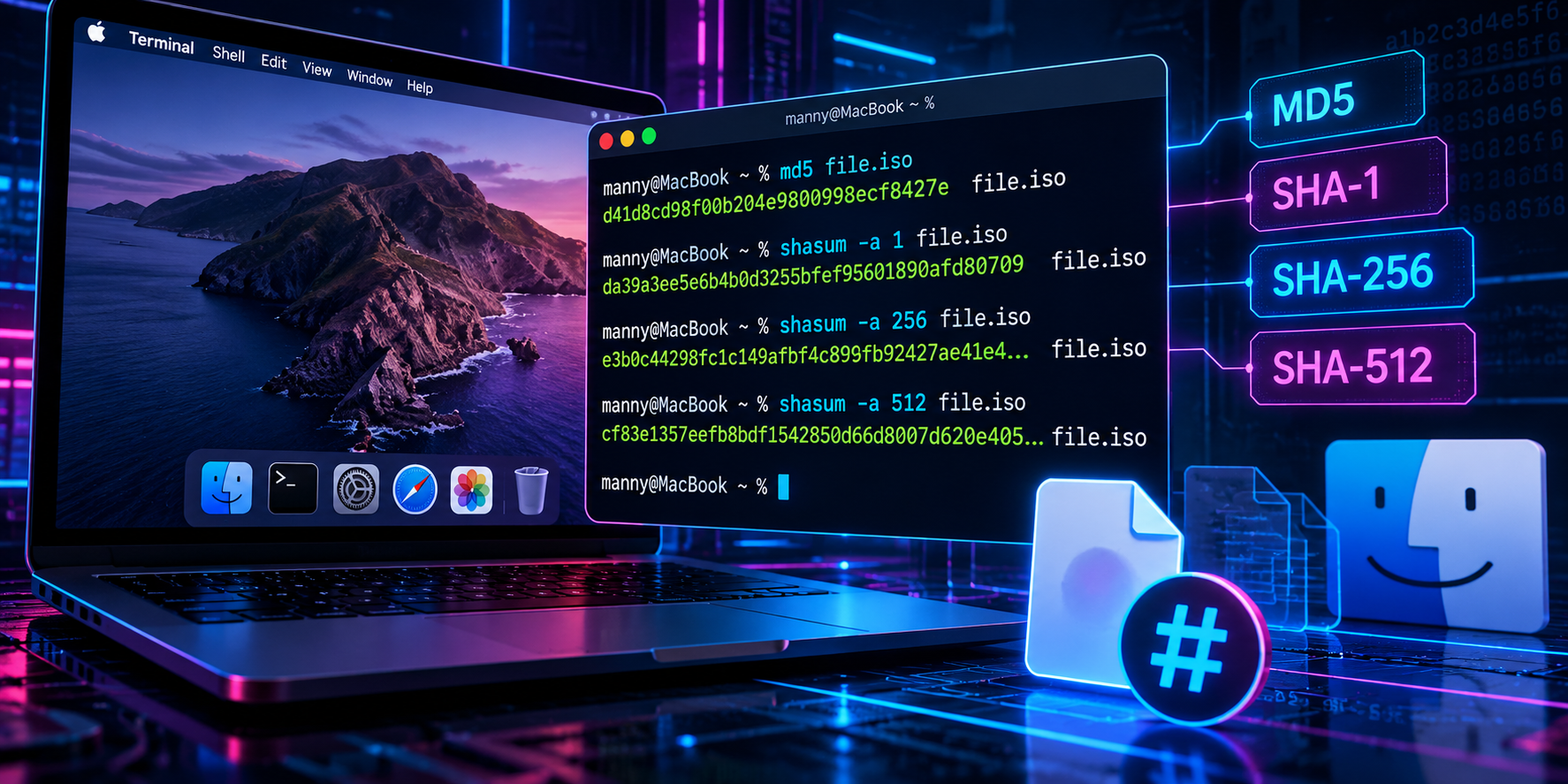
Hashing Files on macOS with Built-In Commands
Generate and verify MD5, SHA-1, SHA-256, and SHA-512 hashes from Terminal using nothing but what ships on every Mac.
Objective: Produce and verify cryptographic file hashes on macOS without installing anything.
Target Audience: Network and security engineers, incident responders, and anyone validating downloads or firmware images.
Tools Used: md5 and shasum (both built into macOS), plus find, awk, and tr for automation.
No Homebrew, no third-party apps, no downloads. Every Mac ships with the tools you need to generate and verify cryptographic hashes. Whether you are validating a firmware image before pushing it to a FortiGate, confirming an ISO was not tampered with, or checking that a file survived a transfer intact, it is all a Terminal command away.
Why Hash a File?
A cryptographic hash function takes input of any size and produces a fixed-length fingerprint. Change a single bit in the file and the hash changes completely. That makes hashes useful for:
- Integrity verification: confirming a download matches what the vendor published.
- Transfer validation: proving a file copied over SCP, USB, or SMB arrived unchanged.
- Forensics and IR: fingerprinting evidence and matching samples against threat intel such as VirusTotal and IOC feeds.
- Change detection: spotting when a config or binary has been modified.
The Built-In Commands
| Algorithm | Command | Digest Length | Status |
|---|---|---|---|
| MD5 | md5 |
128-bit (32 hex chars) | Broken for security use |
| SHA-1 | shasum -a 1 |
160-bit (40 hex chars) | Deprecated, collisions demonstrated |
| SHA-256 | shasum -a 256 |
256-bit (64 hex chars) | Current standard |
| SHA-512 | shasum -a 512 |
512-bit (128 hex chars) | Strong, longer output |
The examples below assume you have changed into the folder holding the file, which keeps the output short and the paths readable:
cd ~/DownloadsMD5
md5 firmware.outOutput:
MD5 (firmware.out) = 9e107d9d372bb6826bd81d3542a419d6The default output format is BSD style. If you want the Linux-style hash filename format (handy when comparing against md5sum output from a Linux box), use -r:
md5 -r firmware.outNeed just the hash with nothing else, for scripting? Use -q:
md5 -q firmware.outYou can also hash a string directly with -s:
md5 -s "hello"
# MD5 ("hello") = 5d41402abc4b2a76b9719d911017c592
SHA-1
shasum -a 1 firmware.outWorth knowing: if you run shasum without -a, it defaults to SHA-1. Always specify the algorithm explicitly so there is no ambiguity in your notes or scripts.
SHA-256
This is the one you should reach for by default. Most vendors, including Fortinet, publish SHA-256 checksums for their images.
shasum -a 256 firmware.outOutput:
2cf24dba5fb0a30e26e83b2ac5b9e29e1b161e5c1fa7425e73043362938b9824 firmware.outSHA-512
shasum -a 512 firmware.outSame syntax, longer digest. shasum also supports -a 224, -a 384, -a 512224, and -a 512256 if you run into a vendor publishing one of those.
Verifying Against a Published Hash
Generating a hash is only half the job. The point is comparing it to a known good value. There are three practical ways to do it.
Option 1: Eyeball It
Quick, but error prone. Fine for a one-off, but people misread 64-character strings all the time. If you must, check at least the first and last eight characters.
Option 2: Let shasum -c Do the Comparison
Paste the vendor hash into a check line and pipe it in. Note the two spaces between the hash and the filename:
HASH="2cf24dba5fb0a30e26e83b2ac5b9e29e1b161e5c1fa7425e73043362938b9824"
echo "$HASH  firmware.out" | shasum -a 256 -c
Output on a match:
firmware.out: OKOutput on a mismatch:
firmware.out: FAILED
shasum: WARNING: 1 computed checksum did NOT match
Option 3: String Comparison in the Shell
expected="PASTE_VENDOR_HASH_HERE"
actual=$(shasum -a 256 firmware.out | awk '{print $1}')
[ "$actual" = "$expected" ] && echo "MATCH" || echo "MISMATCH"
Creating and Checking a Checksum File
For a folder of files you want to verify later (evidence, backups, lab images), generate a manifest:
cd ~/Images
shasum -a 256 * > SHA256SUMS
Later, verify every file in one shot:
shasum -a 256 -c SHA256SUMSAdd --quiet to print only failures, which is ideal when checking hundreds of files.
Hashing Recursively
To hash every file in a directory tree:
find ~/Evidence -type f -exec shasum -a 256 {} + > evidence_hashes.txtHashing a String Instead of a File
Use echo -n (or printf) so the trailing newline does not get included in the hash:
echo -n "hello" | shasum -a 256
# 2cf24dba5fb0a30e26e83b2ac5b9e29e1b161e5c1fa7425e73043362938b9824  -
Without -n, you are hashing hello plus a newline character and you will get a completely different result. This one trips people up constantly.
Troubleshooting and Gotchas
The Hash Does Not Match the Vendor Value
Before assuming tampering, check the basics. Did the download finish? Compare the file size with ls -l. Did your browser rename the file or leave a .download extension? Are you comparing SHA-256 against a SHA-1 value by mistake? Count the characters: 32 is MD5, 40 is SHA-1, 64 is SHA-256, and 128 is SHA-512.
No Properly Formatted Checksum Lines Found
The shasum -c check-line format is strict: the hash, exactly two spaces (or a space and an asterisk for binary mode), then the filename. A single space, a tab, or Windows line endings from a copied checksum file will break it. Strip carriage returns with:
tr -d '\r' < SHA256SUMS > SHA256SUMS.fixedshasum -c Says the File Does Not Exist
The filename in the check line is resolved relative to your current directory. Either cd to the file location or put the full path in the check line.
Do Not Use MD5 or SHA-1 for Security Decisions
Both have practical collision attacks. They are still fine for catching accidental corruption, and you will still see MD5 in legacy threat intel feeds, but when you are validating that something is authentic, use SHA-256 or SHA-512. Remember too that a hash only proves integrity if the reference hash came from a trusted source. If an attacker controls the download page, they control the published hash as well. Signed releases (GPG or code signing) close that gap.
Quick Reference
md5 file                        # MD5
md5 -r file                     # MD5, Linux-style output
md5 -q file                     # MD5, hash only
shasum -a 1 file                # SHA-1
shasum -a 256 file              # SHA-256
shasum -a 512 file              # SHA-512
shasum -a 256 -c SHA256SUMS     # verify a checksum file
echo -n "text" | shasum -a 256 # hash a stringRecent posts
-

-

DNS is one of those technologies that quietly underpins... Full Story
-

BGP issues on FortiGate firewalls usually trace back to... Full Story
-

Every time your laptop talks to your router, a... Full Story
-

If you've spent any time configuring NAT on a... Full Story
-

If you have spent any time configuring firewall policies... Full Story
-

High availability on FortiGate is one of those features... Full Story
-

If you've configured SD-WAN on a FortiGate, you've almost... Full Story
-

FortiLink is the management protocol that turns a FortiSwitch... Full Story
-

FortiSwitches are pretty rock solid from Mean Time Between... Full Story
-

This is a quicky tip. Have you ever gone... Full Story
-

DNS is one of those quiet pieces of internet... Full Story
-

This article is an updated version of the previous... Full Story
-

You will add ns2 as a secondary (slave) BIND9... Full Story
-

In the process of deploying my lab, I needed... Full Story
-

RFC 8805, used to be known as Self-Correcting IP... Full Story
-

Years back, I wrote an article about certificate pinning. ... Full Story
-

FortiGates have the ability to send alerts to Microsoft... Full Story
-

In this post, I am going to walk through... Full Story
-

Troubleshooting VoIP on a FortiGate can feel like trying... Full Story
-

Prior to FortiOS 7.0, there were three commands to... Full Story
-

In this post, I am going to go over... Full Story
-

What we are going to do: We are going... Full Story
-

Choosing between FGCP (FortiGate Clustering Protocol) and FGSP (FortiGate... Full Story
-

Creating a VLAN on macOS (The "Pro" Move) A... Full Story
-

This blog post explores the logic behind how macOS... Full Story
-

Pretty Fly for a Wi-Fi Tell My Wi-Fi Love... Full Story
-

Part of my daily gig is creating BoMs (Bill-of-Materials)... Full Story
-

ICMP introduces several security risks, but careful filtering, rate... Full Story
-

The command diag debug application dhcps -1 enables full... Full Story
-

In the world of FortiOS, execute tac report is... Full Story
-

LLDP; What is it The Link Layer Discovery Protocol... Full Story
-

What it actually does When you run diagnose fdsm... Full Story
-

Monkey Bites are bite-sized, high-impact security insights designed for... Full Story
-

I have run macOS in macOS with Parallels but... Full Story
-

Don't be confused with my other FortiNAC posts where... Full Story
-

This is the third session in a multi-part article... Full Story
-

Today I was configuring key-based authentication on a FortiGate... Full Story
-

Netcat, often called the "Swiss Army knife" of networking,... Full Story
-

At its core, IEEE 802.1X is a network layer... Full Story
-

In case you did not see the previous FortiNAC... Full Story
-

This is our 5th session where we are going... Full Story
-

Now that we have Wireshark installed and somewhat configured,... Full Story
-

The Philosophy of Packet Analysis Troubleshooting isn't about looking... Full Story
-

Nmap Scripting Engine (NSE): From One-Liners to Your First... Full Story
-

Stand up TRex on Ubuntu, wire it through a... Full Story
-

1. Executive Summary Objective: Get a working, persistent nftables... Full Story