
If you've spent any time configuring user authentication on... Full Story
By Manny Fernandez
November 15, 2019

Site-to-Site VPN with Checkpoint Stand-Alone
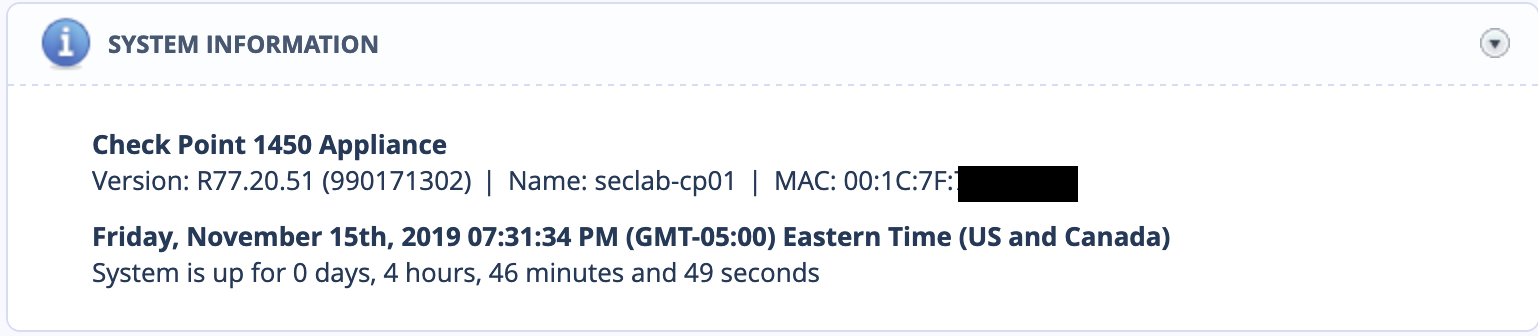
A colleague wanted to test VPNs to multiple platforms. I set up a Checkpoint 1450, PAN 200, and an ASA 5515. This box is running the following:
Configuring The Internet
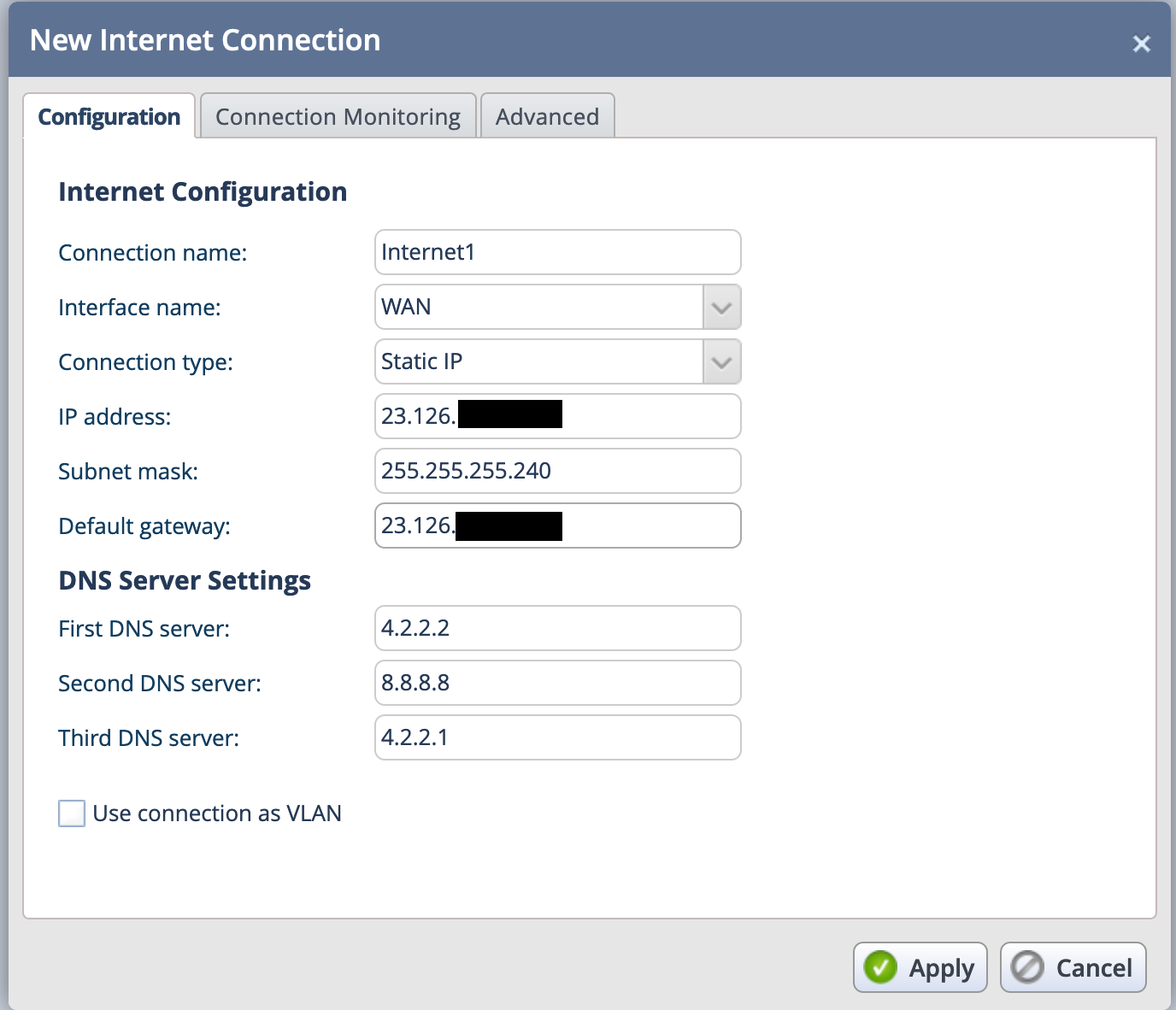
To begin, I needed to configure the Internet side of the Checkpoint Firewall.
Troubleshooting Connection
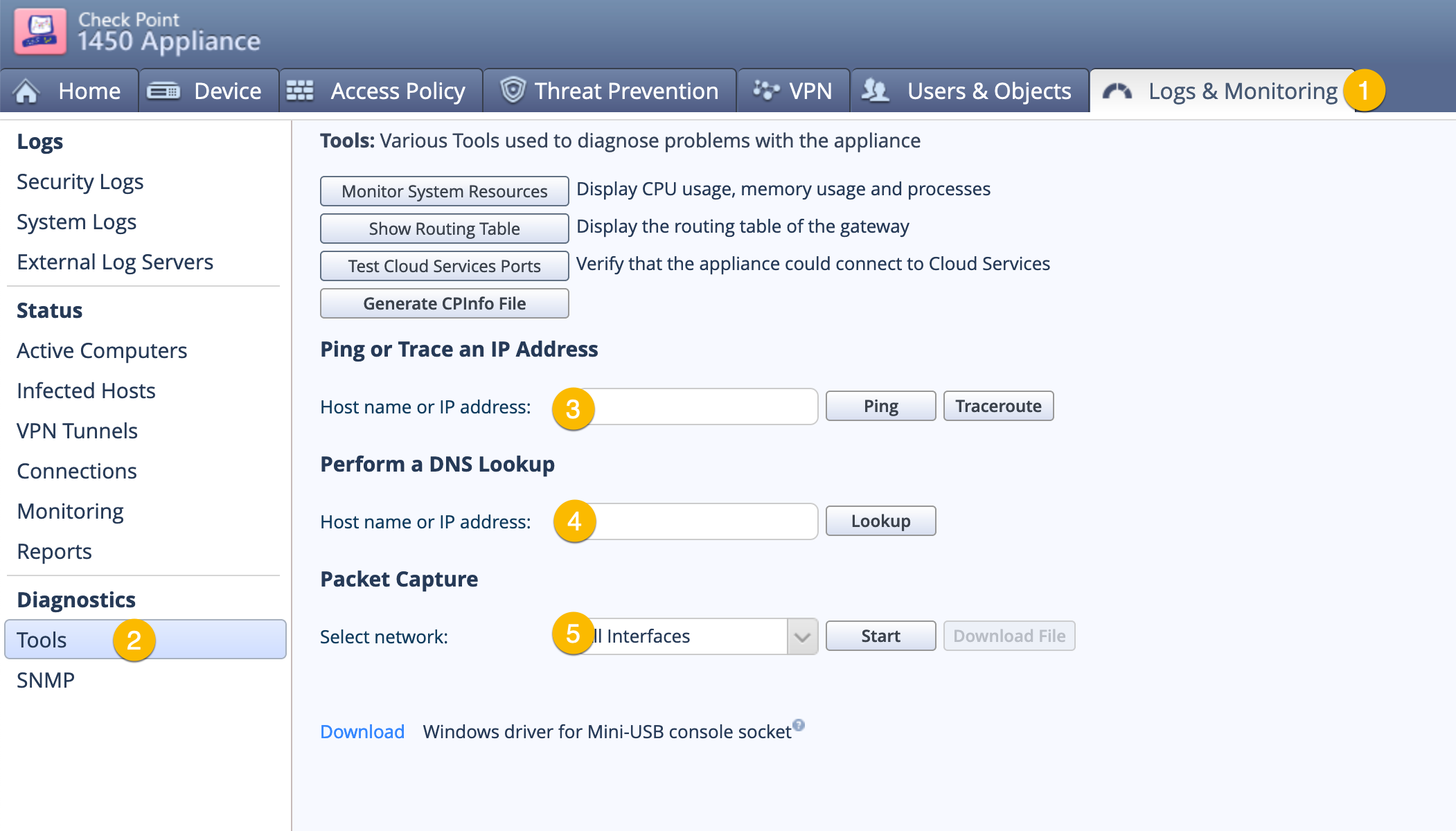
- Choose the
Logs & Monitoringtab on the top. - Choose
Toolson the left column. - Ping / Traceroute to test connectivity.
- DNS lookup to test DNS services.
- Packet Capture.
Configuring the VPN
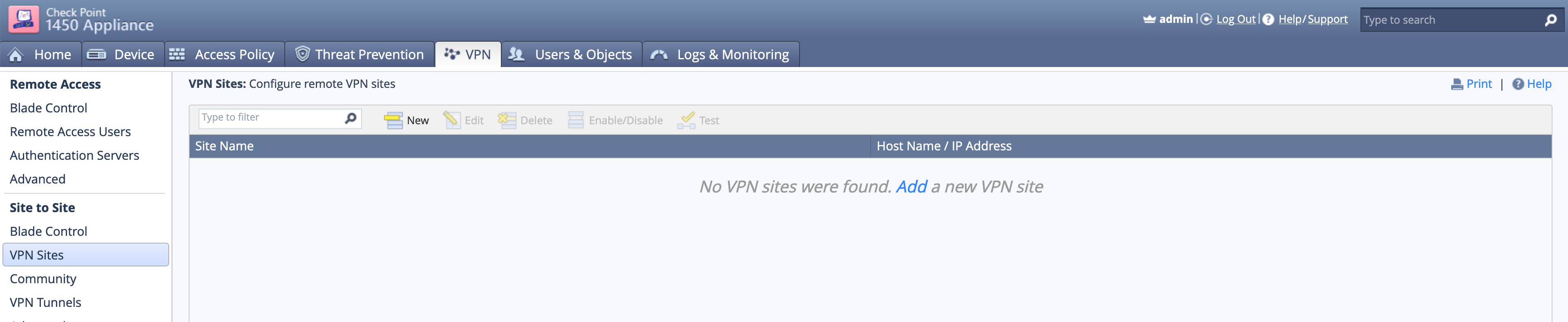
By choosing VPN on the top tab, then VPN Sites you can see I have no VPNs defined. You can click the Add link in the top/middle section of the screen.
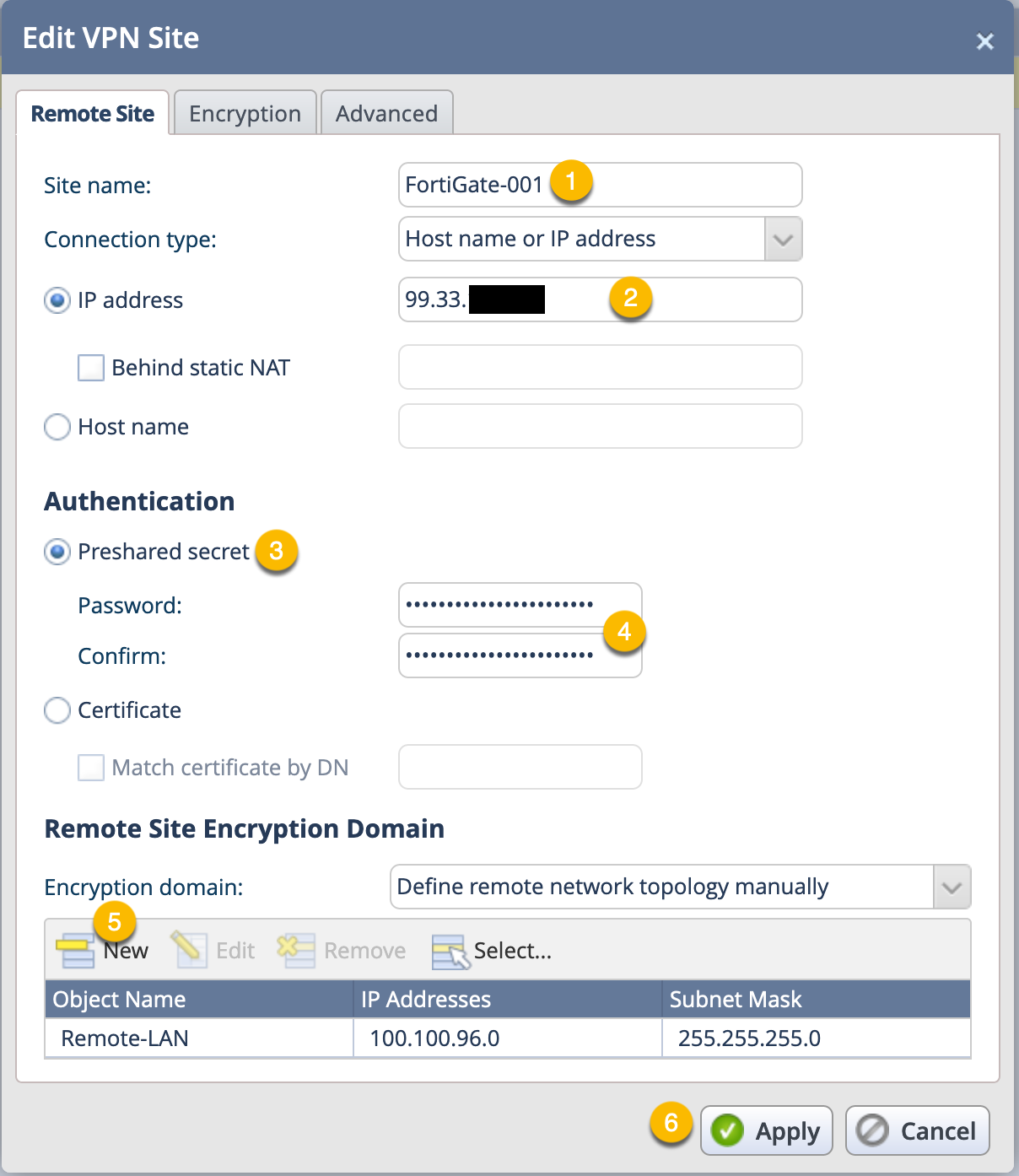
Here we can see the Remote Site configuration screen that shows the main section of the VPN connection.
- Give the VPN a descriptive name.
- Enter the remote peer IP address.
- If you are using PSK or Certificate, Choose accordingly.
- Enter and Validate the PSK (If using PSK).
- Next you will need to configure the Phase II selector for the remote site.
- Finally, click
Apply
Note: This is extremely strange when you are used to using other firewalls on the market. Checkpoint is known for its Encryption Domain that is not necessarily configured in this VPN or in the Communities if using the Centralized Management solution.
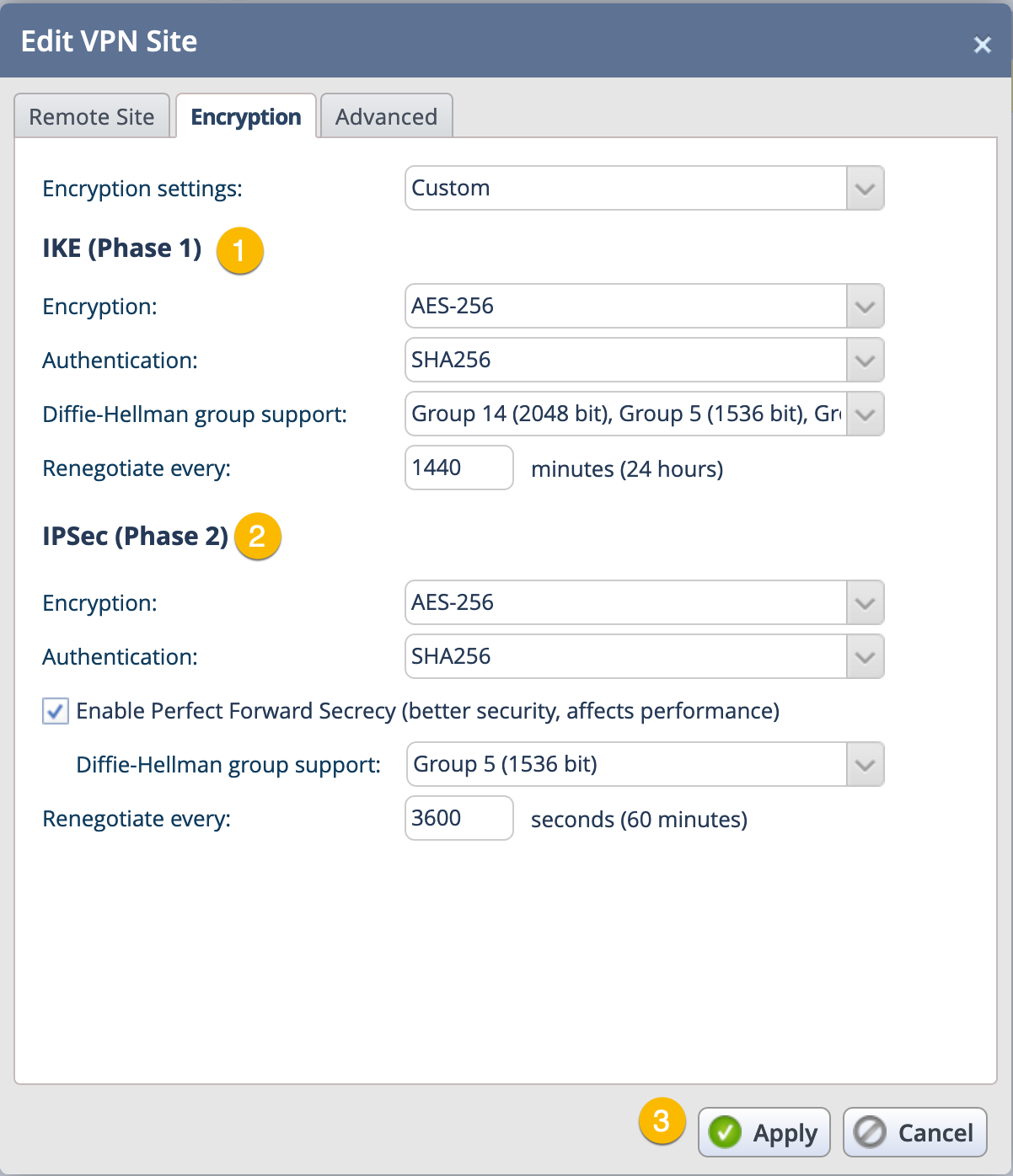
Next we configure the Phase I and Phase II proposals. If you want to add multiple Encryptions schemes as an example, you can choose additional ones and they will be added to the top (see below)
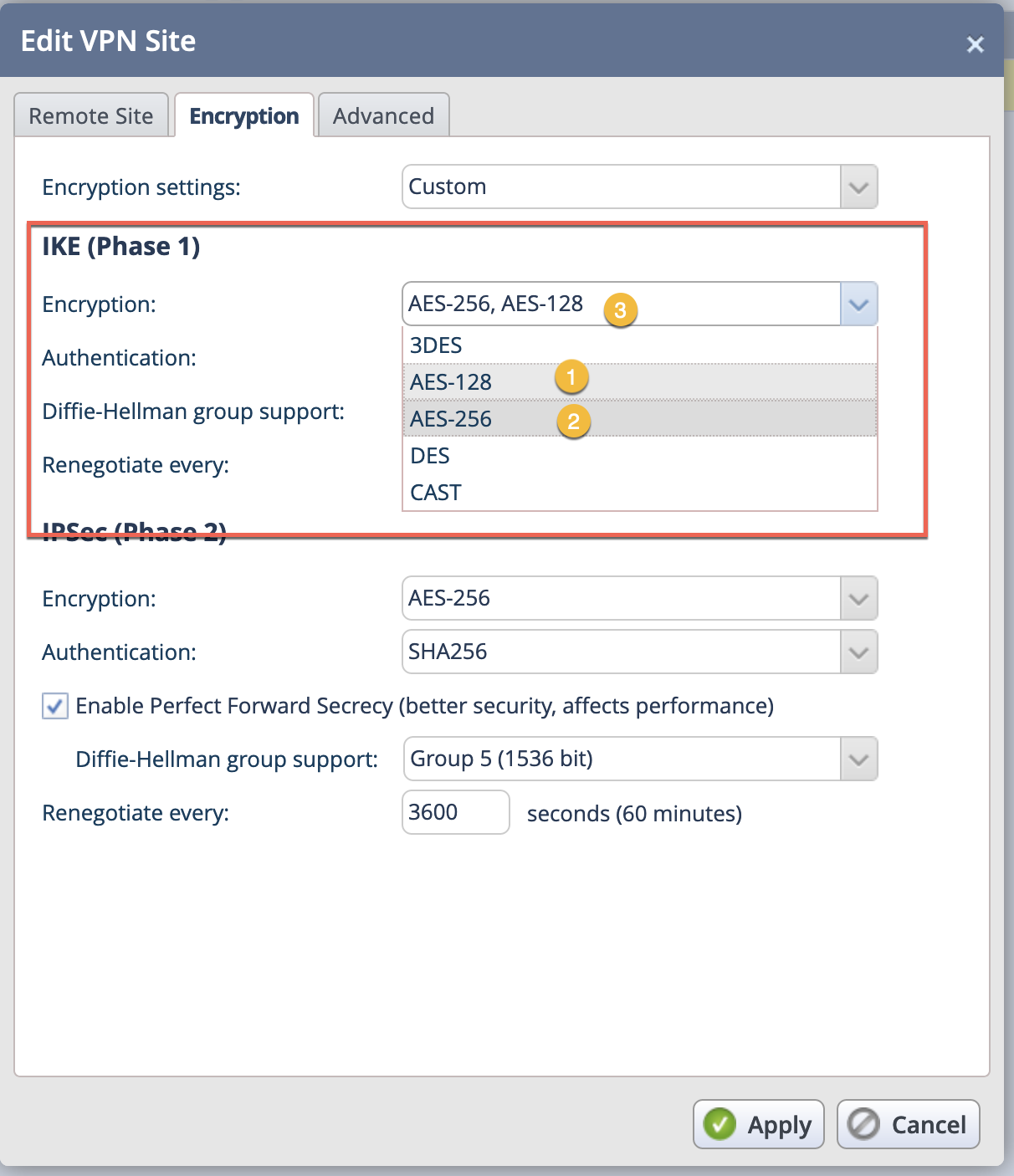
- We chose
AES 128 - We chose
AES 256 - Shows the both selected Encryption Schemes
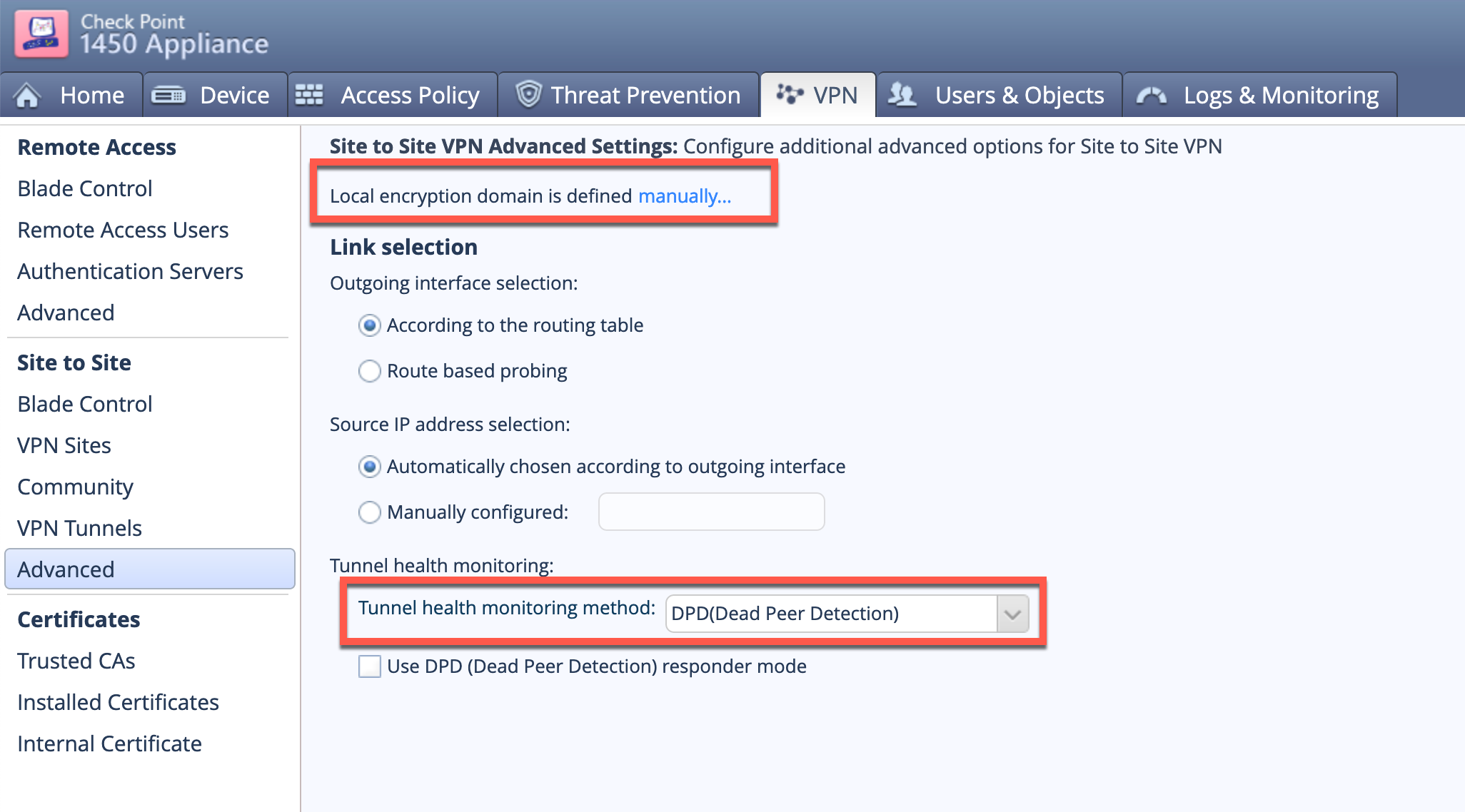
To set up the Phase II selectors for the Local side, go to VPN then Advanced. You will see the first red square that shows the local encryption domain is defined manually which you will need to select.
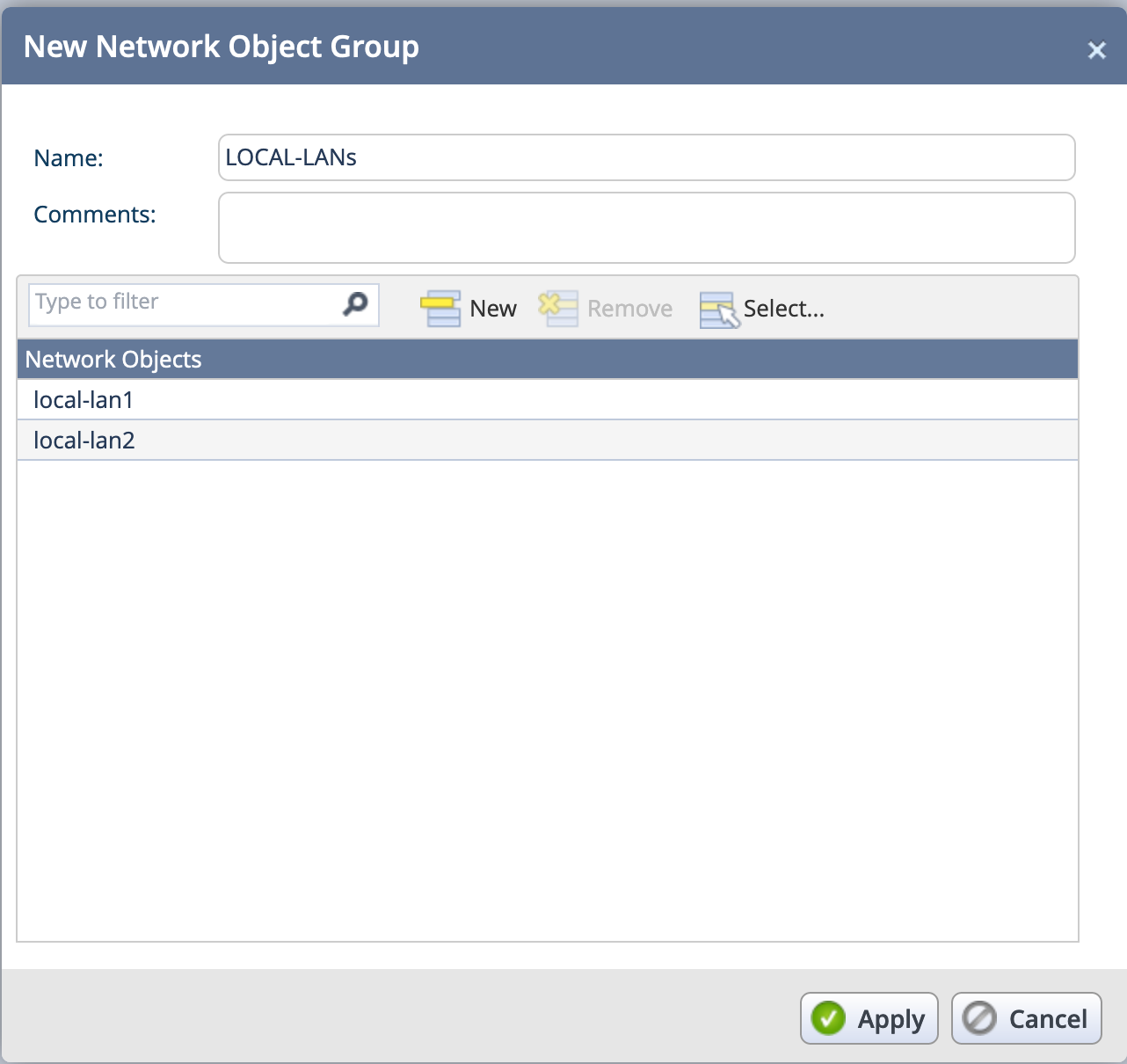
Once selected, you can add separate networks or single IP addresses, however it will NOT let you add a group. This can be problematic depending on the number of networks you have behind the checkpoint.
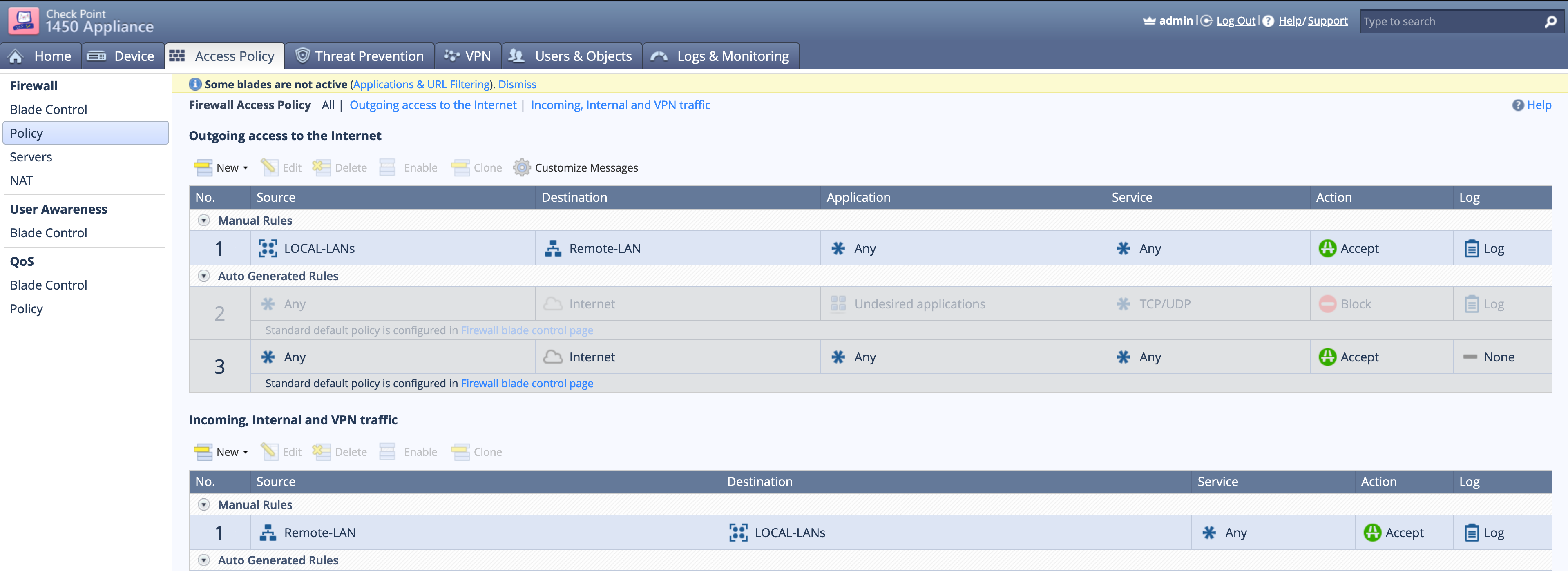
You will need to create rules (in Checkpoint = Policies in FTNT).
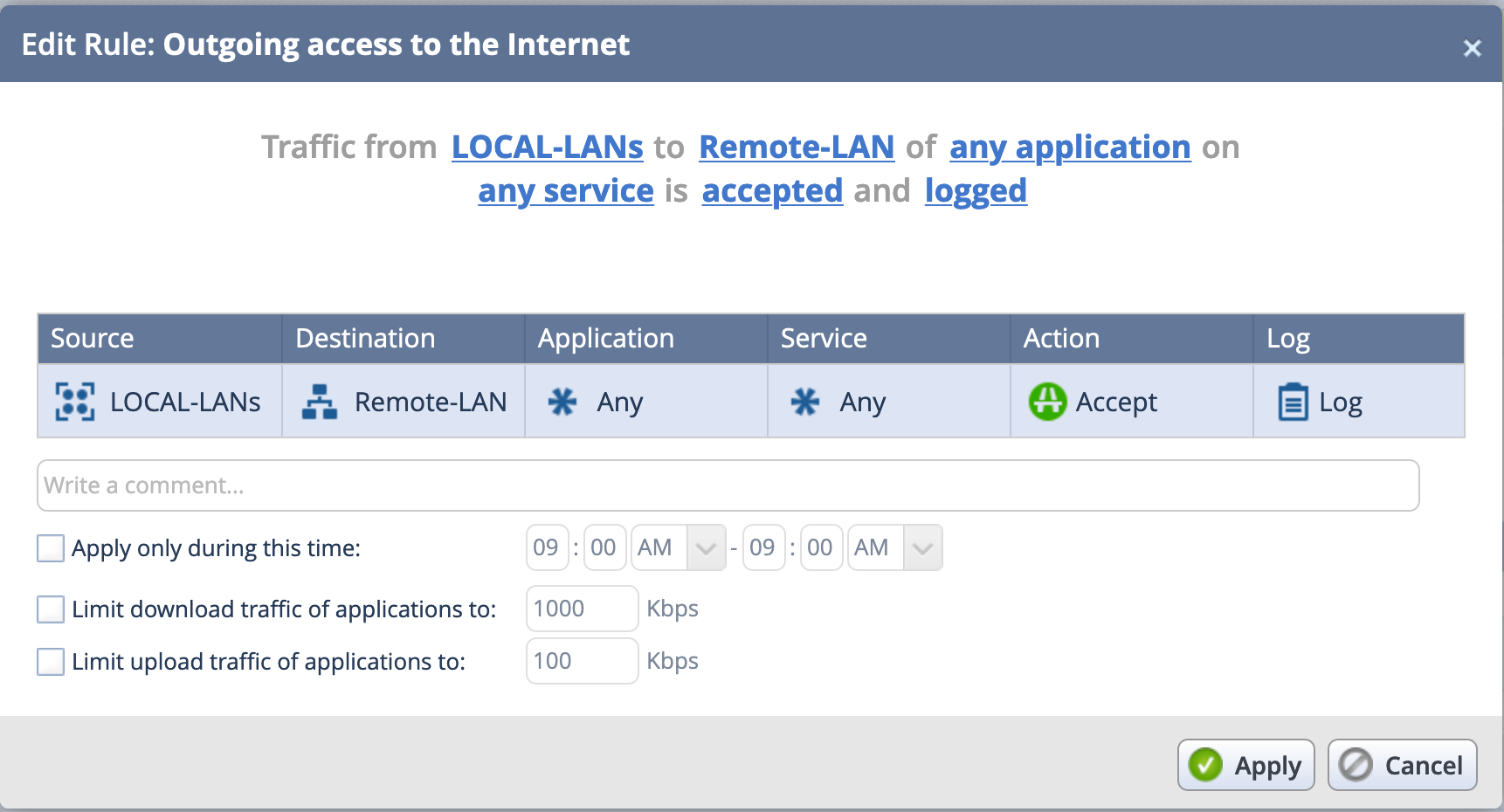
On the top section, you see the Link’d sections in regular English. By selecting each of those sections on the top, you can modify the Source / Destination / Application / Service.
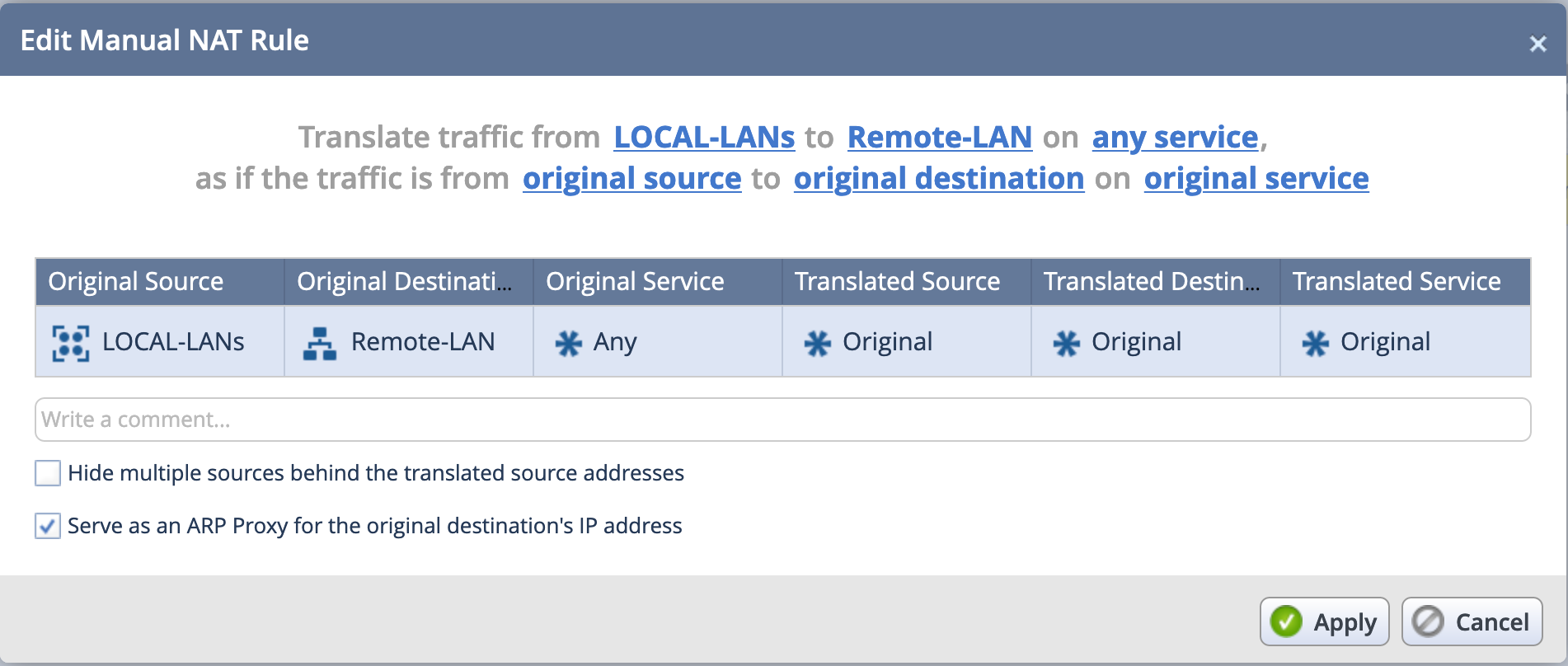
You will also need to create a no-nat rule under Access Policy then NAT. You can create a new rule.
Here we can see that when LOCA-LANs (a group containing local-lan1 and local-lan2)
Note: Yes I know I spelled the group name incorrect. Just lazy to go back and fix it after getting the screenshots. 🙂
Hope this helps
Recent posts
-

-

DNS is one of those technologies that quietly underpins... Full Story
-

BGP issues on FortiGate firewalls usually trace back to... Full Story
-

Every time your laptop talks to your router, a... Full Story
-

If you've spent any time configuring NAT on a... Full Story
-

If you have spent any time configuring firewall policies... Full Story
-

High availability on FortiGate is one of those features... Full Story
-

If you've configured SD-WAN on a FortiGate, you've almost... Full Story
-

FortiLink is the management protocol that turns a FortiSwitch... Full Story
-

FortiSwitches are pretty rock solid from Mean Time Between... Full Story
-

This is a quicky tip. Have you ever gone... Full Story
-

DNS is one of those quiet pieces of internet... Full Story
-

This article is an updated version of the previous... Full Story
-

You will add ns2 as a secondary (slave) BIND9... Full Story
-

In the process of deploying my lab, I needed... Full Story
-

RFC 8805, used to be known as Self-Correcting IP... Full Story
-

Years back, I wrote an article about certificate pinning. ... Full Story
-

FortiGates have the ability to send alerts to Microsoft... Full Story
-

In this post, I am going to walk through... Full Story
-

Troubleshooting VoIP on a FortiGate can feel like trying... Full Story
-

Prior to FortiOS 7.0, there were three commands to... Full Story
-

In this post, I am going to go over... Full Story
-

What we are going to do: We are going... Full Story
-

Choosing between FGCP (FortiGate Clustering Protocol) and FGSP (FortiGate... Full Story
-

Creating a VLAN on macOS (The "Pro" Move) A... Full Story
-

This blog post explores the logic behind how macOS... Full Story
-

Pretty Fly for a Wi-Fi Tell My Wi-Fi Love... Full Story
-

Part of my daily gig is creating BoMs (Bill-of-Materials)... Full Story
-

ICMP introduces several security risks, but careful filtering, rate... Full Story
-

The command diag debug application dhcps -1 enables full... Full Story
-

In the world of FortiOS, execute tac report is... Full Story
-

LLDP; What is it The Link Layer Discovery Protocol... Full Story
-

What it actually does When you run diagnose fdsm... Full Story
-

Monkey Bites are bite-sized, high-impact security insights designed for... Full Story
-

I have run macOS in macOS with Parallels but... Full Story
-

Don't be confused with my other FortiNAC posts where... Full Story
-

This is the third session in a multi-part article... Full Story
-

Today I was configuring key-based authentication on a FortiGate... Full Story
-

Netcat, often called the "Swiss Army knife" of networking,... Full Story
-

At its core, IEEE 802.1X is a network layer... Full Story
-

In case you did not see the previous FortiNAC... Full Story
-

This is our 5th session where we are going... Full Story
-

Now that we have Wireshark installed and somewhat configured,... Full Story
-

The Philosophy of Packet Analysis Troubleshooting isn't about looking... Full Story
-

The Tuesday Afternoon Call It is a quiet Tuesday... Full Story
-

A practitioner breakdown of every TLS version: handshakes, cipher... Full Story
-

A practitioner guide to executables, libraries, mapped files, handles,... Full Story