
If you've spent any time configuring user authentication on... Full Story
By Manny Fernandez
October 5, 2026
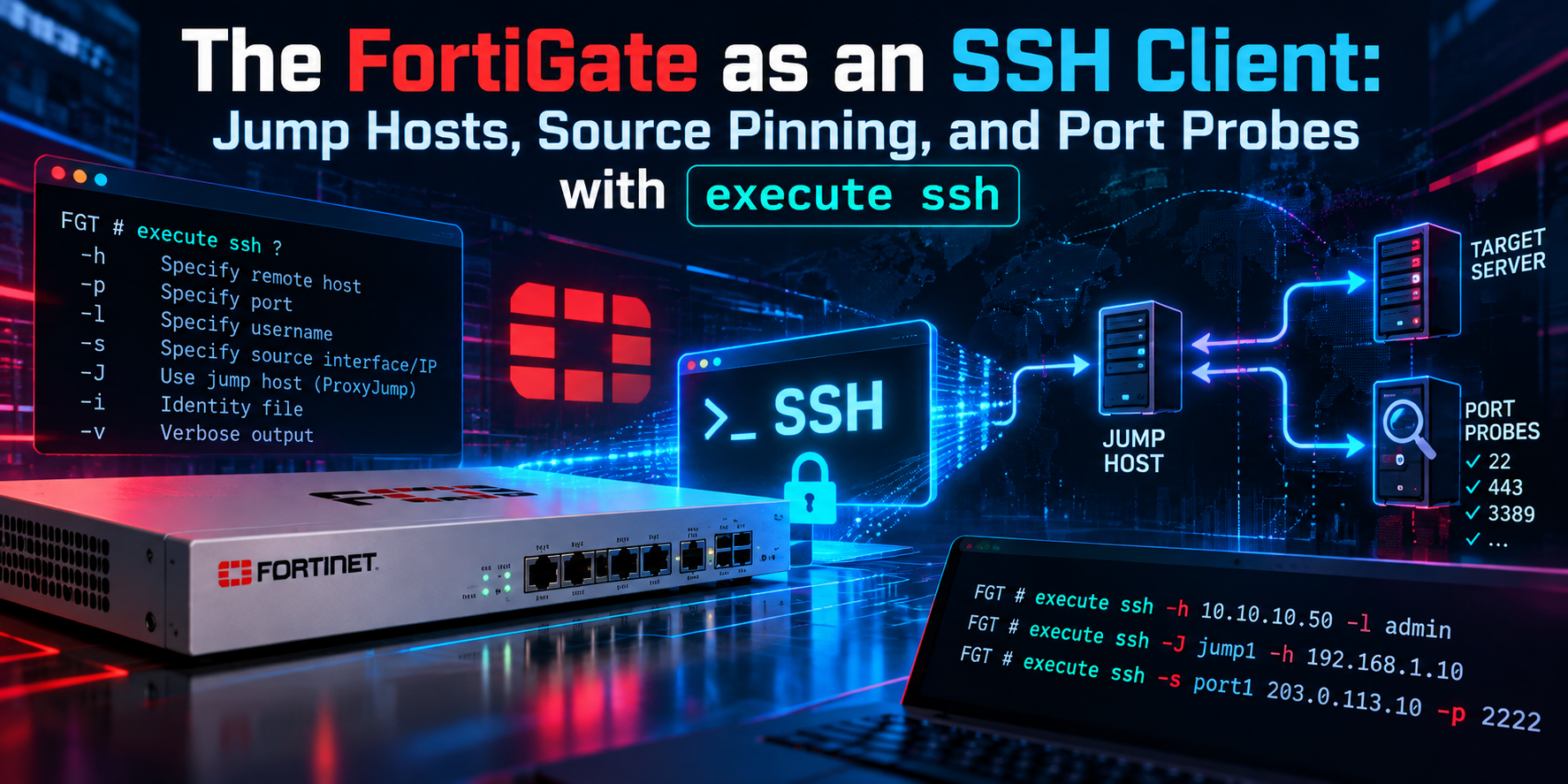
The FortiGate as an SSH Client: Jump Hosts, Source Pinning, and Port Probes with execute ssh
Objective: Use the FortiGate CLI as an outbound SSH client to reach servers, switches, and access points behind the firewall, including across IPsec tunnels, and use the same command as a fast TCP reachability probe.
Target audience: Network and security engineers who administer FortiGates and need a trusted foothold inside segments they cannot reach directly from their workstation.
Applies to: FortiOS 7.0 and later (source pinning via execute ssh-options arrived in 7.0). Examples validated against 7.4, 7.6, and 8.0 syntax.
Executive Summary
Most engineers think of the FortiGate as the thing you SSH into. It is also a perfectly capable SSH client. From the CLI, execute ssh opens an interactive session to any host the FortiGate can route to, which makes the firewall a ready-made jump host for isolated management VLANs, FortiLink-managed switches, FortiAPs, and servers at the far end of a VPN.
The part that trips people up is the source address. Traffic that the FortiGate originates itself (local-out traffic) picks its source from the egress interface, and across a route-based IPsec tunnel that source usually does not match your phase 2 selectors. Since FortiOS 7.0, execute ssh-options lets you pin the outgoing interface and source IP, which turns “it just times out” into a working session.
This post covers the command set, a full walkthrough in a hub-and-branch lab, how to verify what actually left the box, and the three failures you will hit in the field.
Prerequisites and Architecture
Assumed knowledge
- Comfort with the FortiOS CLI, VDOM context, and
get router info routing-table. - Basic IPsec concepts: route-based tunnels and phase 2 selectors (quick mode selectors).
- Standard OpenSSH behavior: host keys,
known_hosts, and fingerprint verification.
Lab topology
The lab follows the InfoSecMonkey addressing convention: 198.18.0.0/15 stands in for public and transit space, and 10.0.0.0/16 is used for internal LANs.
| Component | Role | Addressing |
|---|---|---|
| FGT-HQ | FortiGate where we run execute ssh |
wan1 198.18.10.1/24, internal 10.0.1.1/24 |
| to-branch | Route-based IPsec tunnel HQ to Branch | Phase 2: 10.0.1.0/24 to 10.0.20.0/24 |
| FGT-Branch | Branch FortiGate | wan1 198.18.20.1/24, lan 10.0.20.1/24 |
| srv-branch-01 | Ubuntu 24.04 LTS, OpenSSH server | 10.0.20.50 |
| FortiSwitch (FortiLink) | Managed switch on HQ | 10.255.1.2 (default FortiLink range) |
| Admin workstation | Where you sit | 10.0.1.100 |
Command set at a glance
| Command | What it does |
|---|---|
execute ssh <user>@<ipv4> [port] |
Interactive SSH session to an IPv4 host, optional non-standard port |
execute ssh6 <user>@<ipv6> [port] |
Same, for IPv6 targets |
execute ssh-options interface <port> |
Force the outgoing interface for IPv4 SSH (or auto) |
execute ssh-options source <ip> |
Force the source IP for IPv4 SSH (or auto) |
execute ssh-options view-settings |
Show the current interface and source settings |
execute ssh-options reset |
Return interface and source to automatic |
execute ssh6-options ... |
IPv6 equivalents of the options above |
execute telnet-options ... |
Same interface and source controls for execute telnet |
execute ssh-regen-keys |
Regenerates the FortiGate’s own SSH server host keys. Not a client command; listed here because people confuse the two |
Why Use the FortiGate as an SSH Client
- Jump host into isolated segments. Management VLANs, OT cells, and out-of-band networks are often reachable only from the firewall itself.
- Test from the firewall’s point of view. When a user says “the server is down,” connecting from the FortiGate removes the client, the client’s route, and the client’s policy from the equation.
- Reach infrastructure across a VPN. Hop to a branch server or switch over the tunnel without standing up a separate bastion.
- Reach FortiLink switches and FortiAPs. Their management addresses often live on internal ranges that only the FortiGate routes to.
- Probe TCP 22 (or any port) quickly. The way the connection fails tells you where the problem is.
Step-by-Step Implementation
Step 1: Confirm context and privileges
Goal: make sure you are in the VDOM that owns the route to the target and that your admin profile can run execute commands.
Action: on a multi-VDOM FortiGate, enter the correct VDOM first. execute ssh runs in the current VDOM’s routing context, so running it from the wrong VDOM is the most common “no route” cause.
FGT-HQ # config vdom
FGT-HQ (vdom) # edit root
FGT-HQ (root) # get system status | grep -i "virtual domain"
GUI verification: the VDOM selector at the top of the GUI should match the VDOM that holds the interface facing your target.
Step 2: Check the route before you connect
Goal: know which interface the FortiGate will use and therefore which source IP it will pick.
FGT-HQ (root) # get router info routing-table details 10.0.20.50

Routing table for VRF=0
Routing entry for 10.0.20.0/24
  Known via "static", distance 10, metric 0, best
  * directly connected, to-branch
The target sits behind to-branch. Without intervention, the FortiGate sources the session from the tunnel interface. On an unnumbered tunnel that is not an address inside 10.0.1.0/24, so the phase 2 selector will not match. Keep that in mind for Step 4.
Step 3: Make a basic connection
Goal: open an interactive session to a directly reachable host first, so you know the client works before adding VPN variables.
# Default port 22
FGT-HQ (root) # execute ssh netops@10.0.1.20

# Non-standard port: append it after the destination
FGT-HQ (root) # execute ssh netops@10.0.1.20 2222
On first contact you get the familiar OpenSSH-style host key prompt. Representative output (exact wording varies by build):
The authenticity of host '10.0.1.20 (10.0.1.20)' can't be established.
ED25519 key fingerprint is SHA256:<fingerprint>.
Are you sure you want to continue connecting (yes/no)? yes
Warning: Permanently added '10.0.1.20' (ED25519) to the list of known hosts.
netops@10.0.1.20's password:
Heads up: Do not type
yes on reflex. Compare the fingerprint against the one on the target (ssh-keygen -lf /etc/ssh/ssh_host_ed25519_key.pub) or your inventory. The whole point of a trusted jump host is lost if you accept an attacker’s key.Type exit on the remote host to return to the FortiGate prompt.
Step 4: Pin the source for VPN and multi-path targets
Goal: make the session originate from an address inside the protected subnet so it matches the phase 2 selectors and the far side’s policy.
FGT-HQ (root) # execute ssh-options source 10.0.1.1
FGT-HQ (root) # execute ssh-options interface to-branch
FGT-HQ (root) # execute ssh-options view-settings

FGT-HQ (root) # execute ssh netops@10.0.20.50
Setting the source to the internal interface IP (10.0.1.1) places the packet inside 10.0.1.0/24, which the tunnel’s selectors accept. Pinning the interface as well removes any ambiguity when SD-WAN or multiple routes are in play. Either option can be set back to automatic individually with the keyword auto.
Tip: The branch FortiGate also needs a policy allowing 10.0.1.0/24 to 10.0.20.50 on TCP 22 from
to-branch to lan. Source pinning fixes the HQ side; it does not create permissions at the branch.When you are done, clear the options so the next engineer on the box is not surprised by a pinned source:
FGT-HQ (root) # execute ssh-options reset
FGT-HQ (root) # execute ssh-options view-settings
Step 5: IPv6 targets
Goal: the same workflow for IPv6. The IPv6 client and its options are separate commands, so IPv4 settings do not carry over.
FGT-HQ (root) # execute ssh6-options source 2001:db8:1::1
FGT-HQ (root) # execute ssh6 netops@2001:db8:20::50
FGT-HQ (root) # execute ssh6-options reset
Step 6: Hop to FortiLink switches and FortiAPs
Goal: reach the local CLI of managed Fortinet devices when you need something the FortiGate does not expose, such as switch-side diagnostics.
# Find the managed switch and its address
FGT-HQ (root) # execute switch-controller get-conn-status

# Connect to the switch over the FortiLink interface
FGT-HQ (root) # execute ssh admin@10.255.1.2
FortiAPs only accept SSH if the WTP profile (or a per-AP override) allows it. Enable it temporarily and remove it afterward:
config wireless-controller wtp-profile
    edit "FAP-Default"
        set allowaccess ssh
    next
end

execute ssh admin@<fortiap-ip>
Heads up: Leaving SSH open on every AP in a profile is a finding waiting to happen. Treat
set allowaccess ssh as a change with a rollback, not a default.Step 7: Use execute ssh as a TCP reachability probe
Goal: read the failure mode to localize the problem in seconds. Use execute telnet <ip> <port> for non-SSH ports; it honors execute telnet-options the same way.
| What you see | What it usually means |
|---|---|
| Host key prompt or login banner | Route, VPN, and policy are fine; sshd is answering |
| Connection refused | Host is reachable but replied with a TCP RST: nothing listening, or a host firewall rejecting |
| Long hang, then timeout | Silently dropped: wrong source for the IPsec selectors, a deny policy at the far end, or an ACL |
| No route to host | The FortiGate has no route in this VDOM, or ARP for the next hop is failing |
Verification and Validation
Run a sniffer in one session and the SSH attempt in a second session. Local-out traffic shows up in the sniffer like anything else, which makes it the fastest way to confirm the source IP and egress interface.
FGT-HQ (root) # diagnose sniffer packet any "host 10.0.20.50 and port 22" 4 0 lExpected success output (representative) with the source pinned. Note the egress interface is the tunnel and the source is 10.0.1.1:
to-branch out 10.0.1.1.41532 -> 10.0.20.50.22: syn 3021556711
to-branch in 10.0.20.50.22 -> 10.0.1.1.41532: syn 1187730021 ack 3021556712
to-branch out 10.0.1.1.41532 -> 10.0.20.50.22: ack 1187730022
If you see only outbound SYNs, the far side is not answering or not receiving. Confirm the tunnel counters move during the attempt:
FGT-HQ (root) # diagnose vpn tunnel list name to-branch
FGT-HQ (root) # diagnose sys session filter clear
FGT-HQ (root) # diagnose sys session filter dst 10.0.20.50
FGT-HQ (root) # diagnose sys session filter dport 22
FGT-HQ (root) # diagnose sys session list
On the target, sudo journalctl -u ssh -f (Ubuntu) should show the connection arriving from 10.0.1.1, which is also what you should expect to see in the branch FortiGate’s forward traffic log.
Troubleshooting and Gotchas
1. Session times out across the VPN
Symptom: basic SSH works to local hosts, but targets behind a tunnel hang and time out.
Cause: local-out traffic is sourced from the egress interface. On a tunnel, that source is outside the phase 2 selectors, so the packet is never encrypted or is dropped by the peer.
Diagnose and fix: run the sniffer from the Verification section. If the source is not in your protected subnet, pin it with execute ssh-options source <lan-ip> and retry. If the source is correct and you still see only SYNs, check the far-side policy and route back to 10.0.1.0/24.
2. REMOTE HOST IDENTIFICATION HAS CHANGED
Symptom: the connection is refused with the OpenSSH host key warning, pointing at an offending entry in /tmp/home/<admin>/.ssh/known_hosts.
Cause: the target was rebuilt, re-keyed, or its IP was reassigned to another device. It can also be a genuine man-in-the-middle, which is exactly what the warning is for.
Diagnose and fix: verify the new fingerprint on the target out of band first. The client-side known_hosts is stored per admin account under a temporary path, and FortiOS does not expose a general-purpose command to edit it (FortiAnalyzer and FortiManager have execute ssh-known-hosts; check execute ? on your build rather than assuming). Because the file lives under /tmp, it does not survive a reboot. Once the new key is verified, the practical options are waiting for a maintenance reboot or connecting from a different admin account, which keeps its own known_hosts.
3. No matching key exchange method or host key type
Symptom: errors such as no matching key exchange method found or no matching host key type found when connecting to older switches, routers, or appliances.
Cause: the FortiOS client offers modern algorithms, and the target only supports legacy ones such as diffie-hellman-group1-sha1 or ssh-rsa with SHA-1. The client does not expose per-session algorithm flags the way ssh -o KexAlgorithms=... does on Linux.
Diagnose and fix: confirm what the target offers with ssh -vv from a Linux host that can reach it. The right fix is updating the target’s SSH configuration or firmware. As a stopgap, hop through a Linux jump host where you can enable the legacy algorithm for that one host only.
Security and Audit Considerations
- Local-out traffic does not match firewall policies. It is governed by routing and by the far side’s policy, not by your forward policies. Do not assume a deny policy on HQ will stop an admin from reaching a host.
- Log what admins do. Enable CLI command auditing and local-out traffic logging under
config log setting(set cli-audit-log enable,set local-out enable) soexecute sshsessions leave a trail. Confirm option names withset ?on your build. - Scope who can do it. Anyone with
executeaccess in an admin profile can pivot from the firewall. Restrict admin profiles, enforcetrusthostentries, and require MFA for administrators. - Credentials are typed on the firewall. Treat the FortiGate session like any bastion: no shared accounts on targets, and prefer targets that enforce MFA or short-lived credentials.
- It is a tool, not a bastion platform. For daily privileged access with session recording, use a purpose-built PAM or bastion. The FortiGate client is for troubleshooting and break-glass reach.
Quick Reference
| Task | Command |
|---|---|
| Connect on port 22 | execute ssh user@10.0.20.50 |
| Connect on a custom port | execute ssh user@10.0.20.50 2222 |
| Connect over IPv6 | execute ssh6 user@2001:db8:20::50 |
| Pin the source IP | execute ssh-options source 10.0.1.1 |
| Pin the egress interface | execute ssh-options interface to-branch |
| Show current options | execute ssh-options view-settings |
| Clear options | execute ssh-options reset |
| Probe a non-SSH TCP port | execute telnet 10.0.20.50 443 |
| Watch the session leave | diagnose sniffer packet any "port 22" 4 0 l |
Recent posts
-

-

DNS is one of those technologies that quietly underpins... Full Story
-

BGP issues on FortiGate firewalls usually trace back to... Full Story
-

Every time your laptop talks to your router, a... Full Story
-

If you've spent any time configuring NAT on a... Full Story
-

If you have spent any time configuring firewall policies... Full Story
-

High availability on FortiGate is one of those features... Full Story
-

If you've configured SD-WAN on a FortiGate, you've almost... Full Story
-

FortiLink is the management protocol that turns a FortiSwitch... Full Story
-

FortiSwitches are pretty rock solid from Mean Time Between... Full Story
-

This is a quicky tip. Have you ever gone... Full Story
-

DNS is one of those quiet pieces of internet... Full Story
-

This article is an updated version of the previous... Full Story
-

You will add ns2 as a secondary (slave) BIND9... Full Story
-

In the process of deploying my lab, I needed... Full Story
-

RFC 8805, used to be known as Self-Correcting IP... Full Story
-

Years back, I wrote an article about certificate pinning. ... Full Story
-

FortiGates have the ability to send alerts to Microsoft... Full Story
-

In this post, I am going to walk through... Full Story
-

Troubleshooting VoIP on a FortiGate can feel like trying... Full Story
-

Prior to FortiOS 7.0, there were three commands to... Full Story
-

In this post, I am going to go over... Full Story
-

What we are going to do: We are going... Full Story
-

Choosing between FGCP (FortiGate Clustering Protocol) and FGSP (FortiGate... Full Story
-

Creating a VLAN on macOS (The "Pro" Move) A... Full Story
-

This blog post explores the logic behind how macOS... Full Story
-

Pretty Fly for a Wi-Fi Tell My Wi-Fi Love... Full Story
-

Part of my daily gig is creating BoMs (Bill-of-Materials)... Full Story
-

ICMP introduces several security risks, but careful filtering, rate... Full Story
-

The command diag debug application dhcps -1 enables full... Full Story
-

In the world of FortiOS, execute tac report is... Full Story
-

LLDP; What is it The Link Layer Discovery Protocol... Full Story
-

What it actually does When you run diagnose fdsm... Full Story
-

Monkey Bites are bite-sized, high-impact security insights designed for... Full Story
-

I have run macOS in macOS with Parallels but... Full Story
-

Don't be confused with my other FortiNAC posts where... Full Story
-

This is the third session in a multi-part article... Full Story
-

Today I was configuring key-based authentication on a FortiGate... Full Story
-

Netcat, often called the "Swiss Army knife" of networking,... Full Story
-

At its core, IEEE 802.1X is a network layer... Full Story
-

In case you did not see the previous FortiNAC... Full Story
-

This is our 5th session where we are going... Full Story
-

Now that we have Wireshark installed and somewhat configured,... Full Story
-

The Philosophy of Packet Analysis Troubleshooting isn't about looking... Full Story
-

InfoSecMonkey Threat Response October 24, 2026 | No fluff.... Full Story
-

InfoSecMonkey Threat Response October 24, 2026 | No fluff.... Full Story
-

Plus what you actually get with FortiCare Essential, Premium... Full Story