
If you've spent any time configuring user authentication on... Full Story
By Manny Fernandez
August 14, 2021

Using PhoneInfoga to research phone numbers
Had a friend come to me and let me know that someone was calling his house about some roofing deals. He got very nasty with my friends wife. We wanted to identify this person. I remembered using Phoneinforga back during my red team days. I decided to re-install it. Here is my journey.
Go to the git hub site for sundowndev
You will need to click on the release on the right hand side
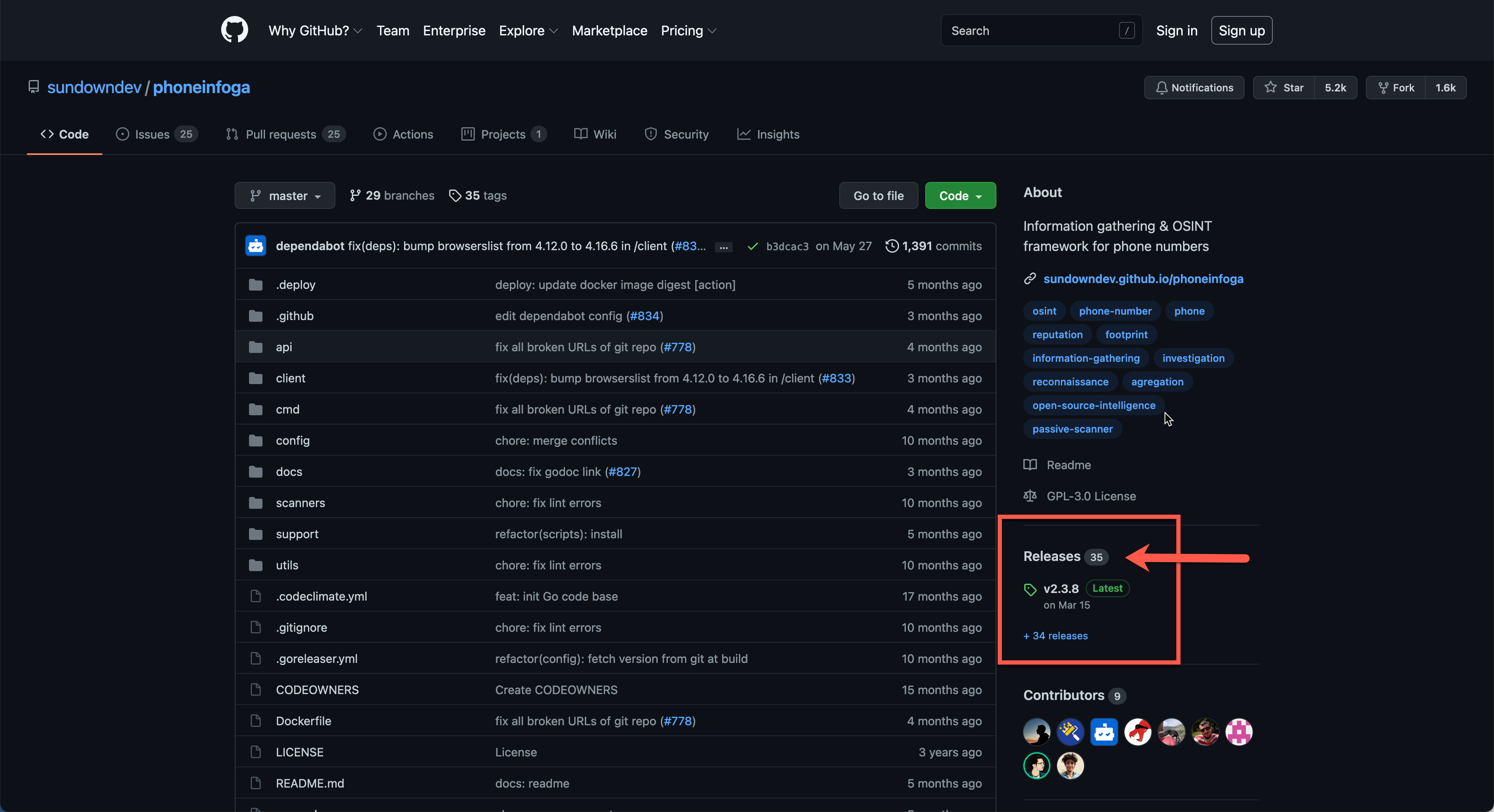
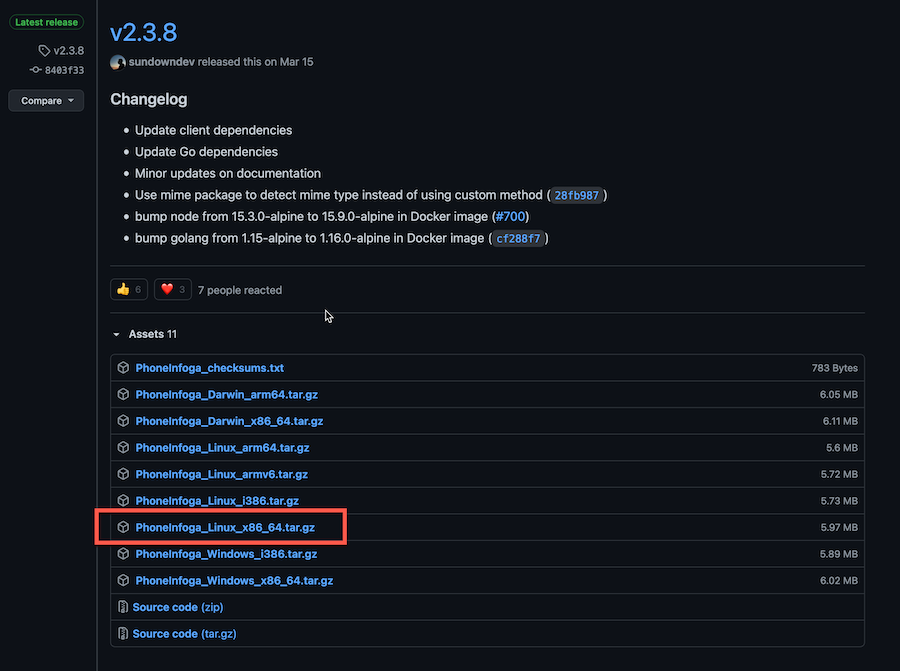
You will then need to choose the platform you are running. For me running Ubuntu 20.04, I downloaded the PhoneInfoga_Linux_x86_64.tar.gz
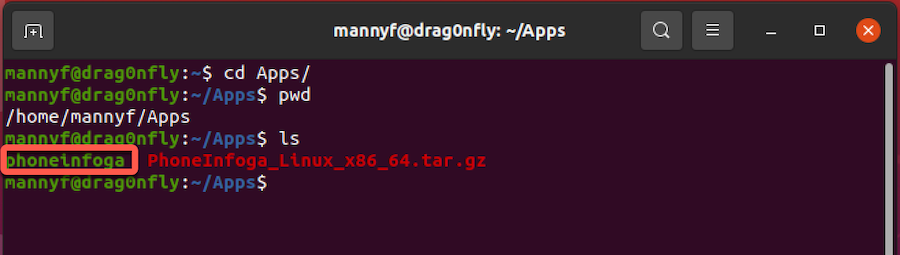
You can download it anywhere on your drive, for me I created a folder under my home directory named Apps and copied the file there.
Now run the following command to extract the files
tar xfv PhoneInfoga_Linux_x86_64.tar.gz
You need to reference the file name you downloaded, again in my case it was PhoneInfoga_Linux_x86_64.tar.gz
You have two options now:
- Command line
- Web GUI
I will show you both
Command Line
You can run the following command to get the options:
mannyf@drag0nfly:~/Apps$ ./phoneinfoga --help
PhoneInfoga is one of the most advanced tools to scan phone numbers using only free resources.

Usage:
phoneinfoga [command]

Examples:
phoneinfoga scan -n <number>

Available Commands:
help Help about any command
scan Scan a phone number
serve Serve web client
version Print current version of the tool

Flags:
-h, --help help for phoneinfoga

Use "phoneinfoga [command] --help" for more information about a command.
You can use the scan keyword and -n to identify the number you want to check
./phoneinfoga scan -n 1786XXXXXXX
This will do all the legwork for you.
Web GUI
To launch the Web UI from the command line, you will need to use the serve keyword. NOTE: By default, the server will listen on TCP 5000 however I use the -p to specify a port. In my case, I used 8080
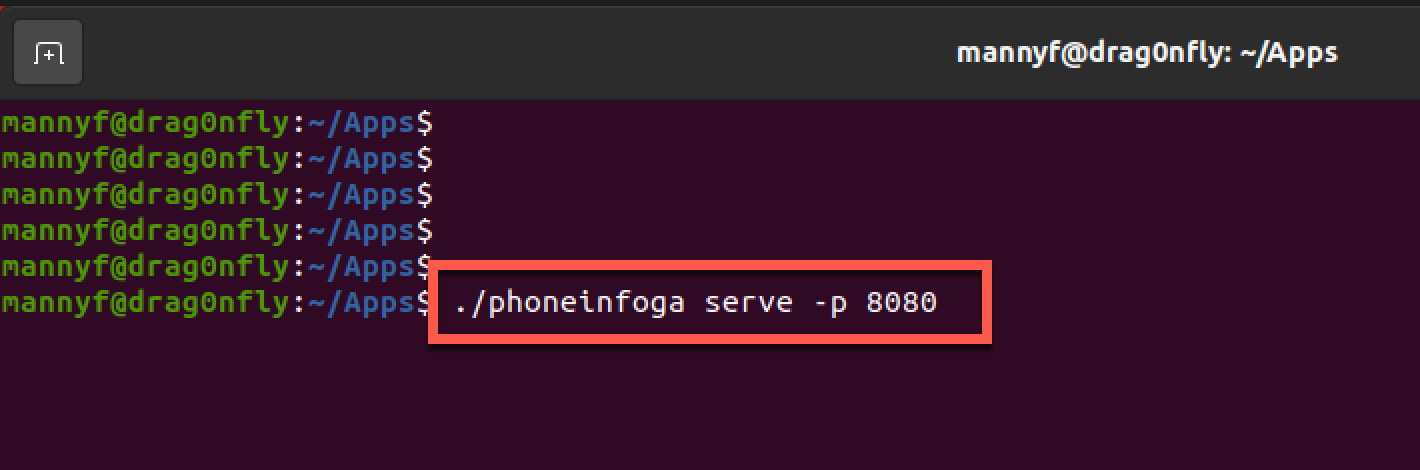
Now you can launch your browser of choice, and connect to 127.0.0.1 with a :8080 after (use whatever port you specified with the -p.
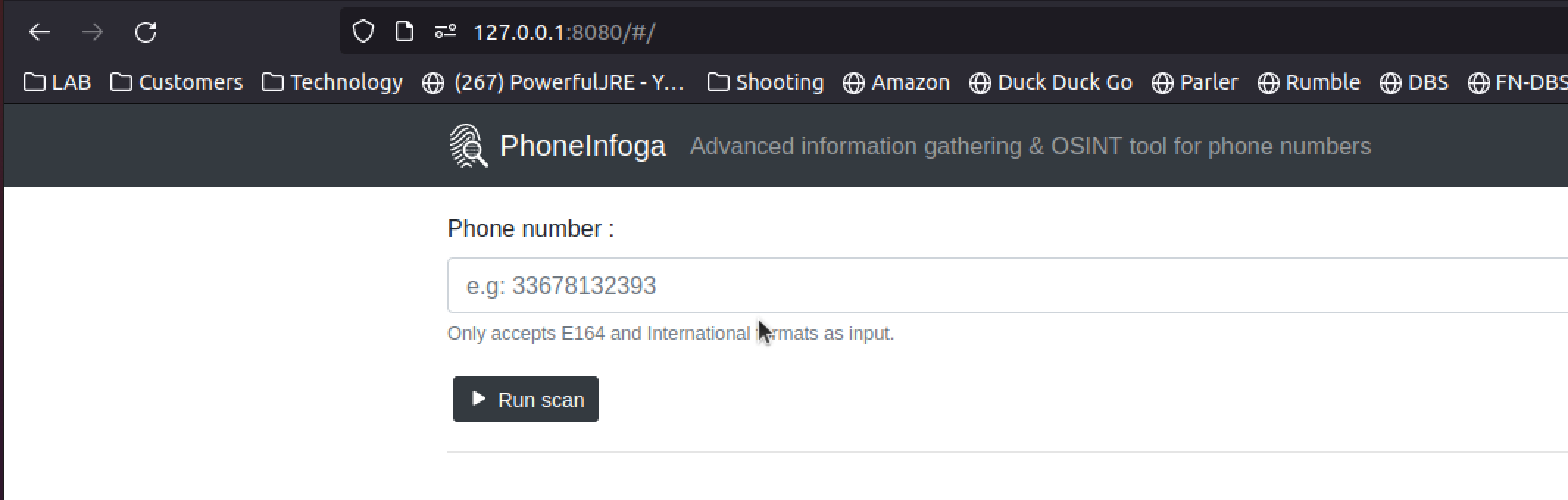
You can now enter the number you want to investigate.
Hope this helps.
Recent posts
-

-

DNS is one of those technologies that quietly underpins... Full Story
-

BGP issues on FortiGate firewalls usually trace back to... Full Story
-

Every time your laptop talks to your router, a... Full Story
-

If you've spent any time configuring NAT on a... Full Story
-

If you have spent any time configuring firewall policies... Full Story
-

High availability on FortiGate is one of those features... Full Story
-

If you've configured SD-WAN on a FortiGate, you've almost... Full Story
-

FortiLink is the management protocol that turns a FortiSwitch... Full Story
-

FortiSwitches are pretty rock solid from Mean Time Between... Full Story
-

This is a quicky tip. Have you ever gone... Full Story
-

DNS is one of those quiet pieces of internet... Full Story
-

This article is an updated version of the previous... Full Story
-

You will add ns2 as a secondary (slave) BIND9... Full Story
-

In the process of deploying my lab, I needed... Full Story
-

RFC 8805, used to be known as Self-Correcting IP... Full Story
-

Years back, I wrote an article about certificate pinning. ... Full Story
-

FortiGates have the ability to send alerts to Microsoft... Full Story
-

In this post, I am going to walk through... Full Story
-

Troubleshooting VoIP on a FortiGate can feel like trying... Full Story
-

Prior to FortiOS 7.0, there were three commands to... Full Story
-

In this post, I am going to go over... Full Story
-

What we are going to do: We are going... Full Story
-

Choosing between FGCP (FortiGate Clustering Protocol) and FGSP (FortiGate... Full Story
-

Creating a VLAN on macOS (The "Pro" Move) A... Full Story
-

This blog post explores the logic behind how macOS... Full Story
-

Pretty Fly for a Wi-Fi Tell My Wi-Fi Love... Full Story
-

Part of my daily gig is creating BoMs (Bill-of-Materials)... Full Story
-

ICMP introduces several security risks, but careful filtering, rate... Full Story
-

The command diag debug application dhcps -1 enables full... Full Story
-

In the world of FortiOS, execute tac report is... Full Story
-

LLDP; What is it The Link Layer Discovery Protocol... Full Story
-

What it actually does When you run diagnose fdsm... Full Story
-

Monkey Bites are bite-sized, high-impact security insights designed for... Full Story
-

I have run macOS in macOS with Parallels but... Full Story
-

Don't be confused with my other FortiNAC posts where... Full Story
-

This is the third session in a multi-part article... Full Story
-

Today I was configuring key-based authentication on a FortiGate... Full Story
-

Netcat, often called the "Swiss Army knife" of networking,... Full Story
-

At its core, IEEE 802.1X is a network layer... Full Story
-

In case you did not see the previous FortiNAC... Full Story
-

This is our 5th session where we are going... Full Story
-

Now that we have Wireshark installed and somewhat configured,... Full Story
-

The Philosophy of Packet Analysis Troubleshooting isn't about looking... Full Story
-

InfoSecMonkey Threat Response October 24, 2026 | No fluff.... Full Story
-

InfoSecMonkey Threat Response October 24, 2026 | No fluff.... Full Story
-

Plus what you actually get with FortiCare Essential, Premium... Full Story