
If you've spent any time configuring user authentication on... Full Story
By Manny Fernandez
January 5, 2026
Searching .jpg and .pdf Files with OCR and grep
JPG
When I do my expenses, I usually have a bunch of .jpg files. I wanted to be able to scan the .jpg but wanted to search for particular content (e.g. $89.33)
I created a python script that uses tesseract to OCR the .jpg and search.
Tesseract is the core optical character recognition (OCR) engine, while Pytesseract is a Python wrapper that provides an interface to run the Tesseract engine from within Python code. You cannot use Pytesseract without having the Tesseract engine installed separately on your system. Below is based on macOS running Homebrew.
UPDATE: You can now search .jpg, .png, and HEIC format. Also, the script is self contained and will install everything it needs. The new script will creates a hidden .venv folder with everything it needs. So it is self contained now.
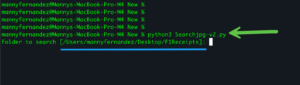
The script will ask you what directory you want to search.. by default it will be the pwd
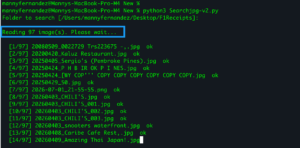
Next, it will read all the files.
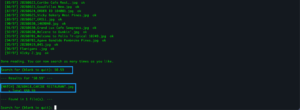
Once it is done reading the files, you can ask for something to search. The prompt stays open and will take new searches until you close the script.
Installing Requirements
See Update Above
brew install tesseract
python3 -m pip install pytesseract pillow
Running the Script
The script will require a couple of things; 1st is the text you are searching for and the 2nd is the location of the files.
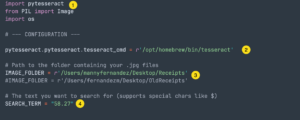
- Here it imports the
pytesseract - The location of your
tesseract - The location of the files. Since I have multiple computers, the path are a little different.
- What we are looking for.
When the script is run, it will scan the files are return the name of the files where it found the keyword we are searching for.
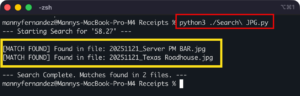
The way I run it is that I have the script open in Sublime Text. I had two folders so I would keep the script open, make mods to path (which folder to search) and what to actually search.
PDFs
For PDFs, I use pdfgrep which is an Open Source project. The use case is that after I am done filling out a report, I can save it as a PDF. Sometimes, I find a receipt and want to make sure if I already expensed it or not. Rather than openinging every PDF and searching it, I use pdfgrep. To install on macOS (If you are running Homebrew)
brew install pdfgrep
To run pdfgrep you can either run it against a file or an entire directory. In my workflow, I want to scan all the PDF’d reports to ensure I expensed a particular charge based on the amount. In this example, I am searching for 51.96 which is the amount I want to check.
pdfgrep -ril "51.96" /Users/mannyfernadez/Desktop/Reports > matches.txt
-r –recursive
Recursively search all files (restricted by –include and –exclude) under each directory, following symlinks only if they are on the command line.
-i –ignore-case
Ignore case distinctions in both the PATTERN and the input files.
-l –files-with-matches
Suppress normal output. Instead print the name of each input file that contains a match. This works well with -Z, but many other output options like -n or -c are ignored when -l is specified.
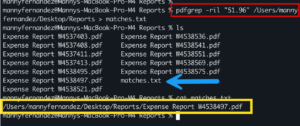
This allows me to validate the expense by going directly to the file.
Recent posts
-

-

DNS is one of those technologies that quietly underpins... Full Story
-

BGP issues on FortiGate firewalls usually trace back to... Full Story
-

Every time your laptop talks to your router, a... Full Story
-

If you've spent any time configuring NAT on a... Full Story
-

If you have spent any time configuring firewall policies... Full Story
-

High availability on FortiGate is one of those features... Full Story
-

If you've configured SD-WAN on a FortiGate, you've almost... Full Story
-

FortiLink is the management protocol that turns a FortiSwitch... Full Story
-

FortiSwitches are pretty rock solid from Mean Time Between... Full Story
-

This is a quicky tip. Have you ever gone... Full Story
-

DNS is one of those quiet pieces of internet... Full Story
-

This article is an updated version of the previous... Full Story
-

You will add ns2 as a secondary (slave) BIND9... Full Story
-

In the process of deploying my lab, I needed... Full Story
-

RFC 8805, used to be known as Self-Correcting IP... Full Story
-

Years back, I wrote an article about certificate pinning. ... Full Story
-

FortiGates have the ability to send alerts to Microsoft... Full Story
-

In this post, I am going to walk through... Full Story
-

Troubleshooting VoIP on a FortiGate can feel like trying... Full Story
-

Prior to FortiOS 7.0, there were three commands to... Full Story
-

In this post, I am going to go over... Full Story
-

What we are going to do: We are going... Full Story
-

Choosing between FGCP (FortiGate Clustering Protocol) and FGSP (FortiGate... Full Story
-

Creating a VLAN on macOS (The "Pro" Move) A... Full Story
-

This blog post explores the logic behind how macOS... Full Story
-

Pretty Fly for a Wi-Fi Tell My Wi-Fi Love... Full Story
-

Part of my daily gig is creating BoMs (Bill-of-Materials)... Full Story
-

ICMP introduces several security risks, but careful filtering, rate... Full Story
-

The command diag debug application dhcps -1 enables full... Full Story
-

In the world of FortiOS, execute tac report is... Full Story
-

LLDP; What is it The Link Layer Discovery Protocol... Full Story
-

What it actually does When you run diagnose fdsm... Full Story
-

Monkey Bites are bite-sized, high-impact security insights designed for... Full Story
-

I have run macOS in macOS with Parallels but... Full Story
-

Don't be confused with my other FortiNAC posts where... Full Story
-

This is the third session in a multi-part article... Full Story
-

Today I was configuring key-based authentication on a FortiGate... Full Story
-

Netcat, often called the "Swiss Army knife" of networking,... Full Story
-

At its core, IEEE 802.1X is a network layer... Full Story
-

In case you did not see the previous FortiNAC... Full Story
-

This is our 5th session where we are going... Full Story
-

Now that we have Wireshark installed and somewhat configured,... Full Story
-

The Philosophy of Packet Analysis Troubleshooting isn't about looking... Full Story
-

The short version Single-click the Format Painter and it... Full Story
-

Quick-Tip The default macOS zsh prompt prints your username,... Full Story
-

Executive summary. After Apple significantly upgraded Reminders, I finally... Full Story