
If you've spent any time configuring user authentication on... Full Story
By Manny Fernandez
June 19, 2026
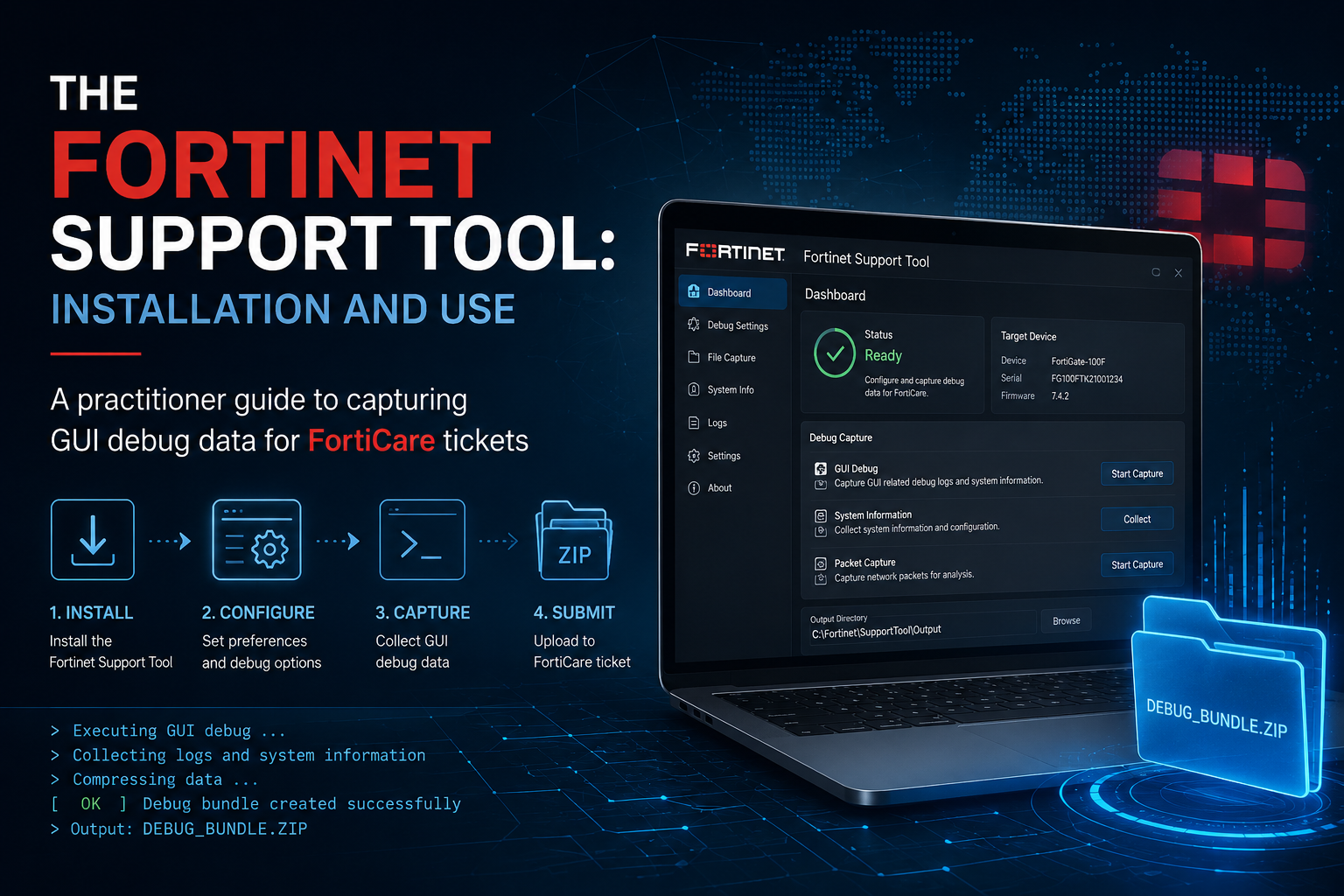
The Fortinet Support Tool: Installation and Use A practitioner guide to capturing GUI debug data for FortiCare tickets
What the Fortinet Support Tool Actually Is
There are two different things people mean when they say “Fortinet support tool,” and conflating them wastes time on a TAC case. This guide covers the one that matters for FortiGate GUI issues: the Fortinet Support Tool browser extension (you will also see it listed as FortiGate Support Tool in the Chrome Web Store).
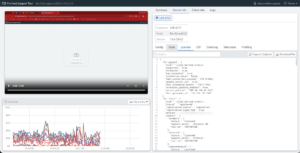
It is a browser extension for Google Chrome or Microsoft Edge that runs background debug commands directly inside the FortiGate GUI. When you hit GUI slowness, rendering errors, pages that hang, or widgets that fail to load, this is the tool TAC will ask you to run. It captures the HTTP requests, console output, and timing data that Fortinet Support needs to reproduce and diagnose what you are seeing, then bundles it into a single compressed file you attach to your FortiCare ticket.
It is not the FortiClient Diagnostic Tool (that is a separate endpoint utility for FortiClient debug reports), and it is not a CLI command. Keep the distinction straight when you open a case.
Why You Want It
GUI problems are notoriously hard to describe in a ticket. “The policy page is slow” gives TAC nothing actionable. The Support Tool turns a vague complaint into hard evidence: it records exactly which backend calls fired, how long each took, and where the failure occurred, all from the browser side where the symptom lives. That is the difference between a case that bounces back asking for more information and one that gets a real answer.
A side note worth stating up front, because it resolves a meaningful percentage of “GUI is slow” complaints before they ever reach a ticket: ad-blocking extensions such as AdBlock and uBlock Origin can significantly slow down interactions with the FortiGate GUI. Before you blame the firewall, either remove those extensions or create an exception for the FortiGate admin URL or IP. This is a five-second check that saves hours.
Requirements
The bar is low. The only hard requirement is that the FortiGate is running FortiOS 6.2.2 GA or later. The extension itself is free from the official browser stores and needs no license.
One newer capability does have a higher floor. Starting in FortiOS 7.6.3, Fortinet added a separate incident-capture mode that uses a REST API key generated on the FortiGate and can run for an extended period to catch intermittent problems. More on that below, but if you are on a release earlier than 7.6.3, you only have the classic browser-side capture, which is still the right tool for most GUI issues.
Installation
There are two ways to install the extension.
The straightforward path is the direct store link. Open the Chrome Web Store (the extension installs in Edge as well, since Edge runs Chrome extensions) and go directly to the FortiGate Support Tool listing, then add it to the browser. If you prefer to search rather than follow a link, open the Chrome Web Store extensions category, search for “Fortinet Support Tool,” and add it from the results.
Once installed, the extension behaves contextually. During normal browsing on any non-FortiGate page, the extension icon sits greyed out and does nothing. The moment you navigate to a FortiGate GUI, the icon activates and turns red. That color change is your signal that the tool is live and ready to capture on the device you are looking at.
Using It to Capture a GUI Issue
The workflow is deliberately simple, which matters when you are trying to reproduce a problem and run a capture at the same time.
1. Log into the FortiGate GUI in your browser. Confirm the extension icon has turned red, which tells you the tool recognizes the FortiGate and is armed.
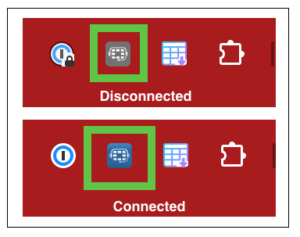
2. Click the extension icon. With the icon red, additional options become available, including the capture controls.
3. Click New Capture to start recording debug data.
4. Reproduce the issue. Navigate to the slow page, trigger the error, click the widget that hangs, do whatever it takes to make the symptom happen while the capture is running. The tool is recording the backend calls and timing the whole time.
5. Stop the capture once you have reproduced the problem.
The tool then automatically generates a compressed file. Depending on your browser’s download settings, that file either drops straight into your default downloads folder or prompts you with a save dialog so you can choose where it lands. Either way, you end up with a single archive containing the diagnostic data.
6. Upload that file to the corresponding FortiCare ticket so Fortinet Support can analyze it.
That is the entire loop: arm, capture, reproduce, stop, upload. The value is that everything TAC needs is in one file, captured at the exact moment the problem occurred, with no guesswork about what you clicked or how long it took.
The 7.6.3+ Incident Capture Mode
Classic browser-side capture is great for problems you can reproduce on demand. It is weaker for the intermittent kind, the GUI glitch that shows up twice a day with no obvious trigger, because you have to be actively capturing at the moment it happens.
FortiOS 7.6.3 addresses this with the Fortinet Support Tool for capturing incidents. Instead of relying on you to catch the event live in the browser, it captures real-time debugging on the FortiGate itself using a REST API key you generate on the device. Critically, it can run for up to 48 hours, which dramatically increases the odds of capturing an intermittent incident without someone babysitting the session.
If you are chasing a sporadic GUI or system issue on a 7.6.3 or later FortiGate, this is the mode to reach for. For everything reproducible, the classic extension capture is faster to set up and perfectly sufficient. Fortinet’s new-features documentation for the 7.6 release covers the incident-capture setup in detail if you need the REST API key steps.
Practical Notes
A few things worth keeping in mind in the field:
The red-icon behavior is your sanity check. If you open the extension and the icon is still grey, you are either not on the FortiGate GUI or the browser has not registered the page as a FortiGate. Confirm the URL before you waste a capture.
Capture only what you need. Start the capture as close as possible to reproducing the symptom and stop it right after. A tight capture window produces a cleaner file and makes TAC’s analysis faster than a sprawling recording full of unrelated navigation.
Mind your ad blockers, every time. It bears repeating because it is the single most common self-inflicted GUI slowness cause. If a GUI feels sluggish, rule out AdBlock and uBlock before you open a ticket at all.
Keep the file association tight to the ticket. The whole point is correlation, so attach the capture to the specific FortiCare case it belongs to rather than letting it sit in your downloads folder.
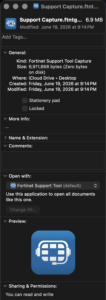
This is the output it will generate.
Bottom Line
The Fortinet Support Tool browser extension is the fastest way to turn an unhelpful “the GUI is slow” complaint into diagnosable evidence. Install it from the Chrome or Edge store, confirm the red icon on your FortiGate GUI, run New Capture while you reproduce the problem, stop, and upload the resulting file to your FortiCare ticket. Requires FortiOS 6.2.2 or later. On 7.6.3 and up, the incident-capture mode with its 48-hour window is the better choice for intermittent issues. And before any of it, check your ad blockers.
Recent posts
-

-

DNS is one of those technologies that quietly underpins... Full Story
-

BGP issues on FortiGate firewalls usually trace back to... Full Story
-

Every time your laptop talks to your router, a... Full Story
-

If you've spent any time configuring NAT on a... Full Story
-

If you have spent any time configuring firewall policies... Full Story
-

High availability on FortiGate is one of those features... Full Story
-

If you've configured SD-WAN on a FortiGate, you've almost... Full Story
-

FortiLink is the management protocol that turns a FortiSwitch... Full Story
-

FortiSwitches are pretty rock solid from Mean Time Between... Full Story
-

This is a quicky tip. Have you ever gone... Full Story
-

DNS is one of those quiet pieces of internet... Full Story
-

This article is an updated version of the previous... Full Story
-

You will add ns2 as a secondary (slave) BIND9... Full Story
-

In the process of deploying my lab, I needed... Full Story
-

RFC 8805, used to be known as Self-Correcting IP... Full Story
-

Years back, I wrote an article about certificate pinning. ... Full Story
-

FortiGates have the ability to send alerts to Microsoft... Full Story
-

In this post, I am going to walk through... Full Story
-

Troubleshooting VoIP on a FortiGate can feel like trying... Full Story
-

Prior to FortiOS 7.0, there were three commands to... Full Story
-

In this post, I am going to go over... Full Story
-

What we are going to do: We are going... Full Story
-

Choosing between FGCP (FortiGate Clustering Protocol) and FGSP (FortiGate... Full Story
-

Creating a VLAN on macOS (The "Pro" Move) A... Full Story
-

This blog post explores the logic behind how macOS... Full Story
-

Pretty Fly for a Wi-Fi Tell My Wi-Fi Love... Full Story
-

Part of my daily gig is creating BoMs (Bill-of-Materials)... Full Story
-

ICMP introduces several security risks, but careful filtering, rate... Full Story
-

The command diag debug application dhcps -1 enables full... Full Story
-

In the world of FortiOS, execute tac report is... Full Story
-

LLDP; What is it The Link Layer Discovery Protocol... Full Story
-

What it actually does When you run diagnose fdsm... Full Story
-

Monkey Bites are bite-sized, high-impact security insights designed for... Full Story
-

I have run macOS in macOS with Parallels but... Full Story
-

Don't be confused with my other FortiNAC posts where... Full Story
-

This is the third session in a multi-part article... Full Story
-

Today I was configuring key-based authentication on a FortiGate... Full Story
-

Netcat, often called the "Swiss Army knife" of networking,... Full Story
-

At its core, IEEE 802.1X is a network layer... Full Story
-

In case you did not see the previous FortiNAC... Full Story
-

This is our 5th session where we are going... Full Story
-

Now that we have Wireshark installed and somewhat configured,... Full Story
-

The Philosophy of Packet Analysis Troubleshooting isn't about looking... Full Story
-

Quick-Tip The default macOS zsh prompt prints your username,... Full Story
-

Executive summary. After Apple significantly upgraded Reminders, I finally... Full Story
-

The 20-byte tunnel nobody talks about: config system ipip-tunnel... Full Story