
If you've spent any time configuring user authentication on... Full Story
By Manny Fernandez
July 1, 2026
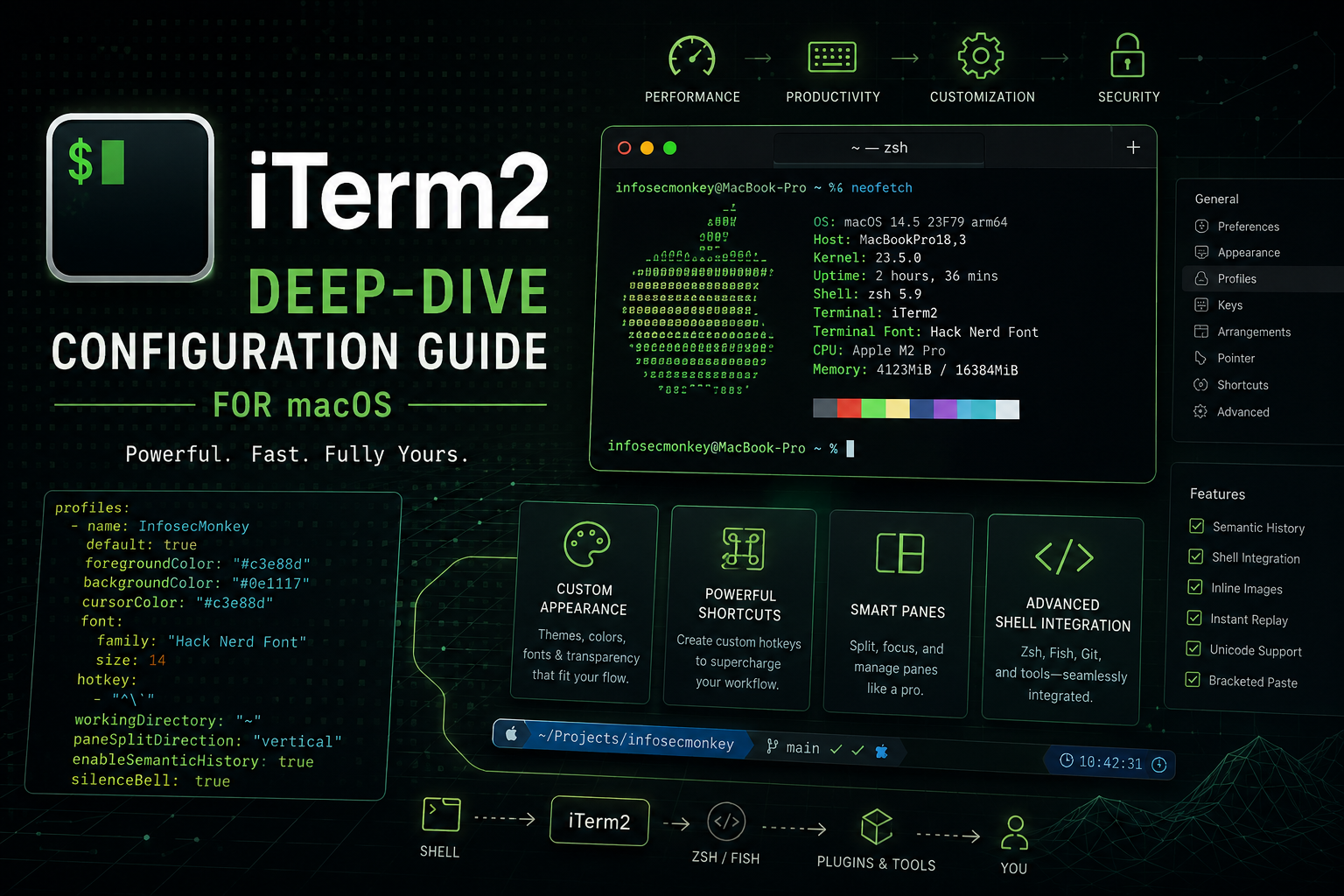
iTerm2 Deep-Dive Configuration Guide for macOS
A practitioner-grade reference for configuring iTerm2, with emphasis on the powerful and rarely-documented features that separate a default install from a hardened, high-velocity terminal. Written against iTerm2 3.6.11 (stable, June 2026) with notes where 3.7 beta introduces new behavior.
Target reader: someone comfortable in a shell who wants every useful knob documented, plus a security lens on what to lock down.
Table of Contents
1. Installation and integrity verification
2. How preferences are stored (and how to sync them)
3. Profiles: inheritance, tags, and dynamic profiles
4. Automatic Profile Switching (APS)
5. Appearance, fonts, and rendering
6. Keyboard mapping and the leader key
7. Shell Integration and the utility scripts
8. Triggers (the deep end)
9. Smart Selection and Semantic History
10. Coprocesses and Captured Output
11. The Status Bar and interpolated strings
12. Variables reference
13. tmux integration (-CC)
14. Hotkey windows
15. Composer, Snippets, Open Quickly, and paste handling
16. Instant Replay, timestamps, logging, and archiving
17. Inline images and proprietary escape sequences
18. The Python API and scripting
19. Window arrangements, restoration, and buried sessions
20. Hidden and advanced preferences
21. Security hardening checklist
22. Dotfiles and team-config strategy
23. Diagnostics and troubleshooting
1. Installation and integrity verification
Get the binary from a source you trust
Download from https://iterm2.com or install via Homebrew Cask:
brew install --cask iterm2
iTerm2 ships as a notarized, signed universal binary (developer George Nachman). Before first launch on a managed or sensitive machine, verify the signature and notarization rather than trusting the download blindly:
# Confirm a valid Developer ID signature
codesign --verify --deep --strict --verbose=2 /Applications/iTerm.app
# Show the signing authority chain
codesign -dv --verbose=4 /Applications/iTerm.app 2>&1 | grep Authority
# Confirm Gatekeeper accepts it and it is notarized
spctl --assess --type execute --verbose /Applications/iTerm.app
A healthy result shows an Apple-issued Developer ID Application certificate and source=Notarized Developer ID.
Update channel
iTerm2 uses the Sparkle framework for in-app updates over HTTPS with EdDSA-signed appcasts. Two channels exist:
– Stable (recommended for most): Settings > General > Software Upgrades > Check for updates automatically, with “Check for test releases” off.
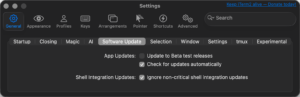
– Beta/nightly: enabling test releases pulls 3.7 betas. Useful if you want Session Notes, Tab Status, and block folding early, but do not run betas on a machine where stability matters.
For locked-down endpoints you can disable auto-update entirely and patch through your management tooling. Sparkle update settings live under Settings > General > Software Upgrades.
2. How preferences are stored (and how to sync them)
Everything lives in a single plist:
~/Library/Preferences/com.googlecode.iterm2.plist
Because macOS caches preference daemons, do not edit this file by hand while iTerm2 is running. Use defaults (see Section 20) or, better, the custom-folder mechanism below.
Load preferences from a custom folder (the real dotfiles method)
This is the cleanest way to version-control your config and sync it across machines without copying a binary plist around.
Settings > General > Settings:
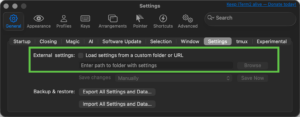
1. Set Load preferences from a custom folder or URL and point it at a directory you control (a git repo, a synced folder, or even an HTTPS URL serving the plist).
2. Set Save changes to folder when iTerm2 quits to one of: Automatically, When quitting, or Manually.
iTerm2 writes com.googlecode.iterm2.plist into that folder. Commit it. On a new machine, point a fresh install at the same folder and your entire configuration appears.
You can also drive this headlessly:
defaults write com.googlecode.iterm2 PrefsCustomFolder -string "$HOME/dotfiles/iterm2"
defaults write com.googlecode.iterm2 LoadPrefsFromCustomFolder -bool true
Export / import for sharing
Preferences has no single “export all” button, but the custom-folder plist is your portable config. For sharing only a subset, use Dynamic Profiles (Section 3), which are plain JSON and far friendlier to review and to commit.
3. Profiles: inheritance, tags, and dynamic profiles
A profile is a named bundle of every per-session setting: colors, font, command to run, working directory, key maps, triggers, badge, and more. New sessions are created from a profile. The Default profile is the fallback.
Tags and organization
Profiles can carry tags (Settings > Profiles, the tags field). Tags group profiles in the profile list and in the new-tab menu. With dozens of profiles this becomes essential. Tags are also matchable in Open Quickly.
Copy settings cleanly
When building a family of profiles (for example one per customer or environment), create a base profile, then duplicate it. There is no true CSS-style inheritance in the GUI, but Dynamic Profiles support a parent relationship.
Dynamic Profiles (JSON, auto-loaded, git-friendly)
Drop JSON files here and iTerm2 loads them live, no restart:
~/Library/Application Support/iTerm2/DynamicProfiles/
A minimal file:
{
"Profiles": [
{
"Name": "Prod Jump Host",
"Guid": "prod-jump-01",
"Badge Text": "PROD \\(session.hostname)",
"Tags": ["prod", "ssh"],
"Custom Command": "Yes",
"Command": "ssh jump.prod.example.com",
"Normal Font": "JetBrainsMonoNF-Regular 14",
"Background Color": { "Red Component": 0.10, "Green Component": 0.02, "Blue Component": 0.02 }
}
]
}
Key facts that are easy to miss:
– Guid must be stable and unique. It is how iTerm2 tracks the profile across edits. Reusing a Guid replaces the prior profile.
– Dynamic profiles can declare a parent with "Dynamic Profile Parent Name", giving you real inheritance: define a base profile once, then several children that override only what differs.
– Any profile key is settable here. To discover the exact key name for a setting, configure it once in the GUI, then read it back from the plist or from the profile JSON. The key names match what you see in the plist (for example "Badge Text", "Custom Command", "Triggers").
– These files are perfect for generating profiles programmatically (one per host from an inventory, for example) and for committing to a repo.
– Review imported dynamic profiles before use: a malicious profile can set a Command, triggers, or a semantic-history command that runs on your machine.
4. Automatic Profile Switching (APS)
APS changes the active profile automatically based on where your shell is, so a session visibly turns red when you SSH into production and reverts when you leave. This is one of the highest-value, least-used features for anyone who touches multiple environments.
Requirements
APS needs to know your hostname, username, and path. That awareness comes from Shell Integration (Section 7) or from the proprietary escape sequences (CurrentDir, RemoteHost). Without one of those, APS cannot fire.
Setup
1. Enable shell integration on every host you log into (including remote ones).
2. In each profile you want APS to switch to, open Settings > Profiles > Advanced and add rules under Automatic Profile Switching.
Rule syntax
Rules match on username@hostname:path. You can omit parts and use globs:
*.prod.example.com# any host in the prod domain
root@*# any session where you become root
deploy@*.staging.acme.io# specific user on staging hosts
*:/etc/*# any time the working directory is under /etc
!*.dev.local# negation: do NOT switch for dev hosts
Mark a rule sticky when you want the profile to persist until another rule explicitly matches, instead of reverting the moment the path changes.
Why this matters for security work
A loud, color-coded visual difference between prod and everything else is a cheap, effective guardrail against running the wrong command in the wrong place. Pair a red background and a PROD badge with APS and the cost of a misfire drops sharply.
5. Appearance, fonts, and rendering
Renderer
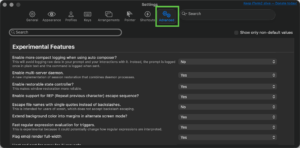
iTerm2 uses a Metal GPU renderer by default on supported hardware. Settings > Advanced exposes thresholds for when Metal is used (for example, disabling it when on battery, or under transparency). If you see artifacts with certain background images or transparency, the Metal fallback rules are the place to look.
Fonts and ligatures
Settings > Profiles > Text:
– Ligatures: enable to render programming ligatures from fonts like Fira Code or JetBrains Mono. Note ligatures can shift column alignment in TUIs; turn off per-profile if a tool misbehaves.
– Nerd Fonts / Powerline: enable “Use built-in Powerline glyphs” so prompt themes render chevrons and icons even when the font lacks them. iTerm2 also draws box-drawing and braille characters itself for crisp output regardless of font.
– Anti-aliasing, bold rendering, and “Use thin strokes for anti-aliased text” (with a sub-option for when the background is dark) tune readability on Retina vs non-Retina displays.
Color and contrast
Settings > Profiles > Colors:
– Minimum contrast forces a floor on text-to-background contrast, so a remote app that prints dark-blue on black stays readable.
– Brighten bold text and per-ANSI-color overrides.
– Cursor guide highlights the cursor’s row. Cursor Boost dims every color except the cursor area, which makes the cursor pop on a busy screen.
– Smart cursor color auto-selects a contrasting cursor color against whatever is under it.
– Import community color presets (.itermcolors files) via the Color Presets dropdown. Treat downloaded presets as untrusted input; they are XML and harmless on their own, but only the colors should change, nothing else.
Transparency, blur, and background images
– Per-profile transparency and Gaussian blur.
– Background image with adjustable blend so the image sits behind text without hurting legibility. The Metal renderer handles this efficiently.
– “Keep background colors opaque” lets you have transparency only on the empty parts of the window.
Window styles
Settings > Appearance:
– Themes: Regular, Compact (slim title), Minimal (chrome blends into the terminal), and Light/Dark following the system.
– 3.6.7+ adds a “Centered” window style.
– Tab bar position (top, bottom, or left side). The left-side tab bar is excellent with many tabs and pairs with Open Quickly’s search.
6. Keyboard mapping and the leader key
Settings > Keys (global) and Settings > Profiles > Keys (per-profile). Per-profile bindings win over global.
Presets worth knowing
Settings > Profiles > Keys > Key Mappings > Presets:
– Natural Text Editing: maps Option-Left/Right to word jumps, Cmd-Left/Right to line start/end, Option-Delete to delete-word, and so on, matching macOS muscle memory. This is the single most quality-of-life preset for most people.
– Terminal.app Compatibility and others for migration.
What a key binding can do
A binding is not limited to sending bytes. Actions include: send hex codes, send an escape sequence, run a coprocess, select a menu item, paste, split panes, switch profiles, invoke a Python script, and more. So you can bind, for example, Cmd-Shift-D to “split horizontally with the same profile,” or a key to “send \x03 then text.”
Send-hex and send-escape
For protocols and TUIs that need exact bytes, use Send Hex Code (for example 0x03 for Ctrl-C) or Send Escape Sequence. This is how you teach iTerm2 to speak to applications expecting non-obvious control sequences.
The leader key (modal bindings)
Modern iTerm2 supports a leader key: define a prefix (like tmux’s Ctrl-B), then bind chords that only fire after the leader. This gives you a large, conflict-free keyspace without sacrificing normal keys. Configure it at the top of Settings > Keys > Key Bindings.
Touch Bar
Settings > Keys > Touch Bar lets you place custom buttons and function keys. Combined with it2setkeylabel (Section 7), a remote script can relabel Touch Bar keys for context-specific actions.
Broadcast input
Shell > Broadcast Input sends your keystrokes to multiple panes at once, ideal for fanning a command across many SSH sessions. 3.7 beta adds asymmetric broadcasting: a per-session do not accept broadcast flag so a sensitive pane cannot receive stray input, plus a key action to send text without broadcasting. Use broadcast carefully; it is an easy way to run a destructive command everywhere at once.
7. Shell Integration and the utility scripts
Shell Integration is the backbone for marks, command status, APS, recent-directory tracking, and click-to-download. It works by sourcing a script in your shell rc that emits escape sequences telling iTerm2 about each prompt, command, hostname, user, and directory.
Install it safely
The advertised one-liner pipes a remote script straight into your shell:
curl -L https://iterm2.com/shell_integration/install_shell_integration.sh | bash
For a security-conscious workflow, download and read it first, then run it:
curl -fsSLo /tmp/iterm2_si.sh https://iterm2.com/shell_integration/install_shell_integration.sh
less /tmp/iterm2_si.sh# review
bash /tmp/iterm2_si.sh
You can also install via the menu: iTerm2 > Install Shell Integration, with a checkbox to also install the utilities. The integration appends a line to your rc that sources ~/.iterm2_shell_integration.<shell>. Supported shells include zsh, bash, fish (with native interop in Fish 4.3), tcsh, and xonsh (3.7 beta).
What you unlock
– Marks at every prompt. Navigate with Cmd-Shift-Up/Down. The scrollbar shows mark positions.
– Command status. A success or failure indicator next to each prompt based on exit code. Hover for duration.
– “Alert when current command finishes” (Edit menu) pings you when a long build completes. There is also automatic notification for commands that run longer than a threshold.
– Recent directories and commands per host, ranked by “frecency” (frequency plus recency), surfaced in the toolbelt and in autocomplete.
– Click-to-download / drag-to-upload over SSH. With shell integration on the remote host, you can drag a file out of a remote ls, or drop a local file to upload via SCP.
– Current directory awareness so new splits open in the same directory and APS can fire.
The utility scripts (the part nobody reads)
Installing the utilities drops a set of small tools into ~/.iterm2/ and your PATH. These work even over SSH because they ride on escape sequences:
– imgcat <file>: render an image inline in the terminal.
– imgls: an ls that shows thumbnails.
– it2copy: copy stdin to the *local* Mac clipboard from a remote host (uses OSC 52). Example: cat report.txt | it2copy.
– it2dl <file>: trigger a download of a remote file to your Mac.
– it2ul: upload.
– it2attention <fireworks|once|start|stop>: bounce the dock icon or fire visual attention.
– it2setcolor: change the current session’s colors at runtime (for example, set tab color from inside a script).
– it2setkeylabel: relabel Touch Bar keys and the status bar from a script.
– it2getvar <name>: read an iTerm2 variable from the shell.
– it2check: detect whether the controlling terminal is iTerm2.
– it2universion, it2profile (switch profile at runtime), it2git (feeds git status to the status bar component).
3.7 beta adds a unified it2 command that consolidates common actions (for example, creating a window from the command line). Run it2 --help.
8. Triggers (the deep end)
A trigger watches session output for a regular expression and fires an action when it matches. Triggers are configured per-profile under Settings > Profiles > Advanced > Triggers > Edit. This is iTerm2’s most powerful and most under-used subsystem.
Anatomy
Each trigger has: a regex, an action, optional parameters (which can reference capture groups via \1, \2, and interpolated strings), and an “Instant” checkbox.
– Instant triggers fire on a partial line as soon as the regex matches, without waiting for a newline. Essential for matching interactive prompts (like a password: prompt) that never emit a newline before expecting input.
– Capture groups from the regex are available to the action as \1, \2, and so on.
Action catalogue
– Highlight Text: recolor matching text (errors in red, warnings in yellow). Pure visual, zero side effects.
– Make Hyperlink: turn matches (ticket IDs, URLs, commit hashes) into clickable links using a URL template with capture groups.
– Annotate: attach a note to the matched line.
– Set Mark / Set Title: drop a navigable mark, or set the tab/window title from output.
– Ring Bell / Post Notification / Bounce Dock Icon / Request Attention: signal on a matched event (build finished, error printed).
– Send Text: type a string back into the session when the pattern matches. Combined with an Instant trigger this can auto-answer predictable prompts.
– Treat this as dangerous: a trigger that auto-sends text in response to attacker-influenceable output is a foot-gun.
– Open Password Manager: when a password: style prompt appears, pop the password manager automatically (see Section 21). This is the safe way to “auto-fill” credentials.
– Run Command / Run Coprocess / Run Silent Coprocess: execute something on your Mac when output matches.
– High blast radius: any program that can write the matching pattern to your terminal can trigger command execution. Only use on profiles where the output source is trusted.
– Capture Output: send the matched line to the Captured Output toolbelt (Section 10), turning iTerm2 into a lightweight error console.
– Set User Variable: store a capture group into a variable for use in the badge, status bar, or title.
– Inject: inject bytes into the session as if received from the program.
– Stop Processing Triggers: short-circuit the remaining trigger list for that line.
Rate limiting and ordering
Triggers evaluate top to bottom. Use Stop Processing Triggers to prevent later rules from also firing. iTerm2 rate-limits expensive trigger actions to avoid runaway loops when output floods. Keep regexes anchored and specific; a loose regex evaluated against high-volume output is a performance and correctness hazard.
Security framing
Triggers are a feature and an attack surface. A trigger that runs commands or sends text reacts to terminal output, which on a remote or compromised host is controlled by someone else. Reserve action-bearing triggers (Run Command, Send Text) for profiles whose output you trust, and prefer Highlight, Capture Output, and Open Password Manager elsewhere. Audit triggers in any profile you import.
9. Smart Selection and Semantic History
Smart Selection
Quad-click (four fast clicks) selects a semantic object rather than a word: a URL, file path, email address, quoted string, or anything you define. Rules live in Settings > Profiles > Advanced > Smart Selection > Edit.
Each rule has a regex, a precedence, and optional actions (right-click context-menu entries). You can add custom rules, for example to recognize internal ticket IDs or IP:port pairs, and attach actions like “open in browser,” “copy,” or “run command with \0 as the match.”
Semantic History (Cmd-click to open files)
Settings > Profiles > Advanced > Semantic History. Cmd-click on a filename in output to open it. Behavior options:
– Open with the default app for the file type.
– Open with a specific editor (a long list of GUI and terminal editors is built in, including opening to the exact line number).
– Run a command with substitutions, or run a coprocess.
Substitutions available to the command:
\1 the file or object clicked
\2 the line number (when iTerm2 can infer it, for example from file.py:42)
\3 the text before the click on the line
\4 the text after the click on the line
\5 the entire line
\(expr) an interpolated-string expression (Section 12)
This effectively turns a stack trace into a clickable index into your editor. As with triggers, a “run command” semantic-history action executes on your Mac based on terminal content, so keep the command tightly scoped.
10. Coprocesses and Captured Output
Coprocesses
A coprocess is a program attached to a session whose stdout is injected into the terminal and whose stdin receives the terminal’s output. Start one with Session > Run Coprocess. A silent coprocess receives the session output but its own output is not displayed, which is ideal for logging, parsing, or feeding an external monitor without cluttering the screen. Only one coprocess per session.
Use cases: pipe a session through a redactor, stream output to an external log shipper, or build a custom auto-responder that is more capable than a Send-Text trigger.
Captured Output
Pair a Capture Output trigger with the Captured Output toolbelt tool. Matched lines (compiler errors, failed tests, log alerts) collect in a side panel. Click an entry to jump to it in the scrollback, and optionally define a command to run against the capture. This is the use iTerm2 as an IDE error list workflow.
11. The Status Bar and interpolated strings
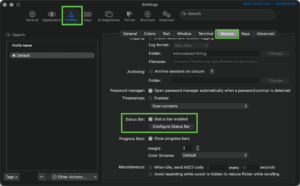
Enable per-profile under Settings > Profiles > Session > Status bar enabled > Configure. The status bar is a customizable strip (top or bottom) built from drag-in components.
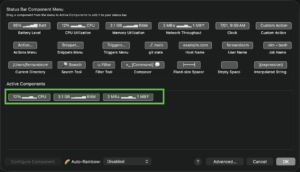
Built-in components include: current directory, git state (branch, dirty flag; feed it with it2git), hostname, job name, CPU/memory/network graphs, battery, clock, search field, a function-key/Touch-Bar mirror, and a freeform Interpolated String component.
Per-component you can set colors, priority (which components survive when the bar is narrow), and visibility rules. The whole bar can auto-derive colors or follow the profile.
3.7 beta adds a Tab Status system: sessions report a status that surfaces on the tab with a subtitle, color, and dot, settable from triggers and aggregated across split panes, auto-cleared at the next prompt.
The Interpolated String component is where the status bar becomes programmable, which leads directly into variables.
12. Variables reference
iTerm2 exposes a tree of variables describing the session, tab, window, and app, and an interpolated string mini-language to compose them. Interpolation uses \( ... ).
Common scopes and variables:
\(session.name) session name
\(session.hostname) remote or local hostname (needs shell integration)
\(session.username) current username
\(session.path) current working directory
\(session.jobName) foreground job (e.g. ssh, vim)
\(session.tty) tty path
\(session.columns) / \(session.rows)
\(user.myVar) any user variable you set (trigger, SetUserVar, it2setvar)
\(tab.title)
\(window.title)
\(iterm2.pid)
Interpolated strings support functions and conditionals, for example:
\(session.username)@\(session.hostname): \(session.path)
\(session.jobName == "ssh" ? "REMOTE" : "local")
Use these in: the badge (Settings > Profiles > General > Badge), the title components, the status bar interpolated component, Semantic History commands, and trigger parameters. Set your own variables from a trigger (Set User Variable), from a script via the Python API, or from the shell with the SetUserVar escape sequence and it2getvar.
The badge deserves a callout: it renders large, faint text in the session’s upper-right corner. PROD \(session.hostname) as a badge, combined with APS, is a clean environment indicator that does not consume a status-bar slot.
13. tmux integration (-CC)
iTerm2’s tmux control mode is unique: tmux -CC (or tmux -CC attach) makes tmux windows appear as native iTerm2 windows and tabs instead of tmux’s text UI. You get real macOS scrollback, native splits, mouse, and copy, while tmux keeps your sessions alive server-side.
Why it is worth the setup:
– Persistence: detach, close iTerm2, lose your laptop’s network, then reattach and everything is exactly where you left it, because tmux is running on the server.
– Native feel: no learning tmux’s copy-mode for day-to-day use; iTerm2’s selection and scrollback apply.
– Collaboration: two people can attach to the same tmux session.
Notes:
– Advanced flow control (requires tmux 3.2+) prevents a chatty session from buffering excessively. Enable it in Settings > General > tmux.
– The tmux preferences pane controls how new tmux windows map to iTerm2 (tabs vs windows), whether to open the dashboard, and pause behavior.
– A historical reminder for the security-minded: tmux control-mode parsing has been a source of a control-sequence vulnerability in the past (fixed; see Section 21). Keep iTerm2 current when you rely on -CC against untrusted output.
14. Hotkey windows
A hotkey window appears and hides with a global shortcut, sliding in over whatever you are doing. Configure under Settings > Keys > Hotkey.
– Dedicated hotkey window: a single quake-style drop-down. Quick to set up with “Create a Dedicated Hotkey Window.”
– Floating / multiple hotkey windows: any profile can be designated a hotkey profile with its own shortcut, so you can have several, each summoned by a different key. Set this on the profile under Keys > Hotkey window.
– Options: animate, pin (stay visible when focus leaves), float above other apps, show on all Spaces, and auto-hide on focus loss.
Pairing a hotkey window with a non-floating, auto-hiding behavior gives you an always-one-keypress-away scratch terminal that never clutters your Spaces.
15. Composer, Snippets, Open Quickly, and paste handling
Composer (Cmd-Shift-.)
A pop-up multiline editor for composing a command before sending it. Edit freely, then send with Cmd-Enter. Invaluable for long one-liners, multi-line heredocs, and anything you want to proofread before it hits a prod shell. The composer can also send the command to multiple sessions.
Snippets
Saved text fragments you can insert into any session (Edit > Snippets, or a status-bar component, or a key binding). Tag them, search them, and bind frequently-used commands. Safer than shell history for commands you run rarely but exactly.
A fuzzy launcher across sessions, profiles, recent commands, directories, hostnames, and arrangements. Type a few characters of a hostname to jump to that session, or of a profile name to open a new one. With many tabs this replaces hunting through the tab bar.
Paste handling (and its safety value)
Edit > Paste Special and the paste settings give you:
– Bracketed paste support, so a pasted blob is not interpreted as if typed (apps that support it can tell paste from typing).
– Paste warnings: iTerm2 warns before pasting text that contains a newline (which would execute), before pasting at a shell prompt, and when pasting to a session where the content spans multiple lines. These warnings are a genuine defense against “copy a command from a webpage that secretly includes a trailing newline and a malicious command.” Keep them on.
– Advanced Paste lets you preview and edit the buffer, convert tabs to spaces, base64-encode, strip control characters, and throttle paste speed for slow remote sessions.
16. Instant Replay, timestamps, logging, and archiving
Instant Replay (Cmd-Opt-B)
iTerm2 records a rolling visual history of the session and lets you scrub backward in time to see what the screen looked like, even content that scrolled differently or was redrawn by a TUI. Great for catching that error message that flashed and got overwritten.
Timestamps
View > Show Timestamps annotates each line with when it was printed. Because iTerm2 tracks per-line modification time, you can see how long a command took or exactly when an error appeared.
Session logging (audit trail)
Per-profile, Settings > Profiles > Session > Log to file. Options:
– Plain text, HTML (preserving color), or raw with escape codes.
– Per-command logging (asciicast-style) so each command’s output lands in its own file, named with an interpolated string you control (for example by timestamp and hostname).
For incident response, change control, or just reproducibility, automatic per-command logging to a known directory is a clean, low-effort audit trail. Be deliberate about where logs land, because output frequently contains secrets.
Session archiving (3.6.7+)
You can archive a session, manually or automatically, writing a full-fidelity copy to disk that can be reopened later. Powerful for handoffs and post-mortems. Same caveat as logging: an archive is sensitive data at rest; control its location and lifetime.
17. Inline images and proprietary escape sequences
iTerm2 implements a family of OSC 1337 escape sequences (the \033]1337; ... \007 form) plus standard ones. These are what the utility scripts use under the hood, and you can emit them from any program or shell.
Practical examples (zsh/bash):
# Drop a navigable mark at this point
printf '\033]1337;SetMark\007'
# Bounce the dock / request attention (yes | no | once | fireworks | flash)
printf '\033]1337;RequestAttention=fireworks\007'
# Set the badge from a script (value is base64-encoded interpolated string)
printf '\033]1337;SetBadgeFormat=%s\007' "$(printf 'BUILD \\(session.hostname)' | base64)"
# Set a user variable (value base64-encoded), then use \(user.gitBranch) in badge/status
printf '\033]1337;SetUserVar=%s=%s\007' gitBranch "$(git branch --show-current | base64)"
# Tell iTerm2 the current directory (feeds APS, new splits, recent dirs)
printf '\033]1337;CurrentDir=%s\007' "$PWD"
# Copy text to the LOCAL clipboard from anywhere, including over SSH (standard OSC 52)
printf '\033]52;c;%s\007' "$(printf 'copied from remote' | base64)"
# Clickable hyperlink (standard OSC 8)
printf '\033]8;;https://example.com\033\\click here\033]8;;\033\\'
Inline images use the File= variant (this is exactly what imgcat does): it base64-encodes the image and passes width/height/preserve-aspect options.
3.7 beta extends this with: programmatic block fold/unfold (UpdateBlock), runtime SetProfileProperty, and custom in-terminal buttons with SF Symbol icons that emit a chosen escape code when clicked.
Security note on escape sequences
This same power means a program can manipulate your terminal: set your clipboard, request your window title back (a classic injection vector), change your profile, or write files via download sequences. iTerm2 gates the dangerous ones behind settings (Section 21). Historically, a class of bugs let crafted output that requests a response (then is fed back as input) lead to command execution; this was patched, and the mitigation is to keep current and disable terminal reporting you do not need.
18. The Python API and scripting
iTerm2 ships a full Python API for automation: create and arrange sessions, register custom status-bar components, define RPCs that triggers and key bindings can call, react to events (new session, prompt, variable change), and run long-lived daemons.
Enabling and the permission model
The API is off by default. Enable it under Settings > General > Magic > Enable Python API. Access is mediated by a per-connection authorization: when a script connects, iTerm2 prompts you to allow it, and you can require that scripts be launched only from within iTerm2. A secret cookie is used so arbitrary local processes cannot silently drive your terminal. Keep the API disabled unless you use it; it is a local automation surface.
Where scripts live
~/Library/Application Support/iTerm2/Scripts/
~/Library/Application Support/iTerm2/Scripts/AutoLaunch/ # run at startup
iTerm2 can scaffold a script (Scripts > New Python Script) as either a “basic” single file or a “full environment” with its own venv. AutoLaunch scripts start with the app, which is how people add persistent custom behavior (auto-naming tabs, custom status components, environment-aware automation).
What you can build
– Custom status bar components (live git, k8s context, on-call status).
– RPC functions invoked by triggers or key bindings, so a keystroke runs Python that inspects state and acts.
– Session monitors that watch variables or prompts and react.
– Bulk session/window orchestration for repeatable lab or demo setups.
19. Window arrangements, restoration, and buried sessions
Saved arrangements
Window > Save Window Arrangement captures the full layout (windows, tabs, splits, profiles, even working directories). Restore on demand, or set a default arrangement that opens at launch. Name multiple arrangements for different contexts (a “triage” layout, a “build” layout) and restore via Open Quickly.
Session restoration
iTerm2 runs each session inside a long-lived server process (iTermServer). If iTerm2 crashes or you update the app, the shells keep running, and on relaunch iTerm2 reconnects to them in place. Restoration interacts with the macOS “Close windows when quitting an app” system setting and iTerm2’s own restoration preference. For sensitive setups, note that restored content and saved state are written under ~/Library/Application Support/iTerm2/SavedState/; disable restoration if you do not want screen contents persisted (Section 21).
Buried sessions
Session > Bury Session hides a session without killing it; it keeps running in the background and is retrievable from the toolbelt or Session > Buried Sessions. Perfect for a long-running process you want out of the way but not closed. Undo close (Cmd-Z) restores a session you closed by mistake within a short window.
20. Hidden and advanced preferences
Settings > Advanced is a single searchable panel of hundreds of niche settings that have no home in the main UI. It is the first place to look when you think “surely iTerm2 can do X.” Type a keyword and read the descriptions. Examples of the kinds of things buried here: scrollback behavior in the alternate screen, exact mouse-reporting and focus-reporting behavior, tab-bar and dock-icon rules, Metal renderer thresholds, and dozens of timing and UI tweaks.
Anything in Advanced (and most profile settings) can also be set headlessly with defaults, which is how you script a configuration for many machines:
# Quit iTerm2 when the last window closes
defaults write com.googlecode.iterm2 QuitWhenAllWindowsClosed -bool true
# Point at a versioned config folder (then enable loading from it)
defaults write com.googlecode.iterm2 PrefsCustomFolder -string "$HOME/dotfiles/iterm2"
defaults write com.googlecode.iterm2 LoadPrefsFromCustomFolder -bool true
To learn the exact key for a given setting, change it once in the GUI, then diff the plist:
defaults read com.googlecode.iterm2 > /tmp/before.txt
# …toggle the setting in Settings, then:
defaults read com.googlecode.iterm2 > /tmp/after.txt
diff /tmp/before.txt /tmp/after.txt
For team rollout, prefer the custom-folder plist plus Dynamic Profiles over scattered defaults write calls; they are reviewable and version-controllable.
21. Security hardening checklist
This is the section a security practitioner came for. iTerm2 is powerful, and several of its features touch your clipboard, run programs, or persist terminal contents to disk. Configure deliberately.
Keystroke protection
– Secure Keyboard Entry (iTerm2 menu > Secure Keyboard Entry). Uses macOS EnableSecureEventInput so other processes cannot read your keystrokes, which blunts userland keyloggers. Trade-off: it can interfere with some input methods and with password-manager auto-type; test your workflow. For high-sensitivity work, leave it on.
Clipboard and escape-sequence exposure
– “Applications in terminal may access clipboard” (Settings > General > Selection). This governs whether programs can read and write your clipboard via OSC 52. Convenient for it2copy over SSH, but it means remote/untrusted programs can read or overwrite your clipboard. Disable it where you do not need it, or keep it on only in trusted profiles.
– Terminal reporting / response sequences. Review the reporting toggles in Settings > General and Advanced (cursor position reports, window title reports, device attributes). Terminal “report back” sequences have historically been chained into command execution when responses are fed to the shell. Disable reports you do not use.
– Allow terminal-generated printing / file downloads. The File= and download sequences let remote output write files to your Mac. Gate or disable if you do not use inline images and downloads on a given profile.
Patch posture and the control-sequence RCE class
– Keep iTerm2 current. A documented vulnerability class (output that requests a response which is then interpreted as input, including a tmux control-mode parsing issue) could lead to arbitrary command execution; it was fixed in 3.4.20 / 3.5.0beta11 and later. The 3.6.10 release additionally hardened SSH integration against in-band signaling abuse in the handshake. The practical control is simple: stay patched, and disable reporting and risky escape handling you do not need.
Data at rest
Several features write terminal contents to disk. Decide consciously which you want:
– Save copy/paste history and command history to disk (Settings > General). Turning this off keeps paste and command history in memory only.
– Session logging (Section 16): logs frequently contain secrets. Control directory and retention.
– Session archiving (3.6.7+): full-fidelity copies on disk; same caveat.
– Session restoration / SavedState: screen contents persisted under ~/Library/Application Support/iTerm2/SavedState/. Disable window restoration if that is unacceptable.
– Scrollback: clear with Cmd-K; consider limited (not unlimited) scrollback for sensitive sessions so secrets do not linger.
Password manager (the safe credential path)
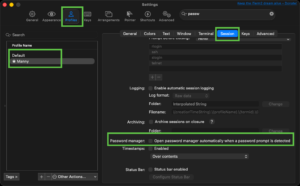
– Profile > Session > (or bind a key). iTerm2 stores secrets in the **macOS Keychain** and can integrate with **1Password**, and as of 3.6.10 with **Bitwarden** and **Keeper Security**; in 3.6.7+ you can switch 1Password accounts from the password manager UI. Pair it with an **Open Password Manager trigger** so a password: prompt pops the manager instead of you typing or pasting secrets that then live in clipboard and scrollback. This is materially safer than echoing or pasting credentials.
AI features and data exfiltration
– iTerm2 added an AI Chat feature that can read terminal contents and, with permission, run commands. By default it talks to an external LLM provider, which means terminal content can leave your machine. For any environment with confidential output this is a data-governance concern. Either disable the AI integration entirely, or, if used, scope its permissions tightly and point it at an approved endpoint/model with your own key. Treat “let the AI run commands” as a privileged capability and leave it off unless deliberately wanted.
Automation surface
– Python API: keep disabled unless used (Section 18); it is a local control channel gated by an allow-prompt and a cookie.
– Triggers, Semantic History, Coprocesses: these can execute commands or send text in reaction to terminal output, which is attacker-controlled on a compromised remote. Reserve action-bearing rules for trusted profiles. Audit triggers and semantic-history commands in any profile, color preset, or Dynamic Profile you import.
Untrusted config
– Imported Dynamic Profiles, color presets, and shared arrangements can carry a Command, triggers, or semantic-history actions. Review JSON before dropping it into DynamicProfiles/. A color preset should only change colors; anything else is a red flag.
A note on the install one-liner
– The shell-integration installer is a curl | bash. Download, read, then run (Section 7). Same discipline for any community script.
22. Dotfiles and team-config strategy
A maintainable, reviewable setup, in order of preference:
1. Custom preferences folder (Section 2) committed to a repo. This carries global settings, key bindings, and appearance.
2. Dynamic Profiles as JSON in the repo, generated or hand-written, for per-environment profiles, triggers, badges, and APS rules. Reviewable in a pull request.
3. AutoLaunch Python scripts (Section 18) for behavior that settings cannot express.
4. A short defaults write bootstrap only for the handful of keys that have no GUI home, run once on new machines.
Keep secrets out of all of the above; they belong in the Keychain via the password manager, never in a committed profile or arrangement.
A sane baseline to commit: Natural Text Editing preset, leader key configured, shell integration enabled, a Default profile plus environment profiles with APS and badges, paste warnings on, Secure Keyboard Entry on, clipboard-access and AI off by default, history-to-disk decided explicitly, and per-command logging to a controlled directory if you need an audit trail.
23. Diagnostics and troubleshooting
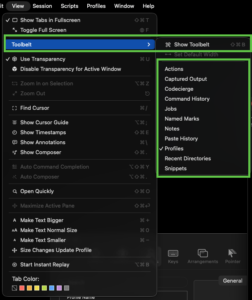
– Toolbelt** (View > Toolbelt, or Cmd–Shift–B): running jobs, paste history, recent directories, captured output, notes, and profiles in a side drawer. The fastest way to see session state at a glance.
– Scripting console (Scripts > Manage > Console): inspect variables, watch events, and debug Python API scripts and RPCs in real time. The variable inspector here is the definitive way to discover which variables a session actually exposes.
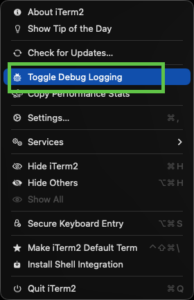
– Logging for bug reports: iTerm2 > Toggle Debug Logging captures a detailed log for reproducing issues; turn it off afterward (it is verbose and may contain output).
– Rendering issues: if you see tearing or glyph artifacts, toggle the Metal renderer or its thresholds in Settings > Advanced; background images and transparency interact with Metal fallback rules.
– Shell integration not working: confirm the rc file actually sources the integration script, that you are not overriding PROMPT_COMMAND/precmd later in your rc, and that the remote host also has integration installed for remote-aware features.
– Slowness on huge output: cap scrollback, simplify or anchor trigger regexes, and disable expensive status-bar graph components in hot sessions.
Quick reference: high-value keystrokes
Cmd-Shift-O Open Quickly (fuzzy jump to sessions/profiles/dirs/hosts)
Cmd-Shift-. Composer (edit a command before sending)
Cmd-Opt-B Instant Replay (scrub session history)
Cmd-Shift-B Toolbelt
Cmd-Shift-Up/Dn Jump between prompts (needs shell integration)
Cmd-/ Locate the cursor (flash it)
Cmd-Shift-E Show timestamps
Cmd-K Clear scrollback (clears secrets too)
Cmd-Z Undo close session
Opt-drag Rectangular (block) selection
Recent posts
-

-

DNS is one of those technologies that quietly underpins... Full Story
-

BGP issues on FortiGate firewalls usually trace back to... Full Story
-

Every time your laptop talks to your router, a... Full Story
-

If you've spent any time configuring NAT on a... Full Story
-

If you have spent any time configuring firewall policies... Full Story
-

High availability on FortiGate is one of those features... Full Story
-

If you've configured SD-WAN on a FortiGate, you've almost... Full Story
-

FortiLink is the management protocol that turns a FortiSwitch... Full Story
-

FortiSwitches are pretty rock solid from Mean Time Between... Full Story
-

This is a quicky tip. Have you ever gone... Full Story
-

DNS is one of those quiet pieces of internet... Full Story
-

This article is an updated version of the previous... Full Story
-

You will add ns2 as a secondary (slave) BIND9... Full Story
-

In the process of deploying my lab, I needed... Full Story
-

RFC 8805, used to be known as Self-Correcting IP... Full Story
-

Years back, I wrote an article about certificate pinning. ... Full Story
-

FortiGates have the ability to send alerts to Microsoft... Full Story
-

In this post, I am going to walk through... Full Story
-

Troubleshooting VoIP on a FortiGate can feel like trying... Full Story
-

Prior to FortiOS 7.0, there were three commands to... Full Story
-

In this post, I am going to go over... Full Story
-

What we are going to do: We are going... Full Story
-

Choosing between FGCP (FortiGate Clustering Protocol) and FGSP (FortiGate... Full Story
-

Creating a VLAN on macOS (The "Pro" Move) A... Full Story
-

This blog post explores the logic behind how macOS... Full Story
-

Pretty Fly for a Wi-Fi Tell My Wi-Fi Love... Full Story
-

Part of my daily gig is creating BoMs (Bill-of-Materials)... Full Story
-

ICMP introduces several security risks, but careful filtering, rate... Full Story
-

The command diag debug application dhcps -1 enables full... Full Story
-

In the world of FortiOS, execute tac report is... Full Story
-

LLDP; What is it The Link Layer Discovery Protocol... Full Story
-

What it actually does When you run diagnose fdsm... Full Story
-

Monkey Bites are bite-sized, high-impact security insights designed for... Full Story
-

I have run macOS in macOS with Parallels but... Full Story
-

Don't be confused with my other FortiNAC posts where... Full Story
-

This is the third session in a multi-part article... Full Story
-

Today I was configuring key-based authentication on a FortiGate... Full Story
-

Netcat, often called the "Swiss Army knife" of networking,... Full Story
-

At its core, IEEE 802.1X is a network layer... Full Story
-

In case you did not see the previous FortiNAC... Full Story
-

This is our 5th session where we are going... Full Story
-

Now that we have Wireshark installed and somewhat configured,... Full Story
-

The Philosophy of Packet Analysis Troubleshooting isn't about looking... Full Story
-

Executive Summary Objective: Get you from zero to writing... Full Story
-

NAND cells, the flash translation layer, SLC caching, TRIM,... Full Story
-

Nmap Scripting Engine (NSE): From One-Liners to Your First... Full Story