
If you've spent any time configuring user authentication on... Full Story
By Manny Fernandez
October 15, 2026
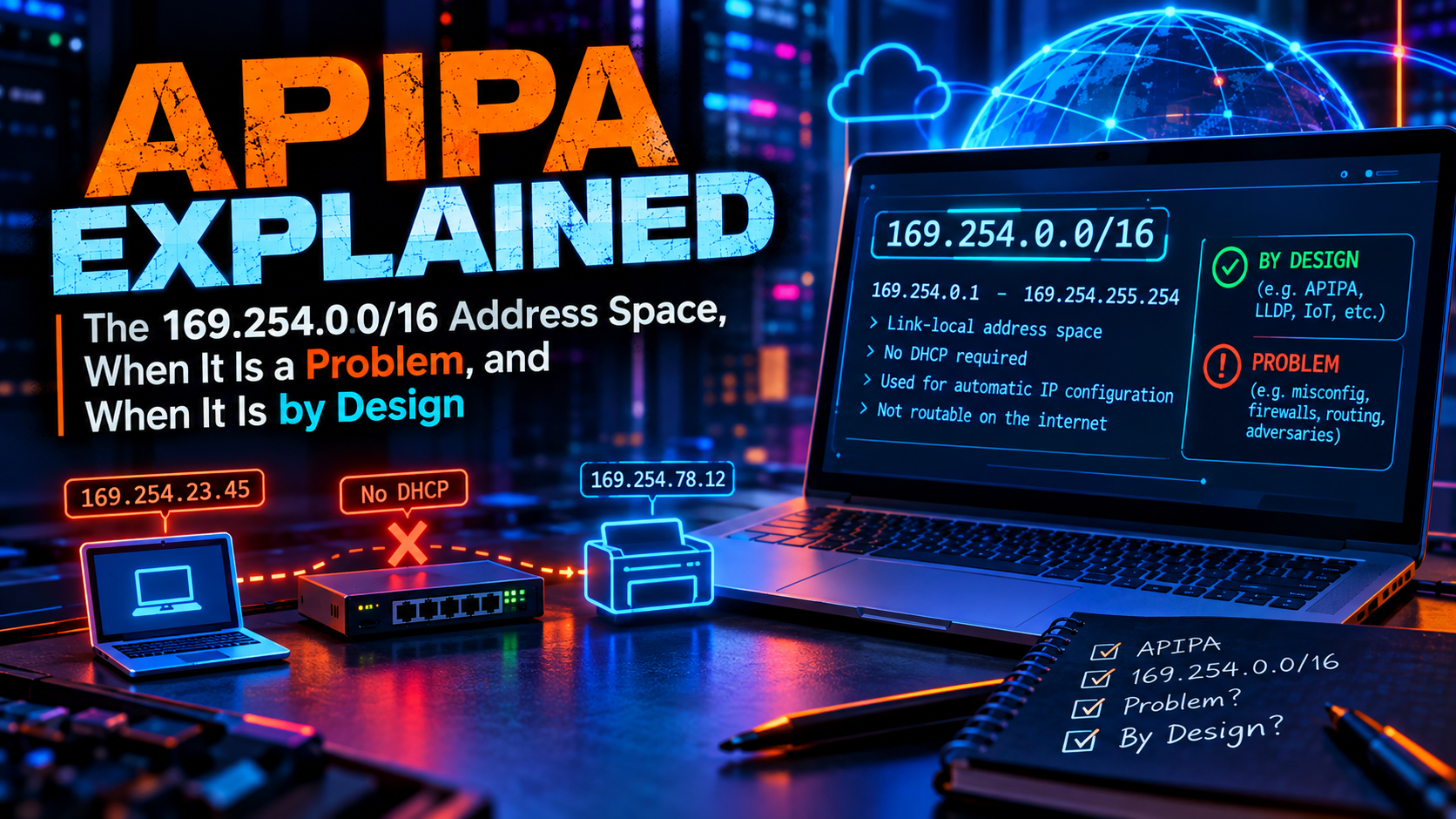
APIPA Explained: The 169.254.0.0/16 Address Space, When It Is a Problem, and When It Is by Design
Executive Summary
Objective: Explain exactly what the 169.254.0.0/16 address space is, how a host ends up with one of its addresses, how to tell a broken DHCP path from an intentional design, and how to fix the broken kind quickly.
Target audience: Network and security engineers, FortiGate administrators, and help desk staff who keep hearing “I have a 169 address.”
APIPA stands for Automatic Private IP Addressing. It is Microsoft’s name for the behavior where a host that cannot reach a DHCP server assigns itself an address from 169.254.0.0/16. The IETF standardized the same behavior in RFC 3927 as IPv4 link-local addressing. macOS calls it a self-assigned IP. Linux tooling calls it link-local or IPv4LL. All four names describe the same block and the same protocol.
Most of the time a 169.254 address on a laptop is a symptom: the DHCP conversation failed. But the same block is also used deliberately, by every major cloud for instance metadata, by AWS, Azure, and Google Cloud for VPN tunnel BGP peering, and by FortiGate for HA heartbeat. Knowing which case you are looking at is the whole job.
Prerequisites and Reference Facts
Assumed knowledge
- The DHCP DORA exchange (Discover, Offer, Request, Acknowledge)
- ARP basics: request, reply, and gratuitous ARP
- Basic CLI comfort on Windows, macOS, Linux, and FortiOS
Lab requirements
- One client on an isolated VLAN with no DHCP server (unplugging the uplink of a small switch works)
- A second client on the same VLAN to prove peer-to-peer reachability
- Optional: a FortiGate acting as the DHCP server so you can watch the failure from the server side
The block at a glance
| Property | Value | Why it matters |
|---|---|---|
| Block | 169.254.0.0/16 |
Registered by IANA as Link Local. Never valid on the Internet. |
| Defining standard | RFC 3927 (May 2005) | Formalized behavior Windows 98 and Mac OS 8.5 had already shipped. |
| Subnet mask | 255.255.0.0 |
Always /16. The host treats the whole block as on-link. |
| Self-assignment range | 169.254.1.0 to 169.254.254.255 |
65,024 addresses. The first and last /24 are reserved. |
| Default gateway | None | No path off the segment. This is the root of “no Internet.” |
| DNS server | None | Name resolution falls back to mDNS, LLMNR, or NetBIOS. |
| Router behavior | Must not forward | Traffic with a link-local source or destination stays on the link. |
| IPv6 equivalent | fe80::/10 |
Same idea, but mandatory on every IPv6 interface instead of a fallback. |
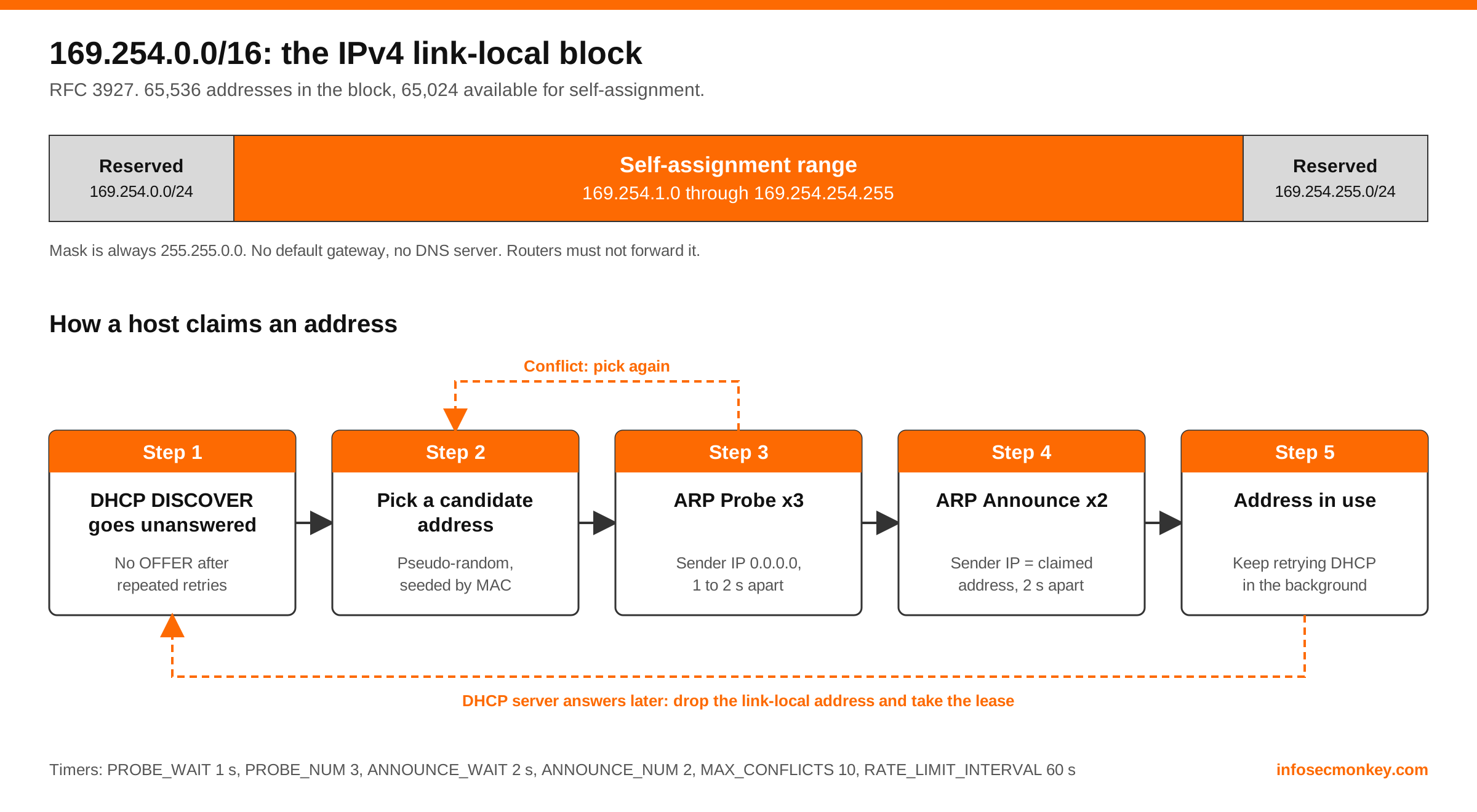
Figure 1. The 169.254.0.0/16 block and the RFC 3927 claim sequence.
How Self-Assignment Works
The process is simple and entirely local. There is no server, no lease, and no coordination beyond ARP.
Step 1: DHCP fails
Goal: Understand the trigger. The host broadcasts DHCP DISCOVER messages and backs off between retries. Nothing answers. On Windows the client gives up on the initial attempt after roughly a minute, then falls back to self-assignment.
Step 2: Pick a candidate address
Goal: Understand why the address is usually the same after every reboot. The host picks a pseudo-random address between 169.254.1.0 and 169.254.254.255. RFC 3927 says the generator should be seeded from the interface MAC address, so a given host tends to land on the same address every time and stable peer-to-peer links survive reboots.
Step 3: ARP probe
Goal: Confirm nobody else owns the candidate. The host waits a random interval of up to 1 second, then sends three ARP probes spaced 1 to 2 seconds apart. A probe is an ARP request with the sender IP set to 0.0.0.0 so it cannot poison anyone’s ARP cache. If any ARP traffic shows the address is in use, the host returns to Step 2 and picks again.
Step 4: ARP announce
Goal: Tell the segment who owns the address. Two seconds after the last probe the host sends two ARP announcements, 2 seconds apart, with both sender and target IP set to the claimed address. Neighbors update their caches.
Step 5: Use it, and keep looking for DHCP
Goal: Know that the state is temporary. The host keeps the link-local address but continues to retry DHCP in the background. Windows retries every 5 minutes. The moment a DHCP server answers, the host drops the 169.254 address and takes the lease.
| RFC 3927 constant | Value | Meaning |
|---|---|---|
PROBE_WAIT |
1 second | Maximum random delay before the first probe |
PROBE_NUM |
3 | Number of ARP probes |
PROBE_MIN / PROBE_MAX |
1 s / 2 s | Spacing between probes |
ANNOUNCE_WAIT |
2 seconds | Delay after the last probe before announcing |
ANNOUNCE_NUM |
2 | Number of ARP announcements |
ANNOUNCE_INTERVAL |
2 seconds | Spacing between announcements |
MAX_CONFLICTS |
10 | Conflicts tolerated before rate limiting begins |
RATE_LIMIT_INTERVAL |
60 seconds | Minimum gap between attempts after 10 conflicts |
DEFEND_INTERVAL |
10 seconds | Window for defending an address against a conflict |
Watch it happen: Capture on the isolated VLAN while the client boots. You will see the DISCOVER retries first, then three ARP requests from
0.0.0.0, then two gratuitous ARPs from the new 169.254 address.Linux or macOS: capture DHCP and ARP together
sudo tcpdump -ni eth0 'arp or (udp port 67 or udp port 68)'
What It Looks Like on Each Operating System
| OS | What the user sees | Fallback enabled by default | DHCP retry |
|---|---|---|---|
| Windows | “Autoconfiguration IPv4 Address” in ipconfig |
Yes | Every 5 minutes |
| macOS | “Self-assigned IP” with a yellow status dot | Yes | Continuous, in the background |
| Linux (NetworkManager) | Connection stuck “connecting”, then fails | No, by default | Per ipv4.dhcp-timeout |
| Linux (systemd-networkd) | No IPv4 address | No (LinkLocalAddressing=ipv6) |
Continuous |
| iOS / Android | Wi-Fi shows connected, no Internet | Yes on iOS, generally no on Android | Continuous |
Windows
Goal: Identify the state and its origin.
Windows: example ipconfig /all output in the APIPA state
Ethernet adapter Ethernet:

   DHCP Enabled. . . . . . . . . . . : Yes
   Autoconfiguration Enabled . . . . : Yes
   Autoconfiguration IPv4 Address. . : 169.254.83.107(Preferred)
   Subnet Mask . . . . . . . . . . . : 255.255.0.0
   Default Gateway . . . . . . . . . :
PowerShell: find every link-local IPv4 address on the host
Get-NetIPAddress -AddressFamily IPv4 |
  Where-Object { $_.IPAddress -like '169.254.*' } |
  Format-Table InterfaceAlias, IPAddress, PrefixOrigin, SuffixOrigin
An APIPA address reports PrefixOrigin as WellKnown and SuffixOrigin as Link. A DHCP lease reports Dhcp for both.
GUI verification: Settings > Network and Internet > the adapter > properties. The IPv4 address shows 169.254.x.x and the gateway and DNS fields are empty.
Windows also offers an Alternate Configuration tab on the IPv4 properties of any DHCP-enabled adapter. Set a static address there and Windows uses it instead of APIPA when DHCP fails. This is the cleaner option for laptops that move between a DHCP network and a static lab bench.
Windows: disable APIPA globally (reboot required)
reg add "HKLM\SYSTEM\CurrentControlSet\Services\Tcpip\Parameters" ^
  /v IPAutoconfigurationEnabled /t REG_DWORD /d 0 /f
With APIPA disabled the adapter shows 0.0.0.0 when DHCP fails. That makes the failure louder, which some server teams prefer. The same value can be set per interface under Tcpip\Parameters\Interfaces\{GUID}.
macOS
Goal: Confirm the self-assigned state and force a fresh DHCP attempt.
macOS: check the address and the last DHCP packet
ipconfig getifaddr en0
ipconfig getpacket en0
If getifaddr returns 169.254.x.x and getpacket returns nothing, the Mac never received a DHCP reply on that interface.
macOS: force a new DHCP exchange
sudo ipconfig set en0 DHCP
GUI verification: System Settings > Network. The interface shows a yellow dot and the text “Self-assigned IP.” Details > TCP/IP > Renew DHCP Lease does the same thing as the command above.
Linux
Goal: Know that Linux usually does not fall back on its own, and how to turn link-local on when you want it.
Linux: list link-scope IPv4 addresses
ip -4 addr show scope link
NetworkManager: link-local only (direct cable, no DHCP)
nmcli connection modify "Wired connection 1" ipv4.method link-local
nmcli connection up "Wired connection 1"
NetworkManager 1.40 and later also has a separate ipv4.link-local property, so you can keep ipv4.method auto for DHCP and add a link-local address alongside it by setting ipv4.link-local enabled.
systemd-networkd: DHCP with IPv4 link-local fallback
[Match]
Name=eth0

[Network]
DHCP=ipv4
LinkLocalAddressing=fallback
LinkLocalAddressing=fallback assigns a 169.254 address only when DHCP fails. ipv4 or yes assigns one regardless.
Where 169.254.0.0/16 Is Used on Purpose
Because routers never forward the block and it cannot collide with RFC 1918 space, 169.254.0.0/16 became the default choice for “an address that only has to work on this one hop.” None of the uses below involve RFC 3927 self-assignment. They are static, deliberate assignments.
| Address or range | Used by | Purpose |
|---|---|---|
169.254.169.254 |
AWS, Azure, Google Cloud, OpenStack, others | Instance metadata service (IMDS) |
169.254.169.253 |
AWS | VPC DNS resolver (link-local alias) |
169.254.169.123 |
AWS | Amazon Time Sync Service (NTP) |
169.254.170.2 |
AWS ECS | Task metadata and task IAM credentials |
/30 from 169.254.0.0/16 |
AWS Site-to-Site VPN | Tunnel inside addresses for BGP |
169.254.21.0 to 169.254.22.255 |
Azure VPN Gateway | Custom APIPA BGP peer addresses |
/30 from 169.254.0.0/16 |
Google Cloud Router | BGP session addresses on HA VPN and Interconnect |
169.254.0.x |
FortiGate FGCP HA | Heartbeat interface addresses between cluster members |
169.254.1.1/24 |
FortiGate FortiLink (older FortiOS) | Default FortiLink interface address before the move to 10.255.1.1 |
169.254.20.10 |
Kubernetes NodeLocal DNSCache | Per-node DNS cache listener |
Cloud metadata at 169.254.169.254
Every instance can reach its metadata service at the same address without knowing anything about the VPC it sits in. On AWS, use IMDSv2, which requires a session token:
AWS IMDSv2: fetch a token, then query metadata
TOKEN=$(curl -sX PUT "http://169.254.169.254/latest/api/token" \
  -H "X-aws-ec2-metadata-token-ttl-seconds: 60")
curl -s -H "X-aws-ec2-metadata-token: $TOKEN" \
  http://169.254.169.254/latest/meta-data/instance-id
Security: The metadata address is the classic server-side request forgery (SSRF) target, because it hands out the instance role credentials. Enforce IMDSv2 with a hop limit of 1, and block
169.254.169.254 as a destination in any proxy or URL-fetching feature that accepts user-supplied URLs.VPN tunnel BGP on a FortiGate
AWS assigns each Site-to-Site VPN tunnel a /30 from 169.254.0.0/16. AWS takes the first usable address and the customer gateway takes the second. On the FortiGate the tunnel interface gets the customer side and BGP peers with the AWS side. The example uses 169.254.44.88/30.
FortiOS: tunnel inside address and BGP neighbor for an AWS tunnel
config system interface
    edit "aws-tun1"
        set ip 169.254.44.90 255.255.255.255
        set remote-ip 169.254.44.89 255.255.255.252
        set allowaccess ping
    next
end
config router bgp
    set as 65010
    set router-id 10.0.0.1
    config neighbor
        edit "169.254.44.89"
            set remote-as 64512
            set update-source "aws-tun1"
            set soft-reconfiguration enable
        next
    end
    config network
        edit 1
            set prefix 10.0.0.0 255.255.0.0
        next
    end
end
GUI verification: Network > Interfaces shows the tunnel with IP and Remote IP populated. Dashboard > Network > Routing > BGP Neighbors shows the peer as Established.
- AWS reserves
169.254.0.0/30through169.254.5.0/30and169.254.169.252/30. You cannot use them as inside tunnel CIDRs. - Azure VPN Gateway only accepts APIPA BGP addresses from
169.254.21.0through169.254.22.255. - Running several tunnels to different clouds? Track the /30 allocations in IPAM. Nothing stops two providers from handing you the same /30.
FortiGate HA heartbeat
FGCP cluster members assign themselves 169.254.0.x addresses on the heartbeat interfaces, inside the hidden HA management VDOM. Session sync, configuration sync, and execute ha manage all ride on those addresses. You do not configure them, but you will see them:
FortiOS: view the HA heartbeat addressing
get system ha status
diagnose ip address list | grep 169.254
If you find 169.254.0.x addresses on a FortiGate, that is HA working as designed, not a DHCP failure.
Verification and Validation
Use the lab from the prerequisites to prove the three properties that matter.
Test 1: peers on the same segment can talk
From client A (169.254.83.107) to client B (169.254.12.9)
ping 169.254.12.9
arp -a
Expected result: replies succeed and the ARP table shows client B’s MAC address. Two APIPA hosts on one VLAN have full layer 3 reachability to each other.
Test 2: nothing leaves the segment
Windows: confirm there is no default route
route print -4 | findstr /C:"0.0.0.0"
Expected result: no 0.0.0.0 route. On macOS or Linux, netstat -rn or ip route shows only the 169.254.0.0/16 connected route.
Test 3: recovery is automatic
Restore the DHCP path and wait, or force it:
Windows
ipconfig /release
ipconfig /renew
Linux (systemd-networkd or NetworkManager)
sudo networkctl renew eth0
sudo nmcli connection up "Wired connection 1"
Expected result: the 169.254 address disappears and a leased address, gateway, and DNS server appear.
Troubleshooting and Gotchas
When a client shows 169.254.x.x and should not, the question is always the same: where did the DORA exchange die? Work from the client outward.
| Symptom | Likely cause | Check |
|---|---|---|
| One client affected | Bad cable, wrong VLAN on the port, 802.1X or NAC holding the port | Switch port status, VLAN assignment, authentication state |
| Whole VLAN affected | DHCP server down, scope exhausted, relay missing or wrong | Server lease table, relay configuration on the gateway |
| New clients only | Scope exhausted, existing leases still valid | Free addresses in the pool, lease time |
| Fails right after link up | Spanning tree listening and learning delay outlasts the DHCP attempt | Enable edge port (PortFast) on access ports |
| Wi-Fi clients only | SSID bridged to a VLAN that is not trunked to the AP or has no DHCP scope | AP and controller logs, SSID to VLAN mapping |
| Intermittent | DHCP snooping dropping offers from an untrusted uplink, or a rogue server | Snooping trusted ports, capture for unexpected OFFER sources |
Failure point 1: the DISCOVER never reaches the server
On a FortiGate that is the DHCP server or relay for the VLAN, sniff the client-facing interface:
FortiOS: watch for DHCP on the client-facing interface
diagnose sniffer packet port2 'udp port 67 or udp port 68' 4 0 l
No packets at all: the problem is below layer 3. Check the switch port, VLAN tagging, and any NAC or 802.1X policy. DISCOVER arrives but no OFFER leaves: continue to failure point 2.
Failure point 2: the server has nothing to offer
FortiOS: lease table and DHCP server debug
execute dhcp lease-list port2
show system dhcp server
diagnose debug application dhcps -1
diagnose debug enable
Look for an exhausted ip-range, a server bound to the wrong interface, or a reserved-address conflict. Turn the debug off with diagnose debug disable and diagnose debug reset when finished.
Resolution: widen the range, shorten lease-time on high-churn networks such as guest Wi-Fi, or clear stale leases with execute dhcp lease-clear (all or a specific address).
Failure point 3: the relay is the problem
If the DHCP server is on another subnet, the gateway interface must relay. On FortiOS:
FortiOS: DHCP relay on the client-facing interface
config system interface
    edit "port2"
        set dhcp-relay-service enable
        set dhcp-relay-ip "10.0.10.5"
    next
end
Then confirm the server has a scope matching the relay interface subnet and a route back to it. The server replies to the relay address (giaddr), not to the client.
Gotchas
- A 169.254 source arriving at a firewall is noise, not an attack by default. FortiGate drops it on a routed interface because the reverse path check fails. It shows up in
diagnose debug flowas a reverse path check failure. - APIPA hosts are invisible to your DHCP logs. Two self-assigned hosts on the same VLAN can still reach each other, so a failed DHCP path is not the same thing as an isolated host.
- Multi-homed Windows servers. A disconnected or unused NIC that self-assigns can register a 169.254 address in DNS or become the address a cluster service binds to. Disable unused adapters or disable APIPA on servers.
- Do not assign 169.254 addresses statically on a LAN outside the point-to-point cases above. Many stacks treat the block specially and will refuse to route to or from it.
- Not every 169.254 address is a fault. Check the table in the previous section before opening a ticket about a FortiGate heartbeat interface or a cloud tunnel.
Quick Reference
| Task | Command |
|---|---|
| Windows: show state | ipconfig /all |
| Windows: retry DHCP | ipconfig /release then ipconfig /renew |
| macOS: show address | ipconfig getifaddr en0 |
| macOS: retry DHCP | sudo ipconfig set en0 DHCP |
| Linux: show link-local | ip -4 addr show scope link |
| Linux: retry DHCP | sudo networkctl renew eth0 |
| FortiOS: sniff DHCP | diagnose sniffer packet port2 'udp port 67 or udp port 68' 4 0 l |
| FortiOS: leases | execute dhcp lease-list |
| Any: capture the claim | tcpdump -ni eth0 'arp or (udp port 67 or udp port 68)' |
Bottom line: 169.254.0.0/16 on an end-user device means DHCP failed, so go find where the DORA exchange died. 169.254.0.0/16 on a tunnel interface, an HA heartbeat, or in a cloud instance route table means someone used the block exactly as intended.
References
- RFC 3927, Dynamic Configuration of IPv4 Link-Local Addresses
- RFC 5227, IPv4 Address Conflict Detection
- RFC 6890 and the IANA IPv4 Special-Purpose Address Registry
Recent posts
-

-

DNS is one of those technologies that quietly underpins... Full Story
-

BGP issues on FortiGate firewalls usually trace back to... Full Story
-

Every time your laptop talks to your router, a... Full Story
-

If you've spent any time configuring NAT on a... Full Story
-

If you have spent any time configuring firewall policies... Full Story
-

High availability on FortiGate is one of those features... Full Story
-

If you've configured SD-WAN on a FortiGate, you've almost... Full Story
-

FortiLink is the management protocol that turns a FortiSwitch... Full Story
-

FortiSwitches are pretty rock solid from Mean Time Between... Full Story
-

This is a quicky tip. Have you ever gone... Full Story
-

DNS is one of those quiet pieces of internet... Full Story
-

This article is an updated version of the previous... Full Story
-

You will add ns2 as a secondary (slave) BIND9... Full Story
-

In the process of deploying my lab, I needed... Full Story
-

RFC 8805, used to be known as Self-Correcting IP... Full Story
-

Years back, I wrote an article about certificate pinning. ... Full Story
-

FortiGates have the ability to send alerts to Microsoft... Full Story
-

In this post, I am going to walk through... Full Story
-

Troubleshooting VoIP on a FortiGate can feel like trying... Full Story
-

Prior to FortiOS 7.0, there were three commands to... Full Story
-

In this post, I am going to go over... Full Story
-

What we are going to do: We are going... Full Story
-

Choosing between FGCP (FortiGate Clustering Protocol) and FGSP (FortiGate... Full Story
-

Creating a VLAN on macOS (The "Pro" Move) A... Full Story
-

This blog post explores the logic behind how macOS... Full Story
-

Pretty Fly for a Wi-Fi Tell My Wi-Fi Love... Full Story
-

Part of my daily gig is creating BoMs (Bill-of-Materials)... Full Story
-

ICMP introduces several security risks, but careful filtering, rate... Full Story
-

The command diag debug application dhcps -1 enables full... Full Story
-

In the world of FortiOS, execute tac report is... Full Story
-

LLDP; What is it The Link Layer Discovery Protocol... Full Story
-

What it actually does When you run diagnose fdsm... Full Story
-

Monkey Bites are bite-sized, high-impact security insights designed for... Full Story
-

I have run macOS in macOS with Parallels but... Full Story
-

Don't be confused with my other FortiNAC posts where... Full Story
-

This is the third session in a multi-part article... Full Story
-

Today I was configuring key-based authentication on a FortiGate... Full Story
-

Netcat, often called the "Swiss Army knife" of networking,... Full Story
-

At its core, IEEE 802.1X is a network layer... Full Story
-

In case you did not see the previous FortiNAC... Full Story
-

This is our 5th session where we are going... Full Story
-

Now that we have Wireshark installed and somewhat configured,... Full Story
-

The Philosophy of Packet Analysis Troubleshooting isn't about looking... Full Story
-

Managing Windows Firewall from the Command Line: netsh, PowerShell... Full Story
-

Chrome CVE-2026-106378: Patching the macOS Sandbox Escape No fluff.... Full Story
-

OpenLDAP Server on Ubuntu 24.04: Deploy, Configure and Use... Full Story