
If you've spent any time configuring user authentication on... Full Story
By Manny Fernandez
June 30, 2026
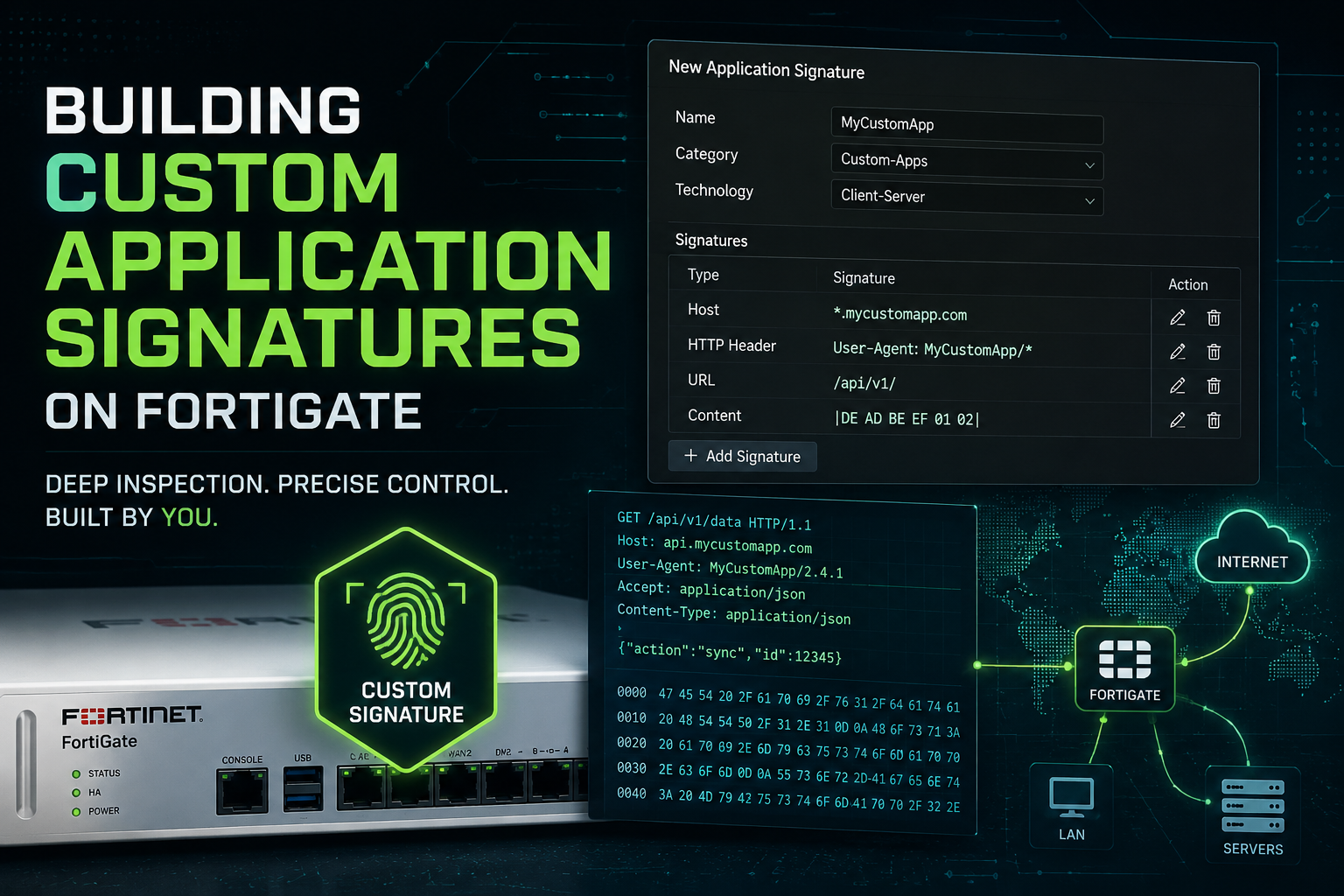
Building Custom Application Signatures on FortiGate
FortiGate ships with thousands of built-in application signatures, but eventually you will hit traffic it does not recognize: an internal line-of-business app, a niche SaaS tool, a custom API, or something the vendor simply has not cataloged. When that happens, the FortiGate labels it Unknown or lumps it into a generic bucket, and you lose the ability to allow it, block it, or shape it by name. A custom application signature solves this by teaching the firewall to recognize that specific traffic and treat it like any other named application.
This guide walks through the concept, the prep work, and the click-by-click build. It assumes you can log into the GUI and read a firewall policy, but not that you write packet-capture filters in your sleep.
1. What a Custom Application Signature Actually Is
Application Control on a FortiGate works by inspecting the contents of traffic (not just the port) and matching it against a library of patterns. Each pattern is a signature. A signature is essentially a rule that says: if you see traffic that looks like THIS, label it as THAT application.
A custom signature is one you write yourself when no built-in match exists. Once created, it lives under Application Signatures alongside the FortiGuard ones and can be referenced inside an Application Control profile, just like Facebook or Zoom.
Two things to understand before you start:
- It works on Layer 7, not just ports. You are matching on patterns inside the traffic (a hostname, a URL path, an HTTP header, a byte sequence), which is what makes it powerful and also what makes it fiddly.
- It needs something unique to grab onto. If your app looks identical to generic HTTPS with no distinguishing fingerprint, you will struggle. The whole game is finding a reliable, unique marker in the traffic.
2. Before You Build: Find the Fingerprint
This is the step people skip, and it is the step that decides whether your signature works. You cannot write a pattern for traffic you have not looked at. Your job here is to identify one or more unique characteristics that appear every time the app is used and rarely (ideally never) anywhere else.
Good fingerprints to look for
| Fingerprint | Where it lives | Why it is useful |
| Server hostname / SNI | TLS handshake, HTTP Host header | Most reliable. e.g. api.myapp.local |
| URL path | HTTP request line | Good for web apps. e.g. /customportal/login |
| HTTP User-Agent | HTTP request header | Useful when the client app sends a custom string |
| Unique byte string | Anywhere in the payload | For non-HTTP protocols. Needs hex/text pattern |
| Destination IP / port | Packet header | Weakest on its own. Pair with another marker |
The cleanest way to find these is a packet capture. Run one from the FortiGate itself (Network > Diagnostics or the CLI diagnose sniffer packet), or grab a capture with Wireshark on a client while you use the app. Look for a string that shows up consistently.
Heads up on HTTPS: if the traffic is encrypted, the FortiGate can only see the hostname (SNI) unless you have SSL deep inspection enabled. Without deep inspection you are limited to matching on the SNI/host. With it, you can match on URL paths and headers too. Decide which camp you are in before you design the pattern.
3. Building the Signature in the GUI
FortiOS gives you a guided form for simple cases. Here is the path and the flow.
- Go to
Security Profiles>Application Signatures. - Click
Create New. You are now defining a custom signature. - Give it a clear Name (no spaces, for example
MyApp_Portal). - Set Category to something sensible like Business or Web.Client so it groups logically in reports.
- Choose the Protocol (usually HTTP or SSL/TLS for web apps).
- Define the match condition: the host, URL, or pattern you found in step 2.
- Save it.
Behind the scenes, the GUI is writing signature syntax for you. It helps to understand that syntax, because the GUI form is limited and most real-world signatures end up being tuned in the CLI.
4. Understanding the Signature Syntax
Every FortiGate application signature follows the same skeleton. Even if you build in the GUI, you should be able to read this. A simple signature to detect a web app by its hostname looks like this:
F-SBID( --name "MyApp_Portal";
--protocol tcp;
--service HTTP;
--pattern "myapp.example.com";
--context host;
--no_case; )
Reading it piece by piece:
| Keyword | What it does |
--name |
The signature name. Must be unique. |
--protocol |
Transport protocol, typically tcp or udp. |
--service |
The application-layer service, e.g. HTTP, SSL, DNS. |
--pattern |
The actual string you are matching on. This is your fingerprint. |
--context |
Where to look for the pattern: host, uri, header, body, etc. |
--no_case |
Makes the match case-insensitive. Almost always include this. |
The two fields that trip people up are --pattern and --context. The pattern is WHAT you look for; the context is WHERE you look. Matching /login in the uri context is precise; matching it in the body context is sloppy and will create false positives.
Matching on a URL path instead of a host
F-SBID( --name "MyApp_Login";
--protocol tcp;
--service HTTP;
--pattern "/customportal/login";
--context uri;
--no_case; )
Combining two conditions for precision
You can require multiple patterns in one signature so it only fires when both are present. This dramatically cuts down on false matches:
F-SBID( --name "MyApp_Strict";
--protocol tcp;
--service HTTP;
--pattern "myapp.example.com"; --context host;
--pattern "/customportal"; --context uri;
--no_case; )
5. Putting It to Work in a Policy
A signature on its own does nothing. You have to reference it inside an Application Control profile, then attach that profile to a firewall policy.
- Go to
Security Profiles>Application Controland edit (or create) a profile. - Add an Application and Filter Override, search for your custom signature by name, and set the action (
Allow,Monitor, orBlock). - Save the profile.
- Open the relevant firewall policy, enable Application Control, and select your profile. If you are matching encrypted URL paths or headers, also enable the matching SSL inspection profile.
- Save the policy and run traffic through it.
6. Testing and What to Watch For
Do not assume it works. Verify it, because a signature that silently fails to match is worse than no signature: you think traffic is controlled when it is not.
- Generate the traffic by actually using the app, then check
Log & Report>Application Control(orForward Traffic logs). Your custom signature name should appear. - Use the CLI to confirm hits: filter the application log for your signature name and watch the counter climb as you use the app.
- If nothing matches, re-check your context (the most common mistake), confirm SSL inspection is on if you are matching inside HTTPS, and verify your pattern string is exactly what appears in the capture (including the leading slash on URIs).
Common pitfalls
| Symptom | Usual cause |
| Signature never matches | Wrong –context, or HTTPS without SSL deep inspection |
| Matches too much (false positives) | Pattern too generic, e.g. matching login instead of a full path |
| Works in test, not in prod | Policy order: a broader policy above is catching the traffic first |
| Intermittent matches | App uses multiple hostnames/CDNs; one pattern only covers some |
| Encrypted match fails | SSL inspection profile not attached, or app uses certificate pinning |
7. Practical Tips Before You Ship It
- Start in Monitor mode. Set the action to Monitor first so you can confirm the signature fires correctly without breaking anyone, then switch to Allow or Block.
- Be as specific as you can. The narrower the pattern, the fewer false positives. Combine a host and a path when possible.
- Document the fingerprint. Note which capture and which string the signature is based on. When the app vendor changes a hostname six months from now, you will thank yourself.
- Watch certificate pinning. Some apps refuse to work through SSL inspection. If deep inspection breaks the app, you may be limited to SNI-only matching.
- Remember CDNs and cloud apps move. Modern SaaS spreads across many hostnames and IPs, so a single static pattern can be brittle. Plan to revisit it.
From PCAP to Signature
You have two practical places to capture: on the FortiGate itself (best when you cannot touch the client) or on the client with Wireshark (best when you can, because the tooling is friendlier). We will cover both.
The FortiGate has a built-in packet sniffer you drive from the CLI with diagnose sniffer packet. The command structure is:
diagnose sniffer packet <interface> "<filter>" <verbosity> <count> <timestamp>
Breaking down each argument:
| Argument | What to set it to |
| <interface> | The interface the traffic crosses, e.g. port1. Use any if unsure. |
| <filter> | BPF filter to narrow the capture, e.g. host 10.10.5.20 and port 443 |
| <verbosity> | Use 6 to capture full packet data with headers (needed to extract a PCAP) |
| <count> | Number of packets to grab, e.g. 200. Prevents an endless capture |
| <timestamp> | Use a for absolute UTC timestamps (required for clean PCAP conversion) |
Why verbosity 6 matters
Verbosity levels 1 through 3 only print headers, which is fine for a quick look but useless for building a signature. Level 6 captures the full packet including the payload, and only the full payload contains the hostnames, URLs, and strings you need. Always use 6 when the goal is a signature.
Example capture
Say your app server is 10.10.5.20 and the client is 10.10.5.88. Scope the filter tightly so you are not drowning in unrelated traffic:
diagnose sniffer packet any "host 10.10.5.20 and host 10.10.5.88" 6 200 a
Now reproduce the app activity (open the app, log in, click the feature you want to fingerprint). The CLI will scroll packet output. Let it collect, then it stops automatically at the count. Select all that console output and save it to a text file on your machine; you will convert it to a real PCAP next
2. Converting FortiGate Output into a Readable PCAP
The sniffer output is text, not a PCAP file. Fortinet provides a converter so Wireshark can read it. This article covers how to convert captures and can export a PCAP directly from the GUI (see section 3).
If you do not have the script handy, the cleaner modern path is to capture straight to PCAP from the GUI instead, which skips the conversion entirely.
3. Capturing to PCAP Directly (GUI)
Most current FortiOS versions let you capture a downloadable PCAP without touching the CLI. Go to Network > Diagnostics > Packet Capture (the exact path varies slightly by version; it may live under Network > Packet Capture).
- Click Create New.
- Select the interface the traffic crosses.
- Set a filter (host and port) to keep the file small and focused.
- Set a packet count, start the capture, reproduce the app activity, then stop.
Click the download icon to save the .pcap file, and open it in Wireshark
4. Reading the PCAP to Find the Fingerprint
This is the heart of the job. Open the PCAP in Wireshark and hunt for one unique, repeatable marker. What you can see depends entirely on whether the traffic is encrypted.
If the traffic is HTTP (unencrypted)
You cannot see the URL or headers, but you can still see the SNI (Server Name Indication) in the TLS handshake, which is sent in the clear. Filter for it:
tls.handshake.extensions_server_name
Expand the Client Hello and find the Server Name field. That hostname (for example api.myapp.example.com) is your fingerprint when you do not have SSL deep inspection. To match on URLs or headers inside HTTPS, you must enable SSL deep inspection on the FortiGate first, otherwise the host/SNI is all you get.
What makes a good marker
- Unique: appears for this app and essentially nothing else on your network.
- Repeatable: shows up every single time the app is used, not just occasionally.
- Stable: unlikely to change next week. A vendor hostname is more durable than a session token in a URL.
Write down exactly what you find, character for character, including the leading slash on a URI. The pattern in your signature must match the bytes in the capture precisely (case aside, since you will use --no_case).
5. Turning the Marker into Signature Syntax
Now map what you found to the F-SBID signature format. The context keyword tells the FortiGate where to look, and it must match where you found the marker in the PCAP.
| What you found in the PCAP | Signature --context to use |
| Host header / TLS SNI hostname | host |
| Request URI / URL path | uri |
| An HTTP header value (e.g. User-Agent) | header |
| A raw string deep in the payload | body |
Example: found a hostname in the SNI
The capture showed Server Name api.myapp.example.com in the TLS handshake. That becomes a host-context signature:
F-SBID( --name "MyApp_SNI";
--protocol tcp;
--service SSL;
--pattern "api.myapp.example.com";
--context host;
--no_case; )
Example: found a unique URI in HTTP
The capture showed GET /customportal/api/v2 in an HTTP request. That becomes a uri-context signature:
F-SBID( --name "MyApp_URI";
--protocol tcp;
--service HTTP;
--pattern "/customportal/api/v2";
--context uri;
--no_case; )
Paste these under Security Profiles > Application Signatures (Create New, then the syntax editor), then reference the signature in an Application Control profile and attach it to a policy. For encrypted matches beyond the SNI, attach the SSL deep inspection profile too
6. Close the Loop: Verify Against a Fresh Capture
Do not trust the signature until you have seen it fire. The fastest verification loop is to run the app again and confirm both the log and, if needed, a second capture agree with each other.
- Generate the traffic again and check
Log & Report>Application Control. Your signature name should appear against that session. - If it does not fire, re-open the PCAP and confirm three things: the marker is really in the context you claimed, the string matches exactly, and (for HTTPS) deep inspection is enabled if you went past the SNI.
- If it fires too often, your pattern is too generic. Go back to the capture and find a longer or more specific string, or combine two patterns.
Bottom line: the PCAP is your source of truth. Capture tightly, read carefully for one unique and durable marker, map it to the right context, and always verify the signature fires against fresh traffic before you trust it in a policy
Recent posts
-

-

DNS is one of those technologies that quietly underpins... Full Story
-

BGP issues on FortiGate firewalls usually trace back to... Full Story
-

Every time your laptop talks to your router, a... Full Story
-

If you've spent any time configuring NAT on a... Full Story
-

If you have spent any time configuring firewall policies... Full Story
-

High availability on FortiGate is one of those features... Full Story
-

If you've configured SD-WAN on a FortiGate, you've almost... Full Story
-

FortiLink is the management protocol that turns a FortiSwitch... Full Story
-

FortiSwitches are pretty rock solid from Mean Time Between... Full Story
-

This is a quicky tip. Have you ever gone... Full Story
-

DNS is one of those quiet pieces of internet... Full Story
-

This article is an updated version of the previous... Full Story
-

You will add ns2 as a secondary (slave) BIND9... Full Story
-

In the process of deploying my lab, I needed... Full Story
-

RFC 8805, used to be known as Self-Correcting IP... Full Story
-

Years back, I wrote an article about certificate pinning. ... Full Story
-

FortiGates have the ability to send alerts to Microsoft... Full Story
-

In this post, I am going to walk through... Full Story
-

Troubleshooting VoIP on a FortiGate can feel like trying... Full Story
-

Prior to FortiOS 7.0, there were three commands to... Full Story
-

In this post, I am going to go over... Full Story
-

What we are going to do: We are going... Full Story
-

Choosing between FGCP (FortiGate Clustering Protocol) and FGSP (FortiGate... Full Story
-

Creating a VLAN on macOS (The "Pro" Move) A... Full Story
-

This blog post explores the logic behind how macOS... Full Story
-

Pretty Fly for a Wi-Fi Tell My Wi-Fi Love... Full Story
-

Part of my daily gig is creating BoMs (Bill-of-Materials)... Full Story
-

ICMP introduces several security risks, but careful filtering, rate... Full Story
-

The command diag debug application dhcps -1 enables full... Full Story
-

In the world of FortiOS, execute tac report is... Full Story
-

LLDP; What is it The Link Layer Discovery Protocol... Full Story
-

What it actually does When you run diagnose fdsm... Full Story
-

Monkey Bites are bite-sized, high-impact security insights designed for... Full Story
-

I have run macOS in macOS with Parallels but... Full Story
-

Don't be confused with my other FortiNAC posts where... Full Story
-

This is the third session in a multi-part article... Full Story
-

Today I was configuring key-based authentication on a FortiGate... Full Story
-

Netcat, often called the "Swiss Army knife" of networking,... Full Story
-

At its core, IEEE 802.1X is a network layer... Full Story
-

In case you did not see the previous FortiNAC... Full Story
-

This is our 5th session where we are going... Full Story
-

Now that we have Wireshark installed and somewhat configured,... Full Story
-

The Philosophy of Packet Analysis Troubleshooting isn't about looking... Full Story
-

Executive Summary Objective: Get you from zero to writing... Full Story
-

NAND cells, the flash translation layer, SLC caching, TRIM,... Full Story
-

Nmap Scripting Engine (NSE): From One-Liners to Your First... Full Story