
If you've spent any time configuring user authentication on... Full Story
By Manny Fernandez
October 15, 2026
FortiGate and EntraID: Renewing an Expiring Entra ID SAML Signing Certificate Without Breaking SSO
Executive Summary
Objective: Roll an expiring SAML signing certificate on a Microsoft Entra ID enterprise application to a new certificate, update the service provider (SP) that trusts it, and do it with zero or near-zero sign-in downtime.
Target audience: Identity, network, and security engineers who own SAML SSO integrations backed by Entra ID. The SP-side examples use a FortiGate (SSL VPN, admin GUI, or ZTNA SAML), but the Entra workflow is identical for any SAML app.
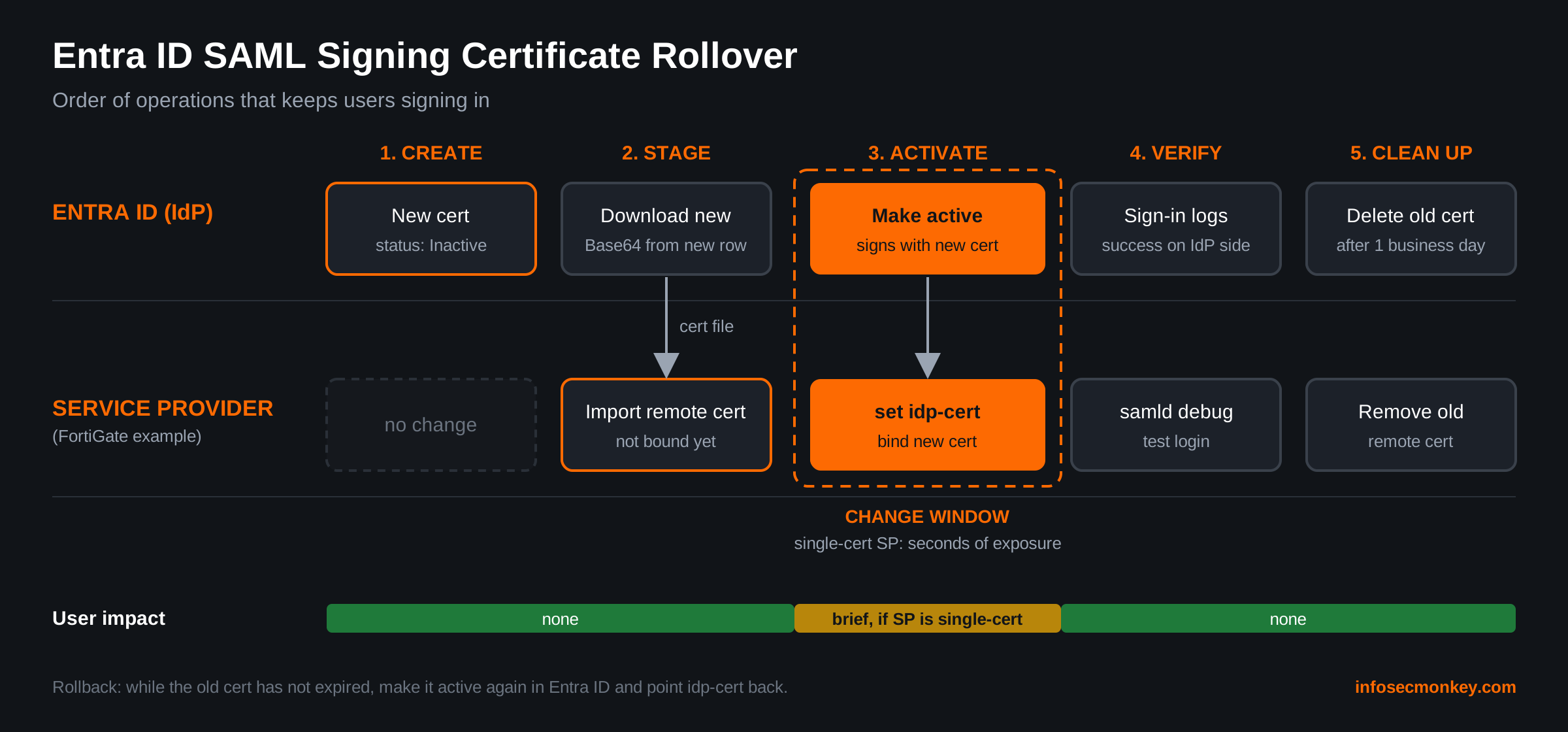
The short version: Create the new certificate in Entra ID but leave it inactive, download it, stage it on the SP, then flip both sides in the same change window. The order of operations is the entire game.
Why This Breaks Things
When you configure SAML SSO on an Entra ID enterprise application, Entra ID signs every SAML response or assertion with an X.509 certificate that belongs to that application. The SP stores a copy of that certificate (or its thumbprint) and uses it to verify the signature on every login.
Two facts make renewal a change you have to plan:
- The certificate expires. Entra ID issues SAML signing certificates with a default lifetime of three years. Most SAML apps were configured once, years ago, by someone who may no longer work there.
- The SP pins the certificate. The moment Entra ID starts signing with a new certificate, any SP still holding the old one rejects the assertion. Users see a generic SSO failure, and the help desk lights up.
Entra ID emails a notification 60, 30, and 7 days before a SAML signing certificate expires, from azure-noreply@microsoft.com. If nobody on the notification list still reads that mailbox, the first warning you get is the outage.
Gotcha worth knowing up front: If the active certificate has expired and a valid inactive certificate exists on the same app, Entra ID automatically starts using the valid one. That means creating a new certificate “for later” and forgetting to stage it on the SP does not save you. The SP breaks at expiry either way.
Prerequisites and Architecture
Assumed knowledge
- Basic SAML flow (IdP, SP, assertion, signature)
- Navigating the Microsoft Entra admin center
- Admin access to the SP (FortiGate CLI/GUI in the examples)
Requirements
| Component | Requirement | Notes |
|---|---|---|
| Entra ID role | Application Administrator, Cloud Application Administrator, or owner of the enterprise app | Global Administrator works but is not required |
| SP access | Admin rights to update the IdP certificate | FortiGate: super_admin or a profile with User & Authentication write |
| PowerShell (optional) | Microsoft Graph PowerShell SDK | For inventory and scripted rollover |
| OpenSSL (optional) | Any recent build | To confirm thumbprint and expiry before you trust a file |
| Change window | 15 minutes | Only required when the SP accepts a single IdP certificate |
The rollover model
| Phase | Entra ID | Service provider | Users affected? |
|---|---|---|---|
| 1. Create | New cert added, inactive | No change | No |
| 2. Stage | Download new cert | Import new cert (do not bind yet if single-cert SP) | No |
| 3. Activate | Make new cert active | Bind new cert as IdP cert | Single-cert SP: seconds between the two clicks |
| 4. Verify | Sign-in logs | Debug output, test login | No |
| 5. Clean up | Remove old cert after verification | Remove old remote cert | No |
Step-by-Step Implementation Workflow
Step 1: Inventory every SAML certificate that is about to expire
Goal: Know every affected app before the notification emails start, not after.
Action: Run a Graph PowerShell inventory. Each enterprise application has its own signing certificate, so if you have separate SAML apps for FortiGate admin login, SSL VPN, and ZTNA, that is three renewals, not one.
PowerShell
Connect-MgGraph -Scopes "Application.Read.All"

$days  = 90
$props = "Id,DisplayName,AppId,PreferredSingleSignOnMode,KeyCredentials"
Get-MgServicePrincipal -All -Property $props |
  Where-Object { $_.PreferredSingleSignOnMode -eq "saml" } |
  ForEach-Object {
    $sp = $_
    $sp.KeyCredentials | Where-Object { $_.Usage -eq "Sign" } | ForEach-Object {
      [pscustomobject]@{
        App        = $sp.DisplayName
        AppId      = $sp.AppId
        Expires    = $_.EndDateTime
        DaysLeft   = [int]($_.EndDateTime - (Get-Date)).TotalDays
      }
    }
  } |
  Where-Object { $_.DaysLeft -le $days } |
  Sort-Object DaysLeft | Format-Table -AutoSize
GUI verification: Entra admin center > Entra ID > Enterprise apps > All applications > select the app > Single sign-on. The SAML Certificates section shows the status, expiration date, and thumbprint of the active certificate.
Step 2: Fix the notification list while you are there
Goal: Make sure the next renewal warning reaches a human who will act on it.
Action: On the Single sign-on page, click Edit on the SAML Certificates section. Under Notification Email Addresses, add a team distribution list.
- You get a maximum of five addresses, including the admin who created the app. Use a distribution list instead of five individuals.
- If notification addresses were set through Graph or PowerShell, open the app’s Single sign-on blade in the admin center at least once. Microsoft notes that skipping this can leave expiry emails switched off.
Step 3: Create the new certificate (and leave it inactive)
Goal: Generate the replacement without touching production sign-ins.
Action:
- In the SAML Signing Certificate pane, select New Certificate.
- Set the expiration date. The maximum is three years. Pick a date you can actually track (a shorter lifetime that lines up with an existing review cycle is a valid choice).
- Confirm Signing Option (usually Sign SAML assertion, or Sign SAML response and assertion if the SP requires it) and Signing Algorithm (SHA-256). Match what the current certificate uses unless you are deliberately changing it.
- Select Save.
The new certificate appears as a second row with status Inactive. Entra ID is still signing with the old one, so nothing has changed for users.
GUI verification: Two rows in the certificate list: the old one Active, the new one Inactive, with a different thumbprint and a later expiration date.
Step 4: Download the new certificate in the format your SP expects
Goal: Get the right file, from the right row.
Action: Select the … menu on the new (inactive) row and download it. Downloading from the main SSO page gives you the active certificate, which is the old one. Pick the format based on the SP:
| Format | What it is | Typical consumer |
|---|---|---|
| Certificate (Base64) | PEM with BEGIN/END CERTIFICATE lines |
FortiGate, FortiAuthenticator, most appliances |
| Certificate (Raw) | DER binary | Older Java and Windows-based SPs |
| Federation Metadata XML | Full IdP metadata including the cert | SPs that import metadata files |
Verify the file before you trust it. Confirm the SHA-1 fingerprint matches the thumbprint Entra ID shows for the new row, and that the expiry is the date you just set:
Bash
openssl x509 -in <AppName>-new.cer -noout -subject -enddate -fingerprint -sha1Expected output (values will differ):
FortiOS CLI / Text
subject=CN=Microsoft Azure Federated SSO Certificate
notAfter=Oct 15 12:00:00 2029 GMT
SHA1 Fingerprint=<MATCHES-THE-THUMBPRINT-IN-ENTRA>
Step 5: Stage the certificate on the service provider
Goal: Get the SP ready to trust the new certificate before Entra ID starts using it. How you do this depends on what the SP supports.
| SP behavior | What to do in this step | Downtime |
|---|---|---|
| Consumes the Entra metadata URL and refreshes automatically | Nothing yet. After activation it picks up the new cert on its next refresh, or you trigger a refresh. | None, if the refresh happens promptly |
| Accepts two IdP certificates (primary and secondary) | Add the new cert as the secondary now | None |
| Accepts one IdP certificate (FortiGate and many appliances) | Import the cert now, bind it in Step 6 | Seconds, between the two clicks |
The Entra metadata URL for a specific app follows this pattern (one line, no spaces; wrapped here for width):
FortiOS CLI / Text
https://login.microsoftonline.com/<TENANT-ID>
  /federationmetadata/2007-06/federationmetadata.xml?appid=<APP-ID>
FortiGate example (single-certificate SP)
On a FortiGate, the IdP certificate is a remote certificate referenced by idp-cert in the SAML user object. Import the new one now, under a name that makes the expiry obvious.
GUI: System > Certificates > Create/Import > Remote Certificate, then upload the Base64 file.
CLI:
FortiOS CLI / Text
config vpn certificate remote
    edit "REMOTE_Cert_EntraSAML_2029"
        set remote "-----BEGIN CERTIFICATE-----
<PASTE-BASE64-BODY-HERE>
-----END CERTIFICATE-----"
    next
end
Confirm which SAML objects reference the old certificate so you do not miss one:
FortiOS CLI / Text
show user saml | grep -f idp-certFortiManager-managed FortiGates: make the change in FortiManager (Device Manager or a CLI template) and install it from there. A local change will be overwritten or flagged as out of sync at the next install. HA clusters sync the change from the primary, so make it once on the primary.
Step 6: Activate the new certificate and bind it on the SP
Goal: Switch both sides in one short window.
Action (Entra ID): In the SAML Signing Certificate pane, select … on the new row > Make certificate active > Yes. The old certificate becomes Inactive and Entra ID immediately signs new assertions with the new one.
Action (FortiGate, immediately after):
FortiOS CLI / Text
config user saml
    edit "<SAML-SERVER-NAME>"
        set idp-cert "REMOTE_Cert_EntraSAML_2029"
    next
end
Repeat the edit block for every SAML object that pointed at the old certificate.
Scripted alternative (Microsoft Graph PowerShell)
Useful when you have many apps to roll, or want the activation to be one command inside the window. The first block creates the new certificate; the second makes it active, so run the second only when the SP is ready.
PowerShell
Connect-MgGraph -Scopes "Application.ReadWrite.All"
$sp = Get-MgServicePrincipal -Filter "displayName eq '<APP-DISPLAY-NAME>'"

# Create the new signing certificate (max 3 years)
$params = @{
  displayName = "CN=<APP-DISPLAY-NAME> SAML 2029"
  endDateTime = "2029-10-15T00:00:00Z"
}
$new = Add-MgServicePrincipalTokenSigningCertificate `
  -ServicePrincipalId $sp.Id -BodyParameter $params
$new.Thumbprint
PowerShell
# Activate it: Entra ID signs with the preferred thumbprint
Update-MgServicePrincipal -ServicePrincipalId $sp.Id `
  -PreferredTokenSigningKeyThumbprint $new.Thumbprint
After a scripted rollover, open the app’s Single sign-on page in the admin center and confirm the new row shows Active before you call it done.
Verification and Validation
Test a real sign-in
Use a private browser window and a test account assigned to the app. For a FortiGate SSL VPN, connect with FortiClient using SAML login.
Watch the FortiGate SAML daemon
FortiOS CLI / Text
diagnose debug reset
diagnose debug application samld -1
diagnose debug console timestamp enable
diagnose debug enable
Reproduce the login, then stop the debug:
FortiOS CLI / Text
diagnose debug disable
diagnose debug reset
Success looks like: the debug shows the SAML response received from Entra ID, the signature verified, and the user and group attributes parsed, followed by the VPN or admin session being established. Failure looks like: a signature or certificate verification error immediately after the response is received, which almost always means idp-cert still points at the old certificate.
Check the Entra side
Entra ID > Monitoring & health > Sign-in logs, filter by Application. A successful sign-in on the Entra side combined with a failure on the SP side is the classic signature-mismatch pattern: Entra ID issued the token, the SP refused to trust it.
Confirm the active thumbprint
PowerShell
$p = "PreferredTokenSigningKeyThumbprint"
(Get-MgServicePrincipal -ServicePrincipalId $sp.Id -Property $p).$p
It should match the fingerprint you checked with OpenSSL in Step 4.
Clean Up
- Leave the old certificate in Entra ID (inactive) until you have confirmed sign-ins for a full business day. It is your rollback path.
- Then delete the old row in Entra ID (… > Delete) and remove the old remote certificate from the FortiGate once no SAML object references it.
- Put the new expiry date in the team calendar with a 90-day lead time. The 60/30/7-day emails are a backstop, not a plan.
Troubleshooting and Gotchas
1. Everyone is locked out right after activation
Cause: The new certificate is active in Entra ID, but the SP still holds the old one.
Fix: Bind the new certificate on the SP (Step 6). If you cannot do that quickly, roll back: in Entra ID, select … on the old row > Make certificate active. This only works while the old certificate has not expired.
Diagnose: diagnose debug application samld -1 on the FortiGate, plus Entra sign-in logs showing success on the IdP side.
2. The certificate file will not import
Cause: Wrong format (Raw/DER where PEM was expected), or a partial copy and paste that kept one BEGIN/END marker but not the other.
Fix: Re-download the Base64 version from the new row and paste the whole block, both markers included. Validate it first:
Bash
openssl x509 -in <file>.cer -noout -text | head -n 153. Nobody got the expiry emails
Cause: Notification list points at a departed admin, the mail is filtered, or the addresses were set programmatically and the SSO blade was never opened.
Fix: Add a distribution list (Step 2), allow azure-noreply@microsoft.com, open the app’s SSO blade once, and stop relying on email: schedule the Step 1 inventory script to run monthly.
4. You renewed one app, but another still broke
Cause: Each enterprise application has its own signing certificate. FortiGate admin SSO, SSL VPN, and ZTNA are often separate Entra apps with separate expiry dates.
Fix: Use the Step 1 inventory and show user saml to map every SAML object to its Entra app before the change window.
5. The SP kept working with an expired certificate
Cause: Some SPs only compare the signature against the stored certificate and never check its validity dates.
Fix: Do not treat this as safe. It is a missing control on the SP, and it ends the moment Entra ID switches to a valid certificate on its own (see the gotcha at the top). Renew on schedule anyway.
Quick Reference Checklist
- ☐Inventory all SAML apps expiring in the next 90 days
- ☐Notification list contains a monitored distribution list
- ☐New certificate created, inactive, correct signing option and SHA-256
- ☐Downloaded from the new row, fingerprint verified with OpenSSL
- ☐Staged on the SP (metadata refresh, secondary cert, or imported remote cert)
- ☐FortiManager-managed? Change made in FortiManager
- ☐Change window: activate in Entra ID, bind
idp-certon the SP - ☐Test login plus
samlddebug plus Entra sign-in logs - ☐Old cert kept inactive for rollback, then removed
- ☐New expiry date on the team calendar
Recent posts
-

-

DNS is one of those technologies that quietly underpins... Full Story
-

BGP issues on FortiGate firewalls usually trace back to... Full Story
-

Every time your laptop talks to your router, a... Full Story
-

If you've spent any time configuring NAT on a... Full Story
-

If you have spent any time configuring firewall policies... Full Story
-

High availability on FortiGate is one of those features... Full Story
-

If you've configured SD-WAN on a FortiGate, you've almost... Full Story
-

FortiLink is the management protocol that turns a FortiSwitch... Full Story
-

FortiSwitches are pretty rock solid from Mean Time Between... Full Story
-

This is a quicky tip. Have you ever gone... Full Story
-

DNS is one of those quiet pieces of internet... Full Story
-

This article is an updated version of the previous... Full Story
-

You will add ns2 as a secondary (slave) BIND9... Full Story
-

In the process of deploying my lab, I needed... Full Story
-

RFC 8805, used to be known as Self-Correcting IP... Full Story
-

Years back, I wrote an article about certificate pinning. ... Full Story
-

FortiGates have the ability to send alerts to Microsoft... Full Story
-

In this post, I am going to walk through... Full Story
-

Troubleshooting VoIP on a FortiGate can feel like trying... Full Story
-

Prior to FortiOS 7.0, there were three commands to... Full Story
-

In this post, I am going to go over... Full Story
-

What we are going to do: We are going... Full Story
-

Choosing between FGCP (FortiGate Clustering Protocol) and FGSP (FortiGate... Full Story
-

Creating a VLAN on macOS (The "Pro" Move) A... Full Story
-

This blog post explores the logic behind how macOS... Full Story
-

Pretty Fly for a Wi-Fi Tell My Wi-Fi Love... Full Story
-

Part of my daily gig is creating BoMs (Bill-of-Materials)... Full Story
-

ICMP introduces several security risks, but careful filtering, rate... Full Story
-

The command diag debug application dhcps -1 enables full... Full Story
-

In the world of FortiOS, execute tac report is... Full Story
-

LLDP; What is it The Link Layer Discovery Protocol... Full Story
-

What it actually does When you run diagnose fdsm... Full Story
-

Monkey Bites are bite-sized, high-impact security insights designed for... Full Story
-

I have run macOS in macOS with Parallels but... Full Story
-

Don't be confused with my other FortiNAC posts where... Full Story
-

This is the third session in a multi-part article... Full Story
-

Today I was configuring key-based authentication on a FortiGate... Full Story
-

Netcat, often called the "Swiss Army knife" of networking,... Full Story
-

At its core, IEEE 802.1X is a network layer... Full Story
-

In case you did not see the previous FortiNAC... Full Story
-

This is our 5th session where we are going... Full Story
-

Now that we have Wireshark installed and somewhat configured,... Full Story
-

The Philosophy of Packet Analysis Troubleshooting isn't about looking... Full Story
-

1. Executive Summary Objective: Get a working, persistent nftables... Full Story
-

Executive Summary Objective: Identify every cleartext and unauthenticated legacy... Full Story
-

Executive Summary Objective: Roll an expiring SAML signing certificate... Full Story