
If you've spent any time configuring user authentication on... Full Story
By Manny Fernandez
August 25, 2026
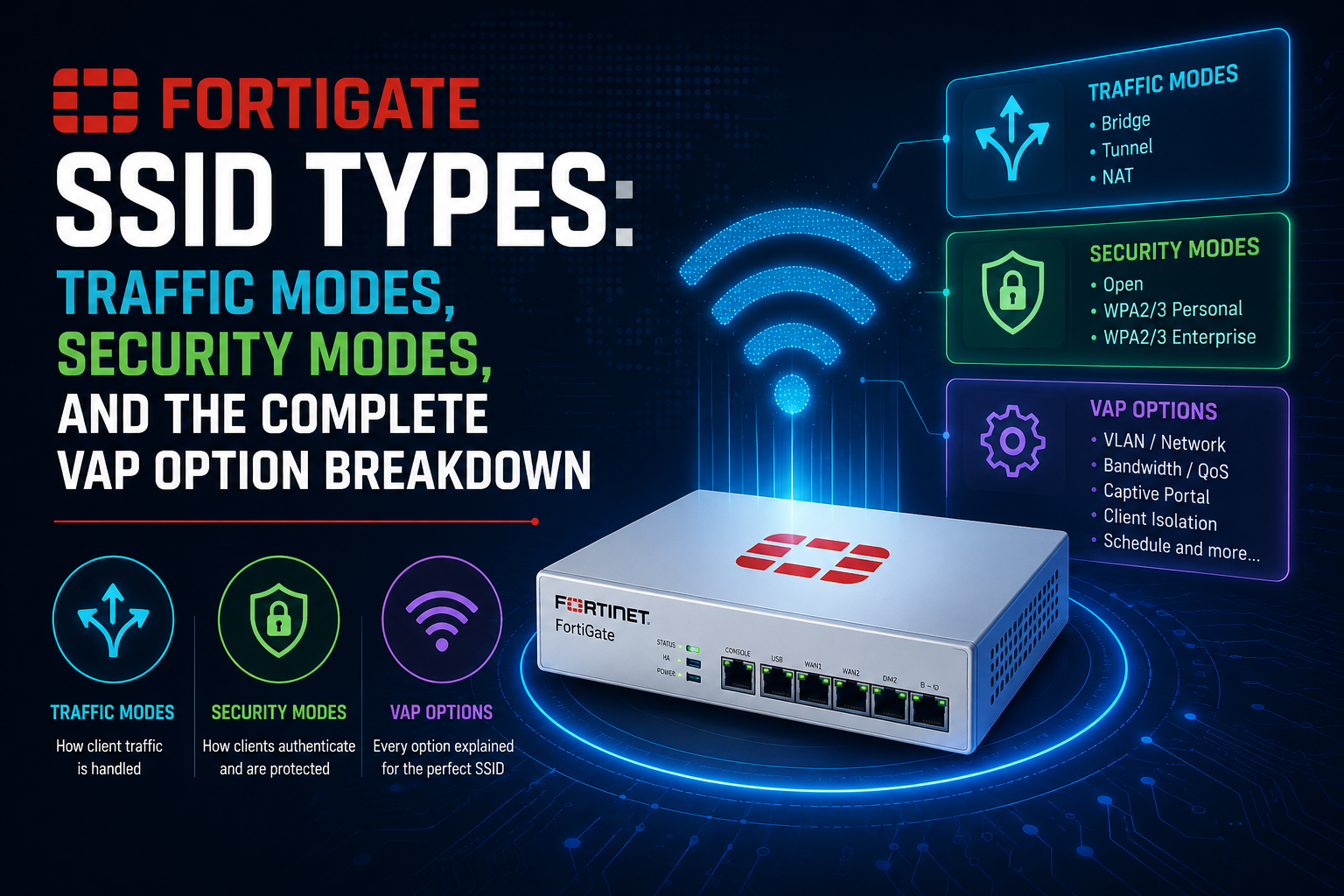
FortiGate SSID Types: Traffic Modes, Security Modes, and the Complete VAP Option Breakdown
1. Executive Summary
Objective
On a FortiGate wireless controller, an SSID is not just a name you broadcast. It is a Virtual Access Point (VAP) object whose traffic mode decides where client data terminates, whether your firewall policies and UTM inspection ever see that traffic, and what happens when the CAPWAP control channel dies. This guide documents every SSID type FortiOS supports (tunnel, bridge, mesh backhaul, and local standalone), then breaks down the full VAP option set behind them: security modes, VLAN behavior, roaming, client control, survivability, and monitoring.
Target Audience
Network and wireless engineers, security engineers, systems engineers, and sysadmins deploying FortiAP under integrated FortiGate control. You should be comfortable in the FortiOS CLI and with VLAN trunking.
The one-line takeaway: traffic mode is the single highest-impact SSID decision you will make. Everything else on the VAP is tuning. Pick the mode wrong and half your security stack is decorative.
2. Prerequisites & Architecture
Assumed Knowledge
- 802.11 fundamentals: BSSID, beacons, probe requests, association, the 4-way handshake.
- VLAN tagging and 802.1Q trunking on an access switch.
- RADIUS and EAP basics, including RADIUS attribute return.
- FortiOS CLI structure (
config/edit/set/next/end), firewall policies, and interface roles. - CAPWAP discovery and FortiAP authorization on the controller.
Environment / Lab Requirements
- FortiGate with the WiFi controller feature available. Syntax in this guide is written against FortiOS 7.4.x and 7.6.x. Older builds have a subset of these attributes.
- At least one FortiAP. A tri-radio 6 GHz capable model is useful for the WPA3 and OWE sections. Two APs are needed for the mesh and roaming sections.
- A PoE switch with an 802.1Q trunk to the AP port for the bridge-mode and dynamic-VLAN sections.
- A RADIUS server (FortiAuthenticator, NPS, or FreeRADIUS) for the Enterprise and MAC-auth sections.
- Test clients: one modern WPA3 capable client and one deliberately old client, because transition modes are only interesting when something legacy is on the air.
Component Table
| Component | Role | Example Address / Value |
|---|---|---|
| FortiGate 200F (FortiOS 7.4.x) | Wireless controller, policy and UTM enforcement | 192.168.10.1 |
| FortiAP (tri-radio) | CAPWAP managed AP, mesh root or leaf | 192.168.10.20 |
| FortiSwitch (PoE) | AP power and 802.1Q trunk for bridge mode | 192.168.10.2 |
| FortiAuthenticator | RADIUS for 802.1X, MAC auth, and dynamic VLAN | 192.168.10.50 |
| Corp SSID (tunnel) | WPA2/WPA3 Enterprise, centrally inspected | 10.30.0.0/24, VAP interface corp-tun |
| IoT SSID (bridge) | Local switching onto a tagged VLAN at the AP | VLAN 50 |
| Guest SSID (tunnel) | Captive portal, isolated | 10.40.0.0/24 |
| Mesh backhaul SSID | Wireless uplink between root and leaf APs | acme.mesh.root (hidden) |
3. Step-by-Step Implementation Workflow
The Four SSID Traffic Modes at a Glance
| Mode | Defining CLI | Where client data lands | FortiGate policy / UTM applies? | Use it when |
|---|---|---|---|---|
| Tunnel (default) | set local-bridging disable |
Inside the CAPWAP data tunnel, terminating on a software interface named after the VAP | Yes, fully | Corporate and guest SSIDs, centralized inspection, simple L3 design |
| Bridge | set local-bridging enable |
On the FortiAP Ethernet port, native or tagged onto a VLAN | No, unless the VLAN is routed back through the FortiGate | Branch sites, high east-west throughput, local printers and servers |
| Mesh backhaul | set mesh-backhaul enable |
Nowhere directly. It carries CAPWAP for leaf APs over the air | Not applicable, it is infrastructure | Warehouses, courtyards, temporary sites with no cable path |
| Local standalone | set local-standalone enable |
On the AP itself, optionally NATed behind the AP uplink with AP-served DHCP | No while standalone | WAN outage survivability, teleworker APs, remote sites with fragile links |
Related but not a VAP type: a FortiAP Ethernet port can also be bridged directly into an SSID from the AP profile (config wireless-controller wtp-profile > config lan > set port1-mode bridge-to-ssid). That gives a wired device the same policy treatment as a wireless client on the same VAP. Very useful for desk phones and teleworker APs.
Phase 1: Baseline the Controller and AP
Goal: confirm the WiFi controller is exposed, the AP is authorized, and the country/regulatory domain is correct before any VAP exists.
Action: enable the controller feature if it is hidden, authorize the AP by serial, and set the country code on the AP profile. Country code changes force a radio restart, so do it first.
config system global
    set wireless-controller enable
end

config wireless-controller wtp
    edit "FP431GTF20000000"
        set admin enable
        set name "AP-FLOOR1-01"
        set wtp-profile "FAP-STD"
    next
end

config wireless-controller wtp-profile
    edit "FAP-STD"
        set ap-country US
    next
end
GUI verification: WiFi and Switch Controller > Managed FortiAPs. The AP should show a green connected state and a firmware version. If the menu is missing entirely, enable it under System > Feature Visibility.
Phase 2: Build a Tunnel-Mode SSID
Goal: create a VAP whose client traffic is carried inside CAPWAP to the FortiGate, terminating on a software interface you can address, DHCP, and firewall like any other LAN interface.
Action: create the VAP, then treat the interface of the same name as a normal L3 interface: give it an IP, attach a DHCP scope, and write policy.
config wireless-controller vap
    edit "corp-tun"
        set ssid "<ACME-Corp>"
        set local-bridging disable
        set security wpa2-only-enterprise
        set auth radius
        set radius-server "<FAC-RADIUS>"
        set encrypt AES
        set pmf optional
        set schedule "always"
        set intra-vap-privacy disable
        set broadcast-ssid enable
        set max-clients 0
    next
end

config system interface
    edit "corp-tun"
        set ip 10.30.0.1 255.255.255.0
        set allowaccess ping
        set role lan
        set device-identification enable
    next
end

config system dhcp server
    edit 0
        set interface "corp-tun"
        set netmask 255.255.255.0
        set default-gateway 10.30.0.1
        set dns-service default
        set lease-time 28800
        config ip-range
            edit 1
                set start-ip 10.30.0.20
                set end-ip 10.30.0.220
            next
        end
    next
end

config firewall policy
    edit 0
        set name "corp-wifi-to-internet"
        set srcintf "corp-tun"
        set dstintf "<wan1>"
        set srcaddr "all"
        set dstaddr "all"
        set service "ALL"
        set action accept
        set schedule "always"
        set nat enable
        set utm-status enable
        set av-profile "default"
        set webfilter-profile "default"
        set application-list "default"
        set ssl-ssh-profile "certificate-inspection"
        set logtraffic all
    next
end
GUI verification: WiFi and Switch Controller > SSIDs. Traffic Mode should read Tunnel, and the SSID appears under Network > Interfaces as a child of the WiFi controller with the IP you assigned.
Note on split tunneling: tunnel mode does not have to be all or nothing. With set split-tunneling enable on the VAP plus a split-tunneling ACL on the AP profile, selected destinations (typically internet-bound traffic or the local AP subnet) exit at the AP while everything else still tunnels home. Useful for teleworker APs where you want corporate traffic inspected but do not want to hairpin Netflix across the VPN.
Phase 3: Build a Bridge-Mode (Local Switching) SSID
Goal: put wireless clients directly onto a wired VLAN at the AP so their traffic never crosses the CAPWAP data path.
Action: enable local bridging and, if the target VLAN is tagged, set the VLAN ID on the VAP. The AP switchport must trunk that VLAN. A bridge-mode VAP creates no FortiGate interface and takes no IP address.
config wireless-controller vap
    edit "iot-brg"
        set ssid "<ACME-IoT>"
        set local-bridging enable
        set vlanid 50
        set security wpa2-only-personal
        set passphrase "<strong-psk>"
        set pmf optional
        set intra-vap-privacy enable
        set broadcast-suppression dhcp-up dhcp-starvation arp-unknown arp-poison netbios-ns netbios-ds all-other-bc
        set max-clients-ap 0
    next
end
Optional AP-side inspection. On supported FortiAP models you can push a UTM profile so bridged traffic still gets scanned locally instead of escaping inspection entirely:
config wireless-controller vap
    edit "iot-brg"
        set utm-status enable
        set utm-profile "<fap-utm-profile>"
        set utm-log enable
    next
end
GUI verification: WiFi and Switch Controller > SSIDs, Traffic Mode = Bridge, with a VLAN ID field instead of an IP/Netmask field. On the switch, confirm VLAN 50 is tagged on the AP port and the AP management VLAN is untagged or native.
Phase 4: Build a Mesh Backhaul SSID
Goal: give cable-less APs a wireless uplink by dedicating an SSID to carrying CAPWAP between a root AP and one or more leaf APs.
Action: create a hidden mesh VAP with a strong PSK, assign it to the root AP radio you intend to use for backhaul, and provision the leaf APs to join it. Provision leaves while they are still cabled so the mesh settings land cleanly, then unplug them.
config wireless-controller vap
    edit "mesh-bh"
        set ssid "<acme.mesh.root>"
        set mesh-backhaul enable
        set security wpa2-only-personal
        set passphrase "<mesh-psk>"
        set broadcast-ssid disable
    next
end

config wireless-controller wtp-profile
    edit "FAP-STD"
        config radio-2
            set vap-all manual
            set vaps "mesh-bh" "corp-tun"
        end
    next
end
If a leaf AP must be provisioned by hand (no cable available, or it is coming from a standalone state), the FortiAP local CLI accepts the mesh parameters directly. Key names vary slightly by platform and firmware, so run cfg -s first and confirm what your build exposes:
# On the FortiAP console (leaf AP)
cfg -s
cfg -a MESH_AP_TYPE=1
cfg -a MESH_AP_SSID=<acme.mesh.root>
cfg -a MESH_AP_PASSWD=<mesh-psk>
cfg -c
reboot
GUI verification: WiFi and Switch Controller > Managed FortiAPs. A joined leaf shows its connection as mesh rather than Ethernet, and the root AP lists it as a downstream node.
Phase 5: Add Local Standalone Survivability
Goal: keep an SSID serving clients when the FortiGate is unreachable, either because the WAN is down or the controller rebooted.
Action: enable local standalone on a locally bridged VAP. Add NAT, an AP-served DHCP scope, and explicit DNS if the site has no other DHCP or resolver during an outage. Without DNS, clients will associate happily and still tell you the WiFi is broken.
config wireless-controller vap
    edit "branch-brg"
        set ssid "<ACME-Branch>"
        set local-bridging enable
        set local-standalone enable
        set local-standalone-nat enable
        set ip 10.99.99.1 255.255.255.0
        set dhcp-lease-time 7200
        set local-standalone-dns enable
        set local-standalone-dns-ip 1.1.1.1 9.9.9.9
        set local-authentication enable
        set security wpa3-sae-transition
        set passphrase "<wpa2-psk>"
        set sae-password "<wpa3-sae-password>"
        set pmf optional
    next
end
Design reality: while an AP is in standalone, nothing you configured on the FortiGate is enforcing anything. There are no policies, no UTM, no user-based logging. Treat a standalone SSID as a deliberately reduced-trust network and scope what it can reach when the controller returns.
Phase 6: The Security Mode Breakdown
Goal: pick the right value for set security and understand what it forces elsewhere on the VAP.
| GUI Name | CLI Value | Auth / Key | PMF | Notes |
|---|---|---|---|---|
| Open | open |
None | Off | Cleartext over the air. Use OWE instead unless a legacy device forces your hand. |
| Enhanced Open (OWE) | owe |
Unauthenticated Diffie-Hellman | Required | No passphrase, but each client gets a unique key. The correct modern guest default. |
| Captive Portal | captive-portal |
Portal login after open association | Off | Layer 2 is still open. Portal auth is an access control, not encryption. |
| WPA2 Personal | wpa2-only-personal |
PSK, AES-CCMP | Optional | The mode that supports MPSK (multiple pre-shared keys) for IoT segmentation. |
| WPA2 Personal + Captive Portal | wpa2-only-personal+captive-portal |
PSK plus portal | Optional | Encrypted guest with per-user accountability. Common in hospitality. |
| WPA2 Enterprise | wpa2-only-enterprise |
802.1X / EAP via RADIUS or local group | Optional | Pairs with dynamic VLAN, OKC, and 802.11r. The corporate workhorse. |
| WPA3 SAE | wpa3-sae |
SAE (Dragonfly) | Mandatory | Offline dictionary attacks against the handshake stop working here. Required on 6 GHz. |
| WPA3 SAE Transition | wpa3-sae-transition |
SAE and PSK on one BSSID | Optional | Needs both passphrase and sae-password. Some older clients still choke on the mixed RSN element. |
| WPA3 Enterprise only | wpa3-only-enterprise |
802.1X with stronger cipher suites | Mandatory | The path to 192-bit / Suite-B style deployments on supported APs and clients. |
| WPA3 Enterprise transition | wpa3-enterprise-transition |
802.1X, WPA2 and WPA3 clients together | Optional | The realistic migration step for a mixed corporate fleet. |
| Hotspot 2.0 OSU | osen |
Online signup for Passpoint | Varies | Used with a hotspot20-profile. Carrier and venue deployments. |
| Legacy WPA / WEP | wpa-only-personal, wep64, wep128 |
TKIP or WEP | Off | Broken. If an OT device demands it, isolate that SSID to its own VLAN and policy set. |
WPA3 SAE with transition and the sub-options that matter:
config wireless-controller vap
    edit "corp-sae"
        set ssid "<ACME-Secure>"
        set security wpa3-sae-transition
        set passphrase "<wpa2-psk-for-legacy>"
        set sae-password "<wpa3-sae-password>"
        set sae-groups 19 20 21
        set sae-h2e-only disable
        set pmf optional
        set gtk-rekey enable
        set gtk-rekey-intv 86400
    next
end
OWE with a transition BSSID for guest networks that must still accept old clients. The transition pair is one open BSSID advertising the OWE BSSID and vice versa:
config wireless-controller vap
    edit "guest-owe"
        set ssid "<ACME-Guest>"
        set security owe
        set owe-groups 19 20 21
        set owe-transition enable
        set owe-transition-ssid "<ACME-Guest-Legacy>"
        set pmf enable
    next
    edit "guest-open"
        set ssid "<ACME-Guest-Legacy>"
        set security open
        set broadcast-ssid disable
        set owe-transition enable
        set owe-transition-ssid "<ACME-Guest>"
    next
end
WPA2 Enterprise with 802.1X, EAP reauthentication, and RADIUS accounting:
config wireless-controller vap
    edit "corp-tun"
        set security wpa2-only-enterprise
        set auth radius
        set radius-server "<FAC-RADIUS>"
        set eap-reauth enable
        set eap-reauth-intv 86400
        set dynamic-vlan enable
        set okc enable
        set ptk-rekey disable
    next
end
Multiple PSK (MPSK) gives every device or device class its own passphrase and optional VLAN on a single SSID. This is the cleanest way to retire a dozen IoT SSIDs:
config wireless-controller mpsk-profile
    edit "MPSK-IoT"
        config mpsk-group
            edit "cameras"
                set vlan-type fixed-vlan
                set vlan-id 60
                config mpsk-key
                    edit "cam-lobby"
                        set passphrase "<camera-key>"
                        set concurrent-clients 4
                    next
                end
            next
            edit "printers"
                set vlan-type fixed-vlan
                set vlan-id 61
                config mpsk-key
                    edit "print-fleet"
                        set passphrase "<printer-key>"
                    next
                end
            next
        end
    next
end

config wireless-controller vap
    edit "iot-brg"
        set security wpa2-only-personal
        set mpsk-profile "MPSK-IoT"
    next
end
Captive portal options. The portal type controls what the user is actually asked to do:
config wireless-controller vap
    edit "guest-tun"
        set ssid "<ACME-Guest>"
        set security captive-portal
        set portal-type auth+disclaimer
        set selected-usergroups "<guest-group>"
        set security-exempt-list "<portal-exempt>"
        set security-redirect-url "https://<your_domain>/welcome"
        set captive-portal-auth-timeout 0
        set captive-portal-session-timeout-interval 0
        set intra-vap-privacy enable
    next
end
Portal types available on the VAP:
auth,auth+disclaimer,disclaimer: credential login, login plus terms, or terms only.email-collect: capture an email address before granting access.auth-mac: authenticate once, then remember the MAC so returning devices skip the portal.external-authandexternal-macauth: hand off to a hosted portal viaset external-webandset external-logout.
MAC-based access control comes in two flavors: a static list held on the FortiGate, or RADIUS MAC authentication where the MAC is the username:
config wireless-controller vap
    edit "iot-brg"
        set mac-filter enable
        set mac-filter-policy-other deny
        config mac-filter-list
            edit 1
                set mac <aa:bb:cc:dd:ee:ff>
                set mac-filter-policy allow
            next
        end
        set radius-mac-auth enable
        set radius-mac-auth-server "<FAC-RADIUS>"
        set radius-mac-auth-usergroups "<iot-mac-group>"
    next
end
Phase 7: VLAN Assignment Options
Goal: get clients into the right VLAN, statically, per user, or per AP group.
Static VLAN (bridge mode): set vlanid 50 on the VAP, trunk VLAN 50 to the AP port. Done.
Dynamic VLAN (RADIUS assigned): enable it on the VAP and return the standard three attributes from RADIUS: Tunnel-Type = VLAN (13), Tunnel-Medium-Type = IEEE-802 (6), Tunnel-Private-Group-Id = the VLAN ID. In tunnel mode you must also pre-create VLAN subinterfaces under the SSID interface, otherwise the assignment has nowhere to land.
config wireless-controller vap
    edit "corp-tun"
        set dynamic-vlan enable
    next
end

# Tunnel mode only: the VLANs must exist as subinterfaces of the SSID
config system interface
    edit "corp-vl110"
        set vdom "root"
        set interface "corp-tun"
        set vlanid 110
        set ip 10.110.0.1 255.255.255.0
        set allowaccess ping
        set role lan
    next
    edit "corp-vl120"
        set vdom "root"
        set interface "corp-tun"
        set vlanid 120
        set ip 10.120.0.1 255.255.255.0
        set allowaccess ping
        set role lan
    next
end
VLAN pooling spreads clients across several VLANs on one SSID, either by AP group (keeps a building on its own subnet), round robin, or a hash of the client MAC. It is the standard answer to a broadcast domain that has grown too large:
config wireless-controller vap
    edit "corp-tun"
        set vlan-pooling wtp-group
        config vlan-pool
            edit 110
                set wtp-group "<bldg-a>"
            next
            edit 120
                set wtp-group "<bldg-b>"
            next
        end
    next
end
GUI verification: WiFi and Switch Controller > SSIDs, edit the SSID, and confirm the VLAN Pooling and Dynamic VLAN toggles. Per-client results show under WiFi and Switch Controller > WiFi Clients, where the VLAN column reflects what RADIUS actually returned.
Phase 8: Client Control, Airtime, and Broadcast Hygiene
Goal: stop the SSID from wasting airtime and stop clients from talking to each other when they have no business doing so. This is where a dense deployment is won or lost.
config wireless-controller vap
    edit "corp-tun"
        set intra-vap-privacy enable
        set broadcast-ssid enable
        set probe-resp-suppression enable
        set probe-resp-threshold "-85"
        set max-clients 0
        set max-clients-ap 64
        set multicast-enhance enable
        set me-disable-thresh 32
        set multicast-rate 6000
        set dtim 1
        set broadcast-suppression dhcp-up dhcp-down dhcp-starvation arp-known arp-unknown arp-reply arp-poison netbios-ns netbios-ds all-other-bc
        set ldpc rx-tx
        set high-efficiency enable
        set target-wake-time enable
        set schedule "always"
        set qos-profile "<wifi-qos>"
    next
end
The QoS profile is where per-SSID and per-station rate limiting, WMM, and admission control live:
config wireless-controller qos-profile
    edit "wifi-qos"
        set uplink 0
        set downlink 0
        set uplink-sta 10000
        set downlink-sta 20000
        set burst enable
        set wmm enable
        set wmm-uapsd enable
        set call-admission-control enable
        set call-capacity 10
    next
end
Two options here are commonly misread:
max-clientsis a limit for the SSID across the whole controller, whilemax-clients-apcaps clients per AP. Zero means unlimited on both.multicast-enhanceconverts multicast to unicast for better delivery, butme-disable-threshdisables that conversion once the client count exceeds the threshold, because unicasting a stream to 200 clients is worse than multicasting it once.
Phase 9: Roaming and the 802.11 Amendment Options
Goal: keep voice and video sessions alive across AP boundaries by cutting reauthentication time and giving clients better roaming information.
config wireless-controller vap
    edit "corp-tun"
        set fast-roaming enable
        set ft-mobility-domain 100
        set ft-over-ds enable
        set ft-r0-key-lifetime 480
        set okc enable
        set voice-enterprise enable
        set 80211k enable
        set 80211v enable
        set mbo enable
        set mbo-cell-data-conn-pref prefer-not
        set pmf optional
        set pmf-assoc-comeback-timeout 1
        set pmf-sa-query-retry-timeout 2
    next
end| Option | What it actually does | Watch out for |
|---|---|---|
fast-roaming (802.11r) |
Fast BSS Transition, pre-computed keys so roaming skips the full EAP exchange | Older clients may fail to associate at all on an FT-enabled SSID. Test the fleet, not just your laptop. |
ft-mobility-domain |
Groups APs into one FT domain | Must match across every controller and VAP serving the same SSID, or roams silently fall back to full auth. |
ft-over-ds |
Allows FT through the distribution system instead of over the air | Some clients only support over-the-air FT. Leaving both paths available is usually safest. |
okc |
Opportunistic key caching, a lighter alternative to FT for WPA2 Enterprise | Enterprise security modes only. It does nothing for a PSK SSID. |
80211k / 80211v |
Neighbor reports and BSS transition management, so clients roam with better information | They are advisory. A sticky client can still ignore a transition request. |
voice-enterprise |
Turns on the certified voice bundle (11k, 11v, and FT together) | Enabling it overrides individual toggles. Set it, then re-check the resulting config. |
pmf |
Protected Management Frames, blocks deauth and disassoc spoofing | Mandatory for SAE, OWE, and 6 GHz. Use optional during any transition period. |
Phase 10: Bind the SSIDs to Radios
Goal: an SSID that is not attached to a radio does not exist on the air. This is the step people forget, then spend an hour debugging.
Action: either let a radio broadcast all tunnel or all bridge SSIDs, or select them manually. Use a VAP group when the same set of SSIDs is reused across many profiles.
config wireless-controller vap-group
    edit "acme-ssids"
        set vap "corp-tun" "guest-tun" "iot-brg"
    next
end

config wireless-controller wtp-profile
    edit "FAP-STD"
        config radio-1
            set mode ap
            set vap-all manual
            set vaps "acme-ssids"
        end
        config radio-2
            set mode ap
            set vap-all manual
            set vaps "acme-ssids" "mesh-bh"
        end
        config radio-3
            set mode ap
            set vap-all manual
            set vaps "corp-sae"
        end
    next
end
6 GHz rule of thumb: only WPA3 based security (SAE, OWE, or WPA3 Enterprise) with PMF required is permitted on a 6 GHz radio. Do not put a WPA2 or transition-mode SSID on radio 3 and expect it to beacon. Give 6 GHz its own dedicated WPA3 VAP.
4. Verification & Validation
Step 1: confirm the controller believes the VAPs exist and are bound.
show wireless-controller vap
diagnose wireless-controller wlac -c vap
diagnose wireless-controller wlac -c wtp
diagnose wireless-controller wlac -c sta
What success looks like: -c vap lists each SSID with its security mode and bridging state. -c wtp shows the AP in a connected state with a non-zero uptime. -c sta shows associated clients with their MAC, IP, VLAN, radio band, and signal.
Step 2: trace a single client end to end. Filter on the client MAC and watch association, key exchange, and RADIUS in one stream:
diagnose wireless-controller wlac sta_filter <aa:bb:cc:dd:ee:ff> 2
diagnose debug enable

# stop when finished
diagnose wireless-controller wlac sta_filter 00:00:00:00:00:00 0
diagnose debug disable
diagnose debug reset
What success looks like: a clean progression from authentication to association to a completed key handshake, followed by an IP address. Repeated association and deauthentication cycles point at PSK or PMF mismatch. A stall right after association points at RADIUS.
Step 3: prove the data path for tunnel mode. Sniff on the SSID interface itself, which only works because tunnel mode terminates on the FortiGate:
diagnose sniffer packet corp-tun "udp port 67 or udp port 68 or arp" 4 0 a
execute ping-options source 10.30.0.1
execute ping <client_ip>
Step 4: prove the data path for bridge mode. The FortiGate cannot see this traffic, so verify at the AP and the switch instead:
# On the FortiAP console
cfg -s
brctl show
iwconfig

# On the FortiSwitch, confirm the client MAC is learned on the AP port in the right VLAN
diagnose switch mac-address list | grep <aa:bb:cc:dd:ee:ff>
What success looks like: brctl show lists the VAP interface in the same bridge as the AP Ethernet interface, and the switch learns the wireless client MAC on the AP port inside the SSID VLAN.
Step 5: validate authentication independently of wireless. If 802.1X or MAC auth is failing, take the radio out of the equation:
diagnose test authserver radius <FAC-RADIUS> mschap2 <username> <password>
diagnose debug application fnbamd -1
diagnose debug enable
What success looks like: an authentication succeeded result that also lists the returned groups and VLAN attributes. If the VLAN attributes are missing here, dynamic VLAN was never going to work over the air either.
GUI verification: WiFi and Switch Controller > WiFi Clients gives you SSID, AP, band, channel, signal strength, security mode, and VLAN per client in one table. Dashboard > WiFi widgets and Log & Report > WiFi Events cover the historical view.
5. Troubleshooting & “Gotchas”
Gotcha 1: Bridge-mode SSIDs are invisible to your firewall policies
Symptom: web filtering, application control, and antivirus are configured, tested, and doing nothing. Forward traffic logs show no wireless sessions at all.
Cause: local bridging is enabled, so client frames go straight out the AP Ethernet port. The FortiGate never sees a session to inspect.
show wireless-controller vap <ssid_name> | grep -i bridging
diagnose wireless-controller wlac -c vap
diagnose sniffer packet any "host <client_ip>" 4 20 a   # expect silence in bridge mode
Resolution: pick one. Switch the SSID to tunnel mode, route the bridged VLAN back through the FortiGate as its own interface with policy, or enable AP-side UTM on supported models. Do not leave it half-configured and assume inspection is happening.
Gotcha 2: Dynamic VLAN assignment silently does nothing
Symptom: users authenticate successfully but all land in the SSID base subnet, or get no address at all.
Cause: one of three things. Dynamic VLAN is not enabled on the VAP, RADIUS is not returning the full attribute set (Tunnel-Type, Tunnel-Medium-Type, and Tunnel-Private-Group-Id all three are required), or in tunnel mode the VLAN subinterfaces under the SSID interface do not exist.
diagnose test authserver radius <FAC-RADIUS> mschap2 <username> <password>
diagnose debug application fnbamd -1
diagnose debug enable
diagnose wireless-controller wlac -c sta          # check the VLAN column
show system interface | grep -A5 <ssid_name>
Resolution: confirm the three RADIUS attributes in the fnbamd output, create the missing VLAN subinterfaces under the SSID interface, then re-test. In bridge mode, confirm the VLANs are trunked to the AP port instead.
Gotcha 3: WPA3, OWE, and PMF break older clients
Symptom: new phones connect instantly. A handheld scanner, a badge printer, or an older laptop cannot see the SSID or fails at association.
Cause: SAE and OWE require PMF, and a client with no PMF support cannot complete association. On 6 GHz the standard itself forbids the legacy modes, so a mixed-mode SSID simply will not appear there.
diagnose wireless-controller wlac sta_filter <aa:bb:cc:dd:ee:ff> 2
diagnose debug enable
show wireless-controller vap <ssid_name> | grep -i -e security -e pmf -e sae
Resolution: move to a transition mode (wpa3-sae-transition or an OWE transition pair) with set pmf optional, and keep 6 GHz on a separate WPA3-only VAP. If a specific legacy device still refuses, give it its own tightly scoped SSID rather than weakening the corporate one.
Gotcha 4: Mesh backhaul eats your client capacity, or builds a loop
Symptom: throughput on leaf APs is roughly half of what the root delivers, or worse, the network floods after somebody cables a leaf AP back into the same switch for testing.
Cause: a shared radio carries both backhaul and client traffic, so every frame is transmitted twice. Separately, a mesh leaf with Ethernet bridging enabled and a cable back to the same L2 domain is a textbook loop.
diagnose wireless-controller wlac -c wtp        # confirm mesh parent and child relationships

# On the FortiAP console
cfg -s
cw_diag -c mesh
brctl show
Resolution: dedicate one radio to backhaul and leave the other for clients, keep the hop count as low as the site allows, and never leave a mesh leaf cabled into the same broadcast domain while Ethernet bridging is on. Enable loop protection on the access switch ports as a safety net.
Appendix A: VAP Option Quick Reference
Attribute availability varies by FortiOS version, FortiAP model, and the selected security mode. Inside config wireless-controller vap, type set ? to see exactly what your build exposes.
| Function | Key attributes |
|---|---|
| Identity and mode | ssid, local-bridging, mesh-backhaul, local-standalone, split-tunneling, broadcast-ssid, schedule |
| Security and keys | security, encrypt, passphrase, sae-password, sae-groups, sae-h2e-only, owe-groups, owe-transition, gtk-rekey, ptk-rekey, pmf |
| Authentication | auth, radius-server, usergroup, eap-reauth, radius-mac-auth, mac-filter, mpsk-profile, portal-type, selected-usergroups, external-web |
| VLAN | vlanid, dynamic-vlan, vlan-pooling, vlan-pool, nac, nac-profile |
| Client control | max-clients, max-clients-ap, intra-vap-privacy, probe-resp-suppression, probe-resp-threshold, address-group |
| Airtime and traffic | broadcast-suppression, multicast-enhance, me-disable-thresh, multicast-rate, dtim, qos-profile, rates-11ax-mcs-map, high-efficiency, target-wake-time, ldpc |
| Roaming | fast-roaming, ft-mobility-domain, ft-over-ds, ft-r0-key-lifetime, okc, voice-enterprise, 80211k, 80211v, mbo |
| Survivability | local-standalone, local-standalone-nat, local-standalone-dns, local-authentication, ip, dhcp-lease-time |
| Inspection and visibility | utm-status, utm-profile, utm-log, dhcp-option82-insertion, hotspot20-profile |
Closing
Design the SSID around where you need enforcement, not around what is convenient to configure. Tunnel mode when the FortiGate must see the traffic. Bridge mode when the traffic belongs on a local VLAN and you have another enforcement point. Mesh when there is no cable. Local standalone when the site has to keep working without you. Then spend your tuning effort on the options that actually change client behavior: security mode, PMF, VLAN assignment, broadcast suppression, and roaming.
Recent posts
-

-

DNS is one of those technologies that quietly underpins... Full Story
-

BGP issues on FortiGate firewalls usually trace back to... Full Story
-

Every time your laptop talks to your router, a... Full Story
-

If you've spent any time configuring NAT on a... Full Story
-

If you have spent any time configuring firewall policies... Full Story
-

High availability on FortiGate is one of those features... Full Story
-

If you've configured SD-WAN on a FortiGate, you've almost... Full Story
-

FortiLink is the management protocol that turns a FortiSwitch... Full Story
-

FortiSwitches are pretty rock solid from Mean Time Between... Full Story
-

This is a quicky tip. Have you ever gone... Full Story
-

DNS is one of those quiet pieces of internet... Full Story
-

This article is an updated version of the previous... Full Story
-

You will add ns2 as a secondary (slave) BIND9... Full Story
-

In the process of deploying my lab, I needed... Full Story
-

RFC 8805, used to be known as Self-Correcting IP... Full Story
-

Years back, I wrote an article about certificate pinning. ... Full Story
-

FortiGates have the ability to send alerts to Microsoft... Full Story
-

In this post, I am going to walk through... Full Story
-

Troubleshooting VoIP on a FortiGate can feel like trying... Full Story
-

Prior to FortiOS 7.0, there were three commands to... Full Story
-

In this post, I am going to go over... Full Story
-

What we are going to do: We are going... Full Story
-

Choosing between FGCP (FortiGate Clustering Protocol) and FGSP (FortiGate... Full Story
-

Creating a VLAN on macOS (The "Pro" Move) A... Full Story
-

This blog post explores the logic behind how macOS... Full Story
-

Pretty Fly for a Wi-Fi Tell My Wi-Fi Love... Full Story
-

Part of my daily gig is creating BoMs (Bill-of-Materials)... Full Story
-

ICMP introduces several security risks, but careful filtering, rate... Full Story
-

The command diag debug application dhcps -1 enables full... Full Story
-

In the world of FortiOS, execute tac report is... Full Story
-

LLDP; What is it The Link Layer Discovery Protocol... Full Story
-

What it actually does When you run diagnose fdsm... Full Story
-

Monkey Bites are bite-sized, high-impact security insights designed for... Full Story
-

I have run macOS in macOS with Parallels but... Full Story
-

Don't be confused with my other FortiNAC posts where... Full Story
-

This is the third session in a multi-part article... Full Story
-

Today I was configuring key-based authentication on a FortiGate... Full Story
-

Netcat, often called the "Swiss Army knife" of networking,... Full Story
-

At its core, IEEE 802.1X is a network layer... Full Story
-

In case you did not see the previous FortiNAC... Full Story
-

This is our 5th session where we are going... Full Story
-

Now that we have Wireshark installed and somewhat configured,... Full Story
-

The Philosophy of Packet Analysis Troubleshooting isn't about looking... Full Story
-

InfoSecMonkey Threat Response October 24, 2026 | No fluff.... Full Story
-

InfoSecMonkey Threat Response October 24, 2026 | No fluff.... Full Story
-

Objective: Build an authoritative BIND9 server on Ubuntu that... Full Story